-
Book Overview & Buying
-
Table Of Contents
Hands-On Automated Testing with Playwright
By :
In this part, we look at configuring the Node.js environment and your Integrated Development Environment (IDE) for an effective Playwright development experience.
Make sure you’re using a stable version of Node.js, ideally the LTS version, and consider using tools such as nvm to manage different Node versions, which can be helpful when working on multiple projects.
It’s also important to keep your project structure organized so everything stays clear and easy to navigate. While there isn’t one perfect way to organize a Playwright project, here’s an example layout to give you some inspiration:
my-playwright-project/
├── tests/
│ ├── example.spec.ts // Test files for different scenarios
│ ├── logged-in/
│ │ ├── api.spec.ts
│ │ ├── login.setup.ts
│ │ └── ...
│ └── logged-out/
│ ├── api.spec.ts
│ ├── auth.spec.ts
│ └── ...
│
├── src/
│ ├── pages/
│ │ ├── BasePage.ts // Common page functions and elements
│ │ ├── DashboardPage.ts // Page Object Model for the dashboard
│ │ └── ...
│ └── utils/
│ ├── apiHelper.ts // Utility functions for API calls
│ ├── stringUtils.ts // Additional helpers
│ └── ...
│
├── fixtures/
│ ├── testData.json // Sample data used for tests
│ └── ...
│
├── auth/
│ └── credentials.json // Holds credentials and session details
│ └── ...
│
├── helpers/
│ ├── list-test.ts // Helper functions
│ └── ...
│
├── test-results/ // Stores test execution results
├── playwright-report/ // Directory for Playwright test reports
├── playwright.config.ts // Playwright configuration settings
├── package.json // NPM package manifest
├── tsconfig.json // TypeScript configuration
├── .gitignore: // files to exclude from version control
└── README.md // Project overview and documentation
Let’s dive a bit deeper:
Root: your TS compiler options, playwright.config.ts, environment variables, plus your package.json and .gitignore. Docs and top-level scripts belong here too.tests/, we’ve grouped logged-in and logged-out scenarios into subfolders so you can share setup logic (such as login.setup.ts) and keep related specs together.src/ is the heart of your Page Object Model (POM). pages/ holds individual page classes, while utils/ is home to low-level helpers and shared API logic.fixtures/ holds static or semi-static test data (JSON, CSV, etc.) that your tests can load.auth/ contains credentials, session dumps, tokens, or anything sensitive or environment-specific you don’t want scattered through your code.helpers/ holds one-off or cross-cutting functions that don’t fit neatly in utils/, such as list generators or custom matchers.test-results/ and playwright-report/.This organization keeps your test code, helpers, and configuration clearly separated, so when the project grows, you always know where to look, and more importantly, where to add new files.
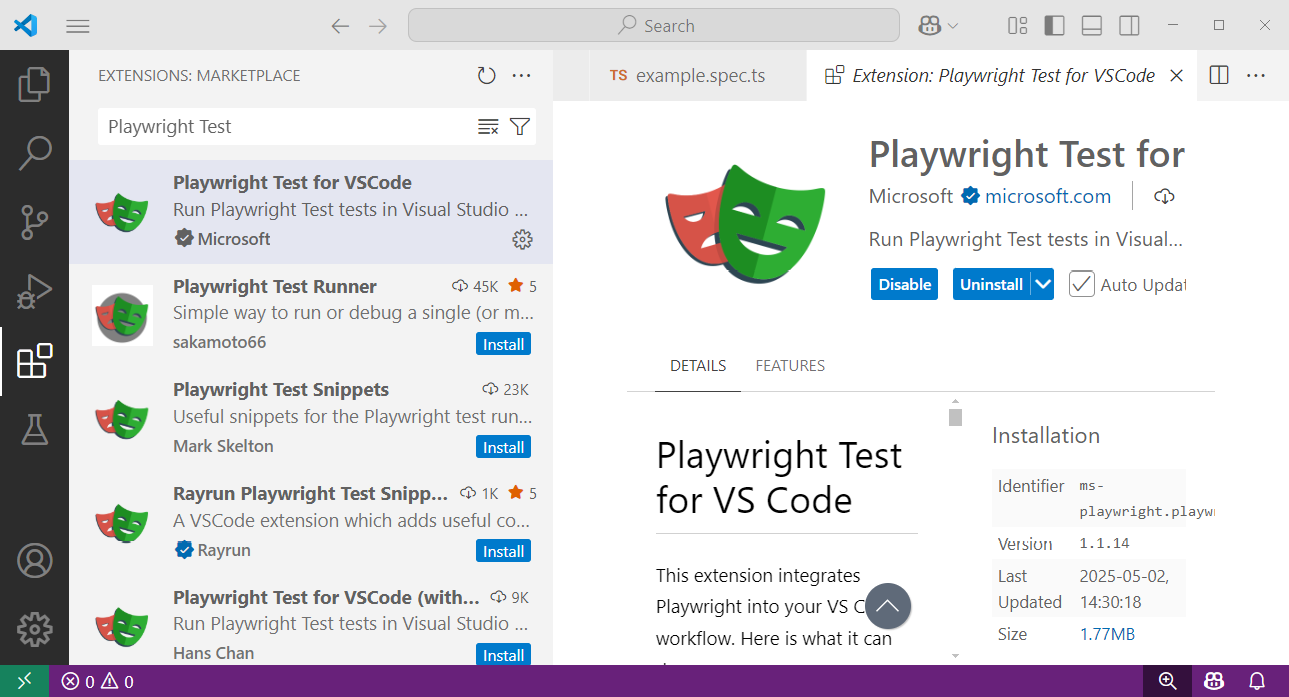
Using a modern IDE such as Visual Studio Code (VS Code) can improve your coding experience. Start by installing helpful extensions such as the official Playwright Test extension, which provides syntax highlighting, code completion, and inline test results:

Figure 1.1: Extensions view in VS Code
To install the extension in VS Code, follow these steps:
Playwright Test.You can also add ESLint and Prettier for code formatting, which help keep your code consistent. Setting them up is pretty similar to how you installed Playwright Test for VS Code.
Playwright allows you to customize how your tests run by using the playwright.config.ts file. In this file, you can set global preferences, tweak browser behavior, and fine-tune how your tests are executed. This section will guide you through the key settings to help you get started.
First, go to your project directory. If you don’t have a playwright.config.ts file yet (maybe you’re working with an existing project), you can create the config file manually.
The following is an example of a minimal configuration:
import { defineConfig } from '@playwright/test';
export default defineConfig({
testDir: './tests', // Directory where tests are located
timeout: 30000, // Test timeout in milliseconds
use: {
browserName: 'chromium', // Default browser
headless: true, // Run tests in headless mode
viewport: { width: 1280, height: 720 }, // Default viewport size
},
});
Once the initial configuration is in place, you can begin customizing it to better suit your project’s specific testing needs.
The configuration file supports a variety of options to customize test execution. When you’re setting things up, it’s best to keep it simple at first. Start with the basic settings, and only add complexity if you need it later. Also, make sure to document your choices by adding comments in the config file. This way, you can easily remember why certain settings were made, and it’ll be clearer for anyone else who works on it later.
The following are the most commonly used settings. We’ll come back to many of these in later chapters, so no worries if you’re not totally sure how they work just yet.
Use these options to control which files Playwright includes or excludes when discovering tests:
testDir: Specifies the directory containing your test files. By default, Playwright looks for tests in the ./tests folder.testMatch: Defines a pattern to match test files (such as *.spec.ts or /*.test.ts).testIgnore: Excludes files or directories from test discovery (such as /*.setup.ts).The following is an example:
export default defineConfig({
testDir: './tests',
testMatch: '/*.spec.ts',
testIgnore: '/*.unit.ts',
});
These settings define how long Playwright should wait before timing out at different stages of the test run:
timeout: Maximum time (in milliseconds) for a test to completeglobalTimeout: Maximum time for the entire test suite to runactionTimeout: Timeout for individual Playwright actions (such as page.click())The following is an example:
export default defineConfig({
timeout: 30000, // 30 seconds per test
globalTimeout: 1800000, // 30 minutes for the entire suite
use: {
actionTimeout: 10000, // 10 seconds per action
},
});
The use property defines default browser and context settings for all tests:
browserName: Specifies the browser (Chromium, Firefox, or WebKit)headless: Runs browsers in headless (true) or headed (false) modeviewport: Sets the default viewport sizelocale: Configures the browser’s language (such as en-US)timezoneId: Sets the browser’s timezone (such as America/New_York)device: Emulates a specific device from Playwright’s device list (such as iPhone 16)The following is an example:
export default defineConfig({
use: {
browserName: 'firefox',
headless: false,
viewport: { width: 1920, height: 1080 },
locale: 'en-GB',
timezoneId: 'Europe/London',
device: 'Desktop Firefox',
},
});
These options manage how tests are executed in parallel and across CPU resources:
workers: Number of parallel test workers. Set to a number (such as 4) or '50%' to use half the CPU coresfullyParallel: Enables (true) or disables (false) running tests in parallel within a single fileThe following is an example:
export default defineConfig({
workers: 3, // Run 3 tests in parallel
fullyParallel: true,
});
These settings help control test retries and when the test run should stop after failures:
retries: Controls how many times a failed test will be retried before it’s marked as failedmaxFailures: Sets a global threshold for how many test failures are allowed before Playwright stops the entire test runThe following is an example:
export default defineConfig({
retries: 2, // Retry failed tests twice
maxFailures: 10, // Stop after 10 failures
});
Now we come to reporter. Playwright supports multiple reporters for test output. Options include list, dot, line, json, junit, html, or custom reporters.
The following is an example:
export default defineConfig({
reporter: [
['list'], // Console output
['html', { outputFolder: 'playwright-report' }], // HTML report
['json', { outputFile: 'test-results.json' }], // JSON report
],
});
To view the HTML report, run the following:
npx playwright show-report
When Playwright runs in a CI/CD pipeline (which is usually headless), the command to open a browser may hang, which causes the entire pipeline job to get stuck and eventually time out. When running in CI/CD, explicitly set the open option to 'never' for the HTML reporter in the configuration file:
export default defineConfig({
reporter: [
['list'],
['html', { outputFolder: 'playwright-report', open: 'never' }],
['json', { outputFile: 'test-results.json' }],
],
});
The projects property allows you to define multiple test configurations (such as for different browsers or devices). Each project inherits global settings but can override them.
The following is an example:
export default defineConfig({
projects: [
{
name: 'Chromium',
use: { browserName: 'chromium' },
},
{
name: 'Firefox',
use: { browserName: 'firefox' },
},
{
name: 'Mobile Safari',
use: { device: 'iPhone 16' },
},
],
});
Run tests for a specific project:
npx playwright test --project=Chromium
If your tests fail because of a configuration issue. Start by checking the syntax to make sure your configuration file is correct in TypeScript. Next, check the logs by running the tests with the --debug flag using the npx playwright test --debug command to get a closer look at Playwright’s behavior. If you’re still stuck, try temporarily reverting to the default settings to help isolate the problem. Lastly, make sure you’re using the latest version of Playwright by running npm install @playwright/test@latest to stay up to date.
With your development and testing environments properly configured, you’re now ready to dive into the core functionality of Playwright.
Change the font size
Change margin width
Change background colour