Sign In Start Free Trial
Account

Add to playlist

Create a Playlist

Modal Close icon
You need to login to use this feature.
  • Book Overview & Buying Mastering Vim
  • Table Of Contents Toc
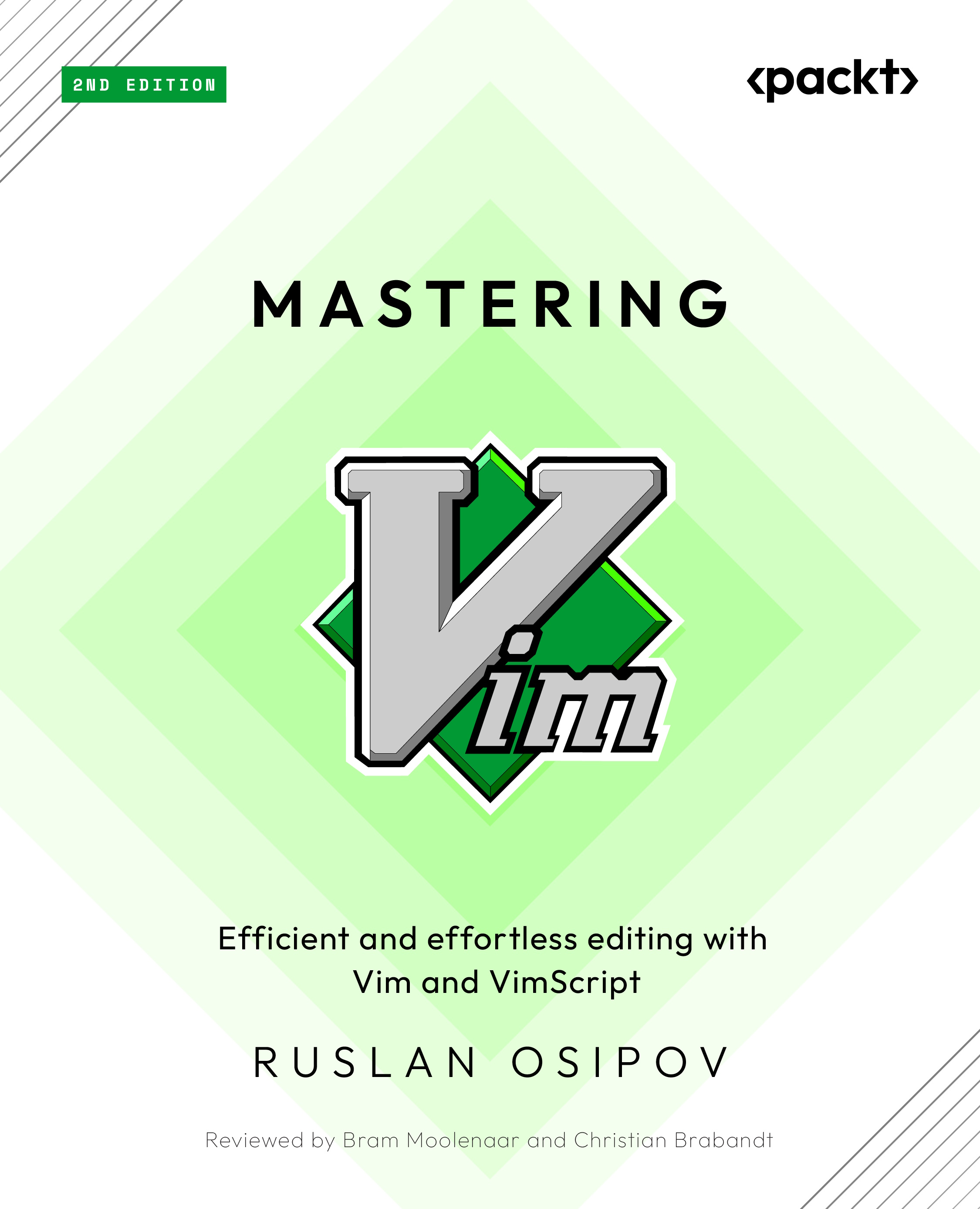
Mastering Vim

Mastering Vim - Second Edition

By : Ruslan Osipov
5 (1)
close
close
Mastering Vim

Mastering Vim

5 (1)
By: Ruslan Osipov

Overview of this book

Discover what makes Vim one of the most popular text editors in the world, renowned for its blend of efficiency, customization, extensibility, and portability. With Mastering Vim, you’ll come to appreciate its extensive plugin system and seamless integration with various tools, which enable Vim to provide developers with an extensible and customizable development environment for programmers. This comprehensive guide to Vim will help you become more efficient at editing text: be it prose or code. Starting from the basics, advanced movement, and text operations, you’ll learn how Vim can be used as a full-fledged IDE. You’ll then progress to refactoring, debugging, building, testing, version control, plugins, and Vimscript through practical guidance. This second edition comes packed with fully revamped examples that are both engaging and easy to understand, complemented by drawings and diagrams that help to visualize the concepts covered in the book. Updated to cover Vim 9, this edition includes updated installation and troubleshooting instructions, along with examples in Vim9script. By the end of this Vim book, you’ll be well-versed in Vim and have the skills you need to build a complete application using this popular text editor.
Table of Contents (11 chapters)
close
close

Configuring Vim with your .vimrc

Vim reads configuration from a .vimrc file. Vim works out of the box, but there are certain options that make working with code a lot easier.

Spot hidden files

In Unix-like systems, files that start with a period (.) are hidden. To see them, run ls -a in a Command line.

In Linux and macOS, .vimrc is located in your user directory (the full path would be /home/<username>/.vimrc). You can also find your user directory by opening a Command Prompt and running the following command:

$ echo $HOME

Older versions of Windows Explorer did not allow periods in file names, so the file is named _vimrc. It’s usually located in C:\Users\<username>\_vimrc, but you can also locate it by opening the Windows Command Prompt and running the following command:

$ echo %USERPROFILE%

Locating .vimrc

If you run into problems, open Vim and type in :echo $MYVIMRC followed by Enter. It should display where Vim is reading .vimrc from.

Find the proper location for your OS, and place the prepared configuration file there. You can download the .vimrc file used for this chapter from GitHub at https://github.com/PacktPublishing/Mastering-Vim-Second-Edition/tree/main/Chapter01. The following code shows the contents of a .vimrc file used in this chapter:

syntax on " Enable syntax highlighting.
filetype plugin indent on " Enable file type based options.
set nocompatible " Don't run in backwards compatible mode.
set autoindent " Respect indentation when starting new line.
set expandtab " Expand tabs to spaces. Essential in Python.
set tabstop=4 " Number of spaces tab is counted for.
set shiftwidth=4 " Number of spaces to use for autoindent.
set backspace=2 " Fix backspace behavior on most terminals.
colorscheme murphy " Change a colorscheme.

You’ll eventually want to change these

For extra credit, you may want to limit some options to Python only – especially if you’re (hopefully) planning to use Vim as your primary editor for multiple file types. I recommend you prefix certain options with autocmd filetype python, which will only apply options to Python files:

autocmd filetype python set expandtab

autocmd filetype python set tabstop=4

autocmd filetype python set shiftwidth=4

Lines starting with a double quote (") are comments and are ignored by Vim. These settings bring in some sensible defaults, such as syntax highlighting and consistent indentation. They also fix one of the common sticking points in a bare-bones Vim installation – inconsistent backspace key behavior across different environments.

Trying out the configuration options

When working with Vim configuration, you can try things out before adding them to your .vimrc file. To do that, type : followed by a command, for example, :set autoindent (press Enter to execute). If you ever want to know the value of a setting, add ? at the end of the command: for example, :set tabstop? will tell you the current tabstop value.

I’ve also changed colorscheme to make screenshots look better in print, but you don’t have to (unless you’re writing a book about Vim – then you probably should).

The world is full of colors

Vim 9 comes prepackaged with many color themes, and the list grows with every release. You can try out a color theme by typing :colorscheme <name> and hitting Enter, and you can cycle through the available color scheme names by typing :colorscheme followed by a space and by hitting Tab multiple times. You can read more about configuring Vim and color schemes (including using color schemes you find online) in Chapter 7.

You’ve configured Vim, and now it’s time to learn how to actually use it!

CONTINUE READING
83
Tech Concepts
36
Programming languages
73
Tech Tools
Icon Unlimited access to the largest independent learning library in tech of over 8,000 expert-authored tech books and videos.
Icon Innovative learning tools, including AI book assistants, code context explainers, and text-to-speech.
Icon 50+ new titles added per month and exclusive early access to books as they are being written.
Mastering Vim
notes
bookmark Notes and Bookmarks search Search in title playlist Add to playlist download Download options font-size Font size

Change the font size

margin-width Margin width

Change margin width

day-mode Day/Sepia/Night Modes

Change background colour

Close icon Search
Country selected

Close icon Your notes and bookmarks

Confirmation

Modal Close icon
claim successful

Buy this book with your credits?

Modal Close icon
Are you sure you want to buy this book with one of your credits?
Close
YES, BUY

Submit Your Feedback

Modal Close icon
Modal Close icon
Modal Close icon