


-
Book Overview & Buying
-
Table Of Contents

Mastering Vim - Second Edition
By :


Mastering Vim
By:
Overview of this book
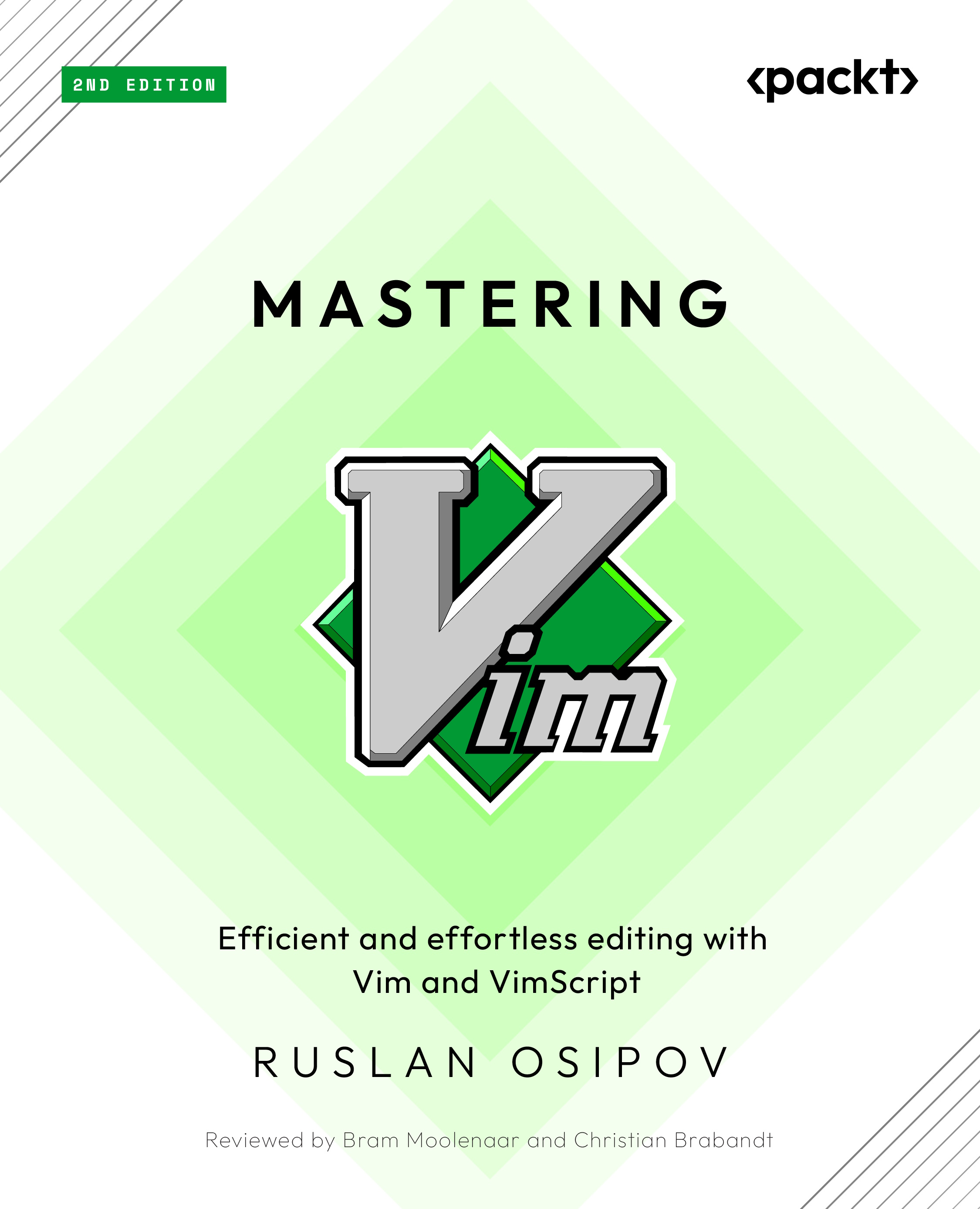
Discover what makes Vim one of the most popular text editors in the world, renowned for its blend of efficiency, customization, extensibility, and portability. With Mastering Vim, you’ll come to appreciate its extensive plugin system and seamless integration with various tools, which enable Vim to provide developers with an extensible and customizable development environment for programmers.
This comprehensive guide to Vim will help you become more efficient at editing text: be it prose or code. Starting from the basics, advanced movement, and text operations, you’ll learn how Vim can be used as a full-fledged IDE. You’ll then progress to refactoring, debugging, building, testing, version control, plugins, and Vimscript through practical guidance. This second edition comes packed with fully revamped examples that are both engaging and easy to understand, complemented by drawings and diagrams that help to visualize the concepts covered in the book. Updated to cover Vim 9, this edition includes updated installation and troubleshooting instructions, along with examples in Vim9script.
By the end of this Vim book, you’ll be well-versed in Vim and have the skills you need to build a complete application using this popular text editor.
Table of Contents (11 chapters)
Preface


 Free Chapter
Chapter 1: Getting Started
Chapter 2: Advanced Editing and Navigation

Chapter 3: Follow the Leader Plugin Management
Chapter 4: Understanding Structured Text
Chapter 5: Build, Test, and Execute
Chapter 6: Refactoring Code with Regex and Macros
Chapter 7: Making Vim Your Own
Chapter 8: Transcending the Mundane with Vimscript
Chapter 9: Where to Go from Here


