Sign In Start Free Trial
Account

Add to playlist

Create a Playlist

Modal Close icon
You need to login to use this feature.
  • Book Overview & Buying Mastering Vim
  • Table Of Contents Toc
Mastering Vim

Mastering Vim - Second Edition

By : Osipov
5 (1)
close
close
Mastering Vim

Mastering Vim

5 (1)
By: Osipov

Overview of this book

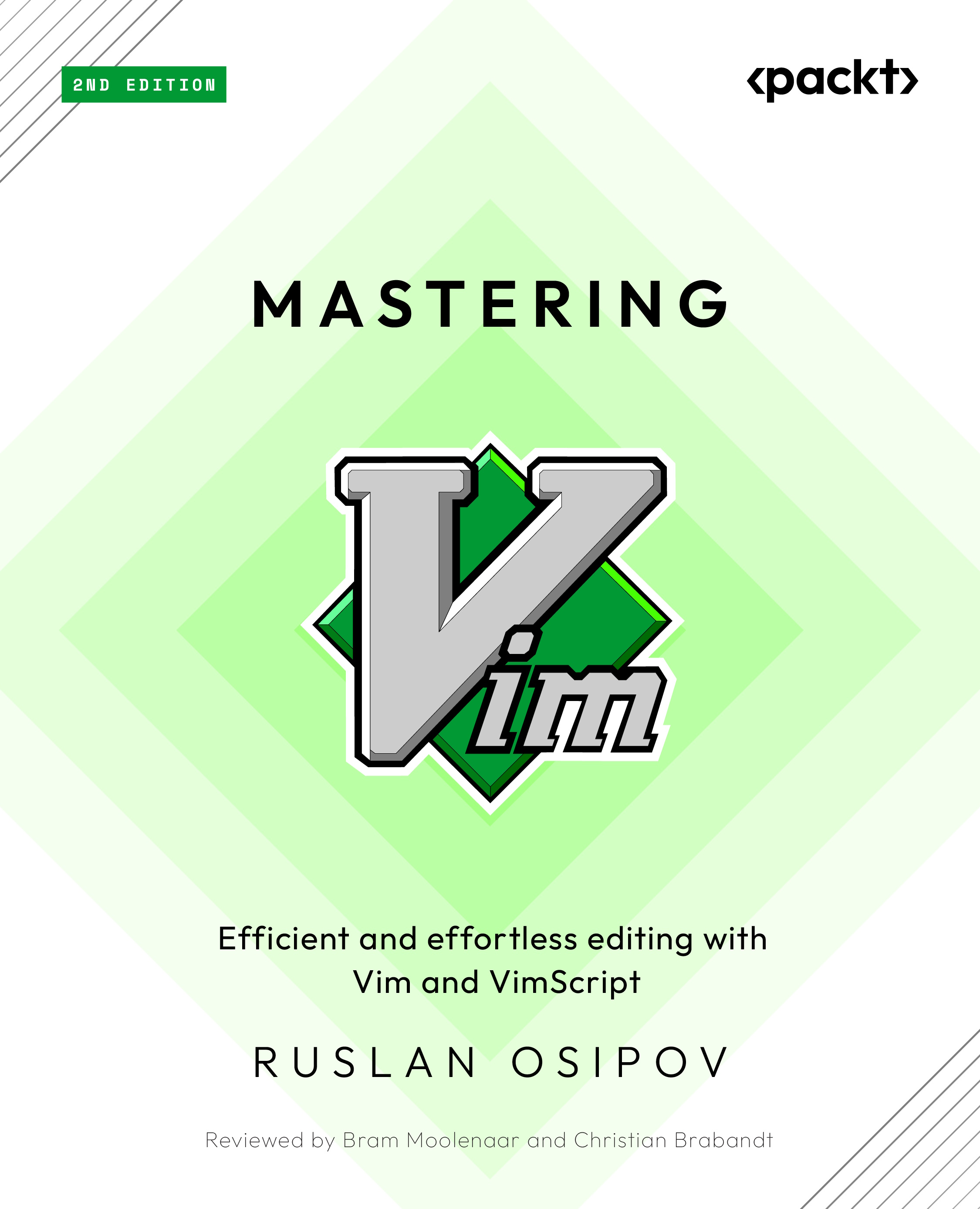
Discover what makes Vim one of the most popular text editors in the world, renowned for its blend of efficiency, customization, extensibility, and portability. With Mastering Vim, you’ll come to appreciate its extensive plugin system and seamless integration with various tools, which enable Vim to provide developers with an extensible and customizable development environment for programmers. This comprehensive guide to Vim will help you become more efficient at editing text: be it prose or code. Starting from the basics, advanced movement, and text operations, you’ll learn how Vim can be used as a full-fledged IDE. You’ll then progress to refactoring, debugging, building, testing, version control, plugins, and Vimscript through practical guidance. This second edition comes packed with fully revamped examples that are both engaging and easy to understand, complemented by drawings and diagrams that help to visualize the concepts covered in the book. Updated to cover Vim 9, this edition includes updated installation and troubleshooting instructions, along with examples in Vim9script. By the end of this Vim book, you’ll be well-versed in Vim and have the skills you need to build a complete application using this popular text editor.
Table of Contents (11 chapters)
close
close

Persistent undo and repeat

Like any editor, Vim keeps track of every operation. Press u to undo a last operation, and Ctrl + r to redo it.

Undo tree

To learn more about Vim’s undo tree (Vim’s undo history is not linear) and how to navigate it, see Chapter 4.

Vim also allows you to persist undo history between sessions, which is great if you want to undo (or remember) something you’ve done a few days ago!

You can enable persistent undo by adding the following line to your .vimrc:

set undofile

However, this will litter your system with an undo file for each file you’re editing. You can consolidate the undo files in a single directory, as seen in the following example:

" Set up persistent undo across all files.
set undofile
let my_undo_dir = expand('$HOME/.vim/undodir')
if !isdirectory(my_undo_dir))
  call mkdir(my_undo_dir, "p")
endif
set undodir=my_undo_dir

For Windows users

If you’re using Windows, replace the directories with $USERPROFILE\vimfiles\undodir (and you’ll be making changes to _vimrc instead of .vimrc).

Now, you’ll be able to undo and redo your changes across sessions.

CONTINUE READING
83
Tech Concepts
36
Programming languages
73
Tech Tools
Icon Unlimited access to the largest independent learning library in tech of over 8,000 expert-authored tech books and videos.
Icon Innovative learning tools, including AI book assistants, code context explainers, and text-to-speech.
Icon 50+ new titles added per month and exclusive early access to books as they are being written.
Mastering Vim
notes
bookmark Notes and Bookmarks search Search in title playlist Add to playlist download Download options font-size Font size

Change the font size

margin-width Margin width

Change margin width

day-mode Day/Sepia/Night Modes

Change background colour

Close icon Search
Country selected

Close icon Your notes and bookmarks

Confirmation

Modal Close icon
claim successful

Buy this book with your credits?

Modal Close icon
Are you sure you want to buy this book with one of your credits?
Close
YES, BUY

Submit Your Feedback

Modal Close icon
Modal Close icon
Modal Close icon