Sign In Start Free Trial
Account

Add to playlist

Create a Playlist

Modal Close icon
You need to login to use this feature.
  • Book Overview & Buying Developing Multi-Platform Apps with Visual Studio Code
  • Table Of Contents Toc
Developing Multi-Platform Apps with Visual Studio Code

Developing Multi-Platform Apps with Visual Studio Code

By : Mehboob Ahmed Khan, Habib
4.9 (7)
close
close
Developing Multi-Platform Apps with Visual Studio Code

Developing Multi-Platform Apps with Visual Studio Code

4.9 (7)
By: Mehboob Ahmed Khan, Habib

Overview of this book

Microsoft Visual Studio Code is a powerful, lightweight code editor for modern web and cloud development. It is a source code editor that can be used with a variety of programming languages, which works on multiple platforms such as Linux, Windows, and macOS. This book provides extensive coverage of the tools, functionalities, and extensions available within the VS Code environment that will help you build multi-platform apps with ease. You’ll start with the installation of VS Code and learn about various tools and features that are essential for development. Progressing through the chapters, you'll explore the user interface while understanding tips and tricks for increasing productivity. Next, you’ll delve into VS Code extensions and discover how they can make life easier for developers. Later, the book shows you how to develop a sample application with different programming languages, tools, and runtimes to display how VS code can be used effectively for development, before helping you get to grips with source code version management and deployment on Azure with VS Code. Finally, you’ll build on your skills by focusing on remote development with VS Code. By the end of this book, you’ll have the knowledge you need to use Visual Studio Code as your primary tool for software development.
Table of Contents (15 chapters)
close
close
1
Section 1: Introduction to Visual Studio Code
4
Section 2: Developing Microservices-Based Applications in Visual Studio Code
11
Section 3: Advanced Topics on Visual Studio Code

Discussing basic features of VS Code

With a brief introduction to development tools, we will now start off our learning journey by exploring some basic features of VS Code.

Files and folders

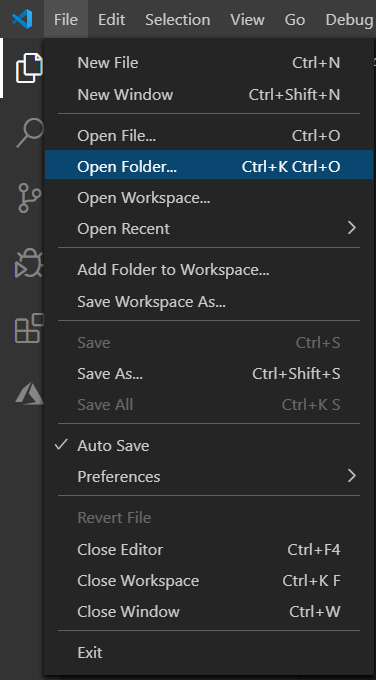
Unlike an IDE, VS Code does not depend on creating a solution or a project file. Your project is your folder, with subfolders and files in it. You can use the File menu and Open File... or Open Folder to start editing, as illustrated in the following screenshot:

Figure 1.1 – File menu in VS Code editor

Figure 1.1 – File menu in VS Code editor

Opening the folder will load all the files of the folder in VS Code. You can open multiple folders at a time. These folders will be available in the left pane of the editor.

Workspace

Often, your product will be organized into multiple interlinked projects. In this case, VS Code provides an option to combine these folders in a workspace. This way, when you open a workspace, it will open all the related project folders.

To do this, you can simply select the Add Folder to Workspace… option and then use Save Workspace As… to save your workspace. This will generate a file of type .code-workspace that will contain all the folder names included in this workspace, as illustrated in the following screenshot:

Figure 1.2 – Project folders and the workspace file

Figure 1.2 – Project folders and the workspace file

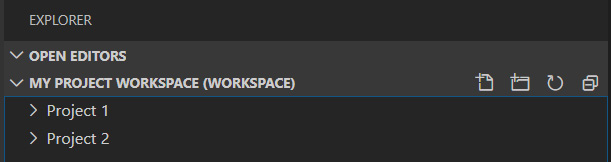
Opening the workspace in the editor will open the linked project folders. The following screenshot shows how the workspace and folders are linked together in VS Code:

Figure 1.3 – Project folders part of workspace in the editor

Figure 1.3 – Project folders part of workspace in the editor

The following code snippet shows the content of the .code-workspace file, for the preceding two projects:

{
	''folders'': [
		{
			''path'': ''Project 1''
		},
		{
			''path'': ''Project 2''
		}
	],
	''settings'': {}
}

The .code-workspace file stores the path of folders linked in the workspace.

IntelliSense

One of the most powerful features for any developer is code completion: it comes in very handy when the development environment prompts the methods or attributes of a class, or suggests a list of keywords matching with what you are typing.

VS Code provides out-of-the-box IntelliSense for JavaScript, TypeScript, Javascript Object Notation (JSON), HTML, CSS, and Sassy CSS (SCSS). If this list does not satisfy your requirements, you can add a language extension of your choice from the marketplace. Just as with any other IDE, use Ctrl + spacebar to trigger the IntelliSense for the context.

Tasks

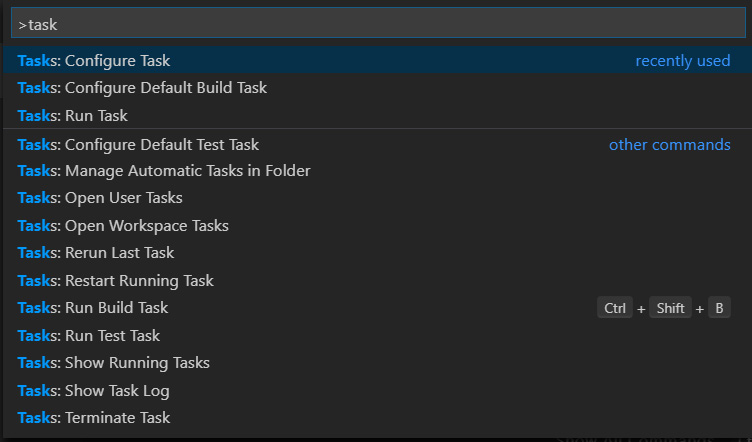
Compared to editors, IDEs provide automated and well-integrated processes that increase the productivity of a developer. These can include build processes, linting, and deployment, among others. VS Code provides similar functionality through its Tasks framework, which is illustrated in the following screenshot:

Figure 1.4 – Command Palette showing the Tasks option

Figure 1.4 – Command Palette showing the Tasks option

Based on the files in your projects, it can detect tasks for build tools such as gulp, grunt, jake, and npm and also provides an option to create your own task runners using predefined templates. You can also link your tasks to the overall build process, which is triggered by Ctrl + Shift + B. Have a look at the following screenshot:

Figure 1.5 – Select a task template

Figure 1.5 – Select a task template

The preceding screenshot shows the list of task templates to choose from.

Debugging

Another important feature of VS Code is the ability to debug code. Using VS Code, you can debug Node.js, JavaScript, and TypeScript out of the box, as illustrated in the following screenshot:

Figure 1.6 – Multiplatform debugging support

Figure 1.6 – Multiplatform debugging support

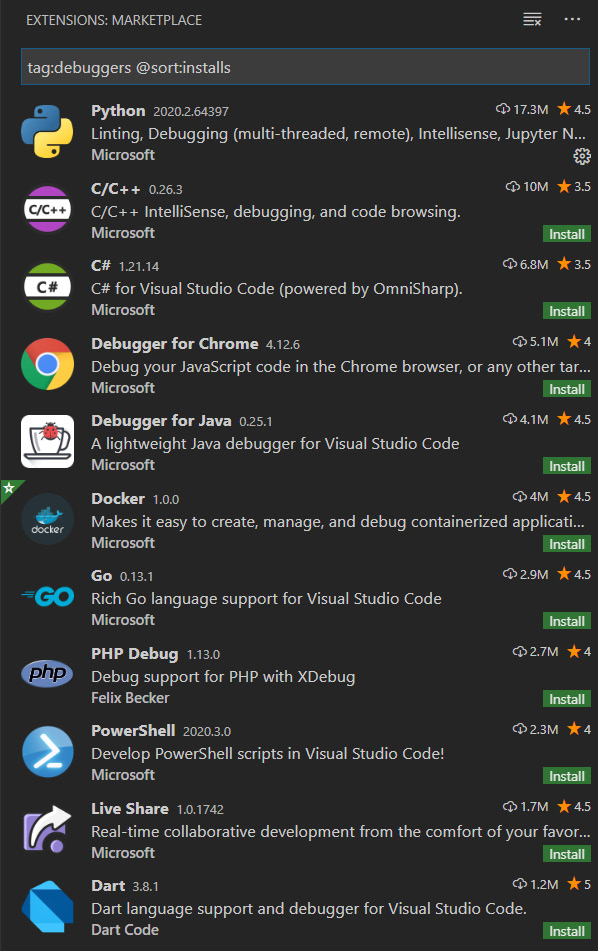
Apart from the preceding code base, you can install debugger extensions from the marketplace within the tool, as illustrated in the following screenshot:

Figure 1.7 – Debugger extensions on marketplace

Figure 1.7 – Debugger extensions on marketplace

Chapter 6, Debugging Techniques, is dedicated to exploring debugging in detail with VS Code.

Version control

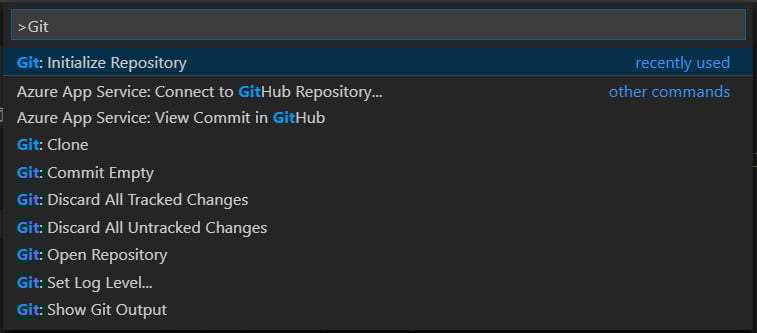
VS Code integrates Git for version control. You can quickly initialize your Git repository by calling the command palette with Ctrl + Shift + P or Command + Shift + P and selecting Git: Initialize Repository, as illustrated in the following screenshot:

Figure 1.8 – Initialize Git repository using the command palette

Figure 1.8 – Initialize Git repository using the command palette

To clone a repository, call the command palette and select Git: Clone, VS Code will request you to enter the Uniform Resource Locator (URL). After entering the URL, you can specify the folder or directory where you want your code to be cloned. The Git: Clone functionality can be seen in the following screenshot:

Figure 1.9 – Clone Git repository using the command palette

Figure 1.9 – Clone Git repository using the command palette

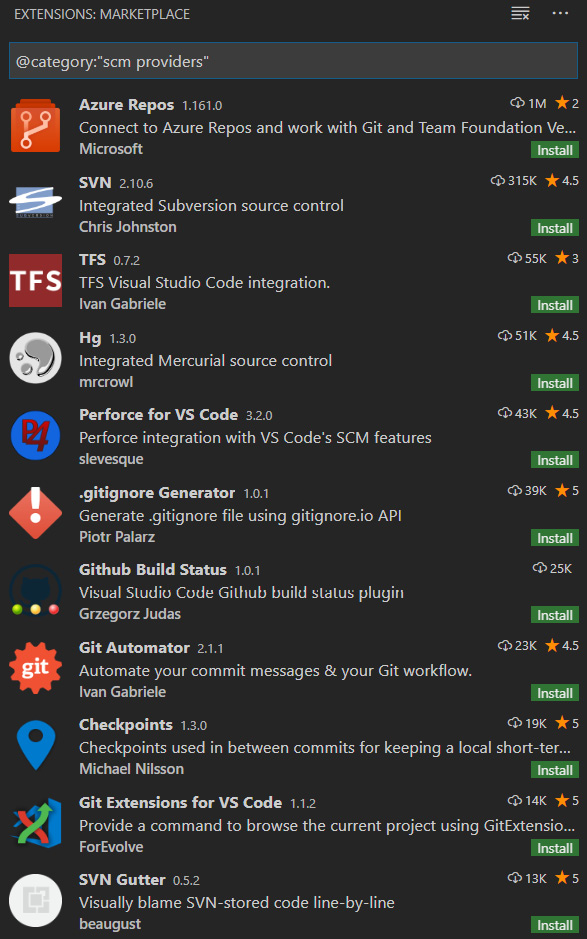
Additionally, you can also search for your favorite source code management tool extensions, as illustrated in the following screenshot:

Figure 1.10 – Integrate other source code management extensions from marketplace

Figure 1.10 – Integrate other source code management extensions from marketplace

The preceding screenshot shows a list of source code management extensions available in VS Code.

Keyboard shortcuts

Keyboard shortcuts provide quick accessibility of features; using them, you can navigate to options using commands instead of menus. To view a complete list of keyboard shortcuts, you can go to Files | Preferences | Keyboard Shortcuts. You can also use the pencil icon to change the shortcut.

We have now explored some basic features of VS Code. Next, let's move toward setting up our VS Code environment.

CONTINUE READING
83
Tech Concepts
36
Programming languages
73
Tech Tools
Icon Unlimited access to the largest independent learning library in tech of over 8,000 expert-authored tech books and videos.
Icon Innovative learning tools, including AI book assistants, code context explainers, and text-to-speech.
Icon 50+ new titles added per month and exclusive early access to books as they are being written.
Developing Multi-Platform Apps with Visual Studio Code
notes
bookmark Notes and Bookmarks search Search in title playlist Add to playlist download Download options font-size Font size

Change the font size

margin-width Margin width

Change margin width

day-mode Day/Sepia/Night Modes

Change background colour

Close icon Search
Country selected

Close icon Your notes and bookmarks

Confirmation

Modal Close icon
claim successful

Buy this book with your credits?

Modal Close icon
Are you sure you want to buy this book with one of your credits?
Close
YES, BUY

Submit Your Feedback

Modal Close icon
Modal Close icon
Modal Close icon