-
Book Overview & Buying
-
Table Of Contents
Vaadin 7 Cookbook
By :
In this recipe, we are going to create a new Vaadin project in the Eclipse IDE.
Download and install the latest version from the Eclipse download page (specifically Eclipse IDE for Java EE Developers), http://www.eclipse.org/downloads.
There is an Eclipse extension for Vaadin, which helps us with the creation of Vaadin projects, widget set compilation, and so on. The instructions on how to install the extension are at http://vaadin.com/eclipse.
Carry out the following steps in order to create a new project in Eclipse IDE:
Open the New Project window and search for vaadin.

There should be a few Vaadin wizards listed. Choose Vaadin 7 Project and click on the Next button.

Fill in the name of the project. Select Apache Tomcat v7.0 as Target runtime and click on the Finish button.

Eclipse
makes a Hello world application for us. All the application code has been placed in the HellovaadinUI class. Now we can run the project. Right-click on the name of the project, go to Run As, and then click on Run on Server. Choose Apache Tomcat v7.0 to run our application and confirm the dialog window.

The application appears in the
Eclipse's Internal Web Browser or we can open the started application in our favorite browser: http://localhost:8080/HelloVaadin.

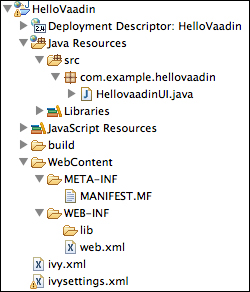
Let's have a look at what has been generated by Eclipse.

The following table explains the content of the important directories:
|
Directory / Project Item |
Description |
|---|---|
|
|
Is not a real directory but it offers a user-friendly way to edit the |
|
|
Contains the entire project's Java source code. |
|
|
Contains deployment descriptor file In this folder we can make a |
|
|
Is used to store compiled classes. |
web.xml must contain the definition of the UI class, servlet, and URL mapping. It must be located inside the WEB-INF folder.
Now we can try to change the code inside the HellovaadinUI class, so the application prints out the name of the system user.
String user = System.getProperty("user.name");
Label label = new Label("Hello Vaadin user: " + user);
layout.addComponent(label);Notice we can see the changes in code without restarting the application server. The project is recompiled after we save a file and changes are visible in the browser right away.
We need to add the ?restartApplication parameter into the URL when running a Vaadin application with the @PreserveOnRefresh annotation on our UI class.
Change the font size
Change margin width
Change background colour