Sign In Start Free Trial
Account

Add to playlist

Create a Playlist

Modal Close icon
You need to login to use this feature.
  • Book Overview & Buying Microsoft Dynamics CRM 2011 Cookbook
  • Table Of Contents Toc
Microsoft Dynamics CRM 2011 Cookbook

Microsoft Dynamics CRM 2011 Cookbook

By : Dipankar Bhattacharya
3.8 (4)
close
close
Microsoft Dynamics CRM 2011 Cookbook

Microsoft Dynamics CRM 2011 Cookbook

3.8 (4)
By: Dipankar Bhattacharya

Overview of this book

Without a comprehensive understanding of deployment scenarios and steps, it is really difficult to install and maintain Dynamics CRM 2011 within complex IT infrastructures. Done badly, it can cause serious future maintenance and optimization issues. Administration of CRM systems is equally complex and important; unless efficiently done, it can create fuss in the system and potentially bring down end user satisfaction. Configuration and customization of the system has to be done very carefully too so that it can meet the functional needs appropriately.“Microsoft Dynamics CRM 2011 Cookbook" is a hands-on guide, providing clear, step-by-step instructions to deploy, maintain, optimize, and administer Dynamics CRM 2011 along with advanced configuration and customization processes, to give us a strong advantage in creating successful CRM applications.This book introduces Dynamics CRM 2011 by describing the important aspects of the system. It will take you through a number of clear and practical recipes from successful deployment, hassle-free maintenance, and effective administration to advanced level configuration and customization techniques.You will learn from a range of deployment and maintenance topics such as how to configure CRM to use claim-based authentication using AD FS, how to enable tracing in CRM servers, how to recover from server failures, and how to optimize server performance. This book will also discuss how to schedule Data Duplication detection jobs, enable auditing, export and import managed/unmanaged solutions, create 1:N, N:1, or N:N relationships between entities, configuring role based forms, adding a new button in the ribbon, SharePoint integration with CRM, and configuring a dialog or workflow.You will learn everything you need to know, from deployment, administration, and maintenance to configuration, integration, and customization for your Dynamics CRM 2011 application.
Table of Contents (18 chapters)
close
close
Microsoft Dynamics CRM 2011 Cookbook
Credits
About the Author
Acknowledgments
About the Reviewers
www.PacktPub.com
Preface
1
Index

Deploying Microsoft Dynamics CRM on multiple servers


Earlier, in the Single server versus multiserver subsection of this chapter's Introduction section, we mentioned some of the reasons for and benefits of installing Dynamics CRM 2011 on multiple computers. In this recipe, we will discuss how to deploy Dynamics CRM on a multiserver environment.

Getting ready

In a multiple-server deployment, there are usually two or more server computers running the Dynamics CRM 2011 Full Server installation. But for improved performance, the server roles (Front End Server role, Back End Server role, Deployment Administration Server) can further be deployed across different server machines. When Dynamics CRM 2011 is deployed across multiple servers, Network Load Balancing (NLB) must be configured to provide load balancing.

In case of deploying various server roles into separate servers, Microsoft's recommendation is to not install the Help Server role on the same server where Front End Server roles are installed. This is to minimize the CRM system's exposure to denial-of-service attacks.

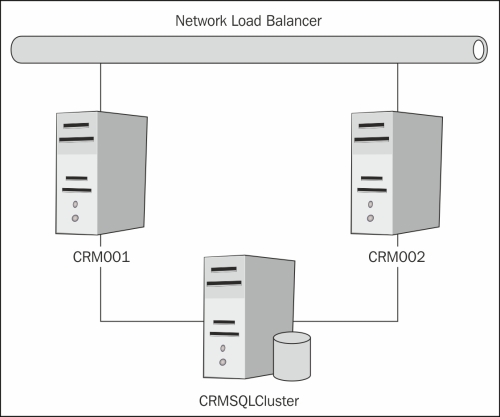
Let us take an example of two server nodes (CRM001 and CRM002), where Microsoft Dynamics CRM 2011 Full Server is configured (or will be installed) as a server cluster (CRMCluster) and the CRM installation uses a SQL Cluster environment (SQLCluster).

The following network diagram describes our multiserver deployment scenario:

We have to perform the following steps to make this setup work:

  • Installing Dynamics CRM 2011 on both the server nodes (CRM001 and CRM002)

  • Creating a server cluster (CRMCluster)

  • Configuring the SPN for the CRM Application Pool service account (CRMServiceAccount)

  • Configuring NLB

How to do it…

To achieve multi-server deployment in our scenario, we have to complete the following subtasks.

First, we have to install Dynamics CRM 2011 on two server nodes; we will achieve this one at a time. Here, we are assuming that the installation of a Full Server role will be performed for both these server machines. As stated in the earlier sections, installing Microsoft Dynamics CRM Workgroup Server 2011 on multiple servers is not supported.

To install Dynamics CRM 2011 on these two machines, perform the following steps on each of the machines independently:

  1. Follow the steps outlined in the Installing Dynamics CRM 2011 Server recipe to install Dynamics CRM 2011 server.

  2. On the Specify Deployment Options page, select the instance of SQL Server that will be used for the Microsoft Dynamics CRM databases (CRMSQL). Then, check the Create a new deployment option. Click on Next and continue the setup.

  3. On the Specify Security Account page, select a domain user account (CRMServiceAccount) that has been created previously.

  4. Click on Continue to finish the installation.

The next steps are to create a server cluster for servers CRM001 and CRM002 and to enable loading balancing between them. The recommended settings while creating the NLB are as follows:

  • Port Range: 0 to 65535 (the default range)

  • Protocols: Both

  • Affinity: Single

The next step is to configure the SPN for the CRM Application Pool service account.

In this deployment, we are using a domain user account (CRMServiceAccount) to run the Dynamics CRM 2011 Application Pool. When IIS 7.0 (or higher) is used on a cluster environment, we need to set up SPN for the Application Pool account. Active Directory uses the SPN for mutual authentication of a service instance, which enables the service instance to correctly authenticate a user who attempts to access resources that are located on other domain-member computers.

Perform the following steps to configure the SPN for the CRM Application Pool Account:

  1. Log in to the Active Directory server machines with domain admin credentials.

  2. Launch the ADSI Edit console from All Programs | Administrative Tools | ADSI Edit.

  3. Expand the domain and the node that starts with DC= and then expand CN=Users.

  4. Right-click on CRMServiceAccount and click on Properties.

  5. From the attribute list, select servicePrincipalName and then click on Edit.

  6. In the Value to add textbox, enter HTTP/CRMNLBName.FQDN and then click on Add.

    Here, CRMNLBName is the CRM Server's cluster name (in this case, CRMCluster) and FQDN is the Fully Qualified Domain Name of the cluster, for example, CRMCluster.MyOrg.com.

  7. In the Value to add box, enter HTTP/CRMNLBName and then click on Add.

  8. Click on OK the next two times.

  9. Close the ADSI Edit window.

Now it is time to configure the NLB for this deployment. NLB will be configured using Dynamics CRM 2011 Deployment Manager. Perform the following steps to configure the NLB:

  1. Launch the deployment manager. This is usually accessible via the following path:

    Start | All Programs | Microsoft Dynamics CRM | Deployment Manager

  2. Right-click on Microsoft Dynamics CRM, and then click on Properties as shown in the following screenshot:

  3. Click on the Web Address tab and verify that the cluster name (in this example, CRMCluster) appears, and then click on Advanced:

  4. Select The deployment uses an NLB. Click on OK and then close the deployment manager:

How it works…

Multiserver deployment gives performance benefits and scaling advantages. However, with Microsoft Dynamics CRM Workgroup Server 2011, the Dynamics CRM 2011 server roles cannot be installed on separate computers. Load balanced multiserver deployment, as stated in the recipe, is essentially the most likely deployment paradigm in a production environment.

There's more…

It is common practice to deploy Dynamics CRM 2011 with a SQL Server clustered environment. To achieve this, create a SQL Server cluster, and then during Dynamics CRM 2011 installation, on the Select SQL Server page, type the virtual server name that was specified when we created the SQL Server cluster.

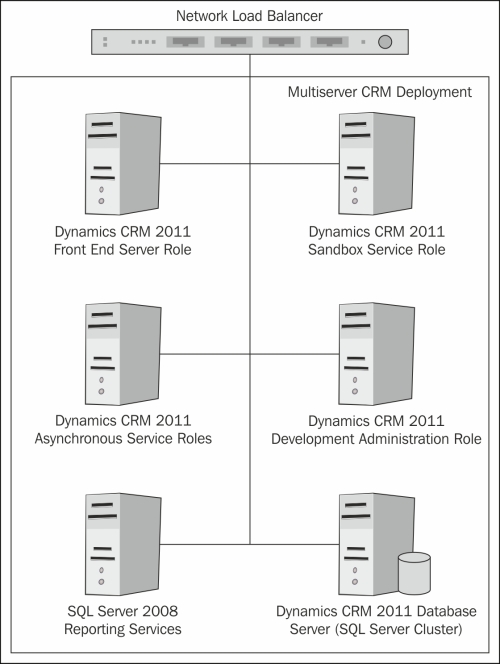
The multiserver deployment of Dynamics CRM 2011 can be more complex than what has been discussed in this recipe. One example of a complex deployment can be to deploy all server roles to separate server machines.

The following diagram describes a multiserver CRM 2011 deployment with different server roles deployed on separate server machines.

When we select a server role other than Full Server, Microsoft Dynamics CRM Server setup does not create an organization database during the installation. If the deployment does not have an organization database, we must use the deployment manager to create a new organization. The next recipe will guide us with creating a new organization in Dynamics CRM 2011.

Visually different images
CONTINUE READING
83
Tech Concepts
36
Programming languages
73
Tech Tools
Icon Unlimited access to the largest independent learning library in tech of over 8,000 expert-authored tech books and videos.
Icon Innovative learning tools, including AI book assistants, code context explainers, and text-to-speech.
Icon 50+ new titles added per month and exclusive early access to books as they are being written.
Microsoft Dynamics CRM 2011 Cookbook
notes
bookmark Notes and Bookmarks search Search in title playlist Add to playlist font-size Font size

Change the font size

margin-width Margin width

Change margin width

day-mode Day/Sepia/Night Modes

Change background colour

Close icon Search
Country selected

Close icon Your notes and bookmarks

Confirmation

Modal Close icon
claim successful

Buy this book with your credits?

Modal Close icon
Are you sure you want to buy this book with one of your credits?
Close
YES, BUY

Submit Your Feedback

Modal Close icon
Modal Close icon
Modal Close icon