Sign In Start Free Trial
Account

Add to playlist

Create a Playlist

Modal Close icon
You need to login to use this feature.
  • Book Overview & Buying CiviCRM Cookbook
  • Table Of Contents Toc
CiviCRM Cookbook

CiviCRM Cookbook

4.7 (6)
close
close
CiviCRM Cookbook

CiviCRM Cookbook

4.7 (6)

Overview of this book

CiviCRM is a web-based, open source, Constituent Relationship Management (CRM) software geared toward meeting the needs of non-profit and other civic-sector organizations.Organizations realize their mission via CiviCRM through contact management, fundraising, event management, member management, mass e-mail marketing, peer-to-peer campaigns, case management, and much more.CiviCRM is localized in over 20 languages including: Chinese (Taiwan, China), Dutch, English (Australia, Canada, U.S., UK), French (France, Canada), German, Italian, Japanese, Russian, and Swedish.CiviCRM Cookbook will enhance your CiviCRM skills. It has recipes to help you use CiviCRM more efficiently, integrate it with CMSs, and also develop CiviCRM.This book begins with recipes that help save time and effort with CiviCRM. This is followed by recipes for organizing data more efficiently and managing profiles.Then you will learn authentication and authorization and managing communication with contacts.Then you will be guided on using the searching feature and preparing reports. We will then talk about integrating Drupal and CiviCRM. You will also be taught to manage events effectively. Finally, learn about CiviCampaign, Civimember, and developing CiviCRM.
Table of Contents (13 chapters)
close
close
12
Index

Using CiviCase to create an HR system

CiviCase was developed to manage and track interactions between an organization and it's clients in case management situations. It can be adapted to suit any internal or external processes that have regular, predictable, and reasonably well-defined workflows or procedures. Many NGOs generally have human resource functions such as hiring and training staff. Using CiviCase to manage these processes provides consistency, compliancy, and accountability to our human resource procedures. In this recipe we will configure a CiviCase type that will enable us to create and manage the employment records of staff.

How to do it…

CiviCase does not have a user interface for configuring CiviCase types. Instead, we create all the activity types and relationships that we need, and then we create an XML file that generates and schedules these activities when a case is opened. The CiviCase type we are going to create will handle three activities:

  • Contract acceptance: This activity happens when our new employee signs the employment contract
  • Annual appraisal: This activity happens when our employee is appraised for performance each year
  • Exit interview: This activity happens when our employee leaves employment with our organization

We will use the XML file to also generate the relationship types associated with the employment record. These are:

  • Line Manager
  • HR Officer
  1. Enable CiviCase by navigating to Administer | System Settings | Enable CiviCRM Components.
  2. Check that you have set up a Custom Templates path for CiviCRM. This is a directory on your server that stores custom files for CiviCRM. This is where you will store the CiviCase XML file. Create a directory on your web server for your custom CiviCRM files called custom_civicrm. You can give it any name you like. Navigate to Administer | System Settings | Directories to set the path to the directory you just created.
    How to do it…
  3. Create the following directory path in your Custom Templates directory:

    custom_civicrm/CRM/Case/xml/configuration

  4. Create a text file called StaffRecord.xml in the custom_civicrm/CRM/Case/xml/configuration directory, so the path to the file will be custom_civicrm/CRM/Case/xml/configuration/StaffRecord.xml.
  5. Using a suitable text editor, enter the following XML code:
    <?xml version="1.0" encoding="iso-8859-1" ?>
    <CaseType>
      <name>Staff Record</name>
      <ActivityTypes>
        <ActivityType>
          <name>Open Case</name>
          <max_instances>1</max_instances>
        </ActivityType>
        <ActivityType>
          <name>Contract acceptance</name>
            <max_instances>1</max_instances>
        </ActivityType>
        <ActivityType>
          <name>Annual appraisal</name>
        </ActivityType>
         <ActivityType>
          <name>Exit interview</name>
            <max_instances>1</max_instances>
        </ActivityType>
    	<ActivityType>
          <name>Change Case Type</name>
        </ActivityType>
        <ActivityType>
          <name>Change Case Status</name>
        </ActivityType>
        <ActivityType>
          <name>Change Case Start Date</name>
        </ActivityType>
        <ActivityType>
          <name>Link Cases</name>
        </ActivityType>
      </ActivityTypes>
      <ActivitySets>
        <ActivitySet>
          <name>standard_timeline</name>
          <label>Standard Timeline</label>
          <timeline>true</timeline>
          <ActivityTypes>
            <ActivityType>
              <name>Open Case</name>
              <status>Completed</status>
            </ActivityType>
            <ActivityType>
              <name>Contract acceptance</name>
              <reference_activity>Open Case</reference_activity>
              <reference_offset>1</reference_offset>
            </ActivityType>
    <ActivityType>
              <name>Annual appraisal</name>
              <reference_activity>Open Case</reference_activity>
              <reference_offset>365</reference_offset>
              <reference_select>newest</reference_select>
            </ActivityType>
          </ActivityTypes>
        </ActivitySet>
      </ActivitySets>
      <CaseRoles>
        <RelationshipType>
            <name>HR Manager</name>
            <creator>1</creator>
        </RelationshipType>
        <RelationshipType>
            <name>Line Manager</name>
        </RelationshipType>	  
     </CaseRoles>
    </CaseType>
  6. Save the XML file.
  7. Navigate to Administer | Customized Data and Screens |Activity types, and create the three activity types described in the XML document:
    • Contract acceptance
    • Annual appraisal
    • Exit interview

    Make sure the names of the activity types are exactly the same as shown in the XML document.

    Make sure that you select CiviCase as the component for each activity type.

  8. Create the relationship types that are described in the XML document. Navigate to Administer | Customize Data and Screens, and create two relationship types, HR Officer and Line Manager. Make sure that these relationships have exactly the same names and capitalizations that you used in the XML file. Make sure you name the Relationship Label from B to A—exactly the same as the relationship type.
  9. Navigate to this file on your web server: sites/modules/civicrm/CRM/Case/xml/configuration.sample/settings.xml, and copy it to the configuration directory, custom_civicrm/CRM/Case/xml/configuration you previously created.

    This is a global settings file for CiviCase. You do not need to alter it.

  10. Navigate to Administer | CiviCase. Add a case type called Staff Record.
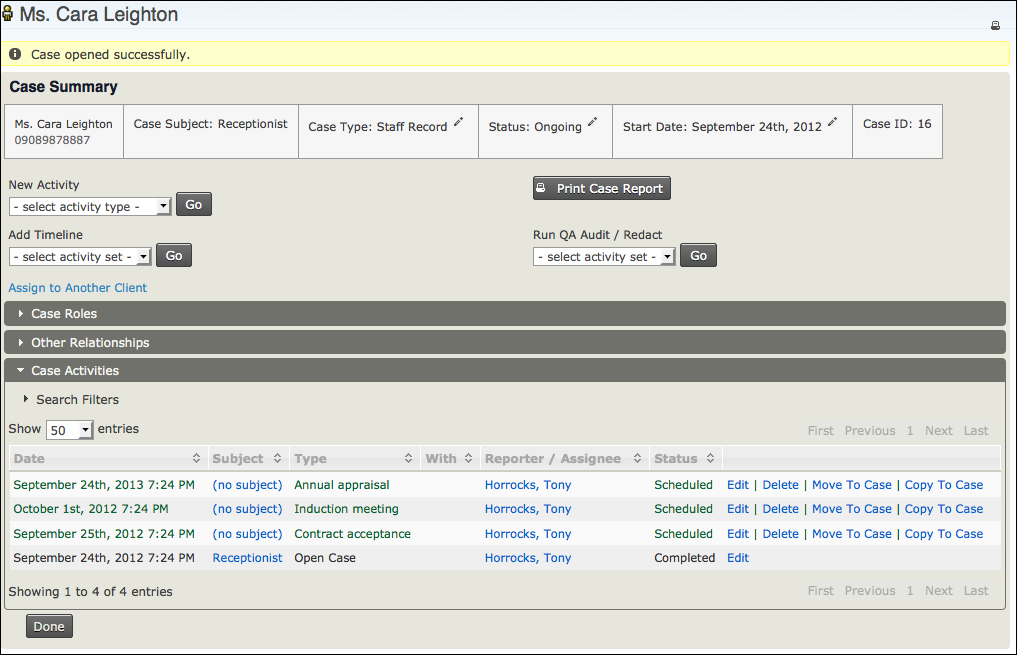
  11. Navigate to a test contact, click on the Actions button and add a case, choosing Staff Record.
    How to do it…

How it works…

The XML code does all the work for us once it is set up. Let's go through the structure. This provides the name of the case type that we will use:

<?xml version="1.0" encoding="iso-8859-1" ?>
<CaseType>
<name>Staff Record</name>

We have a section called ActivityTypes (note the plural!). It is a container for each activity type that is going to be associated with the Staff Record case.

<ActivityTypes>
<ActivityType>
      <name>Open Case</name>
      <max_instances>1</max_instances>
    </ActivityType>
</ActivityTypes>

CiviCase always starts with <ActivityType> named Open Case.

<max_instances> tells CiviCase how many instances of the activity to create. As a case is opened only once, there is only one instance.

<ActivityType>
    <name>Contract acceptance</name>
    <max_instances>1</max_instances>
</ActivityType>
<ActivityType>
    <name>Annual appraisal</name>
</ActivityType>
<ActivityType>
    <name>Exit interview</name>
    <max_instances>1</max_instances>
</ActivityType>

The three activity types that we will use in our CiviCase are described next. You can see that the activity type named Annual appraisal does not have a <max_instances> tag. This is because annual appraisals take place each year and there is no defined maximum.

Now that we have set up what activities we will use for our case, we can schedule some of them on a timeline. For this, we create another section, called ActivitySets, in the XML file.

<ActivitySets>
<ActivitySet>
<name>standard_timeline</name>
<label>Standard Timeline</label>
<timeline>true</timeline>
<ActivityTypes>
<ActivityType>
<name>Open Case</name>
<status>Completed</status>
</ActivityType>
<ActivityType>
<name>Contract acceptance</name>
<reference_activity>Open Case</reference_activity>
<reference_offset>7</reference_offset>
<reference_select>newest</reference_select>
</ActivityType>
</ActivityTypes>
</ActivitySet>
</ActivitySets>

Here we have the section called ActivitySets. It is a container for one or more instances of ActivitySet.

ActivitySet is a set of scheduled activities that CiviCase will generate when our Staff Record case is opened. When the case is first generated, CiviCase uses the <standard_timeline> activity set to generate the initial set of activities. You can have additional ActivitySet instances that use a different timeline. This is used to create activity branches within a case. In our example it could be the case that if an employee has a poor annual appraisal, we need to generate another set of activities to deal with the outcome. We can do this by having it configured in our XML file and applying it in the Add Timeline section of the CiviCase screen.

Within each <ActivitySet> instance, we have <ActivityType> again, and we have some tags to schedule each type.

<reference_offset> is the time in days that the activity will be scheduled. The offset is measured from whatever activity is entered in the <reference_activity> tag.

If the referenced activity has multiple instances, such as a training course, then we use the <reference_select> tag to pick the newest instance of the activity. If we do not want an activity schedule, we do not include it in <ActivitySet>.

Finally, we have a <status> tag that allows us to see the initial status of the activity when it is scheduled.

In our previous example, we have set the Contract acceptance activity to be scheduled seven days after the Open Case activity.

<CaseRoles>
<RelationshipType>
<name>Human Resources Manager</name>
<creator>1</creator>
</RelationshipType>
<RelationshipType>
<name>Line Manager</name>
</RelationshipType>
</CaseRoles>

Finally, there is an XML section where we can create our relationships for each case. Each relationship we create becomes a role within the case.

There's more…

This is just a very simplified example of what can be achieved using CiviCase. There are other ways you could apply the same principles: training schedules, volunteer induction programs, membership induction programs, as well as traditional casework applications.

See also

CONTINUE READING
83
Tech Concepts
36
Programming languages
73
Tech Tools
Icon Unlimited access to the largest independent learning library in tech of over 8,000 expert-authored tech books and videos.
Icon Innovative learning tools, including AI book assistants, code context explainers, and text-to-speech.
Icon 50+ new titles added per month and exclusive early access to books as they are being written.
CiviCRM Cookbook
notes
bookmark Notes and Bookmarks search Search in title playlist Add to playlist font-size Font size

Change the font size

margin-width Margin width

Change margin width

day-mode Day/Sepia/Night Modes

Change background colour

Close icon Search
Country selected

Close icon Your notes and bookmarks

Confirmation

Modal Close icon
claim successful

Buy this book with your credits?

Modal Close icon
Are you sure you want to buy this book with one of your credits?
Close
YES, BUY

Submit Your Feedback

Modal Close icon
Modal Close icon
Modal Close icon