You have already taken the first few steps toward developing Less. As explained earlier, client-side compiling has been used. However, client-side compiling with less.js shouldn't be used on real websites. This is because, despite making your development easy and fast, compiling your Less files for every page request (or in fact, initial page load per user) will actually slow down your website.
For the production environment, it is required that you compile your files and serve the final CSS file to the browser. The term, server side, can be somewhat misleading. Server side in this context means that a compiled CSS code is sent to the client's browser instead of the Less code, which has to be compiled in the client's browser by less.js before it is shown. You should precompile your Less code. By copying and pasting the results of less.js to a file and including this as a CSS file in your HTML files, you should get the same effect, except that your CSS is not minimized.
Less bundles a command-line compiler. Installing and using it is simple, using the following command:
Node enables you to run the JavaScripts without a browser. Node and npm run on Windows, Mac OS X, and other Unix/*nix machines. You will find the Node.js source code or a prebuilt installer for your platform by visiting http://nodejs.org/download/. The package manager for the Node JavaScript platform is npm. The npm command-line tool is bundled with Node.js, so installing Node.js will install npm at the same time. More information about npm can also be found at https://www.npmjs.com/package/npm.
Use the –help function to get a list of options you can use with the following command-line compiler:
The links to styles.css in your HTML, after successfully compiling it, are then shown as follows:
Using CSS source maps for debugging
When working with the large Less code bases, finding the original source can become complex when viewing your result in the browsers. Since Version 1.5, Less offers support for the CSS source maps. The CSS source maps enable developer tools to map calls back to their location in original source files. This also works for compressed files. Both Chrome and Firefox developer tools support the CSS source maps format. Also, Internet Explorer Version 11 supports this format.
Currently, the CSS source maps debugging won't work for client-side compiling, as used for the examples in this book. However, the server-side lessc compiler can generate the useful CSS source maps.
After installing the lessc compiler, you can run the following command:
The preceding command will generate two files: styles.css.map and styles.css. The last line of styles.css now contains an extra line, which refers to the source map as follows:
In your HTML code, you only have to include the styles.css, as shown in the following code:
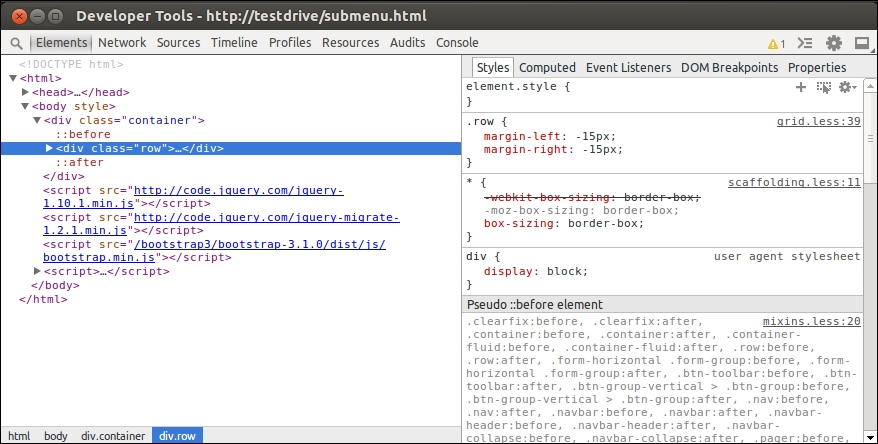
When using the CSS source maps, as described in the preceding code, and inspecting your HTML code with Google Chrome Developer Tools, you will see something like the following screenshot:
As you can see, styles now have a reference to their original Less file, such as grid.less, including line number, which helps you in debugging. The styles.css.map file should be in the same directory as the styles.css file. You don't have to include your Less files in this directory too.
The Less plugins can be installed with npm too. The npm plugin is the package manager for Node.js.
To install a Less plugin, you should run the following command on your console:
To use an already installed plugin with the command-line compiler, you should use plugin-name as an option for the compiler. Options for the plugin can be set by leveraging the = sign, followed by the list of options.
Compressing and minimizing your CSS
After compilation, the CSS code is clean and readable. When taking this code into production, you have to compress and minimize it, in order to increase the loading speed and save on the bandwidth as well. The basic steps for compressing and minifying the CSS code are removing comments, whitespaces, and other unnecessary code. The results won't be easy for a human to read. However, this doesn't matter, because you can use the Less files to update or modify the CSS code.
The Less command-line compiler can compress the output when the -comp ress option has been set. This option removes whitespaces. More advanced minification can be done by using the clean-css postprocessor (which you can access at https://github.com/GoalSmashers/clean-css). Before Version 2, the compiler had clean-css built-in. Since Version 2, you have to install the clean-css plugin.
You can install the clean-css plugin by running the following command in the command line compiler:
After installing the plugin, you can run the compiler with the –clean-css option as follows:
With clean-css, refer to the following code:
The preceding code will compile into the CSS code, as the following code shows:
As you can see, clean-css also merges the selectors. For advanced optimization of your code, which includes selector merging, you should run the clean-css plugin with the advanced option as follows:
Also, Pleeease is a CSS post-processor, which can be used to run different post-process once. Pleeease, among others, runs the autoprefixer plugin, provides a fallback for the em units, and can merge media queries. A Pleeease plugin for Less is available, too.
You can read more about Pleeease at http://pleeease.io/.
Compiling your Less code into CSS automatically
When you are ready to start your first Less project, you should consider creating a build process that compiles your Less files into the CSS code automatically. Grunt and Gulp are task runners for Node.js. You can use these task runners to compile your Less code automatically and run postprocessors for the compiled CSS code.
The task runners can also be configured to detect file change and trigger browser reloads. Your final build system can show your changes directly after saving. Also, in the browser, development will be possible.
Gulp is relatively new in comparison to Grunt, so Grunt has more plugins and wider community support. Currently, the Gulp community is growing fast. The biggest difference between Grunt and Gulp is that Gulp does not save intermediary files, but pipes these files' content in memory to the next stream. A stream enables you to pass some data through a function, which will modify the data, and then pass the modified data to the next function. In many situations, Gulp requires less configuration settings, and so some people find Gulp more intuitive and easier to learn.
In this section, you will learn how to set up a build system with Gulp. Note that you can use the same strategies to do the same with Grunt. Those who are interested in build systems with Grunt can inspect the default build system of Bootstrap. You can read more about Bootstrap in Chapter 6, Using the Bootstrap 3 Frontend Framework. The Bootstrap source code contains a build system that compiles the code automatically leveraging Grunt.
To use Gulp, you should install Node.js first. As already mentioned, npm is bundled with Node.js. So, after installing Node.js, you can run the following commands in your working directory to install Gulp:
Tip
The example code for this section can be found in the /gulp/ directory of the download for this chapter.
After installing Gulp, you have to create a Gulpfile.js file in your working directory. The Gulpfile.js file defines the task that it should perform on your files when running the gulp command. Your first Gulp file will look like that shown in the following code:
Now you can run the grunt command in the console, which will compile the Less code of the ./less/project.less into the ./css/project.css file. The basic build system uses the gulp-less plugin to compile your Less code. You can add more plugins such as gulp-sourcemap and gulp-autoprefixer in order to bring your build system to the next level.
The gulp-less plugin enables you to use the Less plugin, too. Using the Less plugins, instead of the gulp plugins, for tasks will simplify your Gulp configuration. You can use the task configuration shown in the following code to compile your Less code with sourcemaps, and the clean-css and autoprefixer postprocessors:
Finally, you can consider extending your build system with gulp-livereload. The gulp-livereload plugin can be used with the livereload Chrome extension. The livereload extension enables you to see the compiled version of your code in your browser directly after saving and opens the way to in browser development too. You can read more about livereload at http://livereload.com/.
Graphical user interfaces
Some of you will prefer to use a Graphical User Interface (GUI) instead of command-line compiling. There are many GUIs available for different platforms that can edit and compile your Less code. All of them cannot be mentioned here. Instead, here is a list of the most positive noticeable ones:
- WinLess: This GUI is a Windows GUI for
less.js. - SimpLESS: This GUI is a cross-platform editor and compiler with many functions, including the automatic addition of vendor-specific rules to your code.
- CodeKIT: This GUI is for Mac (OS X). It compiles many languages, including Less. It includes optimizations and browser previews.
- Crunch!: This GUI is a cross-platform compiler and editor.
When choosing a GUI for Less development, always check which version of less.js it uses. Some GUIs are built on older versions of less.js and don't support the latest features.
Web developers using Visual Studio should check out
Web Essentials. Web Essentials extends Visual Studio with a lot of new features, including Less. Also, other IDEs such as PHPStorm have the built-in Less compilers. There is also a Less plugin for Eclipse.





 Free Chapter