Sign In Start Free Trial
Account

Add to playlist

Create a Playlist

Modal Close icon
You need to login to use this feature.
  • Book Overview & Buying React Material-UI Cookbook
  • Table Of Contents Toc
React Material-UI Cookbook

React Material-UI Cookbook

By : Adam Boduch
3.5 (6)
close
close
React Material-UI Cookbook

React Material-UI Cookbook

3.5 (6)
By: Adam Boduch

Overview of this book

Material-UI is a component library for rendering UI elements, using modern best practices from React and Material Design. This book will show you how you can create impressive and captivating modern-day web apps by implementing Material Design considerations. The book is designed to help you use a variety of Material-UI components to enhance UI functionality, along with guiding you through React best practices, and using state, context, and other new React 16.8 features. You will start with layout and navigation, exploring the Grid component and understanding how it’s used to build layouts for your Material-UI apps. Using Material-UI components, you’ll then explore the technique of effectively presenting information. In later sections, you will also learn about the different components for user interactions such as the text input component and buttons. Finally, the book will get you up to speed with customizing the look and feel of your app, right from creating a Material-UI theme through to styling icons and text. By the end of this book, you will have developed the skills you need to improve the look and feel of your applications using Material-UI components.
Table of Contents (22 chapters)
close
close

Fixed column layout

When you use Grid components to build your layout, they often result in changes to your layout, depending on your breakpoint settings and the width of the screen. For example, if the user makes the browser window smaller, your layout might change from two columns to three. There might be times, however, when you would prefer a fixed number of columns, and that the width of each column changes in response to the screen size.

How to do it...

Let's say that you have eight Paper components that you want to render, but you also want to make sure that there are no more than four columns. Use the following code to do this:

import React from 'react';

import { withStyles } from '@material-ui/core/styles';
import Paper from '@material-ui/core/Paper';
import Grid from '@material-ui/core/Grid';

const styles = theme => ({
root: {
flexGrow: 1
},
paper: {
padding: theme.spacing(2),
textAlign: 'center',
color: theme.palette.text.secondary
}
});

const FixedColumnLayout = withStyles(styles)(({ classes, width }) => (
<div className={classes.root}>
<Grid container spacing={4}>
<Grid item xs={width}>
<Paper className={classes.paper}>xs={width}</Paper>
</Grid>
<Grid item xs={width}>
<Paper className={classes.paper}>xs={width}</Paper>
</Grid>
<Grid item xs={width}>
<Paper className={classes.paper}>xs={width}</Paper>
</Grid>
<Grid item xs={width}>
<Paper className={classes.paper}>xs={width}</Paper>
</Grid>
<Grid item xs={width}>
<Paper className={classes.paper}>xs={width}</Paper>
</Grid>
<Grid item xs={width}>
<Paper className={classes.paper}>xs={width}</Paper>
</Grid>
<Grid item xs={width}>
<Paper className={classes.paper}>xs={width}</Paper>
</Grid>
<Grid item xs={width}>
<Paper className={classes.paper}>xs={width}</Paper>
</Grid>
</Grid>
</div>
));

export default FixedColumnLayout;

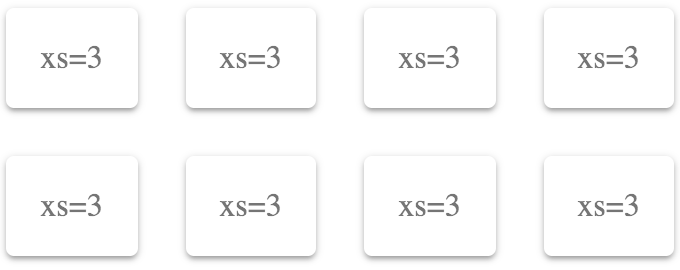
Here's what the result looks like with a pixel width of 725:

Here's what the result looks like with a pixel width of 350:

How it works...

If you want a fixed number of columns, you should only specify the xs breakpoint property. In this example, 3 is 25% of the screen width – or 4 columns. This will never change because xs is the smallest breakpoint there is. Anything larger is applied to xs as well, unless you specify a larger breakpoint.

Let's say that you want two columns. You can set the xs value to 6 as follows:

<div className={classes.root}>
<Grid container spacing={4}>
<Grid item xs={6}>
<Paper className={classes.paper}>xs=6</Paper>
</Grid>
<Grid item xs={6}>
<Paper className={classes.paper}>xs=6</Paper>
</Grid>
<Grid item xs={6}>
<Paper className={classes.paper}>xs=6</Paper>
</Grid>
<Grid item xs={6}>
<Paper className={classes.paper}>xs=6</Paper>
</Grid>
<Grid item xs={6}>
<Paper className={classes.paper}>xs=6</Paper>
</Grid>
<Grid item xs={6}>
<Paper className={classes.paper}>xs=6</Paper>
</Grid>
<Grid item xs={6}>
<Paper className={classes.paper}>xs=6</Paper>
</Grid>
<Grid item xs={6}>
<Paper className={classes.paper}>xs=6</Paper>
</Grid>
</Grid>
</div>

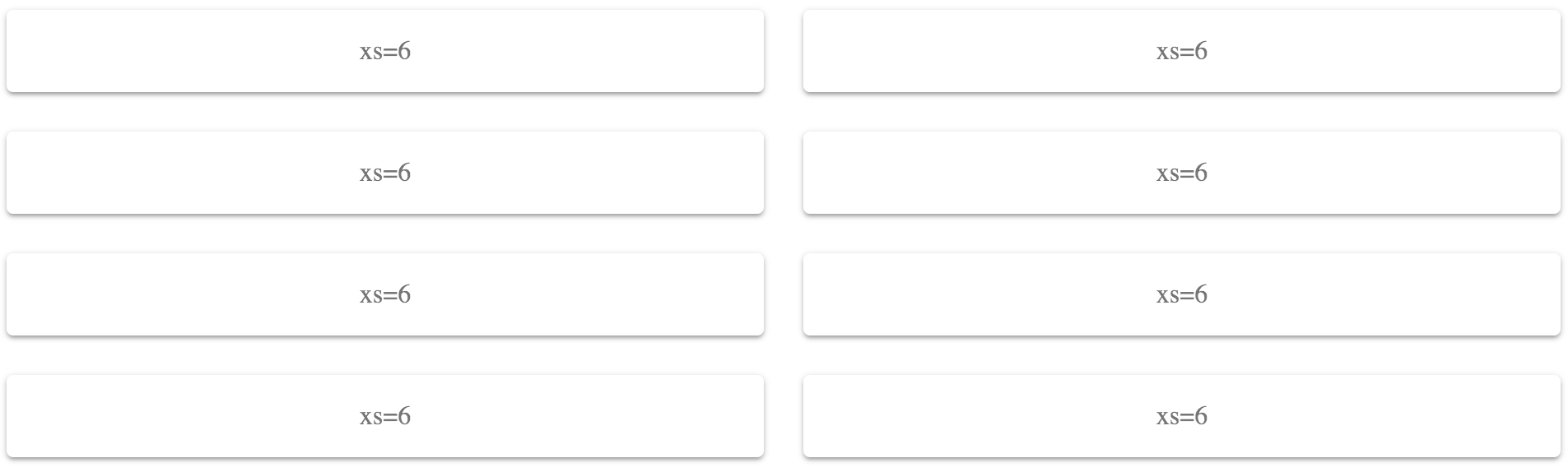
Here's what the result looks like at a pixel screen width of 960:

Because you've set the xs value to 6 (50%), these Grid items will only ever use two columns. The items themselves will change their width to accommodate the screen width, rather than changing the number of items per row.

There's more...

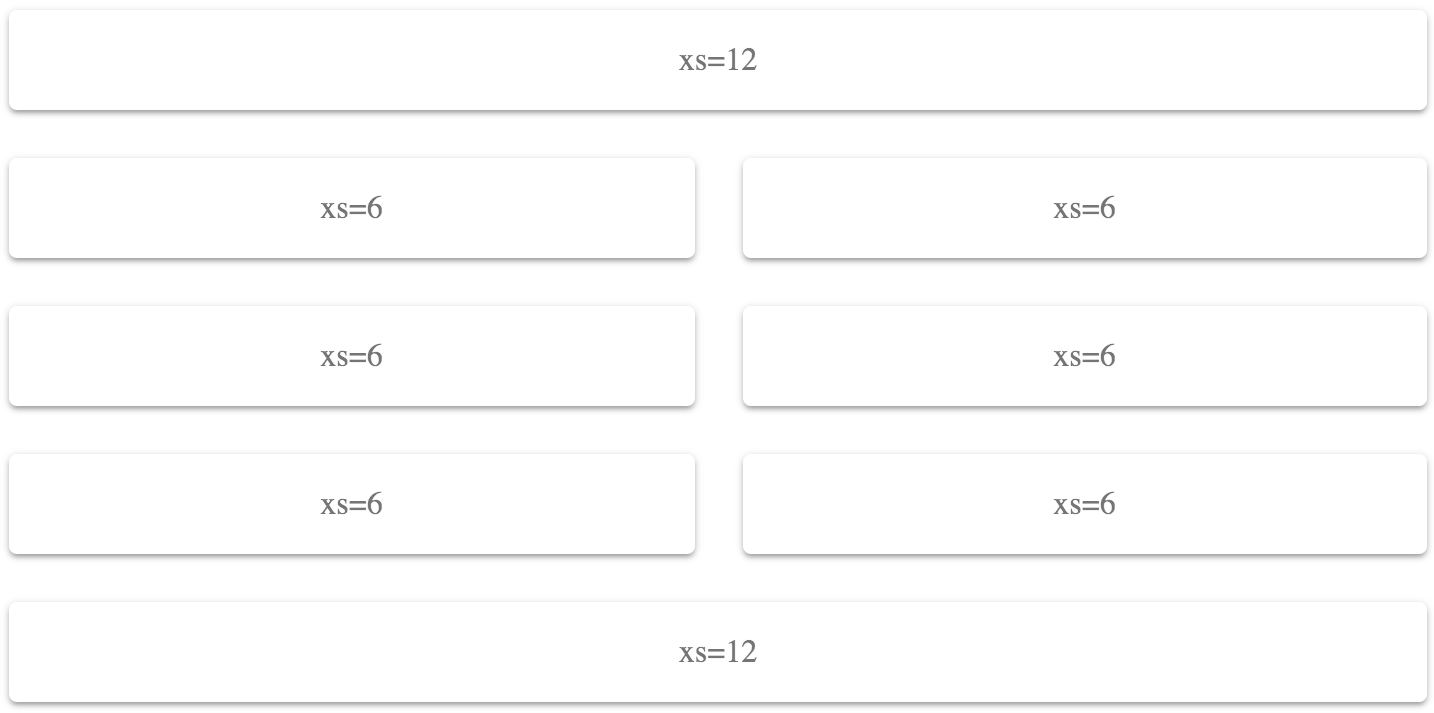
You can combine different widths in a fixed way. For example, you could have header and footer Grid items that use a full-width layout, while the Grid items in between use two columns:

<div className={classes.root}>
<Grid container spacing={4}>
<Grid item xs={12}>
<Paper className={classes.paper}>xs=12</Paper>
</Grid>
<Grid item xs={6}>
<Paper className={classes.paper}>xs=6</Paper>
</Grid>
<Grid item xs={6}>
<Paper className={classes.paper}>xs=6</Paper>
</Grid>
<Grid item xs={6}>
<Paper className={classes.paper}>xs=6</Paper>
</Grid>
<Grid item xs={6}>
<Paper className={classes.paper}>xs=6</Paper>
</Grid>
<Grid item xs={6}>
<Paper className={classes.paper}>xs=6</Paper>
</Grid>
<Grid item xs={6}>
<Paper className={classes.paper}>xs=6</Paper>
</Grid>
<Grid item xs={12}>
<Paper className={classes.paper}>xs=12</Paper>
</Grid>
</Grid>
</div>

The first and last Grid components have an xs value of 12 (100%), while the other Grid items have xs values of 6 (50%) for a two-column layout. Here's what the result looks like at a pixel width of 725:

See also

CONTINUE READING
83
Tech Concepts
36
Programming languages
73
Tech Tools
Icon Unlimited access to the largest independent learning library in tech of over 8,000 expert-authored tech books and videos.
Icon Innovative learning tools, including AI book assistants, code context explainers, and text-to-speech.
Icon 50+ new titles added per month and exclusive early access to books as they are being written.
React Material-UI Cookbook
notes
bookmark Notes and Bookmarks search Search in title playlist Add to playlist download Download options font-size Font size

Change the font size

margin-width Margin width

Change margin width

day-mode Day/Sepia/Night Modes

Change background colour

Close icon Search
Country selected

Close icon Your notes and bookmarks

Confirmation

Modal Close icon
claim successful

Buy this book with your credits?

Modal Close icon
Are you sure you want to buy this book with one of your credits?
Close
YES, BUY

Submit Your Feedback

Modal Close icon
Modal Close icon
Modal Close icon