


-
Book Overview & Buying
-
Table Of Contents

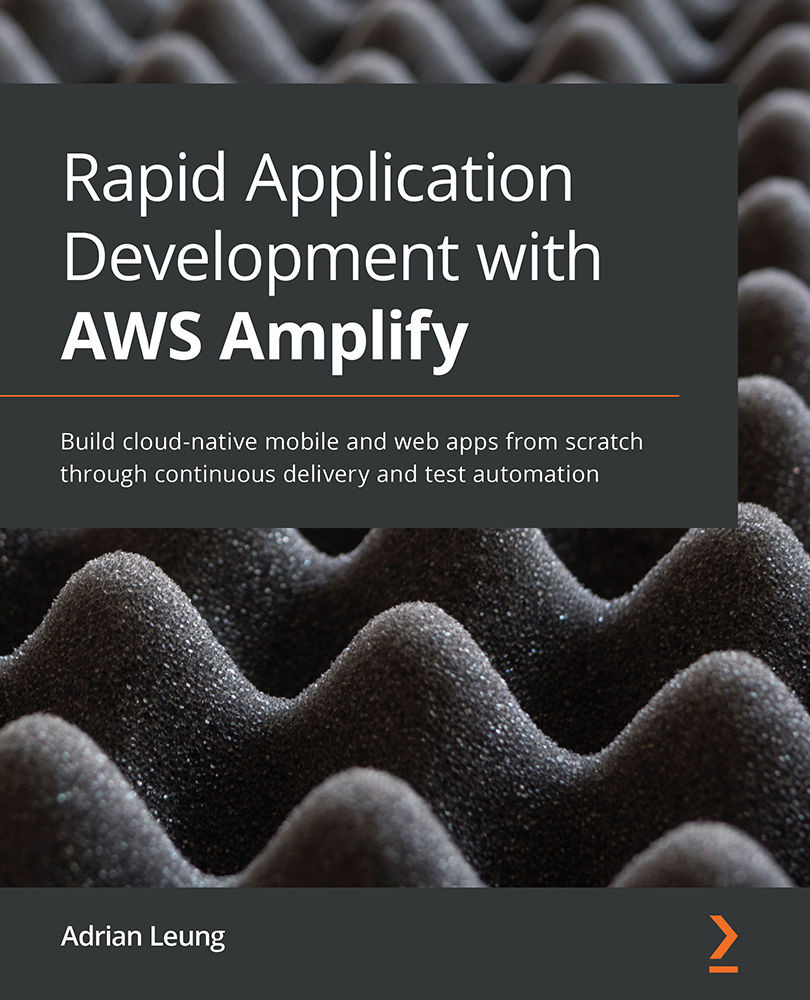
Rapid Application Development with AWS Amplify
By :


Rapid Application Development with AWS Amplify
By:
Overview of this book
AWS Amplify is a modern toolkit that includes a command line interface (CLI); libraries for JS, iOS, and Android programming; UI component libraries for frameworks like React, Angular, and Vue.js for web development, and React Native and Flutter for mobile development.
You'll begin by learning how to build AWS Amplify solutions with React and React Native with TypeScript from scratch, along with integrating it with existing solutions. This book will show you the fastest way to build a production-ready minimum viable product (MVP) within days instead of years. You'll also discover how to increase development speed without compromising on quality by adopting behavior-driven development (BDD) and Cypress for end-to-end test automation, as well as the Amplify build pipeline (DevOps or CI/CD pipeline) to ensure optimal quality throughout continuous test automation and continuous delivery. As you advance, you'll work with React to determine how to build progressive web apps (PWAs) with Amplify and React Native for cross-platform mobile apps. In addition to this, you'll find out how to set up a custom domain name for your new website and set up the AWS Amplify Admin UI for managing the content of your app effectively.
By the end of this AWS book, you'll be able to build a full-stack AWS Amplify solution all by yourself.
Table of Contents (14 chapters)
Preface


Section 1: Getting Ready
 Free Chapter
Chapter 1: Getting Familiar with the Amplify CLI and Amplify Console

Chapter 2: Creating a React App with AmplifyJS and TypeScript
Section 2: Building a Photo Sharing App
Chapter 3: Pluggable Amplify UI Components
Chapter 4: User Management with Amplify Authentication
Chapter 5: Creating a Blog Post with Amplify GraphQL
Chapter 6: Uploading and Sharing Photos with Amplify Storage
Section 3: Production Readiness
Chapter 7: Setting Up an Amplify Pipeline
Chapter 8: Test Automation with Cypress
Chapter 9: Setting Up a Custom Domain Name and the Amplify Admin UI
Other Books You May Enjoy
 us-east-1
us-east-2
us-west-2
eu-west-1
eu-west-2
eu-central-1
ap-northeast-1
(Move up and down to reveal more choices)
us-east-1
us-east-2
us-west-2
eu-west-1
eu-west-2
eu-central-1
ap-northeast-1
(Move up and down to reveal more choices)


