Sign In Start Free Trial
Account

Add to playlist

Create a Playlist

Modal Close icon
You need to login to use this feature.
  • Book Overview & Buying Blazor WebAssembly by Example
  • Table Of Contents Toc
Blazor WebAssembly by Example

Blazor WebAssembly by Example - Third Edition

By : Toi B. Wright
5 (1)
close
close
Blazor WebAssembly by Example

Blazor WebAssembly by Example

5 (1)
By: Toi B. Wright

Overview of this book

Blazor WebAssembly allows you to build web apps without the need for JavaScript, plugins, or add-ons. With its continued growth in popularity, Blazor WebAssembly can open doors to new career paths and exciting projects, and Blazor WebAssembly by Example makes getting started easy. This project-based guide teaches you how to build single-page web applications by focusing heavily on the practical over the theoretical. The author provides step-by-step instructions for each project as well as a video of her following those exact steps. In this updated edition, we've added two new chapters on integrating artificial intelligence into web apps built with Blazor WebAssembly. You'll start with simple standalone web apps and gradually progress to hosted web applications with SQL Server backends. Each project covers a different concept from the Blazor WebAssembly ecosystem, such as Razor components, JavaScript interop, security, events, debugging, state management, hosted applications, REST APIs, and AI. The book's projects get more challenging as you progress, but you don't have to complete them in order, which makes this book a valuable resource for beginners as well as those who just want to dip into specific topics. By the end of this book, you'll be building your own web apps with .NET and C# using Blazor WebAssembly.
Table of Contents (18 chapters)
close
close
15
Chapter 15: Unlock Access to the Code Bundle and the PDF Version
16
Other Books You May Enjoy
17
Index

Setting up your PC

For the projects in this book, I'll be using the .NET 10 SDK for building apps, Microsoft Visual Studio Community 2026 for my IDE, Microsoft SQL Server 2025 Express Edition for data storage, and Microsoft Azure for cloud hosting.

You will need .NET 10 installed on your PC to complete the projects in this book. To determine the version of .NET that is running on your computer, open Command Prompt and enter the following command:

dotnet –-version

If your computer is not running .NET 10.0 or higher, follow the directions in the Installing .NET 10 SDK section later in this chapter.

All the projects are built using Microsoft Visual Studio Community 2026 (64-bit), version 18.5, with the ASP.NET and Web Development workload. If you need to install Microsoft Visual Studio Community 2026, follow the directions in the Installing Microsoft Visual Studio Community Edition section later in this chapter.

All the screenshots in this book are from Microsoft Visual Studio Community 2026. If you are using a different version of Visual Studio or you're using a different IDE, such as Visual Studio Code, your screens may look different from the screenshots in the book.

Chapter 3, Debugging and Deploying a Blazor WebAssembly App, uses Microsoft Azure to publish a Blazor WebAssembly app to the cloud. If you want to complete the project, you will need a Microsoft Azure account. If you need to create a Microsoft Azure account, follow the directions in the Creating a Microsoft Azure account section later in this chapter.

The project in Chapter 12, Building a Task Manager with Blazor WebAssembly and ASP.NET Core Web API, uses Microsoft SQL Server as the backend database. If you need to install Microsoft SQL Server, follow the directions in the Installing Microsoft SQL Server 2025 Express section later in this chapter.

Although I am using Microsoft SQL Server 2025 Express Edition, any year or edition of SQL Server can be used to complete the projects in this book.

Installing .NET 10 SDK

To install .NET 10.0, perform the following steps:

  1. Navigate to the Download .NET page, https://dotnet.microsoft.com/en-us/download.
  2. Select .NET 10.0 to navigate to the Download .NET 10.0 page.
  3. Download Windows x64 SDK installer.
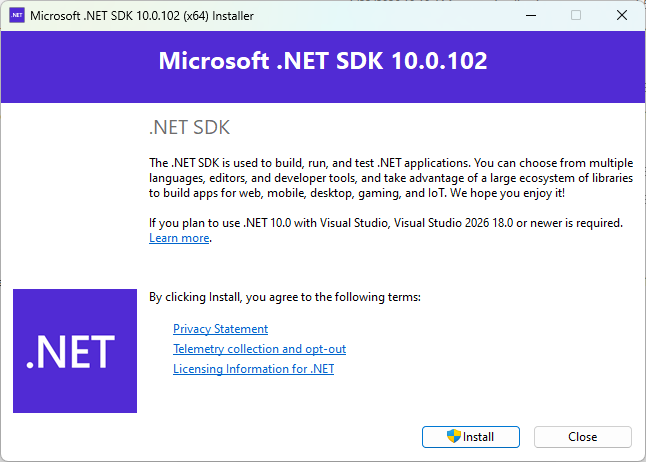
  4. Click the Install button to complete the installation of the .NET 10 SDK:
    Figure 1.2 – Microsoft .NET SDK installer

    Figure 1.2 – Microsoft .NET SDK installer

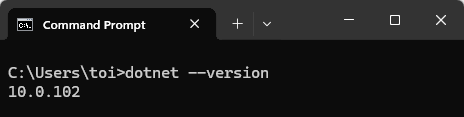
  5. Open Command Prompt and enter the following command to verify that your computer is now running .NET 10:
    dotnet –-version

    The following screenshot is from a computer that is running .NET 10.0:

    Figure 1.3 – .NET version

    Figure 1.3 – .NET version

You can use any .NET 10.x version. However, preview and nightly builds are not recommended.

Installing Microsoft Visual Studio Community Edition 2026

Microsoft Visual Studio Community Edition is the FREE edition of Microsoft Visual Studio. To install Microsoft Visual Studio Community Edition, perform the following steps:

  1. Navigate to https://visualstudio.microsoft.com.
  2. Click the Get free download button and open the VisualStudioSetup.exe file once it finishes downloading.

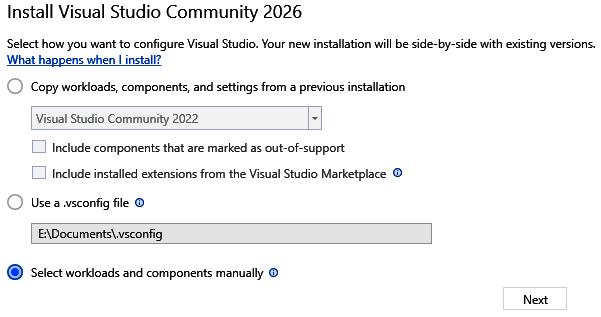
    If you already have an edition of Visual Studio installed, your new installation will be installed side by side.

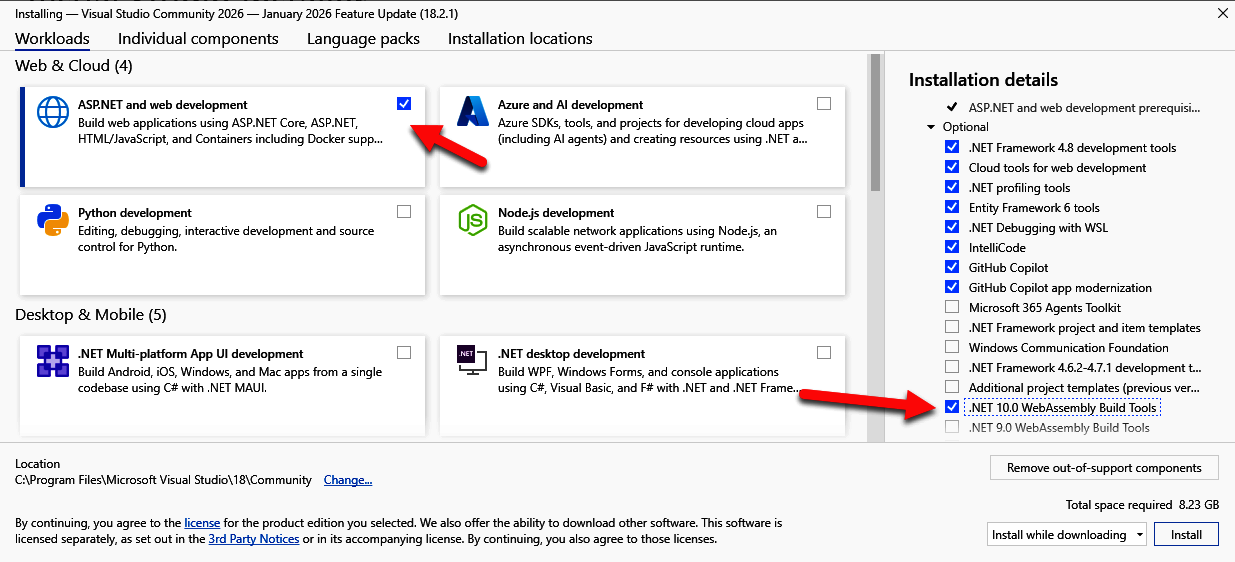
    Figure 1.4 – Select workloads dialog

    Figure 1.4 – Select workloads dialog

    If you already have Visual Studio Community Edition 2026 installed, ensure that the ASP.NET and web development workload is selected and that the .NET 10.0 WebAssembly Build Tools checkbox is also selected.

  3. Select the ASP.NET and web development workload and select the .NET 10.0 WebAssembly Build Tools on the far right in the Installation details section.
    Figure 1.5 – The Visual Studio installer

    Figure 1.5 – The Visual Studio installer

If you prefer to use Visual Studio Code, you can download it from the following URL: https://code.visualstudio.com/download. Install the C# Dev Kit for Visual Studio Code extension to manage your code with a solution explorer and quickly add projects.

Installing Microsoft SQL Server 2025 Express

Microsoft SQL Server Express is the free edition of Microsoft SQL Server. To install Microsoft SQL Server Express, do the following:

  1. Download the Microsoft SQL Server installer for SQL Server 2025 Express from https://www.microsoft.com/en-us/sql-server/sql-server-downloads.
  2. After the download is completed, open the SQL Server installer.
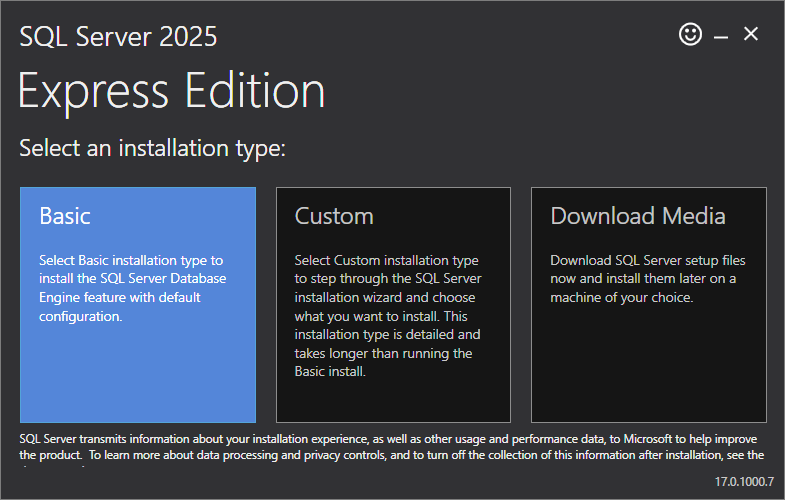
  3. Select the Basic installation type:
    Figure 1.6 – SQL Server 2025 Express Edition installer

    Figure 1.6 – SQL Server 2025 Express Edition installer

  4. Click the Accept button to accept the Microsoft SQL Server license terms.
  5. Click the Install button to complete the installation.

Creating a Microsoft Azure account

Microsoft Azure is Microsoft's cloud platform, offering hundreds of products and cloud services. You can use it to run and manage applications with your preferred tools and frameworks.

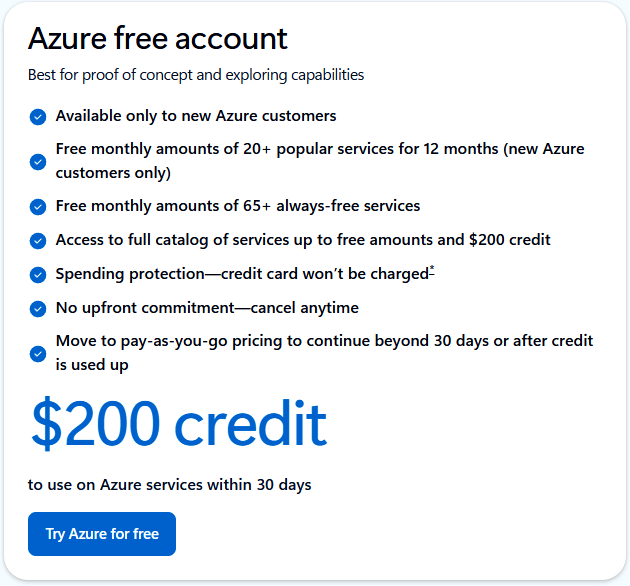
If you don't already have a Microsoft Azure account, you can create a FREE account. New accounts come with a generous $200 credit to get you started and over 65 free services.

Figure 1.7 – Microsoft Azure free account

Figure 1.7 – Microsoft Azure free account

To create a free Microsoft Azure account, do the following:

  1. Navigate to the Microsoft Azure page, https://azure.microsoft.com/.
  2. Click the Get started with Azure button.
  3. Click the Try Azure for free button.
  4. Create an account.

To complete all the projects in this book, you will need the .NET 10 SDK, a code editor, such as Microsoft Visual Studio Community 2026, a Microsoft Azure account, and any edition of Microsoft SQL Server. This section covered preparing your development environment.

CONTINUE READING
83
Tech Concepts
36
Programming languages
73
Tech Tools
Icon Unlimited access to the largest independent learning library in tech of over 8,000 expert-authored tech books and videos.
Icon Innovative learning tools, including AI book assistants, code context explainers, and text-to-speech.
Icon 50+ new titles added per month and exclusive early access to books as they are being written.
Blazor WebAssembly by Example
notes
bookmark Notes and Bookmarks search Search in title playlist Add to playlist download Download options font-size Font size

Change the font size

margin-width Margin width

Change margin width

day-mode Day/Sepia/Night Modes

Change background colour

Close icon Search
Country selected

Close icon Your notes and bookmarks

Confirmation

Modal Close icon
claim successful

Buy this book with your credits?

Modal Close icon
Are you sure you want to buy this book with one of your credits?
Close
YES, BUY

Submit Your Feedback

Modal Close icon
Modal Close icon
Modal Close icon