Sign In Start Free Trial
Account

Add to playlist

Create a Playlist

Modal Close icon
You need to login to use this feature.
  • Book Overview & Buying Learning Angular
  • Table Of Contents Toc
  • Feedback & Rating feedback
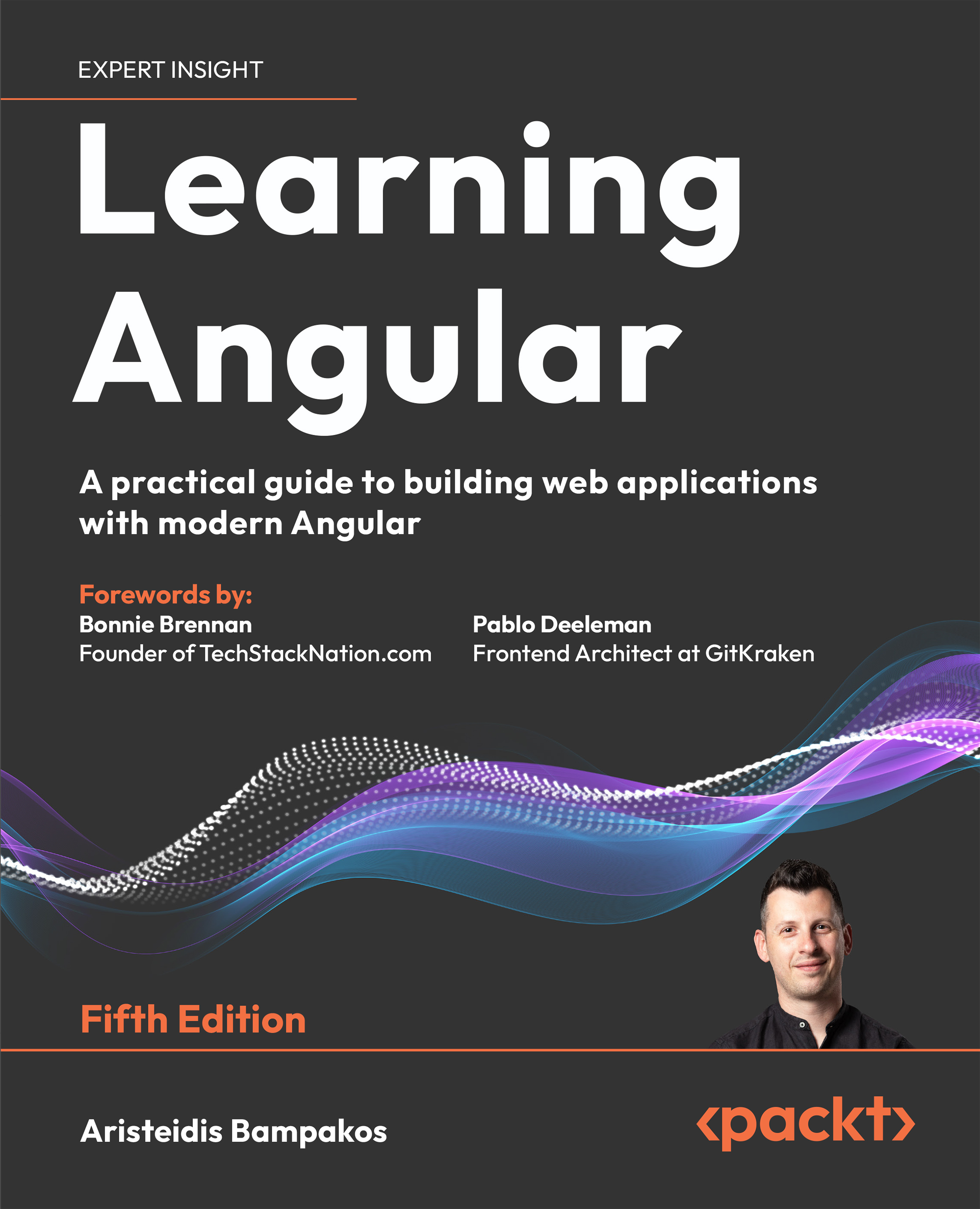
Learning Angular

Learning Angular - Fifth Edition

By : Aristeidis Bampakos
4.1 (7)
close
close
Learning Angular

Learning Angular

4.1 (7)
By: Aristeidis Bampakos

Overview of this book

Dive into Angular Development — With the Most Trusted Guide in the Industry Angular is one of the most powerful and widely adopted JavaScript frameworks, and Learning Angular is your go-to guide for building real-world, production-ready web applications. Written by a seasoned Angular developer and Google Developer Expert, this hands-on book takes you through every step of modern frontend development. This edition reflects the latest “Angular Renaissance,” covering standalone components, Angular Signals, and the new control flow syntax, while showing you how to integrate with legacy code. A new chapter also explores boosting performance with server-side rendering (SSR) and hydration. More than just a tutorial, Learning Angular builds your confidence chapter by chapter from scaffolding your first project to deploying it, with TypeScript best practices throughout. Whether you’re new to Angular or sharpening your skills, this book provides a complete path to becoming a productive, future-ready Angular developer. By the end, you’ll be able to build Angular apps from scratch, with clarity, structure, and confidence.
Table of Contents (19 chapters)
close
close
17
Other Books You May Enjoy
18
Index

Angular tooling

One of the reasons that the Angular framework is popular among developers is the rich ecosystem of available tools. The Angular community has built amazing tools to complete and automate various tasks, such as debugging, inspecting, and authoring Angular applications:

  • Angular DevTools
  • VSCode Debugger
  • VSCode Profiles

We will learn how to use each in the following sections, starting with Angular DevTools.

Angular DevTools

Angular DevTools is a browser extension created and maintained by the Angular team. It allows us to inspect and profile Angular applications directly in the browser. It is currently supported by Google Chrome and Mozilla Firefox and can be downloaded from the following browser stores:

To open the extension, open the browser developer tools and select the Angular tab. It contains three additional tabs:

  • Components: Displays the component tree of the Angular application
  • Profiler: Allows us to profile and inspect the Angular application
  • Injector Tree: Displays the services provided by the Angular application

In this chapter, we will explore how to use the Components tab. We will learn how to use the Profiler tab in Chapter 3, Structuring User Interfaces with Components, and the Injector Tree tab in Chapter 5, Managing Complex Tasks with Services.

The Components tab allows us to preview the components and directives of an Angular application and interact with them. If we select a component from the tree representation, we can view its properties and metadata:

Εικόνα που περιέχει κείμενο, στιγμιότυπο οθόνης, γραμματοσειρά, αριθμός

Περιγραφή που δημιουργήθηκε αυτόματα

Figure 1.6: Component preview

From the Components tab, we can also look up the respective HTML element in the DOM or navigate to the actual source code of the component or directive. Clicking the < > button will take us to the TypeScript file of the current component:

Figure 1.7: TypeScript source file

Double-clicking a selector from the tree representation of the Components tab will navigate us to the DOM of the main page and highlight the individual HTML element:

Εικόνα που περιέχει κείμενο, στιγμιότυπο οθόνης, γραμματοσειρά, αριθμός

Περιγραφή που δημιουργήθηκε αυτόματα

Figure 1.8: Main page DOM

Finally, one of the most useful features of the component tree is that we can alter the value of a component property and inspect how the component template behaves:

Εικόνα που περιέχει κείμενο, στιγμιότυπο οθόνης, γραμματοσειρά, γραμμή

Περιγραφή που δημιουργήθηκε αυτόματα

Figure 1.9: Change component state

In the preceding image, you can see that when we changed the value of the title property to Angular World, the change was also reflected in the component template.

VSCode Debugger

We can debug an Angular application using standard debugging techniques for web applications or the tooling that VSCode provides out of the box.

The console object is the most commonly used web API for debugging. It is a very fast way to print data and inspect values in the browser console. To inspect the value of an object in an Angular component, we can use the debug or log method, passing the object we want to inspect as a parameter. However, it is considered an old-fashioned approach, and a codebase with many console.log methods is difficult to read. An alternate way is to use breakpoints inside the source code using the VSCode debug menu.

VSCode is an open-source code editor backed by Microsoft. It is very popular in the Angular community, primarily because of its robust support for TypeScript. TypeScript has been, to a great extent, a project driven by Microsoft, so it makes sense that one of its popular editors was conceived with built-in support for this language. It contains a rich collection of useful features, including syntax, error highlighting, automatic builds, and debugging.

VSCode contains a built-in debugging tool that uses breakpoints to debug Angular applications. We can add breakpoints inside the source code from VSCode and inspect the state of an Angular application. When an Angular application runs and hits a breakpoint, it will pause and wait. During that time, we can investigate and inspect several values involved in the current execution context.

Let’s see how to add breakpoints to our sample application:

  1. Open the app.component.ts file and click on the left of line 11 to add a breakpoint. A red dot denotes breakpoints:
Εικόνα που περιέχει κείμενο, στιγμιότυπο οθόνης, γραμματοσειρά, αριθμός

Περιγραφή που δημιουργήθηκε αυτόματα

Figure 1.10: Adding a breakpoint

  1. Click on the Run and Debug button in the left sidebar of VSCode.
  2. Click on the play button to start the application using the ng serve command:

Figure 1.11: Run and debug menu

VSCode will build our application, open the default web browser, and hit the breakpoint inside the editor:

Figure 1.12: Hitting a breakpoint

We can now inspect various aspects of our component and use the buttons in the debugger toolbar to control the debugging session.

Another powerful feature of VSCode is VSCode Profiles, which help developers customize VSCode according to their development needs.

VSCode Profiles

VSCode Profiles allows us to customize the following aspects of the VSCode editor:

  • Settings: The configuration settings of VSCode
  • Keyboard shortcuts: Shortcuts to execute VSCode commands with the keyboard
  • Snippets: Reusable template code snippets
  • Tasks: Tasks that automate the execution of scripts and tools directly from VSCode
  • Extensions: Tools that enable us to add new capabilities in VSCode, such as languages, debuggers, and linters

Profiles can also be shared, which helps us maintain a consistent development setup and workflow across our team. VSCode contains a set of built-in profiles, including one for Angular, that we can further customize according to our development needs. To install the Angular profile:

  1. Click the Manage button represented by the gear icon at the bottom of the left sidebar in VSCode and select the Profiles option.
  2. Click on the arrow of the New Profile button and select the From Template | Angular option.
  3. Click the gear button if you want to select a custom icon for your profile.
  4. Click the Create button to create your profile.

VSCode will automatically apply the new profile after it has been created successfully.

In the following sections, we will explore some of the extensions in the VSCode Angular profile.

Angular Language Service

The Angular Language Service extension is developed and maintained by the Angular team and provides code completion, navigation, and error detection inside Angular templates. It enriches VSCode with the following features:

  • Code completion
  • A go-to definition
  • Quick info
  • Diagnostic messages

To get a glimpse of its powerful capabilities, let’s look at the code completion feature. Suppose we want to display a new property called description in the template of the main component. We can set this up by going through the following steps:

  1. Define the new property in the app.component.ts file:
    export class AppComponent {
      title = 'my-app';
      description = 'Hello World';
    }
    
  2. Open the app.component.html file and add the property name in the template using Angular interpolation syntax. The Angular Language Service will find it and suggest it for us automatically:

Figure 1.13: Angular Language Service

The description property is a public property. We can omit the keyword public when using public properties and methods. Code completion does not work for private properties and methods. If the property had been declared private, then the Angular Language Service and the template would not have been able to recognize it.

You may have noticed that a red line appeared instantly underneath the HTML element as you typed. The Angular Language Service did not recognize the property until you typed it correctly and gave you a proper indication of this lack of recognition. If you hover over the red indication, it displays a complete information message about what went wrong:

Εικόνα που περιέχει κείμενο, γραμματοσειρά, γραμμή, στιγμιότυπο οθόνης

Περιγραφή που δημιουργήθηκε αυτόματα

Figure 1.14: Error handling in the template

The preceding information message comes from the diagnostic messages feature. The Angular Language Service supports various messages according to the use case. You will encounter more of these messages as you work more with Angular.

Material Icon Theme

VSCode has a built-in set of icons to display different types of files in a project. The Material Icon Theme extension provides additional icons that conform to the Material Design guidelines by Google; a subset of this collection targets Angular-based artifacts:

Εικόνα που περιέχει κείμενο, στιγμιότυπο οθόνης, γραμματοσειρά

Περιγραφή που δημιουργήθηκε αυτόματα

Figure 1.15: Material Icon Theme

Using this extension, you can easily spot the type of Angular files in a project, such as components, and increase developer productivity, especially in large projects with many files.

EditorConfig

VSCode editor settings, such as indentation or spacing, can be set at a user or project level. EditorConfig can override these settings using the .editorconfig configuration file, which can be found in the root folder of an Angular CLI project:

# Editor configuration, see https://editorconfig.org
root = true
[*]
charset = utf-8
indent_style = space
indent_size = 2
insert_final_newline = true
trim_trailing_whitespace = true
[*.ts]
quote_type = single
ij_typescript_use_double_quotes = false
[*.md]
max_line_length = off
trim_trailing_whitespace = false

You can define unique settings in this file to ensure the consistency of the coding style across your team.

Visually different images
CONTINUE READING
83
Tech Concepts
36
Programming languages
73
Tech Tools
Icon Unlimited access to the largest independent learning library in tech of over 8,000 expert-authored tech books and videos.
Icon Innovative learning tools, including AI book assistants, code context explainers, and text-to-speech.
Icon 50+ new titles added per month and exclusive early access to books as they are being written.
Learning Angular
notes
bookmark Notes and Bookmarks search Search in title playlist Add to playlist download Download options font-size Font size

Change the font size

margin-width Margin width

Change margin width

day-mode Day/Sepia/Night Modes

Change background colour

Close icon Search
Country selected

Close icon Your notes and bookmarks

Confirmation

Modal Close icon
claim successful

Buy this book with your credits?

Modal Close icon
Are you sure you want to buy this book with one of your credits?
Close
YES, BUY

Submit Your Feedback

Modal Close icon
Modal Close icon
Modal Close icon