Sign In Start Free Trial
Account

Add to playlist

Create a Playlist

Modal Close icon
You need to login to use this feature.
  • Book Overview & Buying ASP.NET Core 9 Web API Cookbook
  • Table Of Contents Toc
  • Feedback & Rating feedback
ASP.NET Core 9 Web API Cookbook

ASP.NET Core 9 Web API Cookbook

By : Luke Avedon, Garry Cabrera
5 (1)
close
close
ASP.NET Core 9 Web API Cookbook

ASP.NET Core 9 Web API Cookbook

5 (1)
By: Luke Avedon, Garry Cabrera

Overview of this book

Discover what makes ASP.NET Core 9 a powerful and versatile framework for building modern web APIs that are both scalable and secure. This comprehensive, recipe-based guide leverages the authors’ decade-long experience in software development to equip developers with the knowledge to create robust web API solutions using the framework's most powerful features. Designed for intermediate to advanced .NET developers, this cookbook contains hands-on recipes that demonstrate how to efficiently build, optimize, and secure APIs using this cutting-edge technology. You'll master essential topics, such as creating RESTful APIs, implementing advanced data access strategies, securing your APIs, creating custom middleware, and enhancing your logging capabilities. The book goes beyond traditional API development by introducing GraphQL, SignalR, and gRPC, offering insights into how these technologies can extend the reach of your APIs. To prepare you for real-world challenges, the recipes cover testing methodologies, cloud deployment, legacy system integration, and advanced concepts like microservices and Hangfire. By the end of this book, you’ll gain the expertise needed to build and manage enterprise-grade web APIs with ASP.NET Core 9. *Email sign-up and proof of purchase required
Table of Contents (14 chapters)
close
close

Testing the API in PowerShell

When testing your API, relying solely on tools such as cURL or Swagger can limit your options. In this recipe, we will confirm that the API is correctly implemented via PowerShell. We will retrieve pagination metadata, navigate through pages, and ensure that the returned data is what we expect it to be. We will accomplish this using the built-in Invoke-WebRequest to inspect our custom X-Pagination header. We will type this recipe directly into the PowerShell terminal.

Important note

While we’ll be using PowerShell in this recipe, rest assured that we’ll also cover other popular tools such as Postman throughout this book—equipping you with a diverse set of testing techniques.

Getting ready

Clone the starting code from here: https://github.com/PacktPublishing/ASP.NET-9-Web-API-Cookbook/tree/main/start/chapter01/psTesting. It contains a web API similar to the other APIs we have built in this chapter.

You will need to open PowerShell or use something like Windows Terminal with PowerShell. PowerShell is cross-platform, so you don’t have to be on Windows to follow along with this recipe. The end project folder for this recipe has these commands saved in a PowerShell script if you want to compare. Instead of writing a script file, we will be entering these commands directly into the terminal.

How to do it…

  1. Run the application using the following command:
    dotnet run
  2. Open your PowerShell terminal. Let’s create some variables for your test URL. Save your baseUrl and the endpoint you want to test with pageSize in separate variables:
    $baseUrl = "http://localhost:5148"
    $testEndpoint = "/Products?pageSize=10"
    $fullUrl = $baseUrl + $testEndpoint;

Important note

Remember: your baseUrl has whatever port number dotnet run is serving your API on.

In the terminal, you should now see our API being served on the local host.

Figure 1.6 – dotnet run starting the API on port 5148, your port may be different

Figure 1.6 – dotnet run starting the API on port 5148, your port may be different

  1. Now call the endpoint and save the response in a variable:
    $response = Invoke-WebRequest -Uri $fullUrl -Headers @{"Accept" = "application/json"}

Important note

One alternative way of querying an endpoint in PowerShell is Invoke-RestMethod, which directly converts a JSON response to a PowerShell object. However, Invoke-WebRequest has advantages, as it provides access to more detailed information about the HTTP response, including headers, status codes, and cookies.

  1. Save the pagination metadata in variables:
    $xPaginationHeader = $response.Headers["X-Pagination"]
    $xPagination = $xPaginationHeader | ConvertFrom-Json
  2. Ensure that the correct pagination data is present.

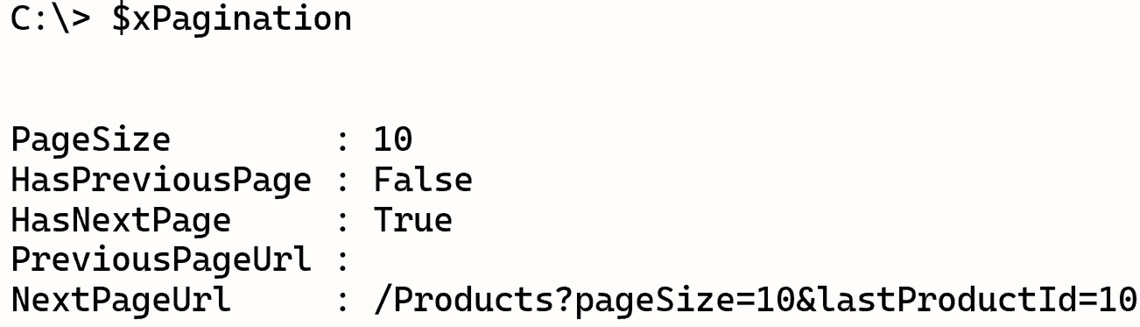
    Figure 1.7 shows the $xPagination variable in our PowerShell terminal:

Figure 1.7 – Pagination metadata displayed in PowerShell

Figure 1.7 – Pagination metadata displayed in PowerShell

  1. Save a URL for NextPage in a variable:
    $nextPageUrl = $baseUrl + $xPagination.NextPageUrl
  2. Call the next page and examine the results:
    $response = Invoke-WebRequest -Uri $nextPageUrl
    $jsonContent = $response.Content | ConvertFrom-Json
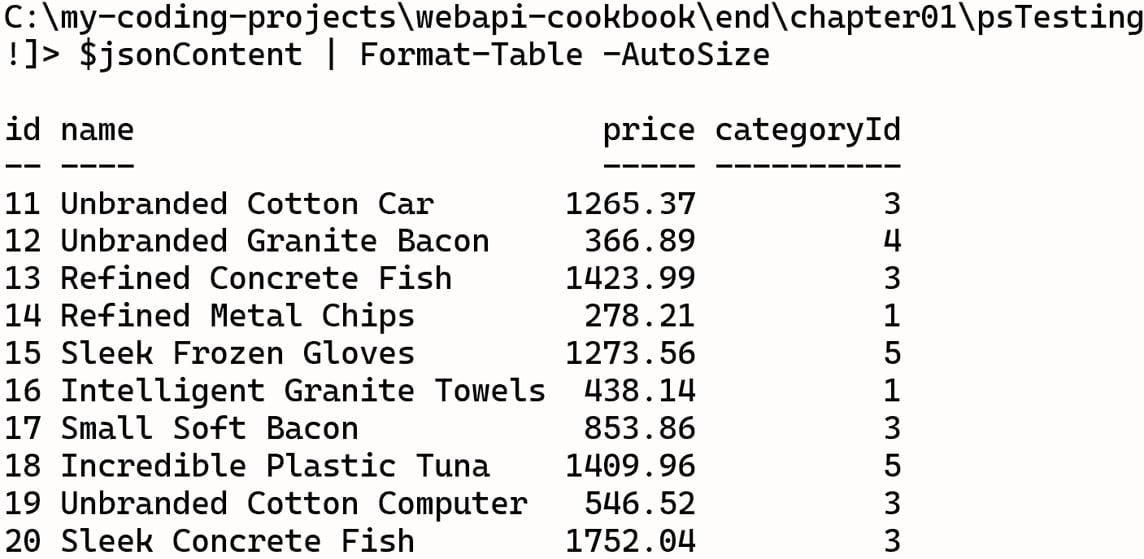
    $jsonContent | Format-Table -AutoSize

    Figure 1.8 shows the next page of data displayed in PowerShell:

Figure 1.8 – The next page of data displayed in PowerShell

Figure 1.8 – The next page of data displayed in PowerShell

How it works…

We verified our pagination headers and played around with paged data directly in the terminal. We also formatted response content in PowerShell and learned about Invoke-WebRequest, which is one way we can manipulate our APIs from the terminal. The response from Invoke-WebRequest includes headers, which we accessed to get the X-Pagination custom header. This header contains our pagination metadata such as the total number of pages, the current page, and links to the next and previous page. Invoke-WebRequest lets you access all response headers directly, making it easy to parse a custom header like X-Pagination.

Another similar cmdlet is Invoke-RestMethod, which automatically parses your JSON and returns a smaller response object. The advantage of Invoke-WebRequest is that it can include more information. Invoke-RestMethod is fantastic for simple REST API interactions but Invoke-WebRequest can be better suited for complex interactions.

Visually different images
CONTINUE READING
83
Tech Concepts
36
Programming languages
73
Tech Tools
Icon Unlimited access to the largest independent learning library in tech of over 8,000 expert-authored tech books and videos.
Icon Innovative learning tools, including AI book assistants, code context explainers, and text-to-speech.
Icon 50+ new titles added per month and exclusive early access to books as they are being written.
ASP.NET Core 9 Web API Cookbook
notes
bookmark Notes and Bookmarks search Search in title playlist Add to playlist download Download options font-size Font size

Change the font size

margin-width Margin width

Change margin width

day-mode Day/Sepia/Night Modes

Change background colour

Close icon Search
Country selected

Close icon Your notes and bookmarks

Confirmation

Modal Close icon
claim successful

Buy this book with your credits?

Modal Close icon
Are you sure you want to buy this book with one of your credits?
Close
YES, BUY

Submit Your Feedback

Modal Close icon
Modal Close icon
Modal Close icon