Real-World Web Development with .NET 9 equips you to build professional websites and services using proven technologies like ASP.NET Core MVC, Web API, and OData—trusted by organizations for delivering robust web applications.
You’ll learn to design and build efficient web applications with ASP.NET Core MVC, creating well-structured, maintainable code that follows industry best practices. From there, you’ll focus on Web API, building RESTful services that are both secure and scalable. Along the way, you’ll also explore testing, authentication, and containerization for deployment, ensuring that your solutions are fully production ready.
In the final part of the book, you will be introduced to Umbraco CMS, a popular content management system for .NET. By mastering this tool, you’ll learn how to empower users to manage website content independently.
By the end of this book, you'll not only have a solid grasp of controller-based development but also the practical know-how to build dynamic, content-driven websites using a popular .NET CMS.
Building an entity model for use in the rest of the book
Websites and web services usually need to work with data in a relational database or another data store. There are several technologies that could be used, from lower-level ADO.NET to higher-level EF Core. We will use EF Core since it is flexible and more familiar to .NET developers.
In this section, we will define an EF Core entity data model for a database named Northwind stored in SQL Server. It will be used in most of the projects that we create in subsequent chapters.
There are multiple SQL scripts to choose from, as described in the following list:
Northwind4AzureSqlEdgeDocker.sql script: To use SQL Server on a local computer in Docker. The script creates the Northwind database. It does not drop it if it already exists because the Docker container should be empty anyway as a fresh one will be spun up each time. This is my recommendation. Instructions to install Docker and set up a SQL Edge image and container are in the next section of this book.
Northwind4SqlServer.sql script: To use SQL Server on a local Windows or Linux computer. The script checks if the Northwind database already exists and if necessary drops it before creating it. Instructions to install SQL Server Developer Edition (free) on your local Windows computer can be found in the GitHub repository for this book at https://github.com/markjprice/web-dev-net9/blob/main/docs/sql-server/README.md.
Northwind4AzureSqlDatabaseCloud.sql script: To use SQL Server with an Azure SQL Database resource created in the Azure cloud. You will need an Azure account; these resources cost money as long as they exist! The script does not drop or create the Northwind database because you should manually create the Northwind database using the Azure portal user interface. The script only creates the database objects, including the table structure and data.
Installing Docker and the Azure SQL Edge container image
Docker provides a consistent environment across development, testing, and production, minimizing the “it works on my machine” issue. Docker containers are more lightweight than traditional virtual machines, making them faster to start up and less resource-intensive.
Docker containers can run on any system with Docker installed, making it easy to move databases between environments or across different machines. You can quickly spin up a SQL database container with a single command, making setup faster and more reproducible. Each database instance runs in its own container, ensuring that it is isolated from other applications and databases on the same machine.
You can install Docker on any operating system and use a container that has Azure SQL Edge, a cross-platform minimal featured version of SQL Server that only includes the database engine. For personal, educational, and small business use, Docker Desktop is free to use. It includes the full set of Docker features, including container management and orchestration. The Docker Command-line Interface (CLI) and Docker engine are open source and free to use, allowing developers to build, run, and manage containers.
Docker also has paid tiers that offer additional features, such as enhanced security, collaboration tools, more granular access control, priority support, and higher rate limits on Docker Hub image pull.
The Docker image we will use has Azure SQL Edge based on Ubuntu 18.4. It is supported with Docker Engine 1.8 or later. Azure SQL Edge requires a 64-bit processor (either x64 or ARM64), with a minimum of one processor and 1 GB RAM on the host:
At the command prompt or terminal, run the container image for Azure SQL Edge with a strong password and name the container azuresqledge, as shown in the following command:
Good Practice: The password must be at least eight characters long and contain characters from three of the following four sets: uppercase letters, lowercase letters, digits, and symbols. Otherwise, the container cannot set up the SQL Edge engine and will stop working.
On Windows 11, running the container image at the command prompt failed for me. See the next section titled Running a container using the user interface for steps that worked.
If your operating system firewall blocks access, then allow access.
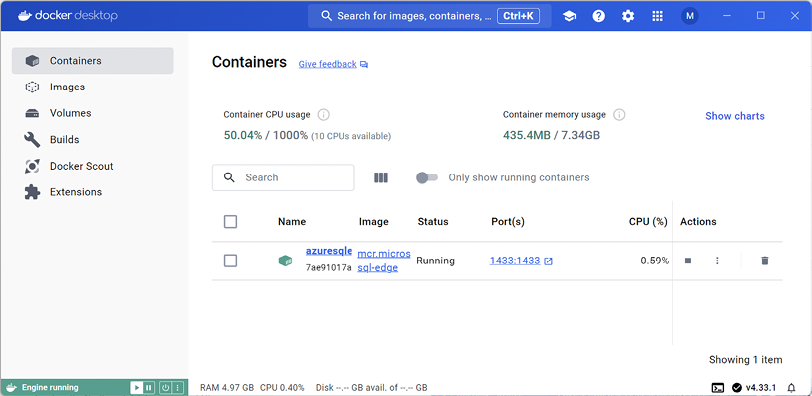
In Docker Desktop, in the Containers section, confirm that the image is running, as shown in Figure 1.7:
Figure 1.7: Azure SQL Edge running in Docker Desktop on Windows
At the command prompt or terminal, ask Docker to list all containers, both running and stopped, as shown in the following command:
docker ps -a
Note the container is “Up” and listening externally on port 1433, which is mapped to its internal port 1433, as shown highlighted in the following output:
CONTAINER ID   IMAGE                              COMMAND                  CREATED         STATUS         PORTS                              NAMES
183f02e84b2a   mcr.microsoft.com/azure-sql-edge   "/opt/mssql/bin/perm…"   8 minutes ago   Up 8 minutes   1401/tcp, 0.0.0.0:1433->1433/tcp   azuresqledge
If you successfully ran the SQL Edge container, then you can skip this section and continue with the next section, titled Connecting to Azure SQL Edge in a Docker container.
If entering a command at the prompt or terminal fails for you, try following these steps to use the user interface:
In Docker Desktop, navigate to the Images tab.
In the mcr.microsoft.com/azuresqledge row, click the Run action.
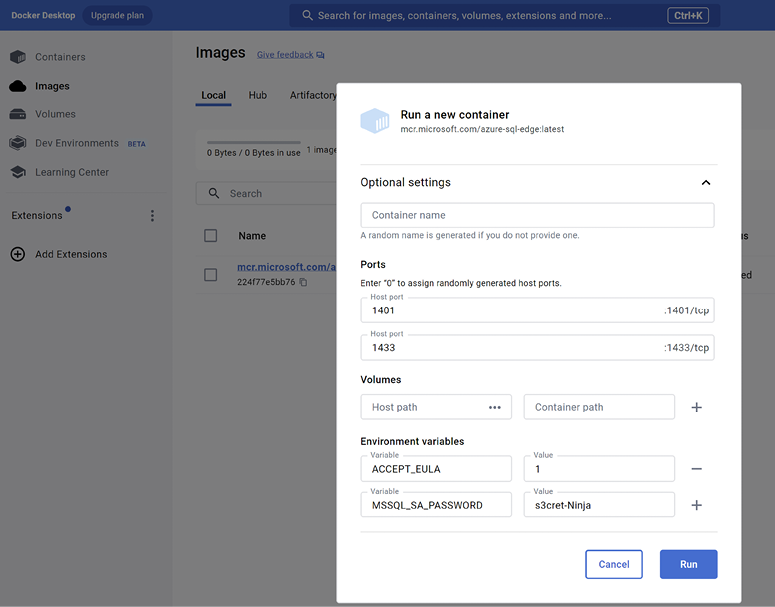
In the Run a new container dialog box, expand Optional settings, and complete the configuration, as shown in Figure 1.8 and in the following items:
Container name: azuresqledge, or leave blank to use a random name.
Ports:
Enter 1401 to map to :1401/tcp.
Enter 1433 to map to :1433/tcp.
Volumes: leave empty.
Environment variables (click + to add a second one):
Enter ACCEPT_EULA with value Y (or 1).
Enter MSSQL_SA_PASSWORD with value s3cret-Ninja.
Click Run.
Figure 1.8: Running a container for Azure SQL Edge with the user interface
Connecting to Azure SQL Edge in a Docker container
Use your preferred database tool to connect to Azure SQL Edge in the Docker container. Some common database tools are shown in the following list:
Windows only:
SQL Server Management Studio (SSMS): The most popular and comprehensive tool for managing SQL Server databases. Free to download from Microsoft.
SQL Server Data Tools (SSDT): Integrated into Visual Studio and free to use, SSDT provides database development tools for designing, deploying, and managing SQL Server databases.
Cross-platform for Windows, macOS, Linux:
VS Code’s MS SQL extension: Query execution, IntelliSense, database browsing, and connection to SQL Server databases.
Azure Data Studio: A cross-platform database management tool focused on query editing, data insights, and lightweight management.
Some notes about the database connection string for SQL Edge:
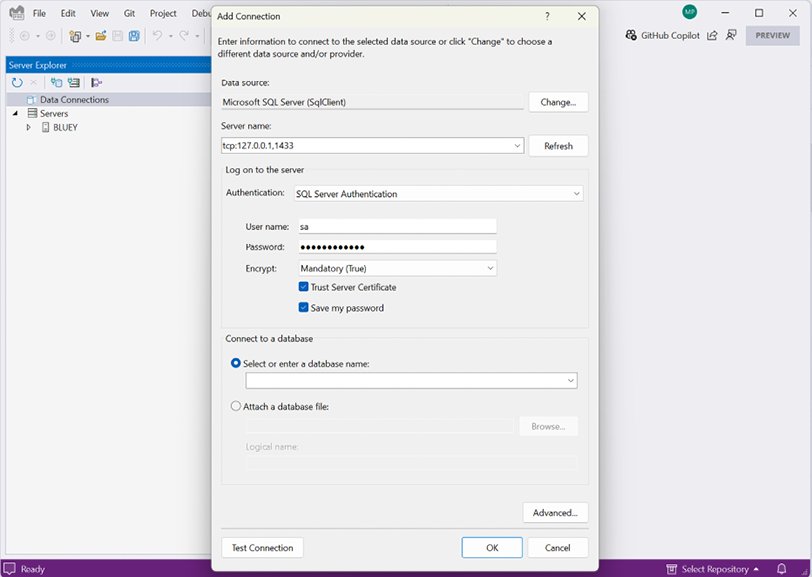
Data Source, a.k.a. server: tcp:127.0.0.1,1433
You must use SQL Server Authentication, a.k.a. SQL Login. That is, you must supply a username and password. The Azure SQL Edge image has the sa user already created and you had to give it a strong password when you ran the container. We chose the password s3cret-Ninja.
You must select the Trust Server Certificate check box.
Initial Catalog, a.k.a. database: master or leave blank. (We will create the Northwind database using a SQL script so we do not specify that as the database name yet.)
Connecting from Visual Studio
To connect to SQL Edge using Visual Studio:
In Visual Studio, navigate to View | Server Explorer.
In the mini-toolbar, click the Connect to Database... button.
Enter the connection details, as shown in Figure 1.9:
Figure 1.9: Connecting to your Azure SQL Edge server from Visual Studio
Connecting from VS Code
To connect to SQL Edge using VS Code:
In VS Code, navigate to the SQL Server extension. Note that the mssql extension might take a few minutes to initialize the first time.
In the SQL extension, click Add Connection....
Enter the server name tcp:127.0.0.1,1433, as shown in Figure 1.10:
Figure 1.10: Specifying the server name
Leave the database name blank by pressing Enter, as shown in Figure 1.11:
Figure 1.11: Specifying the database name (leave blank)
Select SQL Login, as shown in Figure 1.12:
Figure 1.12: Choosing SQL Login to authenticate
Enter the user ID sa, as shown in Figure 1.13:
Figure 1.13: Entering the user ID of sa
Enter the password s3cret-Ninja, as shown in Figure 1.14:
Figure 1.14: Entering the password
Select Yes to save the password for the future, as shown in Figure 1.15:
Figure 1.15: Saving the password for future use
Enter a connection profile name, Azure SQL Edge in Docker, as shown in Figure 1.16:
Figure 1.16: Naming the connection
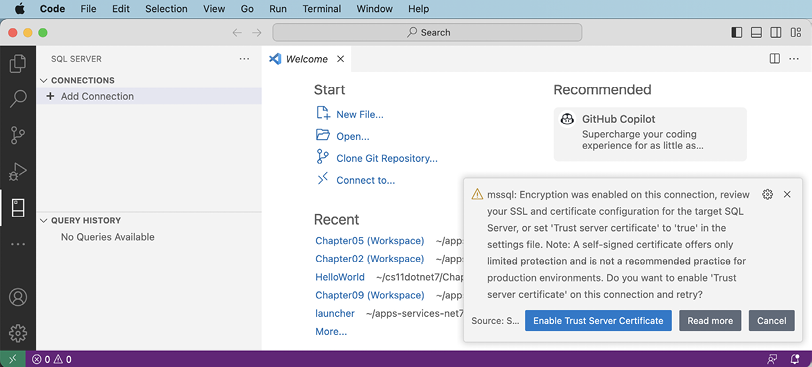
Click Enable Trust Server Certificate, as shown in Figure 1.17:
Figure 1.17: Trusting the local developer certificate
Note the success notification message.
Creating the Northwind database using a SQL script
Now you can use your preferred code editor (or database tool) to execute the SQL script to create the Northwind database in SQL Edge:
Open the Northwind4AzureSQLEdgeDocker.sql file.
Execute the SQL script:
If you are using Visual Studio, right-click in the script, then select Execute, and then wait to see the Command completed successfully message.
If you are using VS Code, right-click in the script, select Execute Query, select the Azure SQL Edge in Docker connection profile, and then wait to see the Commands completed successfully message.
Refresh the data connection:
If you are using Visual Studio, then in Server Explorer, right-click Tables and select Refresh.
If you are using VS Code, then right-click the Azure SQL Edge in Docker connection profile and choose Refresh.
Expand Databases, expand Northwind, and then expand Tables.
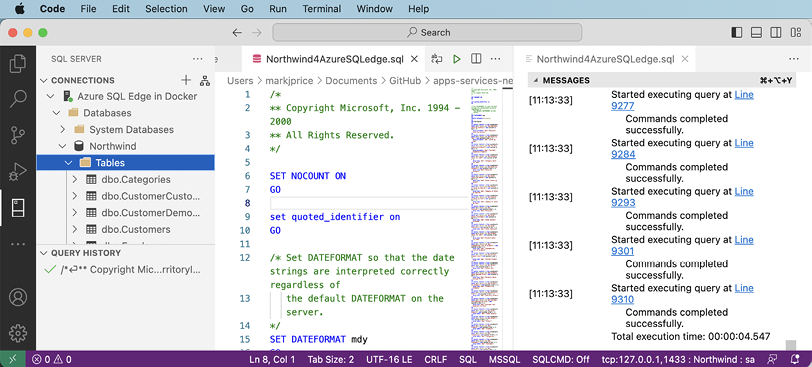
Note that 13 tables have been created, for example, Categories, Customers, and Products. Also note that dozens of views and stored procedures have also been created, as shown in Figure 1.18:
Figure 1.18: Northwind database created by SQL script in VS Code
You now have a running instance of Azure SQL Edge containing the Northwind database that you can connect to from your ASP.NET Core projects.
Removing Docker resources
When you have completed all the chapters in the book, or you plan to use a full SQL Server or Azure SQL Database instead of a SQL Edge container, and you want to remove all the Docker resources, then follow these steps:
At the command prompt or terminal, stop the azuresqledge container, as shown in the following command:
docker stop azuresqledge
At the command prompt or terminal, remove the azuresqledge container, as shown in the following command:
docker rm azuresqledge
Warning! Removing the container will delete all data inside it.
At the command prompt or terminal, remove the azure-sql-edge image to release its disk space, as shown in the following command:
docker rmi mcr.microsoft.com/azure-sql-edge
Setting up the EF Core CLI tool
The .NET CLI tool named dotnet can be extended with capabilities useful for working with EF Core. It can perform design-time tasks like creating and applying migrations from an older model to a newer model and generating code for a model from an existing database.
The dotnet-ef command-line tool is not automatically installed. You must install this package as either a global or local tool. If you have already installed an older version of the tool, then you should update it to the latest version:
At a command prompt or terminal, check if you have already installed dotnet-ef as a global tool, as shown in the following command:
dotnet tool list --global
Check in the list if an older version of the tool has been installed, like the one for .NET 7, as shown in the following output:
Package Id      Version     Commands
-------------------------------------
dotnet-ef       9.0.0       dotnet-ef
If an old version is installed, then update the tool, as shown in the following command:
dotnet tool update --global dotnet-ef
If it is not already installed, then install the latest version, as shown in the following command:
dotnet tool install --global dotnet-ef
If necessary, follow any OS-specific instructions to add the dotnet tools directory to your PATH environment variable, as described in the output of installing the dotnet-ef tool.
By default, the latest GA release of .NET will be used to install the tool. To explicitly set a version, for example, to use a preview, add the --version switch. For example, to update to the latest .NET 10 preview or release candidate version (that will be available from February 2025 to October 2025), use the following command with a version wildcard:
Once the .NET 10 GA release happens in November 2025, you can just use the command without the --version switch to upgrade.
You can also remove the tool, as shown in the following command:
dotnet tool uninstall --global dotnet-ef
Creating a class library for entity models
You will now define entity data models in a class library so that they can be reused in other types of projects, including client-side app models.
Good Practice: You should create a separate class library project for your entity data models from the class library for your data context. This allows easier sharing of the entity models between backend web servers and frontend desktop, mobile, and Blazor clients, while only the backend needs to reference the data context class library.
We will automatically generate some entity models using the EF Core command-line tool:
Use your preferred code editor to create a new project and solution, as defined in the following list:
Project template: Class Library /classlib
Project file and folder: Northwind.EntityModels
Solution file and folder: MatureWeb
You can target either .NET 8 (LTS) or .NET 9 (STS) for all the projects in this book but you should be consistent. If you choose .NET 9 for the class libraries, then choose .NET 9 for later MVC and Web API projects.
In the Northwind.EntityModels project, add package references for the SQL Server database provider and EF Core design-time support, as shown in the following markup:
Build the Northwind.EntityModels project to restore packages.
Make sure that the SQL Edge container is running because you are about to connect to the server and its Northwind database.
At a command prompt or terminal, in the Northwind.EntityModels project folder (the folder that contains the .csproj project file), generate entity class models for all tables, as shown in the following command:
The connection string: "Data Source=tcp:127.0.0.1,1433;Initial Catalog=Northwind;User Id=sa;Password=s3cret-Ninja';TrustServerCertificate=true;"
The database provider: Microsoft.EntityFrameworkCore.SqlServer
The namespace: --namespace Northwind.EntityModels
To use data annotations as well as the Fluent API: --data-annotations
Warning!dotnet-ef commands must be entered all on one line and in a folder that contains a project, or you will see the following error: No project was found. Change the current working directory or use the --project option. Remember that all command lines can be found at and copied from the following link:
You will now define a database context class library:
Add a new project to the solution, as defined in the following list:
Project template: Class Library /classlib
Project file and folder: Northwind.DataContext
Solution file and folder: MatureWeb
In the Northwind.DataContext project, statically and globally import the Console class, add a package reference to the EF Core data provider for SQL Server, and add a project reference to the Northwind.EntityModels project, as shown in the following markup:
<ItemGroup Label="To simplify use of WriteLine.">
<Using Include="System.Console" Static="true" />
</ItemGroup>
<ItemGroup Label="Versions are set at solution-level.">
<PackageReference
Include="Microsoft.EntityFrameworkCore.SqlServer" />
</ItemGroup>
<ItemGroup>
<ProjectReference Include="..\Northwind.EntityModels\Northwind.EntityModels.csproj" />
</ItemGroup>
Warning! The path to the project reference should not have a line break in your project file.
In the Northwind.DataContext project, delete the Class1.cs file.
Build the Northwind.DataContext project to restore packages.
In the Northwind.DataContext project, add a class named NorthwindContextLogger.cs.
Modify its contents to define a static method named WriteLine that appends a string to the end of a text file named northwindlog-<date_time>.txt on the desktop, as shown in the following code:
Move the NorthwindContext.cs file from the Northwind.EntityModels project/folder to the Northwind.DataContext project/folder.
In Visual Studio Solution Explorer, if you drag and drop a file between projects, it will be copied. If you hold down Shift while dragging and dropping, it will be moved. In VS Code EXPLORER, if you drag and drop a file between projects, it will be moved. If you hold down Ctrl while dragging and dropping, it will be copied.
In NorthwindContext.cs, note the second constructor can have options passed as a parameter, which allows us to override the default database connection string in any projects such as websites that need to work with the Northwind database, as shown in the following code:
In NorthwindContext.cs, in the OnConfiguring method, remove the compiler #warning about the connection string and then add statements to dynamically build a database connection string for SQL Edge in Docker, as shown in the following code:
protectedoverridevoidOnConfiguring(DbContextOptionsBuilder optionsBuilder)
{
if (!optionsBuilder.IsConfigured)
{
SqlConnectionStringBuilder builder = new();
builder.DataSource = "tcp:127.0.0.1,1433"; // SQL Edge in Docker.
builder.InitialCatalog = "Northwind";
builder.TrustServerCertificate = true;
builder.MultipleActiveResultSets = true;
// Because we want to fail faster. Default is 15 seconds.
builder.ConnectTimeout = 3;
// SQL Server authentication.
builder.UserID = Environment.GetEnvironmentVariable("MY_SQL_USR");
builder.Password = Environment.GetEnvironmentVariable("MY_SQL_PWD");
optionsBuilder.UseSqlServer(builder.ConnectionString);
optionsBuilder.LogTo(NorthwindContextLogger.WriteLine,
new[] { Microsoft.EntityFrameworkCore
.Diagnostics.RelationalEventId.CommandExecuting });
}
}
In the Northwind.DataContext project, add a class named NorthwindContextExtensions.cs. Modify its contents to define an extension method that adds the Northwind database context to a collection of dependency services, as shown in the following code:
using Microsoft.Data.SqlClient;// To use SqlConnectionStringBuilder.using Microsoft.EntityFrameworkCore; // To use UseSqlServer.using Microsoft.Extensions.DependencyInjection; // To use IServiceCollection.namespaceNorthwind.EntityModels;
publicstaticclassNorthwindContextExtensions
{
/// <summary>/// Adds NorthwindContext to the specified IServiceCollection. Uses the SqlServer database provider. /// </summary> /// <param name="services">The service collection.</param> /// <param name="connectionString">Set to override the default.</param> /// <returns>An IServiceCollection that can be used to add more services.</returns>publicstatic IServiceCollection AddNorthwindContext(this IServiceCollection services, // The type to extend.string? connectionString = null)
{
if (connectionString is null)
{
SqlConnectionStringBuilder builder = new();
builder.DataSource = "tcp:127.0.0.1,1433"; // SQL Edge in Docker.
builder.InitialCatalog = "Northwind";
builder.TrustServerCertificate = true;
builder.MultipleActiveResultSets = true;
// Because we want to fail faster. Default is 15 seconds.
builder.ConnectTimeout = 3;
// SQL Server authentication.
builder.UserID = Environment.GetEnvironmentVariable("MY_SQL_USR");
builder.Password = Environment.GetEnvironmentVariable("MY_SQL_PWD");
connectionString = builder.ConnectionString;
}
services.AddDbContext<NorthwindContext>(options =>
{
options.UseSqlServer(connectionString);
options.LogTo(NorthwindContextLogger.WriteLine,
new[] { Microsoft.EntityFrameworkCore
.Diagnostics.RelationalEventId.CommandExecuting });
},
// Register with a transient lifetime to avoid concurrency// issues with Blazor Server projects.
contextLifetime: ServiceLifetime.Transient,
optionsLifetime: ServiceLifetime.Transient);
return services;
}
}
Build the two class libraries and fix any compiler errors.
Setting the user and password for SQL Server authentication
If you are using SQL Server authentication, i.e., you must supply a user and password, then complete the following steps:
In the Northwind.DataContext project, note the statements that set UserId and Password, as shown in the following code:
You will need to restart any command prompts, terminal windows, and applications like Visual Studio for this change to take effect.
Good Practice: Although you could define the two environment variables in the launchSettings.json file of an ASP.NET Core project, you must then be extremely careful not to include that file in a GitHub repository! You can learn how to ignore files in Git at https://docs.github.com/en/get-started/getting-started-with-git/ignoring-files.
Registering dependency services
You can register dependency services with different lifetimes, as shown in the following list:
Transient: These services are created each time they’re requested. Transient services should be lightweight and stateless.
Scoped: These services are created once per client request and are disposed of, then the response returns to the client.
Singleton: These services are usually created the first time they are requested and then shared, although you can provide an instance at the time of registration too.
Introduced in .NET 8 is the ability to set a key for a dependency service. This allows multiple services to be registered with different keys and then retrieved later using that key:
In this book, you will use all three types of lifetime but we will not need to use keyed services.
By default, a DbContext class is registered using the Scope lifetime, meaning that multiple threads can share the same instance. But DbContext does not support multiple threads. If more than one thread attempts to use the same NorthwindContext class instance at the same time, then you will see the following runtime exception thrown: A second operation started on this context before a previous operation completed. This is usually caused by different threads using the same instance of a DbContext. However, instance members are not guaranteed to be thread-safe.
This happens in Blazor projects with components set to run on the server side because, whenever interactions on the client side happen, a SignalR call is made back to the server where a single instance of the database context is shared between multiple clients. This issue does not occur if a component is set to run on the client side.
Improving the class-to-table mapping
We will make some small changes to improve the entity model mapping and validation rules for SQL Server.
Remember that all code is available in the GitHub repository for the book. Although you will learn more by typing the code yourself, you never have to. Go to the following link and press . to get a live code editor in your browser: https://github.com/markjprice/web-dev-net9.
We will add a regular expression to validate that a CustomerId value is exactly five uppercase letters:
In Customer.cs, add a regular expression to validate its primary key CustomerId to only allow uppercase Western characters, as shown highlighted in the following code:
In Customer.cs, add the [Phone] attribute to its Phone property, as shown highlighted in the following code:
[StringLength(24)]
[Phone]
public string? Phone { get; set; }
The [Phone] attribute adds the following to the rendered HTML: type="tel". On a mobile phone, this makes the keyboard use the phone dialer instead of the normal keyboard.
In Order.cs, decorate the CustomerId property with the same regular expression to enforce five uppercase characters.
Testing the class libraries using xUnit
Several benefits of using xUnit are shown in the following list:
xUnit is open-source and has a strong community and active development team behind it. This makes it more likely that it will stay up to date with the latest .NET features and best practices. xUnit benefits from a large and active community, which means many tutorials, guides, and third-party extensions are available for it.
xUnit uses a more simplified and extensible approach compared to older frameworks. It encourages the use of custom test patterns and less reliance on setup and teardown methods, leading to cleaner test code.
Tests in xUnit are configured using .NET attributes, which makes the test code easy to read and understand. It uses [Fact] for standard test cases and [Theory] with [InlineData], [ClassData], or [MemberData] for parameterized tests, enabling data-driven testing. This makes it easier to cover many input scenarios with the same test method, enhancing test thoroughness while minimizing effort.
xUnit includes an assertion library that allows for a wide variety of assertions out of the box, making it easier to test a wide range of conditions without having to write custom test code. It can also be extended with popular assertion libraries, like FluentAssertions, that allow you to articulate test expectations with human-readable reasons.
By default, xUnit supports parallel test execution within the same test collection, which can significantly reduce the time it takes to run large test suites. This is particularly beneficial in continuous integration environments where speed is critical. However, if you run your tests in a memory-limited VPS (Virtual Private Server), then that impacts how much data the server can handle at any given time and how many applications or processes it can run concurrently. In this scenario, you might want to disable parallel test execution. Memory-limited VPS instances are typically used as cheap testing environments.
xUnit offers precise control over the test lifecycle with setup and teardown commands through the use of the constructor and destructor patterns and the IDisposable interface, as well as with the [BeforeAfterTestAttribute] for more granular control.
Now let’s build some unit tests to ensure the class libraries are working correctly.
Let’s write the tests:
Use your preferred coding tool to add a new xUnit Test Project [C#] / xunit project named Northwind.UnitTests to the MatureWeb solution.
In the Northwind.UnitTests project, delete the version numbers specified for the testing packages in the project file. (Visual Studio and other code editors will give errors if you have projects that should use CPM but specify their own package versions without using the VersionOverride attribute.)
In the Northwind.UnitTests project, add a project reference to the Northwind.DataContext project, as shown in the following configuration:
Warning! The project reference must go all on one line with no line break.
Build the Northwind.UnitTests project to build referenced projects.
Rename UnitTest1.cs to EntityModelTests.cs.
Modify the contents of the file to define two tests, the first to connect to the database and the second to confirm there are eight categories in the database, as shown in the following code:
using Northwind.EntityModels; // To use NorthwindContext.namespaceNorthwind.UnitTests;publicclassEntityModelTests
{
[Fact]
publicvoidDatabaseConnectTest()
{
using NorthwindContext db = new();
Assert.True(db.Database.CanConnect());
}
[Fact]
publicvoidCategoryCountTest()
{
using NorthwindContext db = new();
int expected = 8;
int actual = db.Categories.Count();
Assert.Equal(expected, actual);
}
[Fact]
publicvoidProductId1IsChaiTest()
{
using NorthwindContext db = new();
string expected = "Chai";
Product? product = db.Products.Find(keyValues: 1);
string actual = product?.ProductName ?? string.Empty;
Assert.Equal(expected, actual);
}
}
Run the unit tests:
If you are using Visual Studio, then navigate to Test | Run All Tests, and then view the results in Test Explorer.
If you are using VS Code, then in the Northwind.UnitTests project’s TERMINAL window, run the tests, as shown in the following command: dotnet test. Alternatively, use the TESTING window if you have installed C# Dev Kit.
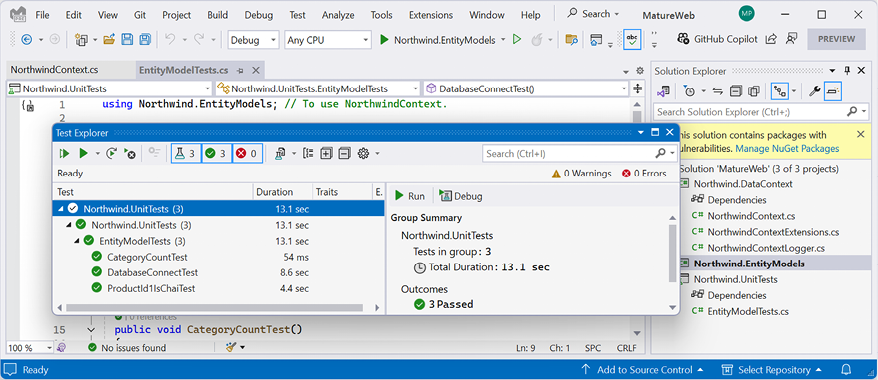
Note that the results should indicate that three tests ran, and all passed, as shown in Figure 1.19:
Figure 1.19: Three successful unit tests ran
If any of the tests fail, then try fix the issue.
Read this chapter and the full book FREE of cost - No Credit card required!
Plus access over 8,000 other expert tech books and videos just by signing up - No commitment!
CONTINUE READING
83
Tech Concepts
36
Programming languages
73
Tech Tools
Unlimited access to the largest independent learning library in tech of over 8,000 expert-authored tech books and videos.
Innovative learning tools, including AI book assistants, code context explainers, and text-to-speech.
50+ new titles added per month and exclusive early access to books as they are being written.





 Free Chapter