Sign In Start Free Trial
Account

Add to playlist

Create a Playlist

Modal Close icon
You need to login to use this feature.
  • Book Overview & Buying Advanced UFT 12 for Test Engineers Cookbook
  • Table Of Contents Toc
Advanced UFT 12 for Test Engineers Cookbook

Advanced UFT 12 for Test Engineers Cookbook

4 (3)
close
close
Advanced UFT 12 for Test Engineers Cookbook

Advanced UFT 12 for Test Engineers Cookbook

4 (3)

Overview of this book

This advanced cookbook is designed for software testers and engineers with previous automation experience and teaches UFT (QTP) developers advanced programming approaches. Knowledge of software testing and basic coding (with VBScript in particular) and familiarity with programming concepts are prerequisites.
Table of Contents (13 chapters)
close
close
12
Index

Importing an Excel file to a test

We can dynamically set the underlying Excel file that will serve as a data source for the whole run session, though this is probably a very rare case, and even switch between such files during the run session. It is possible to import a whole Excel workbook for a test or just a single worksheet for a specific action.

The classical case of importing an Excel file to a test is when the same flow needs to be executed on different environments, such as with multilingual systems. In such a case, the test would require an external parameter to identify the environment, and then load the correct Excel file. Another possibility is that the test identifies the language dynamically, for example, by retrieving the runtime property value of a Test Object (TO), which indicates the current language, or by retrieving the lang attribute of a web page or element.

Getting ready

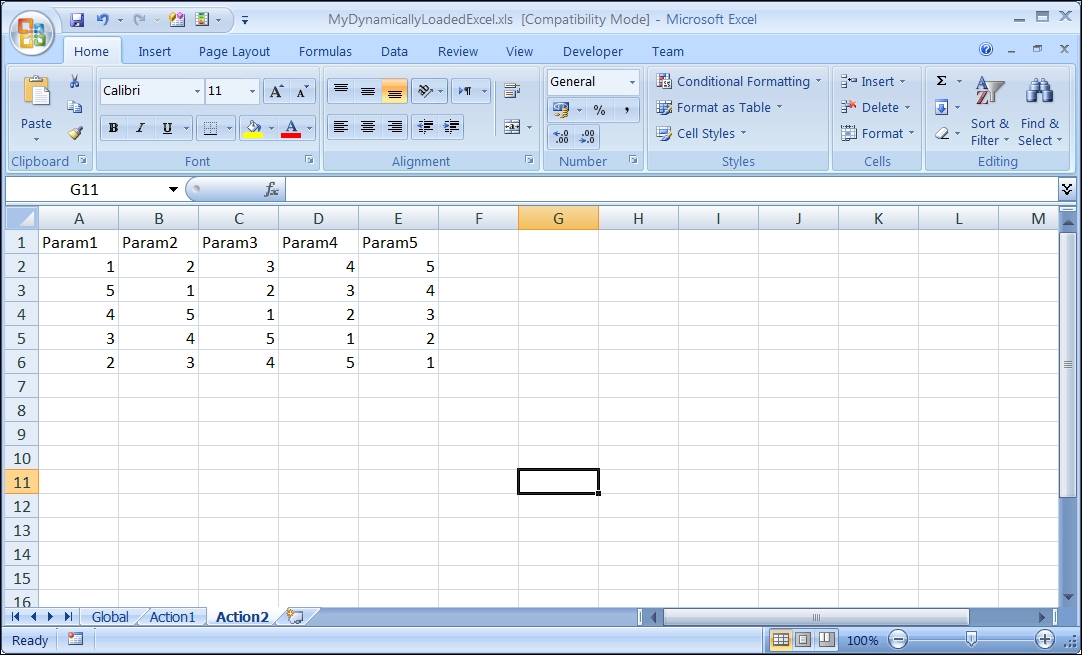
Ensure that a new test is open and create a new action. Ensure that an external Excel sheet exists with one global worksheet and worksheets named after each action in the test. The Excel sheet will contain three worksheets, namely, Global, Action1, and Action2. The Action2 worksheet will contain data shown in the following screenshot. In our example, we will use the Excel sheet named MyDynamicallyLoadedExcel.xls, and to simplify matters, we will put it under the same test folder (it should be placed in a separate shared folder):

Getting ready

In the Flow pane, make sure that the Action Call properties are set to Run on all rows.

How to do it...

In order to load the MyDynamicallyLoadedExcel.xls file to the test, perform the following steps:

  1. We use the DataTable.Import method to load the Excel sheet. In Action1 (the first to be run), we use the following code to ensure that the Excel file is loaded only once (to avoid loading Excel for each iteration in case the test is set to Run on all rows):
    Print "Test Iteration #" & Environment("TestIteration") & " - " & Environment("ActionName") & " - Action Iteration #" & Environment("ActionIteration")
    if cint(Environment("TestIteration")) = 1 then
        DataTable.Import("MyDynamicallyLoadedExcel.xls")    
    end if
  2. In Action2, we use the following code to retrieve the values for all parameters defined in the local datasheet for Action2. We first print the number of the current action iteration, so that we may distinguish between the outputs in the console.
    Print Environment("ActionName") & " - Action Iteration #" & Environment("ActionIteration")
    For p = 1 to DataTable.LocalSheet.GetParameterCount
        print DataTable.LocalSheet.GetParameter(p)
    Next
    
  3. When a test is set to Run on all rows, it means that it will be executed repeatedly for each row having data in GlobalSheet.

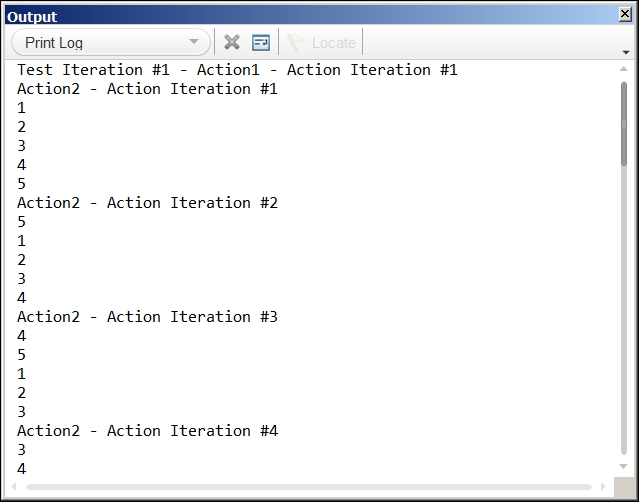
    The output to the console looks like the following screenshot:

    How to do it...

How it works...

In Action1, the DataTable.Import method replaces Default.xls with the target Excel file. The code in Action2 retrieves and prints the values for each parameter, and as the action was set to Run on all rows, the code repeats this for all rows with data.

There's more...

To import just a worksheet for an action, use the DataTable.ImportSheet method as follows:

DataTable.ImportSheet("MyDynamicallyLoadedExcel.xls", "Action1", "Action1")  

Here, the first parameter is the Excel filename and the last two are the source datasheet and target datasheet respectively.

See also

For information on saving values collected during a run session, refer to the next recipe, Exporting a DataTable.

CONTINUE READING
83
Tech Concepts
36
Programming languages
73
Tech Tools
Icon Unlimited access to the largest independent learning library in tech of over 8,000 expert-authored tech books and videos.
Icon Innovative learning tools, including AI book assistants, code context explainers, and text-to-speech.
Icon 50+ new titles added per month and exclusive early access to books as they are being written.
Advanced UFT 12 for Test Engineers Cookbook
notes
bookmark Notes and Bookmarks search Search in title playlist Add to playlist font-size Font size

Change the font size

margin-width Margin width

Change margin width

day-mode Day/Sepia/Night Modes

Change background colour

Close icon Search
Country selected

Close icon Your notes and bookmarks

Confirmation

Modal Close icon
claim successful

Buy this book with your credits?

Modal Close icon
Are you sure you want to buy this book with one of your credits?
Close
YES, BUY

Submit Your Feedback

Modal Close icon
Modal Close icon
Modal Close icon