-
Book Overview & Buying
-
Table Of Contents
Mastering System Center Configuration Manager
By :
Before you start deploying System Center Configuration Manager, you must make sure that your infrastructure meets all of the prerequisites. What follows is a list and a step-by-step guide that shows you how to meet these prerequisites.
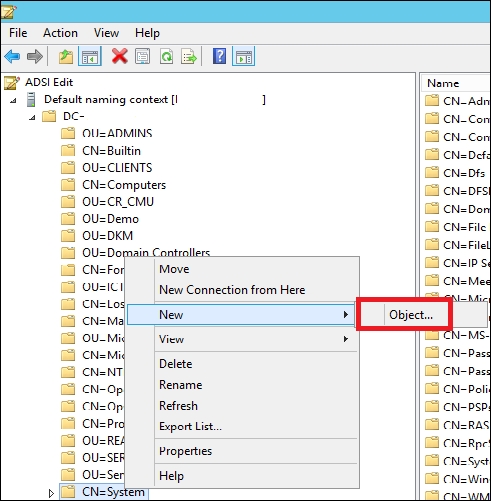
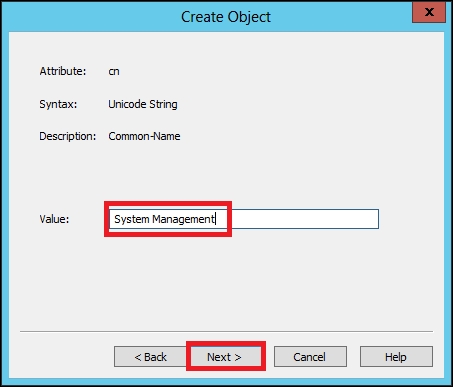
When the Active Directory schema is extended, the System Management container in Active Directory is not created by default. The container has to be created in all Active Directory domains that contain a primary site server or a secondary site server that publishes site information to Active Directory. In order to create the System Management container, take a look at the following steps:
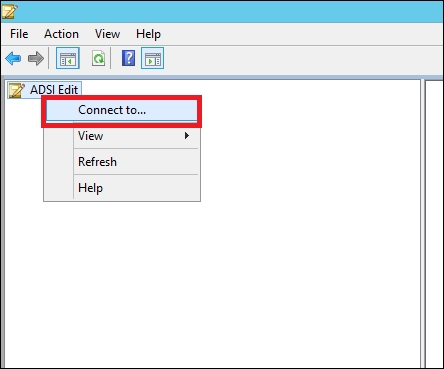
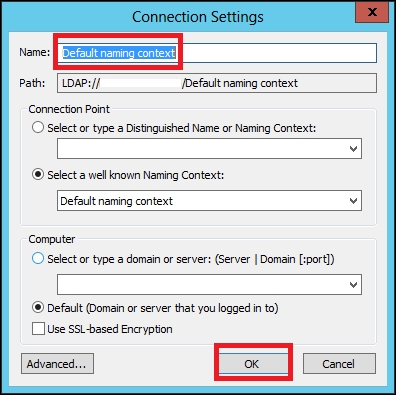
Control Panel\System and Security\Administrative Tools locations or by opening Run under the Start icon and typing adsiedit.msc:


System Management in the Value textbox and click on Next to finish:
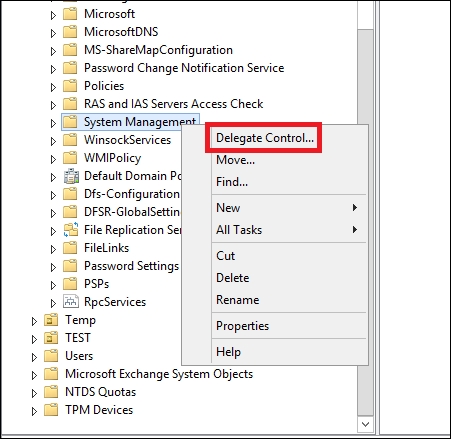
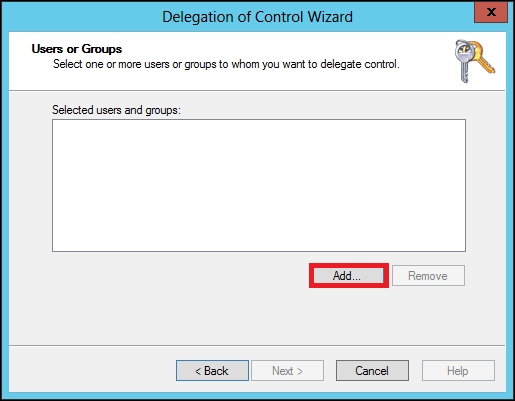
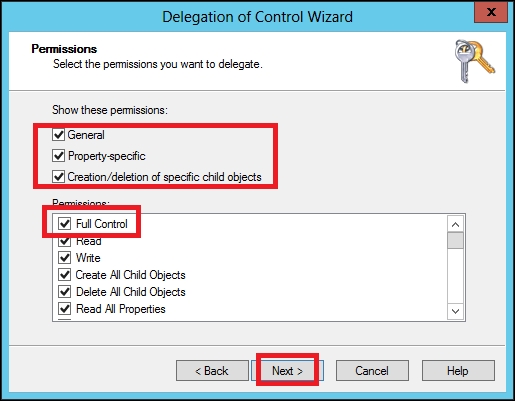
With this, the System Management container is created in Active Directory. Next, we have to join the site server to the Active Directory domain and give computer account permissions to the site server to publish the site information to the container. A primary site server computer account must have full control permissions on the System Management container. To do this, perform the following steps:
dsa.msc.


We have now delegated full permissions to the primary site server's computer account on the System Management container. To find out how to create the System Management container in a different way, check this link:
https://gallery.technet.microsoft.com/scriptcenter/Create-SCCM-System-91fee476
In order to extend the Active Directory Schema for System Center Configuration Manager 2012 R2, you need to use a tool that is located in the installation media of System Center Configuration Manager 2012 R2. You can also use the ldif file. This file will enable you to import or export information to or from Active Directory.
Open the installation media, go to SMSSETUP, then open BIN, and go to x64; you will find extadsch.exe. You can either click on this or copy the path and run it from the command prompt. To run extadsch.exe, you have to use an account with Schema Admin permissions.
When it finishes, you should see the following message in the command prompt:

Before you can install the required Windows Server roles and features for System Center Configuration Manager 2012 R2, you need to make sure you have done the following:
You can use the prerequisites checker tool that is provided with the System Center Configuration Manager 2012 R2 installation media, which is located in \SMSSETUP\BIN\x64\prereqchk.exe. You can also use PowerShell or the tool from the following link to install all the prerequisites:
https://gallery.technet.microsoft.com/ConfigMgr-2012-R2-e52919cd
The following is a list of the Windows Server roles, features, and role services required by System Center Configuration Manager 2012 R2:
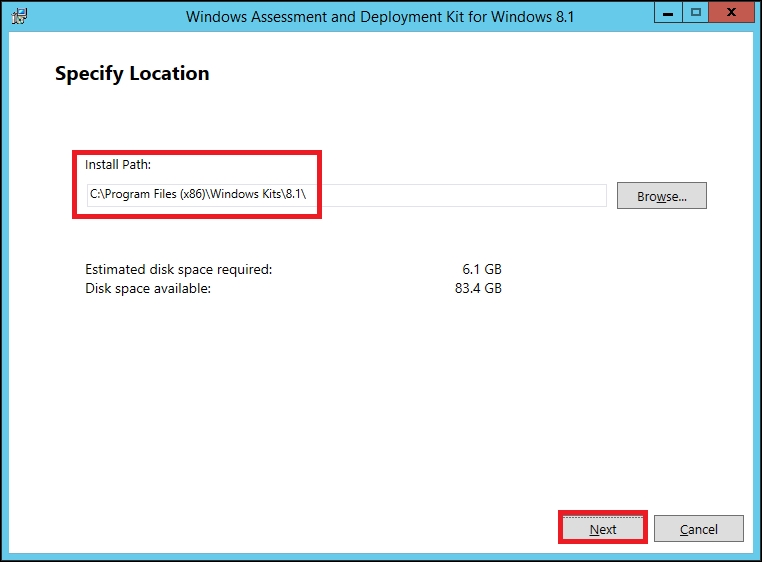
The Windows Assessment and Deployment Kit (ADK) is a set of tools that allow you to customize, assess, and deploy Windows operating systems to new machines. The installation process is simple and straightforward. You can download the ADK from the following location:
http://www.microsoft.com/en-US/download/details.aspx?id=39982
The only thing that you need to keep in mind is feature selection. Proceed with the following steps:


Change the font size
Change margin width
Change background colour