Sign In Start Free Trial
Account

Add to playlist

Create a Playlist

Modal Close icon
You need to login to use this feature.
  • Book Overview & Buying Mastering System Center Configuration Manager
  • Table Of Contents Toc
Mastering System Center Configuration Manager

Mastering System Center Configuration Manager

By : Vangel Krstevski
4.3 (6)
close
close
Mastering System Center Configuration Manager

Mastering System Center Configuration Manager

4.3 (6)
By: Vangel Krstevski

Overview of this book

This book is perfect for IT administrators who are looking to enhance their skills on system and asset management. A fair understanding of the core elements and applications related to SCCM would be helpful.
Table of Contents (10 chapters)
close
close
9
Index

Installing System Center Configuration Manager 2012 R2

In this section, we will go through the installation process for System Center Configuration Manager 2012 R2. So far, we have gone through the requirements, prerequisites, and MS SQL Server installation. The next step is to install System Center Configuration Manager 2012 R2 itself:

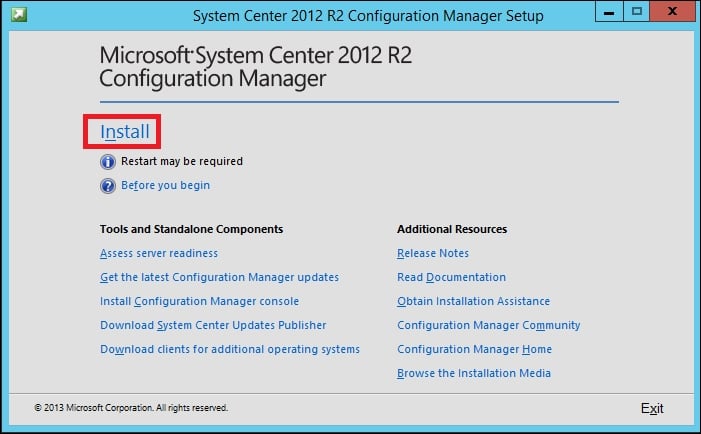
  1. Insert the installation media and when the wizard starts, click on Install:
    Installing System Center Configuration Manager 2012 R2
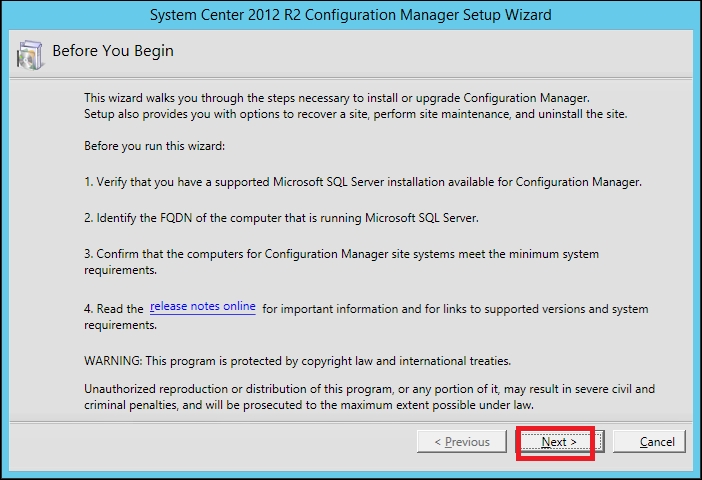
  2. Then, just click on Next:
    Installing System Center Configuration Manager 2012 R2
  3. Now, you have to choose an option from the Available Setup Options window. You can select any one of the following options:
    • Install a Configuration Manager primary site

      This is an option for small- and medium-sized organizations that run less than 100,000 clients.

    • Install a Configuration Manager central administration site

      This is an option for large organizations that run more than 100,000 clients. You can install a central administration site and have multiple primary sites under it.

  4. Select your option and click on Next:
    Installing System Center Configuration Manager 2012 R2
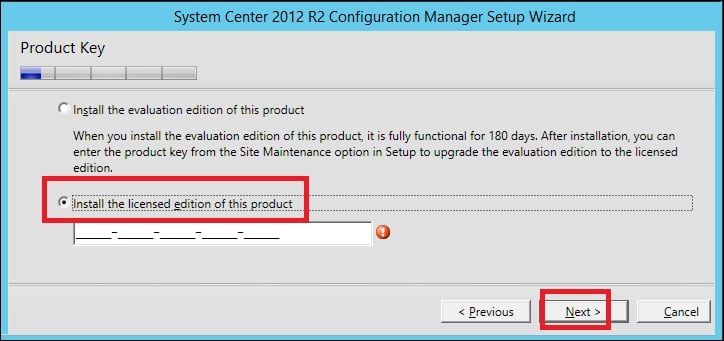
  5. Enter your license code and click on Next:
    Installing System Center Configuration Manager 2012 R2
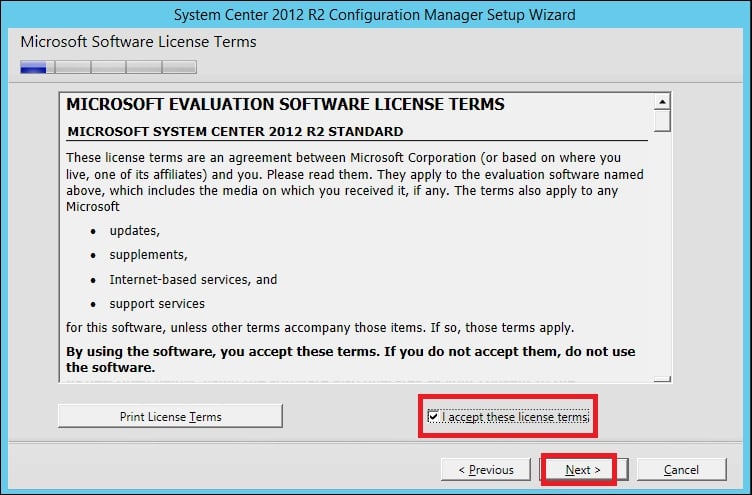
  6. Click on I accept these license terms and then on Next:
    Installing System Center Configuration Manager 2012 R2
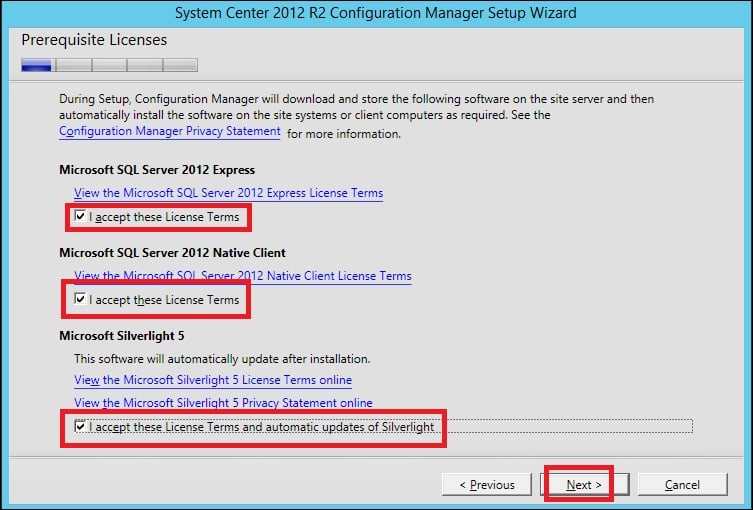
  7. Check all the three checkboxes and click on Next:
    Installing System Center Configuration Manager 2012 R2
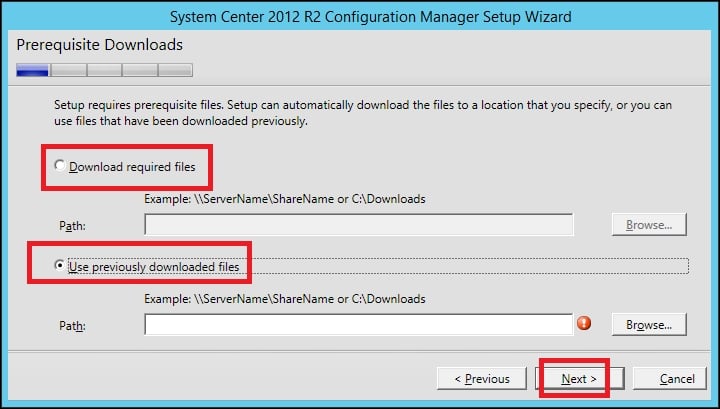
  8. In this step, you can either download the required files or use the previously downloaded files. In the Prerequisites for System Center Configuration Manager 2012 R2 section, two tools have been explained, which can be used to predownload these files. If the files are predownloaded, you have to choose the path to the location of the files. Choose your option and click on Next:
    Installing System Center Configuration Manager 2012 R2
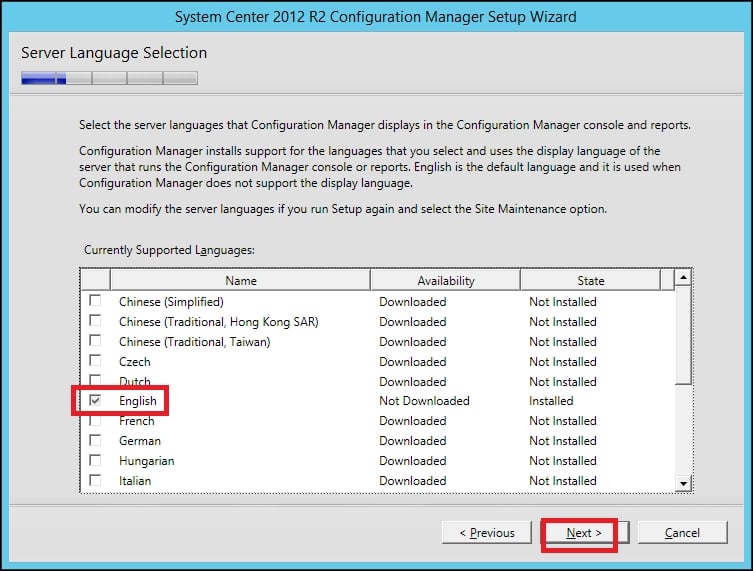
  9. In this step, you have to choose the languages you want to install. This will be the language displayed in the System Center Configuration Manager 2012 R2 console and reports:
    Installing System Center Configuration Manager 2012 R2
  10. Now, just click on Next:
    Installing System Center Configuration Manager 2012 R2
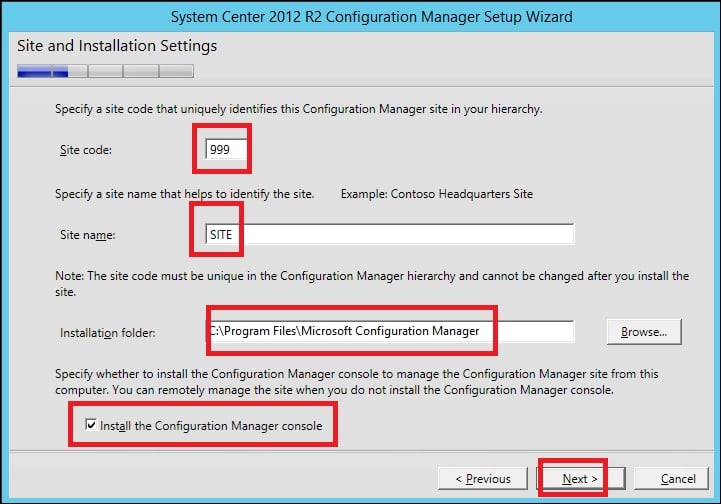
  11. In this step, you have to enter values for the following fields:
    • Site code

      This is the code that uniquely identifies your site and can consist of numbers and letters.

    • Site name

      This is the name that uniquely identifies your site.

    • Installation folder

      This is the location of System Center Configuration Manager 2012 R2 in the filesystem. You can find more guidelines on installation folder recommendations for production environments at the following link:

      http://technet.microsoft.com/en-us/library/hh846235.aspx#BKMK_ReqDiskSpace

  12. Select Install the Configuration Manager console and click on Next:
    Installing System Center Configuration Manager 2012 R2
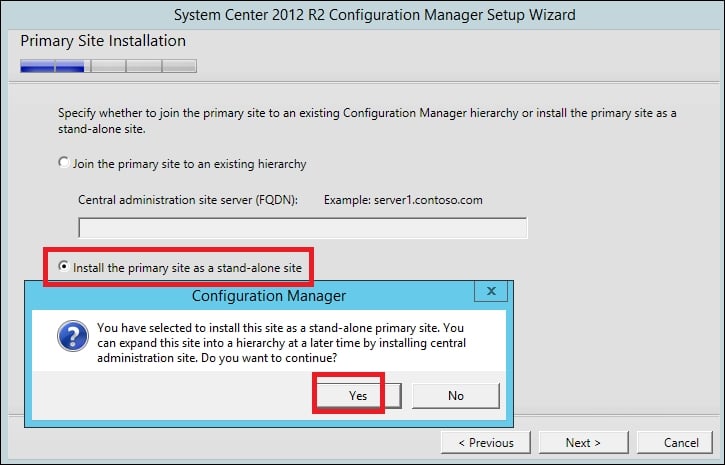
  13. In this step, you can choose from the following options:
    • Join the primary site to an existing hierarchy

      If you choose this, you have to specify the FQDN of your central administration site server

    • Install the primary site as a stand-alone site

      Select this if you don't have a central administration site server in your infrastructure:

      Installing System Center Configuration Manager 2012 R2
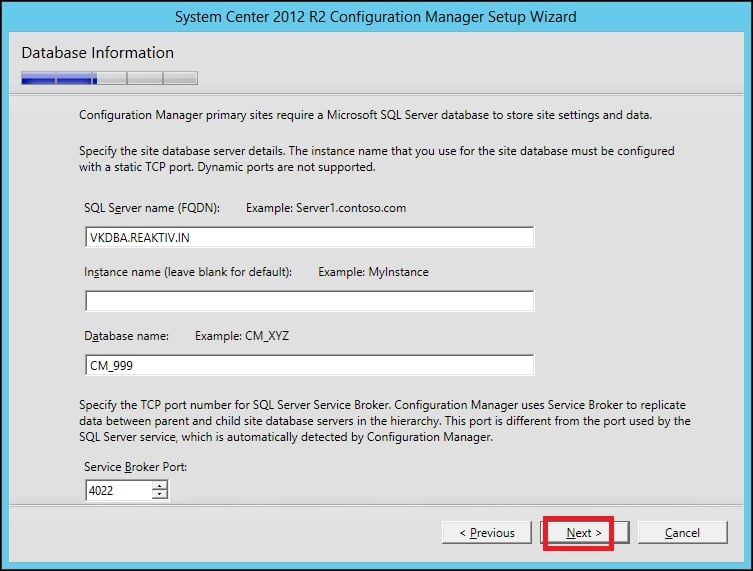
  14. In this step, you have to enter your MS SQL Server's name. If you are using MS SQL Server Cluster, enter your MS SQL Server cluster's name for SQL Server name (FQDN). Enter the instance's name and the database's name and click on Next:
    Installing System Center Configuration Manager 2012 R2
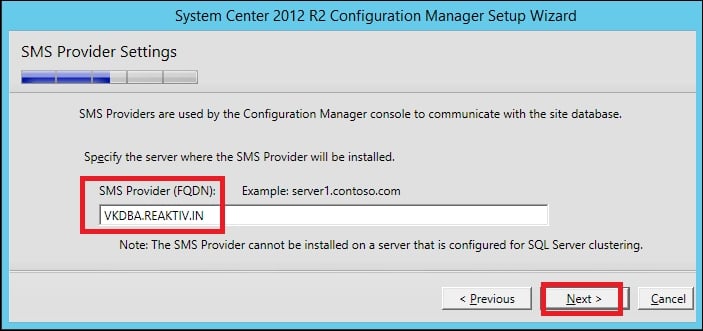
  15. In this step, you have to enter your SMS provider (FQDN). The SMS provider is used by the System Center Configuration Manager console and Resource Explorer, and it uses WMI to read and write to the site database. Enter your primary site server's name in the SMS Provider (FQDN) field and click on Next:
    Installing System Center Configuration Manager 2012 R2
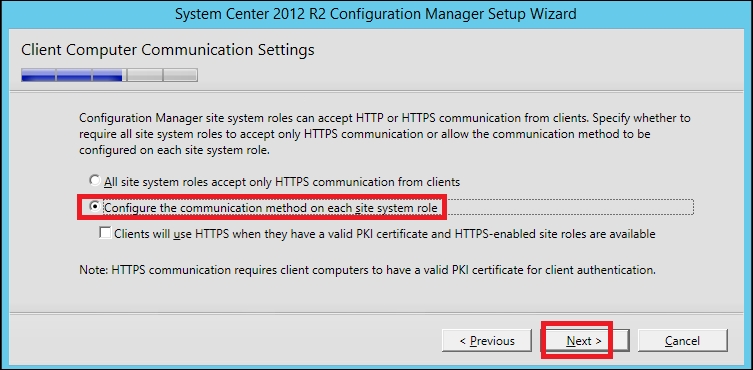
  16. In this step, select Configure the communication method on each site system role and click on Next:
    Installing System Center Configuration Manager 2012 R2
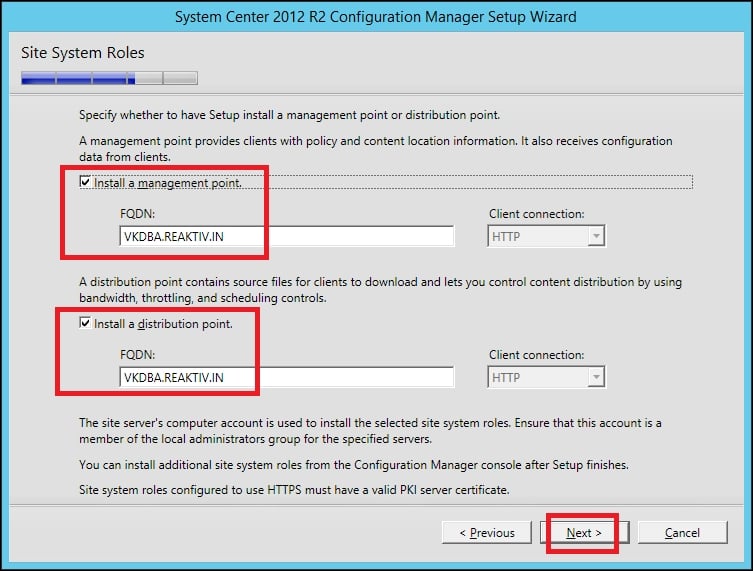
  17. In this step, check the Install a management point and Install a distribution point checkboxes. These site system roles are used for content distribution and management with configuration data from clients:
    Installing System Center Configuration Manager 2012 R2
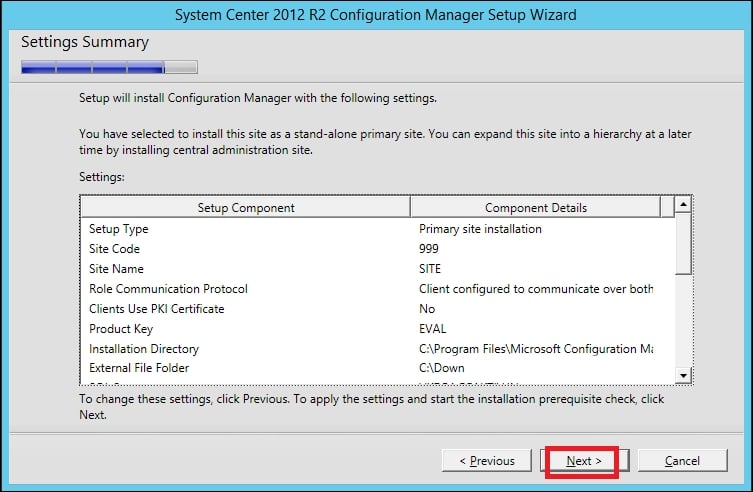
  18. Go through all the settings and click on Next:
    Installing System Center Configuration Manager 2012 R2
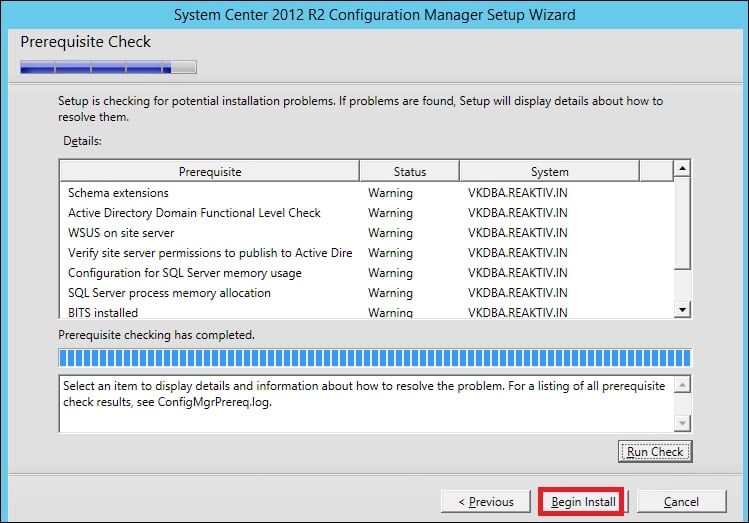
  19. Run a prerequisite check, and if it is completed without errors, click on Begin Install:
    Installing System Center Configuration Manager 2012 R2
CONTINUE READING
83
Tech Concepts
36
Programming languages
73
Tech Tools
Icon Unlimited access to the largest independent learning library in tech of over 8,000 expert-authored tech books and videos.
Icon Innovative learning tools, including AI book assistants, code context explainers, and text-to-speech.
Icon 50+ new titles added per month and exclusive early access to books as they are being written.
Mastering System Center Configuration Manager
notes
bookmark Notes and Bookmarks search Search in title playlist Add to playlist font-size Font size

Change the font size

margin-width Margin width

Change margin width

day-mode Day/Sepia/Night Modes

Change background colour

Close icon Search
Country selected

Close icon Your notes and bookmarks

Confirmation

Modal Close icon
claim successful

Buy this book with your credits?

Modal Close icon
Are you sure you want to buy this book with one of your credits?
Close
YES, BUY

Submit Your Feedback

Modal Close icon
Modal Close icon
Modal Close icon