Sign In Start Free Trial
Account

Add to playlist

Create a Playlist

Modal Close icon
You need to login to use this feature.
  • Book Overview & Buying Mobile DevOps
  • Table Of Contents Toc
Mobile DevOps

Mobile DevOps

By : Tak, Modi
3.5 (2)
close
close
Mobile DevOps

Mobile DevOps

3.5 (2)
By: Tak, Modi

Overview of this book

Today's world is all about perfection, and there are hundreds of applications that are released each day out of which only a few succeed. Making sure that the app looks, performs, and behaves as expected is one of the biggest challenge developers face today. The main goal of this book is to teach developers to implement DevOps to build, test, and deliver. This book will teach you to implement Mobile DevOps at every stage of your application's lifecycle with Visual Studio and Xamarin Mobile Lifecycle solutions. Later, it will also show you how to leverage Mobile Center's continuous integration and automated testing to develop a high-quality applications. Next, you’ll see how to mobilize your on-premises data to the cloud and increase your productivity with code reuse. Finally, you’ll discover how to find and fix bugs beforehand, improving the efficiency of your application while it is being developed. By the end of this book, you will be well-versed with Mobile DevOps techniques, delivering high quality and high performance mobile apps.
Table of Contents (13 chapters)
close
close

Adding an icon for the Android app

App permissions are set and it's ready to run, so let's add an icon for our app:

  1. Download an icon file that you like and that best suits your phone call app.
  2. Go to Solution Explorer and add the downloaded file to the drawable folder under Resources.
  1. Right-click on drawable | Add | Existing Item, as shown in the following screenshot:
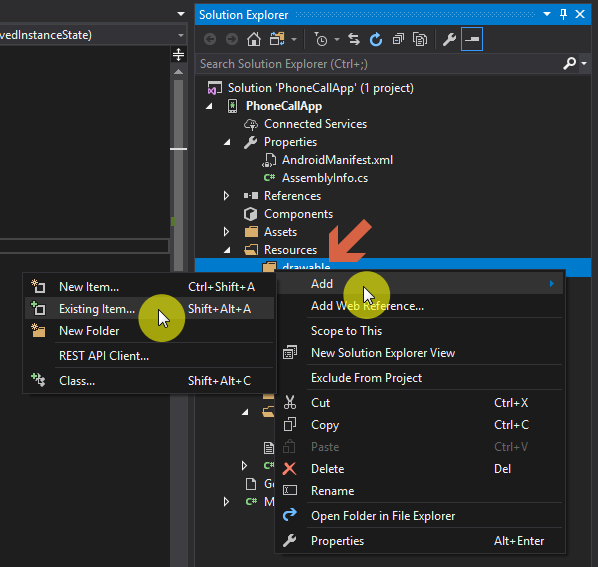
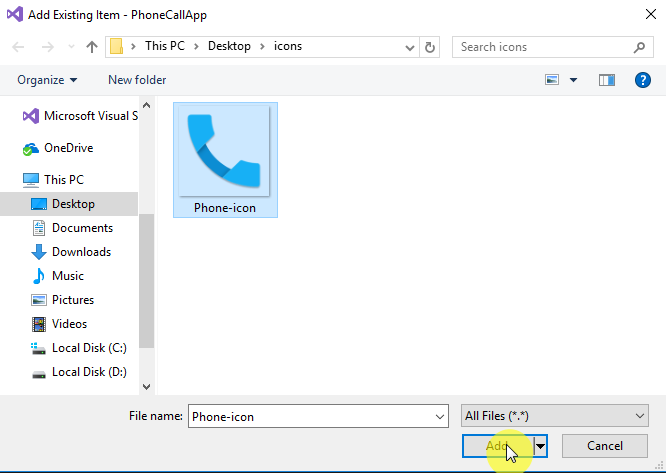
  1. A File Explorer window will open. Navigate to the icon file location, select the icon file, and click Add:
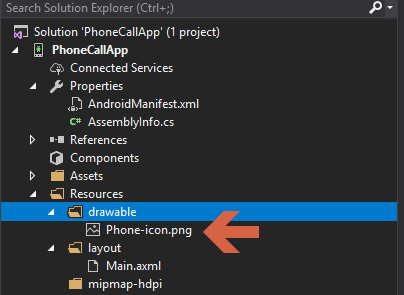
  1. The icon should now be added to the drawable folder of the project:
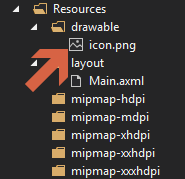
  1. Rename the icon file to icon.png by right-clicking on the file and then clicking Rename:
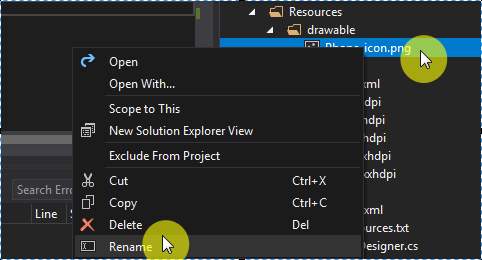
  1. After renaming the file, rebuild the project like we did in the previous steps.
  2. Once the rebuild is done successfully, let's add the icon to the application's Manifest file.
  3. Double-click on Properties from Solution Explorer...

Visually different images
CONTINUE READING
83
Tech Concepts
36
Programming languages
73
Tech Tools
Icon Unlimited access to the largest independent learning library in tech of over 8,000 expert-authored tech books and videos.
Icon Innovative learning tools, including AI book assistants, code context explainers, and text-to-speech.
Icon 50+ new titles added per month and exclusive early access to books as they are being written.
Mobile DevOps
notes
bookmark Notes and Bookmarks search Search in title playlist Add to playlist download Download options font-size Font size

Change the font size

margin-width Margin width

Change margin width

day-mode Day/Sepia/Night Modes

Change background colour

Close icon Search
Country selected

Close icon Your notes and bookmarks

Confirmation

Modal Close icon
claim successful

Buy this book with your credits?

Modal Close icon
Are you sure you want to buy this book with one of your credits?
Close
YES, BUY

Submit Your Feedback

Modal Close icon
Modal Close icon
Modal Close icon