Sign In Start Free Trial
Account

Add to playlist

Create a Playlist

Modal Close icon
You need to login to use this feature.
  • Book Overview & Buying Instant Migration from Windows Server 2008 and 2008 R2 to 2012 How-to
  • Table Of Contents Toc
  • Feedback & Rating feedback
Instant Migration from Windows Server 2008 and 2008 R2 to 2012 How-to

Instant Migration from Windows Server 2008 and 2008 R2 to 2012 How-to

By : Santhosh Sivarajan
4.4 (9)
close
close
Instant Migration from Windows Server 2008 and 2008 R2 to 2012 How-to

Instant Migration from Windows Server 2008 and 2008 R2 to 2012 How-to

4.4 (9)
By: Santhosh Sivarajan

Overview of this book

Migrating to a new server involves a lot of decision making and planning. Windows Server 2012 comes with exciting new features and ease of use. This book will help you migrate to your new server in no time. "Instant Migration from Windows Server 2008 and 2008 R2 to 2012 How-to" provides you with many practical and real world scenarios in a step-by-step guide. It is designed to lead you through the entire process of migration.Beginning with an introduction to Windows Server 2012, the author then takes you through the installation and configuration of the server, before continuing on to migrate the existing services to Windows Server and how to decommission old servers. The ‚Äúhow-to‚Äù migration scenarios described are based on the author's own field experiences, guaranteeing real-world solutions. The scenarios include Active Directory, enabling a Remote Desktop, Print Server, and Hyper-V migration details. From the planning to  theimplementation phase, "Instant Migration from Windows Server 2008 and 2008 R2 to 2012 How-to" is your comprehensive guide for completing migration solutions.
Table of Contents (2 chapters)
close
close

Converting Server Core to Server with a GUI (Should know)

You have a few options using PowerShell, Server Manager, Deployment Image Servicing and Management (DISM) tool, and a few others to convert a Server Core into Server with a GUI and vice versa. In this book I will be explaining a procedure using Windows PowerShell. The following recipe explains these details.

Getting ready

The minimum hardware and software requirements for a Server with a GUI is the same as a Server Core, which is described in the previous recipe.

How to do it...

  1. Log on to the Windows Server 2012 core server with administrative credentials.
  2. Start the PowerShell console from the command window by typing the command PowerShell.
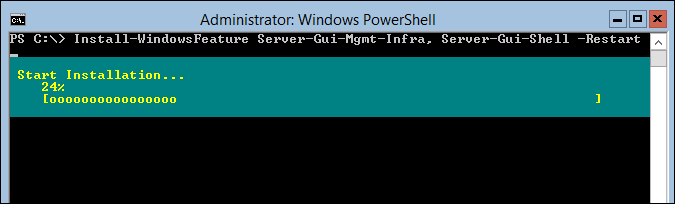
  3. From the PowerShell prompt, enter Install-WindowsFeature Server-Gui-Mgmt-Infra, Server-Gui-Shell –Restart.

    Note

    You can install multiple features in a single command line by separating these features by a comma.

    How to do it...

How it works...

The Install-WindowsFeature Server-Gui-Mgmt-Infra, Server-Gui-Shell cmdlet installs Server-Gui-Mgmt-Infra and Server-Gui-Shell Windows features on the Server Core. The –Restart parameter will force to reboot the server after the installation. After the reboot the server will be converted to a Server with a GUI.

There′s more...

In the preceding procedure, we were using Windows Update as the source instead of a Windows Imaging File (WIM). Alternately, you can mount the WIM file locally to install additional features without accessing the Windows Update Service by using the –Source parameter in the previous cmdlet.

Visually different images
CONTINUE READING
83
Tech Concepts
36
Programming languages
73
Tech Tools
Icon Unlimited access to the largest independent learning library in tech of over 8,000 expert-authored tech books and videos.
Icon Innovative learning tools, including AI book assistants, code context explainers, and text-to-speech.
Icon 50+ new titles added per month and exclusive early access to books as they are being written.
Instant Migration from Windows Server 2008 and 2008 R2 to 2012 How-to
notes
bookmark Notes and Bookmarks search Search in title playlist Add to playlist font-size Font size

Change the font size

margin-width Margin width

Change margin width

day-mode Day/Sepia/Night Modes

Change background colour

Close icon Search
Country selected

Close icon Your notes and bookmarks

Confirmation

Modal Close icon
claim successful

Buy this book with your credits?

Modal Close icon
Are you sure you want to buy this book with one of your credits?
Close
YES, BUY

Submit Your Feedback

Modal Close icon
Modal Close icon
Modal Close icon