-
Book Overview & Buying
-
Table Of Contents
-
Feedback & Rating
Instant Migration from Windows Server 2008 and 2008 R2 to 2012 How-to
By :
We will start with the Active Directory migration. At this point, we have the proven migration plan and tested all procedures in the lab.
The following prerequisites have to be met before we can introduce the first Windows Server 2012 Domain Controller into the existing Active Directory domain:
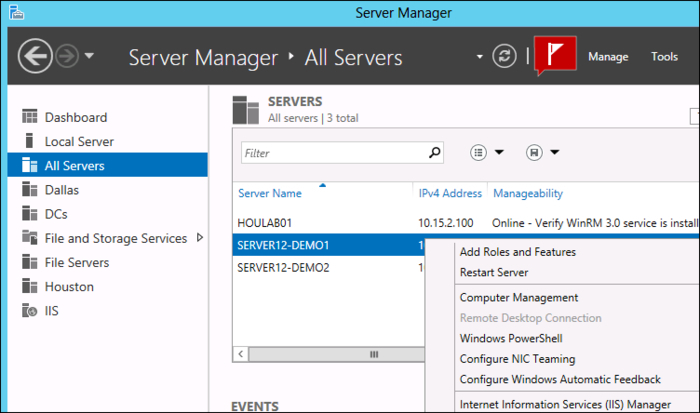
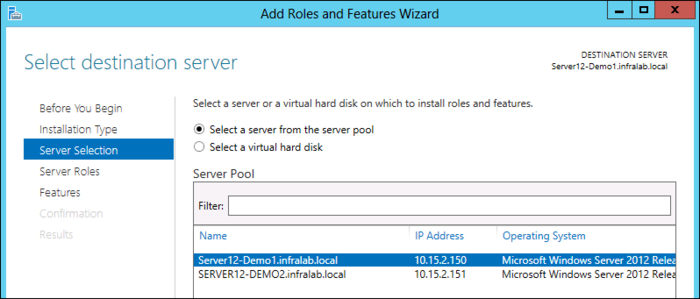
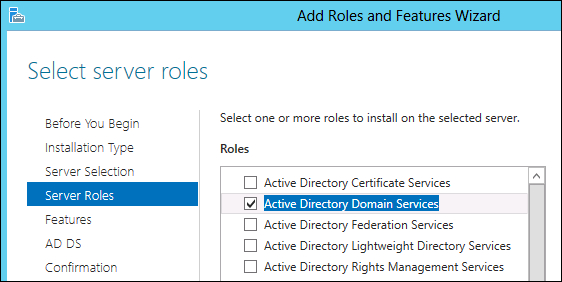
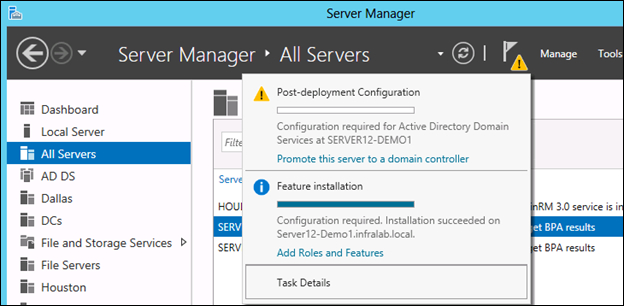
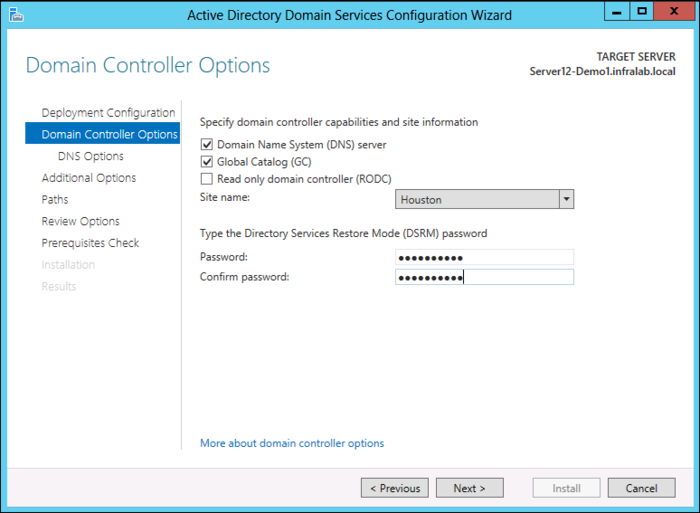
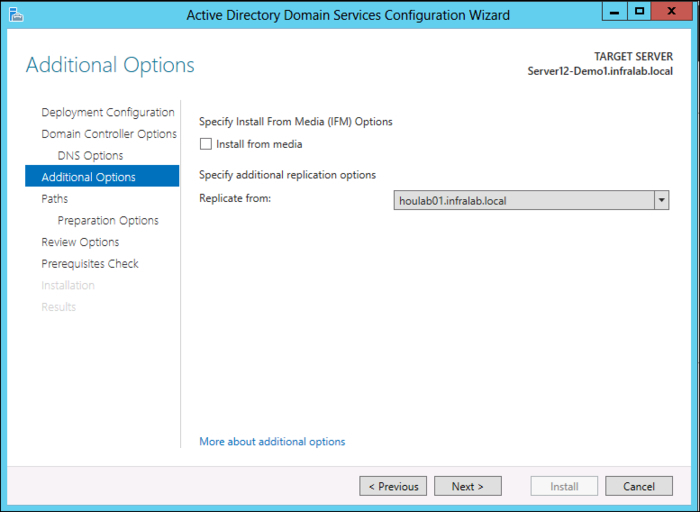
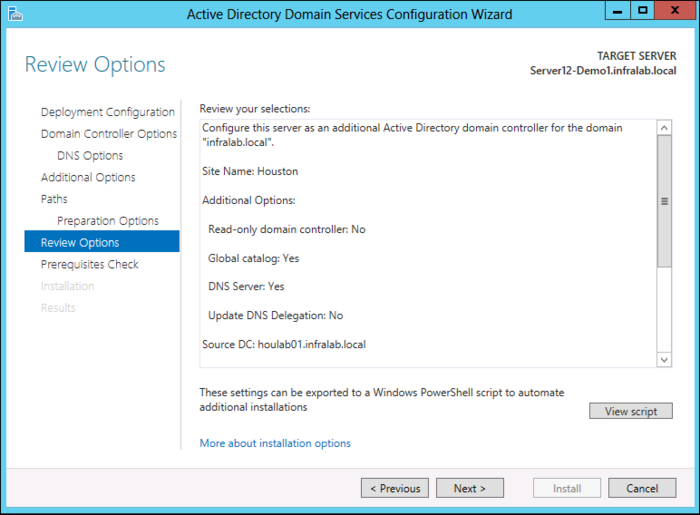
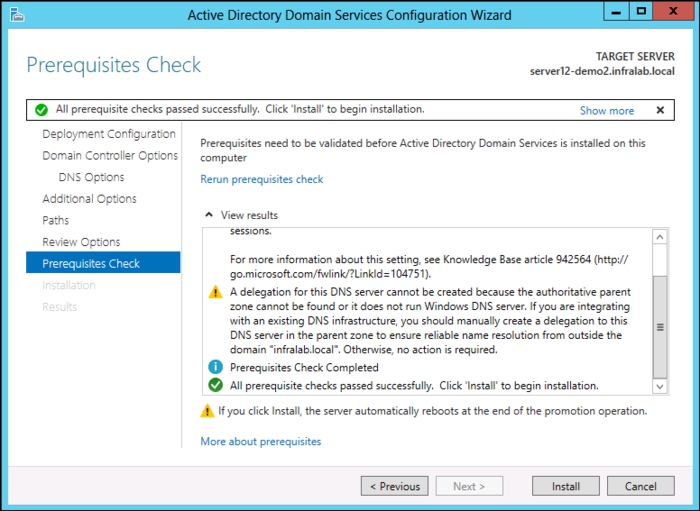
In Windows Server 2012, domain controllers can be remotely deployed by using the Server Manager. The following recipe provides the step-by-step instructions on how to deploy a domain controller in an existing Active Directory environment.


Review the Microsoft Infrastructure Planning and Design (IPD) guides for best practices recommendations. For performance improvements, it is recommended to place database, log, and so on in separate drives.


You can review the %systemroot%\debug\dcpromo.log and %SystemRoot%\debug\netsetup.log log files to get more information about DCPROMO and domain join-related issues.
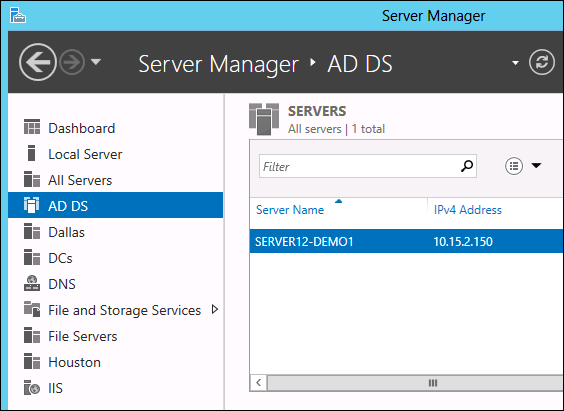
The preceding process adds an additional domain controller in the exiting Active Directory forest. At this time the current Active Directory environment has both Windows Server 2008/R2 and Windows Server 2012 domain controllers. This is technically called a mixed mode environment. The Server Manager will be updated with the new roles and features on this server as shown in the following screenshot:

If you are planning to perform an in-place upgrade of a domain controller (the first Windows Server 2012 Domain Controller), the Active Directory Schema and Domain Preparation (ADPREP) commands need to be run manually. The ADPrep.exe tool is available in the D:\Support\Adprep\ folder in the Windows Server 2012 installation media. Keep in mind that the ADPREP tool is only available in a 64-bit version. After the schema upgrade, the schema version can be manually verified by using the following dsquery command:
dsquery * cn=schema,cn=configuration,dc=domain,dc=com -scope base -attr objectVersion

The objectVersion value is 56 for the Windows Server 2012 schema.
You can also identify objectVersion based on the LDIF filename. The latest Sch56.ldf filename indicates that schema version as 56. Their files are available in the D:\Support\Adprep\ folder.
The Group Policy Preparation (/gprep) is not a requirement while adding Windows Server 2012 Domain Controllers to the existing domain. However, in order to use the Result Set of Policy (RSoP) in planning mode, the /gprep process needs to be completed by using the adprep/gpprep command. The Read Only Domain Controller Preparation (adprep /rodocprep) process needs to be completed before you can add the Read Only Domain Controllers (RODC).
You can review the ADPREP log file (%windir%\System32\Debug\Adprep\Logs) to get more information about ADPREP-related issues.
The health of the domain controller and domain can be verified by using native tools such as DCDiag. Microsoft has a new tool called ADRELSTATUS (Active Directory Replication Status Tool) to verify and monitor Active Directory replication. As a best practice it is recommended to have multiple domain controllers for the same domain. You can use the same procedure to add more domain controllers. It is also recommended to install Remote Server Administration Tools on a Windows 8 machine to administer Active Directory instead of directly logging on to a domain controller.
Change the font size
Change margin width
Change background colour