Sign In Start Free Trial
Account

Add to playlist

Create a Playlist

Modal Close icon
You need to login to use this feature.
  • Book Overview & Buying Instant Migration from Windows Server 2008 and 2008 R2 to 2012 How-to
  • Table Of Contents Toc
  • Feedback & Rating feedback
Instant Migration from Windows Server 2008 and 2008 R2 to 2012 How-to

Instant Migration from Windows Server 2008 and 2008 R2 to 2012 How-to

By : Santhosh Sivarajan
4.4 (9)
close
close
Instant Migration from Windows Server 2008 and 2008 R2 to 2012 How-to

Instant Migration from Windows Server 2008 and 2008 R2 to 2012 How-to

4.4 (9)
By: Santhosh Sivarajan

Overview of this book

Migrating to a new server involves a lot of decision making and planning. Windows Server 2012 comes with exciting new features and ease of use. This book will help you migrate to your new server in no time. "Instant Migration from Windows Server 2008 and 2008 R2 to 2012 How-to" provides you with many practical and real world scenarios in a step-by-step guide. It is designed to lead you through the entire process of migration.Beginning with an introduction to Windows Server 2012, the author then takes you through the installation and configuration of the server, before continuing on to migrate the existing services to Windows Server and how to decommission old servers. The ‚Äúhow-to‚Äù migration scenarios described are based on the author's own field experiences, guaranteeing real-world solutions. The scenarios include Active Directory, enabling a Remote Desktop, Print Server, and Hyper-V migration details. From the planning to  theimplementation phase, "Instant Migration from Windows Server 2008 and 2008 R2 to 2012 How-to" is your comprehensive guide for completing migration solutions.
Table of Contents (2 chapters)
close
close

Configuring Windows Server 2012 (Must know)

After the initial server installation, you need to configure the server with correct IP address, name, and so on before you start deploying new roles onto this server. Most of these components can be configured using Control Panel or Server Manager, which can be directly opened from the Start window of the server. As an Administrator, you need to get familiarized with the new Start window and Server Manager, so I would recommend you to configure these tasks using these options.

Getting ready

The following are some of the recommended administrative tasks which you can include in your server configuration checklist:

  • Configure a static IP address, disable used network card, and so on
  • Rename the default computer name
  • Change/validate the time zone
  • Activate the operating system
  • Install updates and patches
  • Install an antivirus software
  • Enable RDP/remote administration options
  • Join the computer to the domain

Note

Some of these tasks can be automated through domain/Group Policy Objects or some other deployment mechanism.

The configuration options for the Server Core are the same as in Windows Server 2008 and Windows Sever 2008 R2.

How to do it...

  1. Log on to Windows Server 2012 Server with a GUI with administrative credentials.
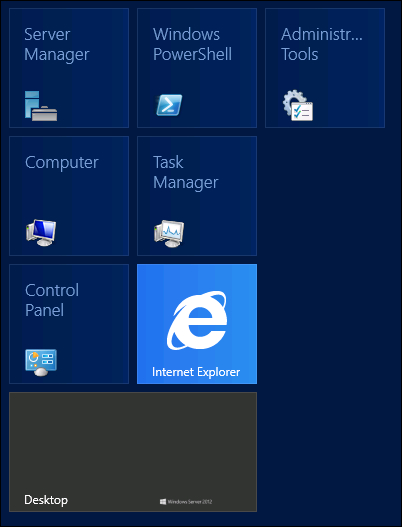
  2. From the Start screen select Control Panel. As you can see in the following screenshot, most of these components can be configured using Control Panel.
    How to do it...

    Note

    Joining a Windows Server 2012 to your existing domain doesn′t require an Active Directory Schema upgrade. However, you need to upgrade the schema if you are planning to add Windows Server 2012 as a domain controller. You will see these details in the Active Directory migration (Must know) recipe of this book.

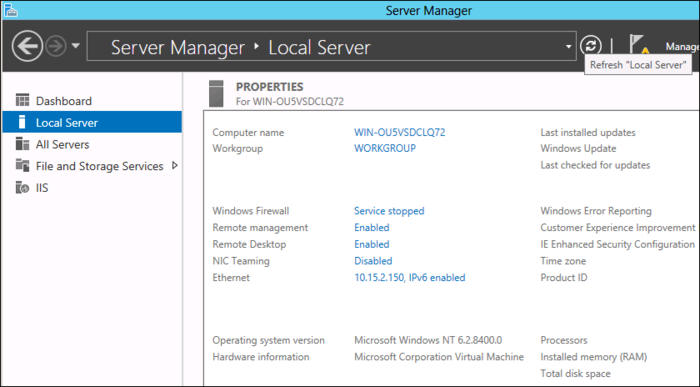
  3. The computer name and IP Address can be changed from Server Manager as shown in the following screenshot:
    1. From Server Manager, select Local Server in the left node.
    2. Change the Name, Workgroup, and so on from this window.
    How to do it...
  4. When you select the Computer name or Workgroup options from the Server Manager dashboard, it will bring up the old-fashioned System Properties window, where you can change the server properties.
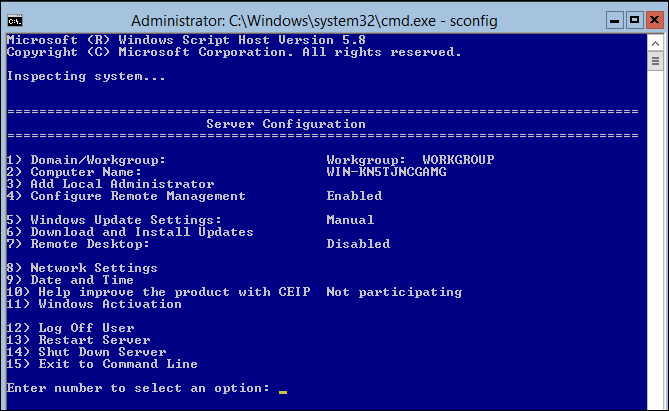
  5. To configure Windows Server 2012 Server Core, enter the sconfig (Server Configuration) command from the command prompt.
  6. This will bring up the Server Configuration wizard as shown in the following screenshot. From this window, you can change Name, Workgroup, and so on.
    How to do it...

How it works...

The Server Manager in Windows Server 2012 Server with a GUI and sconfig (Server Configuration Wizard) in Windows Server 2012 Server Core, allows you to modify the default server name, IP address, and so on to customize the system based on your requirement.

There′s more...

Most of these configurations can also be completed using PowerShell. Since the primary scope of this book is about migrating from Windows Server 2008/R2 to Windows Server 2012, we won′t be including the detailed server configuration steps in this book.

I believe now we have a fully functional Windows Server 2012 in the existing Active Directory domain. The next recipe will cover some of the basic administration tasks before we explain the migration procedure in the later recipes of this book.

Visually different images
CONTINUE READING
83
Tech Concepts
36
Programming languages
73
Tech Tools
Icon Unlimited access to the largest independent learning library in tech of over 8,000 expert-authored tech books and videos.
Icon Innovative learning tools, including AI book assistants, code context explainers, and text-to-speech.
Icon 50+ new titles added per month and exclusive early access to books as they are being written.
Instant Migration from Windows Server 2008 and 2008 R2 to 2012 How-to
notes
bookmark Notes and Bookmarks search Search in title playlist Add to playlist font-size Font size

Change the font size

margin-width Margin width

Change margin width

day-mode Day/Sepia/Night Modes

Change background colour

Close icon Search
Country selected

Close icon Your notes and bookmarks

Confirmation

Modal Close icon
claim successful

Buy this book with your credits?

Modal Close icon
Are you sure you want to buy this book with one of your credits?
Close
YES, BUY

Submit Your Feedback

Modal Close icon
Modal Close icon
Modal Close icon