-
Book Overview & Buying
-
Table Of Contents
-
Feedback & Rating
Instant Migration from Windows Server 2008 and 2008 R2 to 2012 How-to
By :
File server or data migration can be achieved by migrating the data from the existing server using tools such as Microsoft Robocopy and Microsoft File Server Migration Tool (FSMT), or directly presenting the storage Logical Unit Number (LUNs) onto a new server. In this scenario, I will be explaining the data migration procedure using Windows Server Migration Tools. Send-SmigServerData and Receive-SmigServerData are the two PowerShell cmdlets that we will use for this migration.
The Send-SmigServerData cmdlet, as it sounds, is responsible for sending (migrating) data from the source server. This tool can migrate folders, files, permission, share, and so on. However, it doesn′t support migrating any Encrypted File Systems (EFS). Unlike other cmdlets in the Windows Server Migration Tools, the Send-SmigServerData cmdlet does not store the data in a staging area or an export file. It will directly copy over to the target server. So the required ports (7000, 7001, and 7002) must be open between the source and target servers. The Receive-SmigServerData cmdlet has to be running on the target server to be able to receive the migrated data. The Send-SmigServerData and Receive-SmigServerData cmdlets have to be running on the source and target servers at the same time. The default time out value is five minutes, but this value can be changed by modifying the registry.
For this migration, we need to run the Send-SmigServerData cmdlet on the source server and Receive-SmigServerData cmdlet on the target server. The following diagram graphically represents the high-level tasks:

The following recipe explains the data migration procedure.
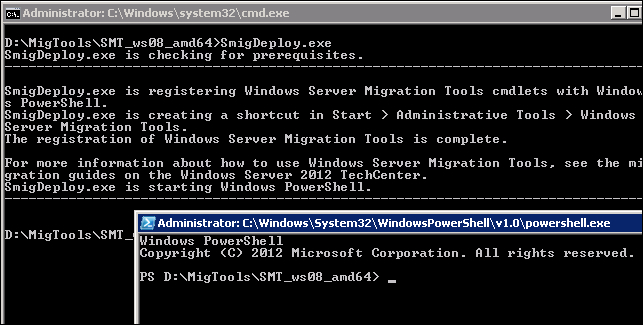
\\HOU-MGR-01\MigTools folder to C:\MigTools folder on the local server.C:\MigTools.C:\MigTools folder, give the SmigDeploy.exe command. This will register the Windows Server Migration Tools on the server and open a PowerShell window as shown in the following screenshot:
Send-SmigServerData -ComputerName server12-demo1 -SourcePath ″D:\Hou-Fil-Data-01″ -DestinationPath ″C:\Data\″ -Recurse -Include All –Force

In the preceding command, –ComputerName is the target file server, -SourcePath is the location of the source data, and you also need to specify the destination location on the target server by using the –DestinationPath parameter. You have the following three options that can be used with the –Include parameter:
All: This migrates data and shareData: This copies only the files and folders and their associated permissionShare: This copies only the share properties and permissionThe –Force parameter overwrites the existing files on the target server if the source files are current.
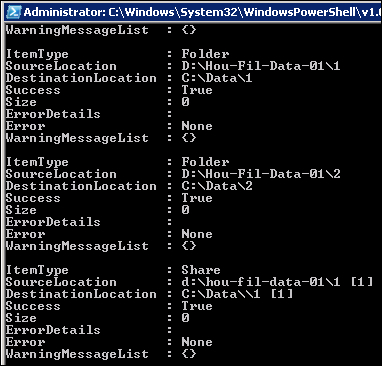
It will prompt you for a password. Once it accepts the password you will have five minutes to run the Receive-SmigServerData cmdlet on the target server. As you can see in the following screenshot, the source server is waiting for the destination server request to transfer the data.

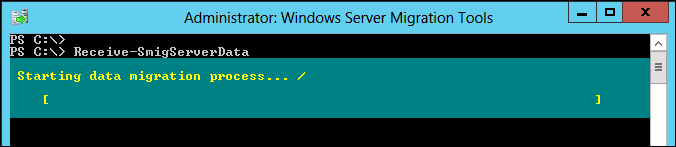
\\HOU-MGR-01\Migtools to the C:\MigTools folder.C:\MigTools.C:\MigTools folder, type the SmigDeploy.exe command. This will register the Windows Server Migration Tools on the source server and open a PowerShell window.Receive-SmigServerData cmdlet. It will prompt you for the same password which you used on the source server.


Once you have validated the data between the source and target servers you can decommission the old file server. If drive mapping or shares are enabled through Group Policy Object or Group Policy Preference, the policies will have to be updated with the new server name.
Change the font size
Change margin width
Change background colour