-
Book Overview & Buying
-
Table Of Contents
-
Feedback & Rating
R for Data Science Cookbook (n)
By :
As a programmer, debugging is the most common task faced on a daily basis. The simplest debugging method is to insert a print statement at every desired location; however, this method is rather inefficient. Here, we will illustrate how to use some R debugging tools to help accelerate the debugging process.
Make sure that you know how a function and works and how to create a new function.
Perform the following steps to debug an R function:
debugfunc function with x and y as argument, but we only return x:>debugfunc<- function(x, y){ + x <- y + 2 + x + } >debug(2)
2 to dubugfunc:>debugfunc(2) Error in debugfunc(2) : argument "y" is missing, with no default
debug function onto debugfunc:>debug(debugfunc)
2 to debugfunc again:>debugfunc(2) debugging in: debugfunc(2) debug at #1: { x <- y + 2 x }
help to list all possible commands:Browse[2]> help n next s step into f finish c or cont continue Q quit where show stack help show help <expr> evaluate expression
n to move on to the next debugging step:Browse[2]> n debug at #2: x <- y + 2
objects or ls to list variables:Browse[2]> objects() [1] "x" "y" Browse[2]>ls() [1] "x" "y"
Browse[2]> x [1] 2 Browse[2]> y Error: argument "y" is missing, with no default
Q command:Browse[2]> Q
undebug function:>undebug(debugfunc)
browser function:debugfunc2<- function(x, y){ x <- 3 browser() x <- y + 2 x }
browser function is located:>debugfunc2(2) Called from: debugfunc2(2) Browse[1]> n debug at #4: x <- y + 2
recover during the browsing process:Browse[2]> recover() Enter a frame number, or 0 to exit 1: debugfunc2(2) Selection: 1 Browse[4]> Q
trace function to insert code into the debug function at step 4:>trace(debugfunc2, quote(if(missing(y)){browser()}), at=4) [1] "debugfunc2"
>debugfunc2(3) Called from: debugfunc2(3) Browse[1]> n debug at #4: { .doTrace(if (missing(y)) { browser() }, "step 4") x <- y + 2 } Browse[2]> n debug: .doTrace(if (missing(y)) { browser() }, "step 4") Browse[2]> Q
trace function:>debugfunc3<- function(x, y){ + x <- 3 + sum(x) + x <- y + 2 + sum(x,y) + x + } >trace(sum) >debugfunc3(2,3) trace: sum(x) trace: sum(x, y) [1] 5
traceback function:>lm(y~x) Error in eval(expr, envir, enclos) : object 'y' not found >traceback() 7: eval(expr, envir, enclos) 6: eval(predvars, data, env) 5: model.frame.default(formula = y ~ x, drop.unused.levels = TRUE) 4: stats::model.frame(formula = y ~ x, drop.unused.levels = TRUE) 3: eval(expr, envir, enclos) 2: eval(mf, parent.frame()) 1: lm(y ~ x)
As it is inevitable for all code to include bugs, an R programmer has to be well prepared for them with a good debugging toolset. In this recipe, we showed you how to debug a function with the debug, browser, trace, and traceback functions.
In the first section, we explained how to debug a function by applying debug to an existing function. We first made a function named debugfunc, with two input arguments: x and y. Then, we applied a debug function onto debugfunc. Here, we applied the debug function on the name, argument, or function. At this point, whenever we invoke debugfunc, our R console will enter into a browser mode with Browse as the prompt at the start of each line.
Browser mode enables us to make a single step through the execution of the function. We list the single-letter commands that one can use while debugging here:
|
Command |
Meaning |
|---|---|
|
|
This executes all the code of the current function |
|
|
This evaluates the next statement, stepping over function calls |
|
|
This evaluates the next statement, stepping into function calls |
|
|
This lists all current objects |
|
|
This lists all possible commands |
|
|
This prints the stack trace of active function calls |
|
|
This finishes the execution of current function |
|
|
This terminates the debugging mode |
In the following operations, we first use help to list all possible commands. Then, we type n to step to the next line. Next, we type objects and ls to list all current objects. At this point, we can type the variable name to find out the current value of each object. Finally, we can type Q to quit debugging mode, and use undebug to unflag the function.
Besides using the debug function, we can insert the browser function within the code to debug it. After we have inserted browser() into debugfunc2, whenever we invoke the function, the R function will step right into the next line below the browser function. Here, we can perform any command mentioned in the previous command table. If you want to move among frames or return to the top level of debugging mode, we can use the recover function. Additionally, we can use the trace function to insert debugging code into the function. Here, we assign what to trace as debugfunc2, and set the tracer to examine whether y is missing. If y is missing, it will execute the browser() function. At that argument, we set 4 to the argument so that the tracer code will be inserted at line 4 of debugfunc2. Then, when we call the debugfunc2 function, the function enters right into where the tracer is located and executes the browser function as the y argument is missing.
Finally, we introduce the traceback function, which prints the calling stack of the function. At this step, we pass two unassigned parameters, x and y, into an lm linear model fitting function. As we do not assign any value to these two parameters, the function returns an error message in the console output. To understand the calling stack sequence, we can use the traceback function to print out the stack.
Besides using the command line, we can use RStudio to debug functions:
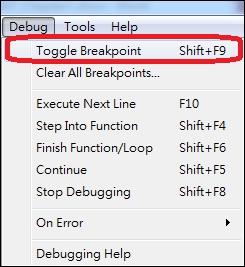
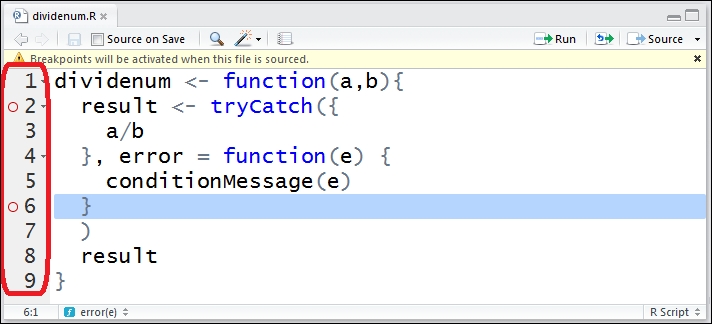
Toggle Breakpoint from the dropdown menu of Debug:
Figure 1: Toggle Breakpoint

Figure 2: Set breakpoint
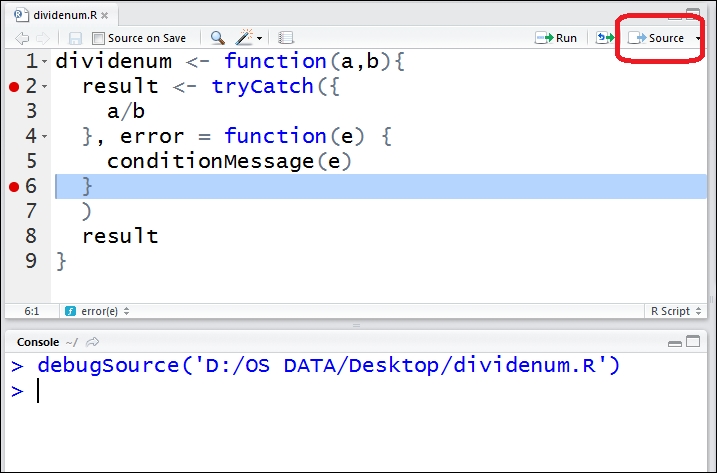
Source to activate the debugging process:
Figure 3: Activate debugging process
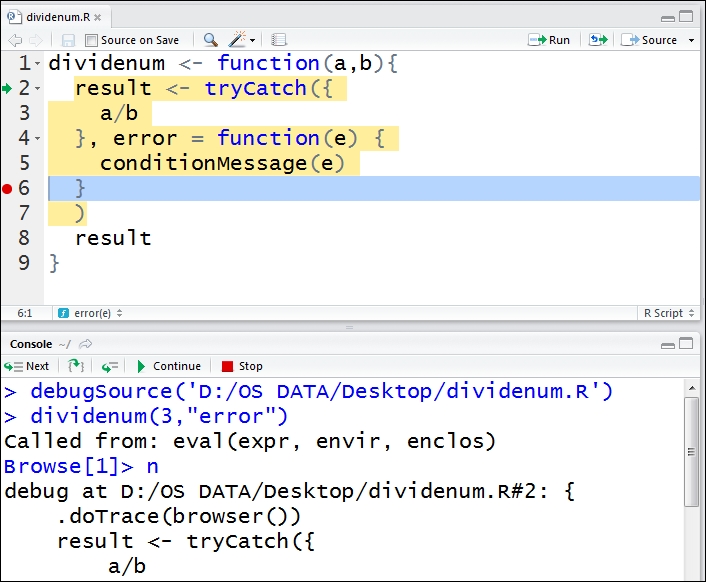
Browse mode:
Figure 4: Browse the function
You can now use the command line or dropdown menu of Debug to debug the function:

Figure 5: Use debug functions
Change the font size
Change margin width
Change background colour