Sign In Start Free Trial
Account

Add to playlist

Create a Playlist

Modal Close icon
You need to login to use this feature.
  • Book Overview & Buying Learning Tableau 2020
  • Table Of Contents Toc
Learning Tableau 2020

Learning Tableau 2020 - Fourth Edition

By : Joshua N. Milligan
4.2 (26)
close
close
Learning Tableau 2020

Learning Tableau 2020

4.2 (26)
By: Joshua N. Milligan

Overview of this book

Learning Tableau strengthens your command on Tableau fundamentals and builds on advanced topics. The book starts by taking you through foundational principles of Tableau. We then demonstrate various types of connections and how to work with metadata. We teach you to use a wide variety of visualizations to analyze and communicate the data, and introduce you to calculations and parameters. We then take an in-depth look at level of detail (LOD) expressions and use them to solve complex data challenges. Up next, we show table calculations, how to extend and alter default visualizations, build an interactive dashboard, and master the art of telling stories with data. This Tableau book will introduce you to visual statistical analytics capabilities, create different types of visualizations and dynamic dashboards for rich user experiences. We then move on to maps and geospatial visualization, and the new Data Model capabilities introduced in Tableau 2020.2. You will further use Tableau Prep’s ability to clean and structure data and share the stories contained in your data. By the end of this book, you will be proficient in implementing the powerful features of Tableau 2020 for decision-making.
Table of Contents (19 chapters)
close
close
9
Visual Analytics – Trends, Clustering, Distributions, and Forecasting
17
Other Books You May Enjoy
18
Index

Managing data source metadata

Data sources in Tableau store information about the connection(s). In addition to the connection itself (for example, database server name, database, and/or filenames), the data source also contains information about all the fields available (such as field name, data type, default format, comments, and aliases). Often, this data about the data is referred to as metadata.

Right-clicking a field in the data pane reveals a menu of metadata options. Some of these options will be demonstrated in a later exercise; others will be explained throughout the book. These are some of the options available via right-clicking:

  • Renaming the field
  • Hiding the field
  • Changing aliases for values of a non-date dimension
  • Creating calculated fields, groups, sets, bins, or parameters
  • Splitting the field
  • Changing the default use of a date or numeric field to either discrete or continuous
  • Redefining the field as a dimension or a measure
  • Changing the data type of the field
  • Assigning a geographic role to the field
  • Changing defaults for how a field is displayed in a visualization, such as the default colors and shapes, number or date format, sort order (for dimensions), or type of aggregation (for measures)
  • Adding a default comment for a field (which will be shown as a tooltip when hovering over a field in the data pane, or shown as part of the description when Describe... is selected from the menu)
  • Adding or removing the field from a hierarchy

Metadata options that relate to the visual display of the field, such as default sort order or default number format, define the overall default for a field. However, you can override the defaults in any individual view by right-clicking the active field on the shelf and selecting the desired options.

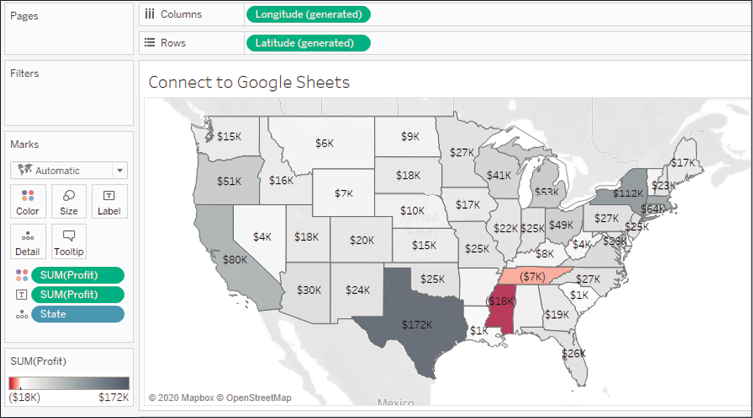
To see how this works, use the filled map view of Profit by State that you created in the Connect to Google Sheets view. If you did not create this view, you may use the Orders and Returns data source, though the resulting view will be slightly different. With the filled map in front of you, follow these steps:

  1. Right-click the Profit field in the data pane and select Default Properties | Number Format.... The resulting dialog gives you many options for numeric format.
  2. Set the number format to Currency (Custom) with 0 Decimal places and the Display Units in Thousands (K). After clicking OK, you should notice that the labels on the map have updated to include currency notation:

    Figure 2.19: Editing the default number format of a field

  1. Right-click the Profit field again and select Default properties | Color.... The resulting dialog gives you an option to select and customize the default color encoding of the Profit field. Experiment with various palettes and settings. Notice that every time you click the Apply button, the visualization updates.

Diverging palettes (palettes that blend from one color to another) work particularly well for fields such as Profit, which can have negative and positive values. The default center of 0 allows you to easily tell what values are positive or negative based on the color shown.

Figure 2.20: Customizing color

Because you have set the default format for the field at the data-source level, any additional views you create using Profit will include the default formatting you specified.

Consider using color blind-safe colors in your visualizations. Orange and blue are usually considered a color blind-safe alternative to red and green. Tableau also includes a discrete color blind-safe palette. Additionally, consider adjusting the intensity of the colors, using labels, or different visualizations to make your visualizations more accessible.

CONTINUE READING
83
Tech Concepts
36
Programming languages
73
Tech Tools
Icon Unlimited access to the largest independent learning library in tech of over 8,000 expert-authored tech books and videos.
Icon Innovative learning tools, including AI book assistants, code context explainers, and text-to-speech.
Icon 50+ new titles added per month and exclusive early access to books as they are being written.
Learning Tableau 2020
notes
bookmark Notes and Bookmarks search Search in title playlist Add to playlist download Download options font-size Font size

Change the font size

margin-width Margin width

Change margin width

day-mode Day/Sepia/Night Modes

Change background colour

Close icon Search
Country selected

Close icon Your notes and bookmarks

Confirmation

Modal Close icon
claim successful

Buy this book with your credits?

Modal Close icon
Are you sure you want to buy this book with one of your credits?
Close
YES, BUY

Submit Your Feedback

Modal Close icon
Modal Close icon
Modal Close icon