Sign In Start Free Trial
Account

Add to playlist

Create a Playlist

Modal Close icon
You need to login to use this feature.
  • Book Overview & Buying Hands-On Music Generation with Magenta
  • Table Of Contents Toc
Hands-On Music Generation with Magenta

Hands-On Music Generation with Magenta

By : DuBreuil
4 (3)
close
close
Hands-On Music Generation with Magenta

Hands-On Music Generation with Magenta

4 (3)
By: DuBreuil

Overview of this book

The importance of machine learning (ML) in art is growing at a rapid pace due to recent advancements in the field, and Magenta is at the forefront of this innovation. With this book, you’ll follow a hands-on approach to using ML models for music generation, learning how to integrate them into an existing music production workflow. Complete with practical examples and explanations of the theoretical background required to understand the underlying technologies, this book is the perfect starting point to begin exploring music generation. The book will help you learn how to use the models in Magenta for generating percussion sequences, monophonic and polyphonic melodies in MIDI, and instrument sounds in raw audio. Through practical examples and in-depth explanations, you’ll understand ML models such as RNNs, VAEs, and GANs. Using this knowledge, you’ll create and train your own models for advanced music generation use cases, along with preparing new datasets. Finally, you’ll get to grips with integrating Magenta with other technologies, such as digital audio workstations (DAWs), and using Magenta.js to distribute music generation apps in the browser. By the end of this book, you'll be well-versed with Magenta and have developed the skills you need to use ML models for music generation in your own style.
Table of Contents (16 chapters)
close
close
1
Section 1: Introduction to Artwork Generation
3
Section 2: Music Generation with Machine Learning
8
Section 3: Training, Learning, and Generating a Specific Style
11
Section 4: Making Your Models Interact with Other Applications

Installing the code editing software

In this section, we'll recommend optional software regarding code editing. While not mandatory, it might help considerably to use them, especially for newcomers, for whom plain code editing software can be daunting.

Installing Jupyter Notebook (optional)

Notebooks are a great way of sharing code that contains text, explanations, figures, and other rich content. It is used extensively in the data science community because it can store and display the result of long-running operations, while also providing a dynamic runtime to edit and execute the content in.

The code for this book is available on GitHub as plain Python code, but also in the form of Jupyter Notebooks. Each chapter will have its own notebook that serves as an example.

To install Jupyter and launch your first notebook, follow these steps:

  1. While in the Magenta environment, execute the following command:
> pip install jupyter
  1. Now, we can start the Jupyter server by executing the following command (also while in the Magenta environment):
> jupyter notebook

The Jupyter interface will be shown in a web browser. The previous command should have launched your default browser. If not, use the URL in the output of the command to open it.

  1. Once in the notebook UI, you should see your disk content. Navigate to the code for this book and load the notebook from Chapter01/notebook.ipynb.
  2. Make sure the selected kernel is Python 3. This kernel corresponds to the Python interpreter that's been installed in your Magenta environment.
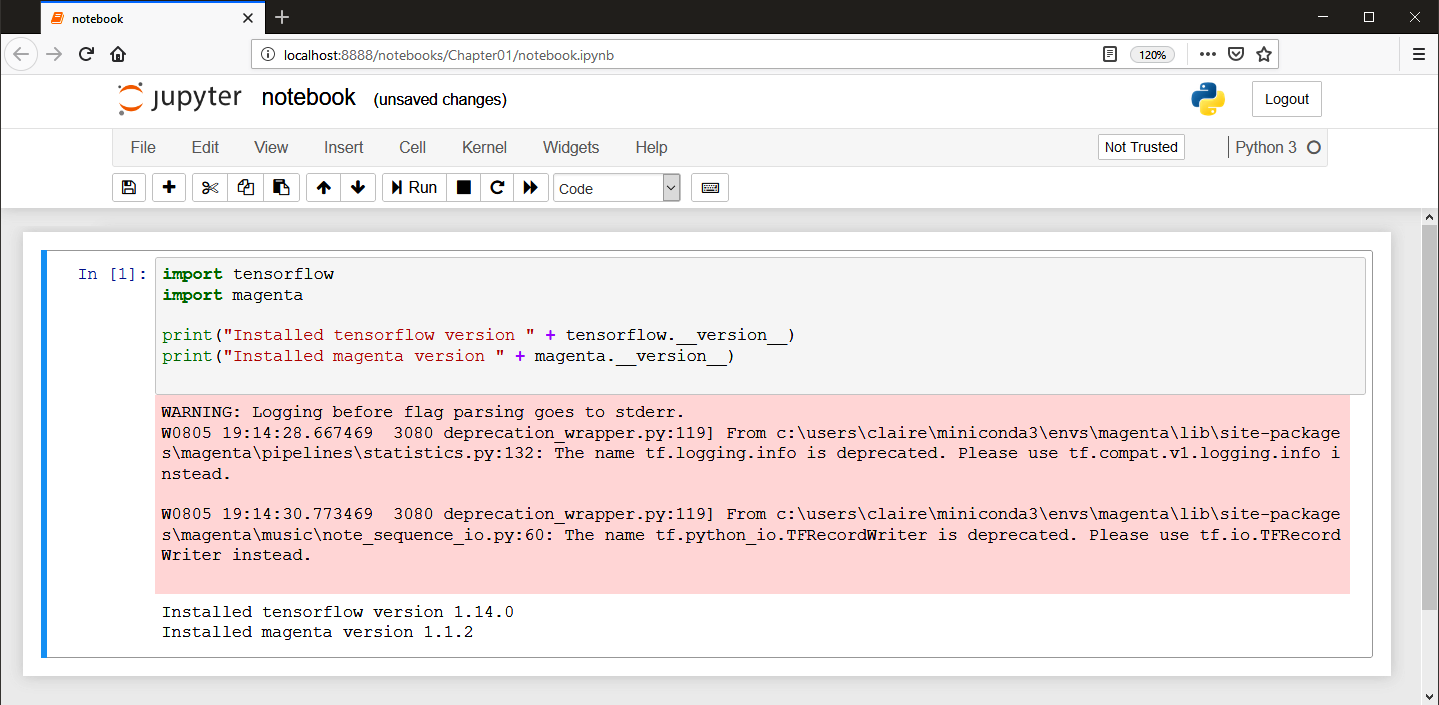
  3. Run the code blocks using the Run button for each cell. This will make sure that Jupyter executes in a proper environment by printing the TensorFlow and Magenta versions.

This is what the notebook should look like:

Installing and configuring an IDE (optional)

The usage of an Integrated Development Environment (IDE) is not necessary for this book since all the examples run from the command line. However, an IDE is a good tool to use since it provides autocompletion, integrated development tools, refactoring options, and more. It is also really useful for debugging since you can step into the code directly.

A good IDE for this book is JetBrains's PyCharm (www.jetbrains.com/pycharm), a Python IDE with a community (open source) edition that provides everything you need.

Whether you use PyCharm or another IDE, you'll need to change Python interpreter to the one we installed previously. This is the equivalent of activating our Magenta environment using Conda. In the project settings in the IDE, find the Python interpreter settings and change it to the installation path of our environment.

If you don't remember its location, use the following commands:

> conda activate magenta
> conda info
...
active env location : C:\Users\Packt\Miniconda3\envs\magenta
...

On Windows, the Python interpreter is in the root folder, while on Linux or macOS, it is in the bin directory under it.

CONTINUE READING
83
Tech Concepts
36
Programming languages
73
Tech Tools
Icon Unlimited access to the largest independent learning library in tech of over 8,000 expert-authored tech books and videos.
Icon Innovative learning tools, including AI book assistants, code context explainers, and text-to-speech.
Icon 50+ new titles added per month and exclusive early access to books as they are being written.
Hands-On Music Generation with Magenta
notes
bookmark Notes and Bookmarks search Search in title playlist Add to playlist download Download options font-size Font size

Change the font size

margin-width Margin width

Change margin width

day-mode Day/Sepia/Night Modes

Change background colour

Close icon Search
Country selected

Close icon Your notes and bookmarks

Confirmation

Modal Close icon
claim successful

Buy this book with your credits?

Modal Close icon
Are you sure you want to buy this book with one of your credits?
Close
YES, BUY

Submit Your Feedback

Modal Close icon
Modal Close icon
Modal Close icon