Sign In Start Free Trial
Account

Add to playlist

Create a Playlist

Modal Close icon
You need to login to use this feature.
  • Book Overview & Buying DAX Cookbook
  • Table Of Contents Toc
DAX Cookbook

DAX Cookbook

By : Greg Deckler
3.6 (11)
close
close
DAX Cookbook

DAX Cookbook

3.6 (11)
By: Greg Deckler

Overview of this book

DAX provides an extra edge by extracting key information from the data that is already present in your model. Filled with examples of practical, real-world calculations geared toward business metrics and key performance indicators, this cookbook features solutions that you can apply for your own business analysis needs. You'll learn to write various DAX expressions and functions to understand how DAX queries work. The book also covers sections on dates, time, and duration to help you deal with working days, time zones, and shifts. You'll then discover how to manipulate text and numbers to create dynamic titles and ranks, and deal with measure totals. Later, you'll explore common business metrics for finance, customers, employees, and projects. The book will also show you how to implement common industry metrics such as days of supply, mean time between failure, order cycle time and overall equipment effectiveness. In the concluding chapters, you'll learn to apply statistical formulas for covariance, kurtosis, and skewness. Finally, you'll explore advanced DAX patterns for interpolation, inverse aggregators, inverse slicers, and even forecasting with a deseasonalized correlation coefficient. By the end of this book, you'll have the skills you need to use DAX's functionality and flexibility in business intelligence and data analytics.
Table of Contents (15 chapters)
close
close

Replacing Excel's NETWORKDAYS function

Excel has a NETWORKDAYS function that calculates the number of days between two dates minus weekends and holidays. While DAX has a DATEDIFF function that calculates the number of days between two dates, the DATEDIFF function does not account for subtracting weekends and holidays. This recipe is a recreation of Excel's NETWORKDAYS function in DAX.

Getting ready

To prepare for this recipe, perform the following steps:

  1. Use an Enter Data query to create a table called R10_Table with the following columns and rows:

Created Date

Finished Date

11/17/2019

12/29/2019

12/15/2019

1/13/2020

1/12/2020

3/30/2020

  1. Ensure that both columns are set to have a data type of Date.
  2. Create the following column in the R10_Table table:
Number of Days = DATEDIFF([Created Dated],[Finished Date],DAY)
  1. Place all three columns from the R10_Table table in a Table visualization on a Report page.
  2. Set the Created Date and Finished Date fields in this Table visualization to be their actual dates, not their date hierarchies.

How to do it...

To implement this recipe, perform the following steps:

  1. Create a new measure with the following formula:
NetWorkDays = 
VAR __Date1 = MAX('R10_Table'[Created Date])
VAR __Date2 = MAX('R10_Table'[Finished Date])
VAR __Date1a = MINX( { __Date1, __Date2 },[Value])
VAR __Date2a = MAXX( { __Date1, __Date2 },[Value])
VAR __Calendar =
ADDCOLUMNS(
CALENDAR(__Date1a, __Date2a),
"__WeekDay",
WEEKDAY([Date],2)
)
RETURN
COUNTX(
FILTER(
__Calendar,
[__WeekDay] < 6
),
[Date]
)
  1. Place the NetWorkDays measure in the Table visualization created earlier.

How it works...

This recipe is fairly straightforward. The first four lines simply ensure that we construct our calendar table in such a way that the earliest date comes first. We then construct a calendar table, __Calendar, that holds our two dates as well as all of the dates between those two dates. We add a column, __WeekDay, which stores the number of the week day (1-7). By using the 2 as our second parameter for the WEEKDAY function, Saturday = 6 and Sunday = 7. We then simply need to filter this table where the __WeekDay column is not 6 or 7 and return the count of the days (rows) remaining.

There's more...

We can modify our NetWorkDays calculation to account for holidays as well. To do this, observe the following steps:

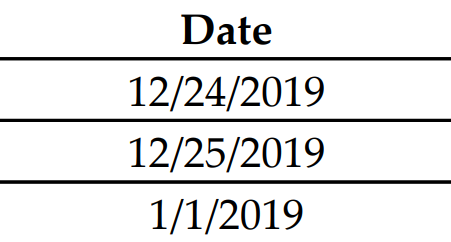
  1. Create the following table using an Enter Data query:
  1. Ensure that the Date column is flagged as having a data type of Date.
  2. Create a new measure with the following formula:
NetWorkDays2 = 
VAR __Date1 = MAX('R10_Table'[Created Date])
VAR __Date2 = MAX('R10_Table'[Finished Date])
VAR __Date1a = MINX( { __Date1, __Date2 },[Value])
VAR __Date2a = MAXX( { __Date1, __Date2 },[Value])
VAR __Calendar =
ADDCOLUMNS(
EXCEPT(
CALENDAR(__Date1a, __Date2a),
'R10_Holidays'
),
"__WeekDay",
WEEKDAY([Date],2)
)
RETURN
COUNTX(
FILTER(
__Calendar,
[__WeekDay] < 6
),
[Date]
)
  1. Place this NetWorkDays2 measure in the Table visualization created earlier.

The small change to the formula to account for holidays is to use the EXCEPT function to remove the dates in the R10_Holidays table from the calendar table that we create, __Calendar.

See also

CONTINUE READING
83
Tech Concepts
36
Programming languages
73
Tech Tools
Icon Unlimited access to the largest independent learning library in tech of over 8,000 expert-authored tech books and videos.
Icon Innovative learning tools, including AI book assistants, code context explainers, and text-to-speech.
Icon 50+ new titles added per month and exclusive early access to books as they are being written.
DAX Cookbook
notes
bookmark Notes and Bookmarks search Search in title playlist Add to playlist download Download options font-size Font size

Change the font size

margin-width Margin width

Change margin width

day-mode Day/Sepia/Night Modes

Change background colour

Close icon Search
Country selected

Close icon Your notes and bookmarks

Confirmation

Modal Close icon
claim successful

Buy this book with your credits?

Modal Close icon
Are you sure you want to buy this book with one of your credits?
Close
YES, BUY

Submit Your Feedback

Modal Close icon
Modal Close icon
Modal Close icon