-
Book Overview & Buying
-
Table Of Contents
Building an FPS Game with Unity
By :
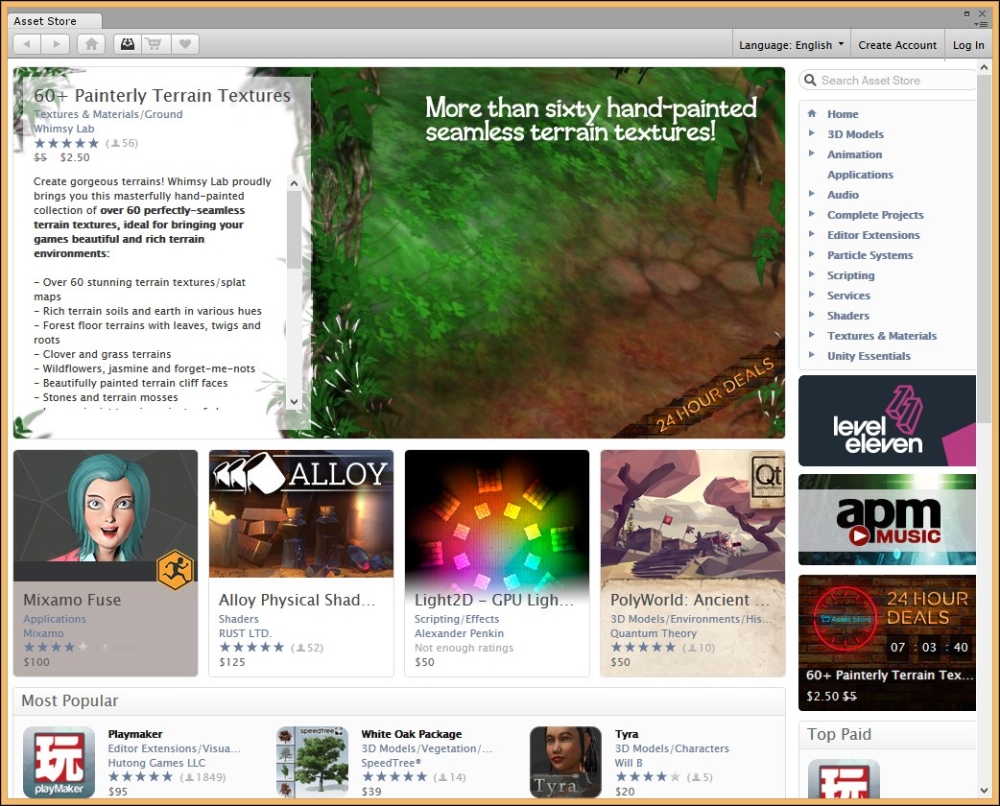
Since Unity 3, the Asset Store has been similar to Apple's/Android's app stores, except, instead of apps, you can buy prebuilt assets that can be imported directly into your project. We will be using this in our project; but, before we do so, we will need to have an account, that can be created using the following steps:
You may also open the panel by pressing Ctrl + 9 (command + 9 on Mac). If nothing happens, make sure Unity is focused on window by clicking on the program and trying again. If you prefer working outside Unity, you may also go to the Asset Store website at https://www.assetstore.unity3d.com/. However, you'll need to download assets from Unity via the Download Manager, which you can learn about from the link given later in this chapter.


With this, we can download and purchase assets from the Asset Store!
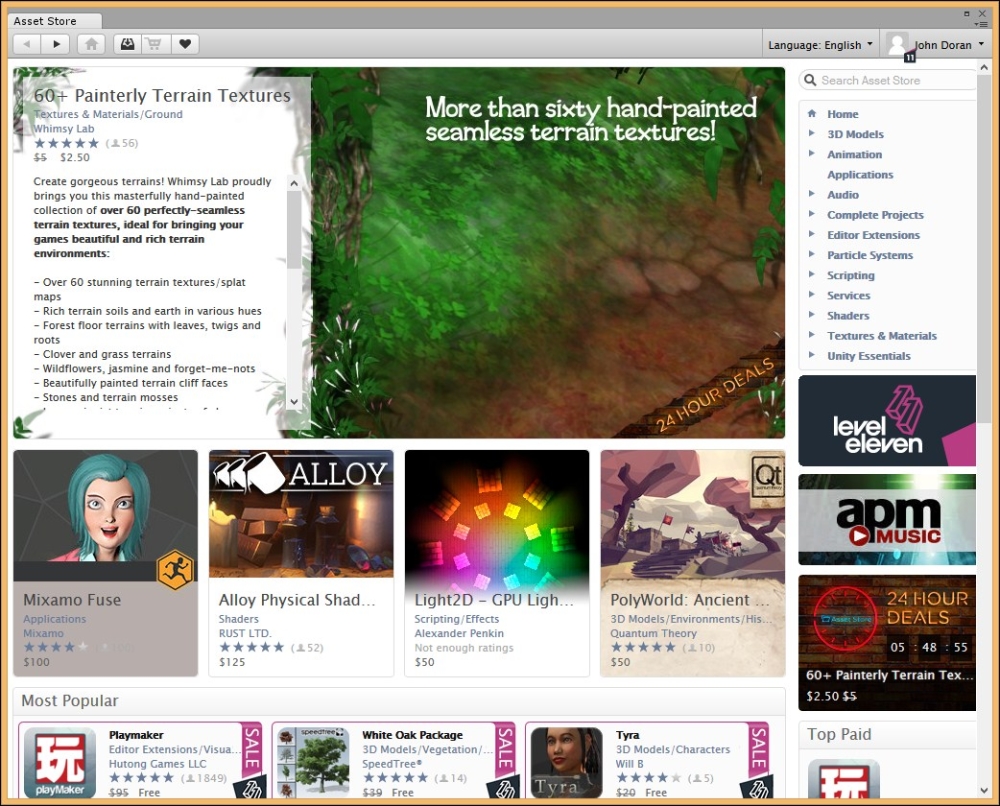
Do not be concerned if you do not see 11 by your account, it just shows that I have a Unity Pro account.
For more information on the Asset Store and how to navigate using it, visit http://docs.unity3d.com/Manual/AccessNavigation.html.
Creating a game completely from scratch takes a considerable amount of time. Creating a first-person shooter relies on having a lot of knowledge as well as problem solving with things such as physics, mathematics, graphics, and programming. Now, books of each of these subjects could have been written based on it; but we are assuming that you want results in the fastest amount of time possible.
Rather than taking the tens of thousands of hours it would take to create it from scratch, we will leverage the very popular Unity add-on UFPS (Ultimate FPS) from VisionPunk. It will give us a solid foundation to create our own project with hundreds of parameters, which we can customize to create a project exactly the way we want it to be.
It's important to note that UFPS does cost money. But considering that a solid game programmer generally makes $50 or more an hour, the amount of time saved really makes it a worthwhile investment.
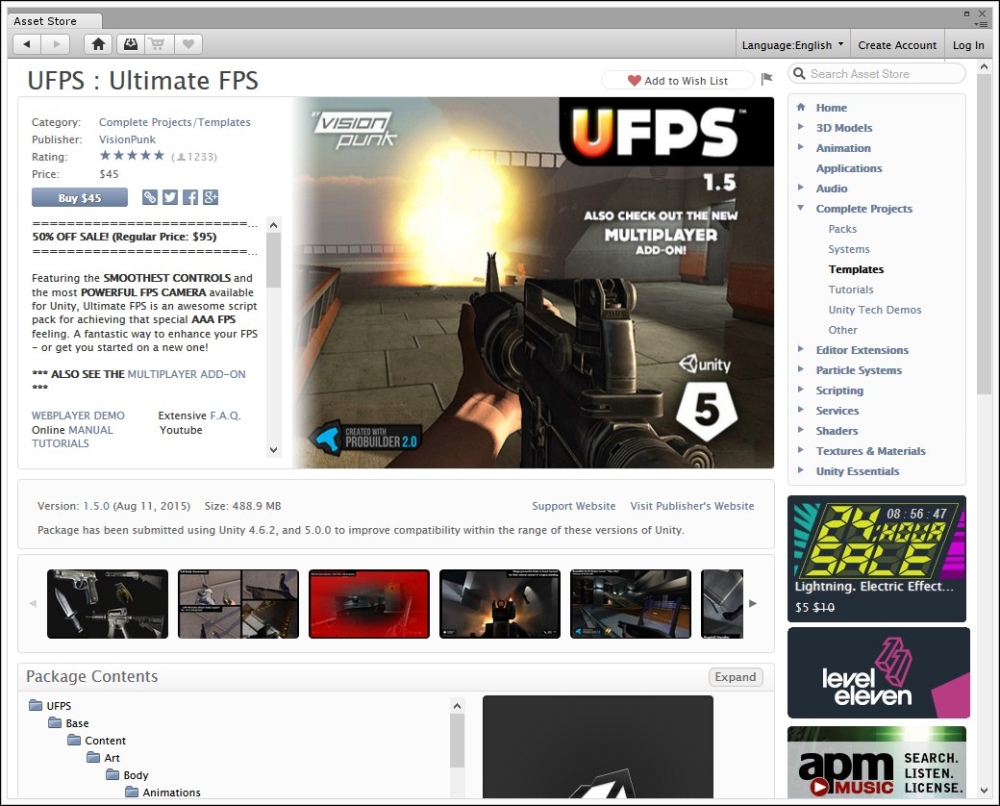
Now that we are logged into the Asset Store, let's purchase and install UFPS:
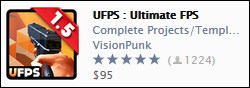
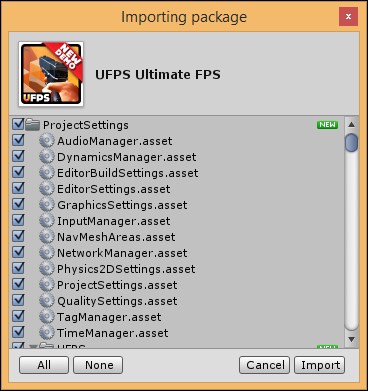
UFPS. You should see an icon that looks similar to the following:


If, for some reason, you get an error (the bottom bar, or Console, in the Unity interface) while importing that says something like 'Fatal error! getManagerFromContext:…". This is a bug in Unity due to the large file size UFPS has. Just Quit and continue with the import once again, when you restart Unity.
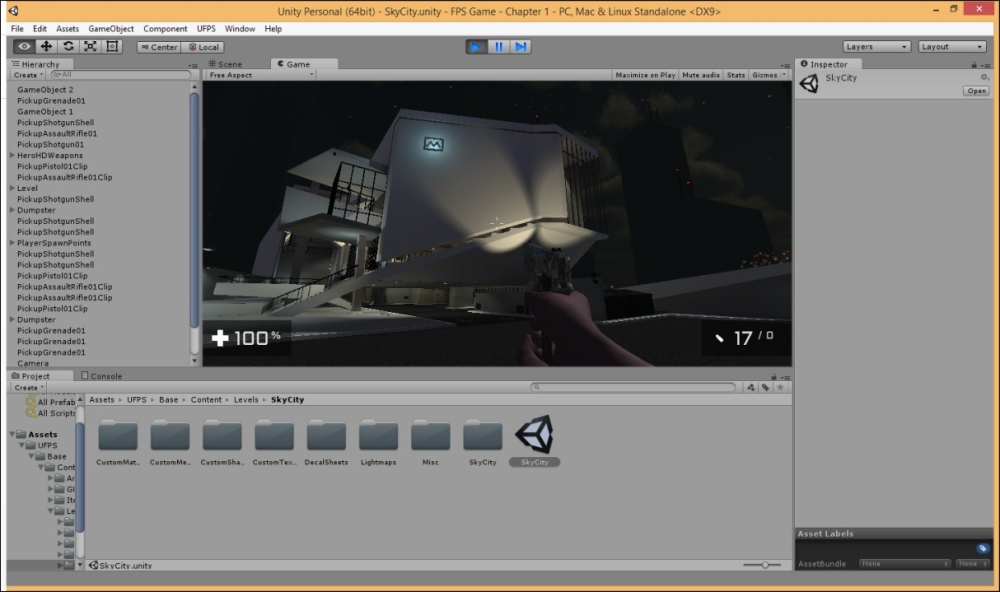
UFPS folder. Go to Base\Content\Levels\SkyCity and double-click on the SkyCity file to open an example level. Then, press the Play button at the top-center of the project to start the project!
With this, we know that UFPS is installed correctly!
Change the font size
Change margin width
Change background colour