Sign In Start Free Trial
Account

Add to playlist

Create a Playlist

Modal Close icon
You need to login to use this feature.
  • Book Overview & Buying Corona SDK Mobile Game Development- Second Edition
  • Table Of Contents Toc
Corona SDK Mobile Game Development- Second Edition

Corona SDK Mobile Game Development- Second Edition

By : Michelle M Fernandez
3.8 (4)
close
close
Corona SDK Mobile Game Development- Second Edition

Corona SDK Mobile Game Development- Second Edition

3.8 (4)
By: Michelle M Fernandez

Overview of this book

This book is for anyone who wants to have a go at creating commercially successfully games for Android and iOS. You don’t need game development or programming experience.
Table of Contents (14 chapters)
close
close
13
Index

Time for action – loading an app on your Android device

There are several ways to load your Hello World build to your Android device, and these ways do not require you to download the Android SDK. Here are some simple methods.

A convenient method is through Dropbox. You can create an account at https://www.dropbox.com/. Dropbox is a free service that lets you upload/download files on your PC/Mac and mobile devices. Perform the following steps to load the Hello World build using Dropbox:

  1. Download the Dropbox installer and install it on your computer. Also, download the mobile app from the Google Play Store (which is also free) on your device and install it.
  2. Log in to your Dropbox account on your computer and mobile device. From your computer, upload your Hello World.apk file.
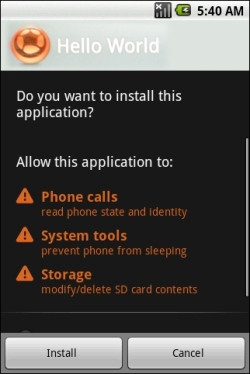
  3. Once it has finished uploading, go to the Dropbox app on your device and select your Hello World.apk file. You will be greeted with a screen that will ask you if you want to install the application. Select the Install button. Assuming that it installs correctly, another screen will appear saying Application installed, and you can launch your Hello World app by pressing the Open button that is available.

Another method to upload an .apk file onto your device is to transfer it to an SD card via the USB interface. If your device doesn't come with some kind of file manager application, a great one you can download from the Google Play Store is ASTRO File Manager, which can be found at https://play.google.com/store/apps/details?id=com.metago.astro. You can always do a normal search for the preceding app or similar apk installers through the Google Play app on your device. To transfer the .apk file to the SD card, perform the following steps:

  1. In your device's Settings, select Applications and then select Development. Tap on USB Debugging if the mode is not active.
  2. Go back a couple of screens to the Applications section. Enable Unknown Sources if it is not already active. This will allow you to install any non-market application (that is, debug builds). Select the home button on your device when done.
  3. Connect the device to your computer with a USB cable. You will see a new notification that a new drive has connected to your PC or Mac. Access the SD drive and create a new folder. Name the folder to something you can identify easily for your Android builds. Drag and drop your Hello World.apk file from the desktop to the folder.
  4. Eject the drive from your desktop and disconnect your device from the USB cable. Launch ASTRO File Manager or use whichever app you decided to download from the Google Play Store. In ASTRO, select File Manager, search for the folder you added to your SD card, and select it. You will see your Hello World.apk file. Select the file, and a prompt will appear asking you to install it. Select the Install button, and you should see your Hello World application appear in the Apps folder of your device.
    Time for action – loading an app on your Android device

One of the easiest methods is through Gmail. If you don't already have a Gmail account, create one at https://mail.google.com/. Perform the following steps to send the .apk file on your Gmail account:

  1. Log in to your account, compose a new e-mail, and attach your Hello World.apk file to the message.
  2. Address the recipient of the message to your own e-mail address and send it.
  3. On your Android device, make sure you have your e-mail account linked. As soon as you receive the message, open the e-mail. You're given the option to install the application on your device. There will be an Install button or something similar displayed.

What just happened?

We just learned several ways of loading an .apk file to an Android device. The preceding methods are some of the easiest ways to load an application quickly without running into any problems.

Using the file manager method allows you to access your .apk files easily without requiring any carrier data or Wi-Fi connection. Using a USB cable that is compatible with your device and connecting it to your computer is a simple drag and drop procedure.

The Dropbox method is the most convenient once you have it set up on your computer and your mobile devices. All you have to do is drag and drop your .apk file to your account folder, and it's instantly accessible to any device with the Dropbox app installed. You can also share your files through a download link, which is also another great feature provided by Dropbox.

Setting up a Gmail account and sending your .apk files as an attachment to yourself is simple if you don't want to download any file managers or other programs to your device and computer. The only thing you have to remember is that you can't e-mail an attachment over the size of 25 MB in Gmail.

Pop quiz – understanding Corona

Q1. What is true about using the Corona simulator?

  1. You need a main.lua file to launch your application.
  2. The Corona SDK only runs on Mac OS X.
  3. The Corona terminal doesn't launch the simulator.
  4. None of the above.

Q2. How many iOS devices can you use for development in the iPhone Developer Program?

  1. 50.
  2. 75.
  3. 5.
  4. 100.

Q3. What does the version code have to be when building for Android in Corona SDK?

  1. A string.
  2. An integer.
  3. It has to follow the Java scheme format.
  4. None of the above.
CONTINUE READING
83
Tech Concepts
36
Programming languages
73
Tech Tools
Icon Unlimited access to the largest independent learning library in tech of over 8,000 expert-authored tech books and videos.
Icon Innovative learning tools, including AI book assistants, code context explainers, and text-to-speech.
Icon 50+ new titles added per month and exclusive early access to books as they are being written.
Corona SDK Mobile Game Development- Second Edition
notes
bookmark Notes and Bookmarks search Search in title playlist Add to playlist font-size Font size

Change the font size

margin-width Margin width

Change margin width

day-mode Day/Sepia/Night Modes

Change background colour

Close icon Search
Country selected

Close icon Your notes and bookmarks

Confirmation

Modal Close icon
claim successful

Buy this book with your credits?

Modal Close icon
Are you sure you want to buy this book with one of your credits?
Close
YES, BUY

Submit Your Feedback

Modal Close icon
Modal Close icon
Modal Close icon