Sign In Start Free Trial
Account

Add to playlist

Create a Playlist

Modal Close icon
You need to login to use this feature.
  • Book Overview & Buying Getting Started with Unity 5
  • Table Of Contents Toc
  • Feedback & Rating feedback
Getting Started with Unity 5

Getting Started with Unity 5

By : Dr. Edward Lavieri Jr.
2.9 (27)
close
close
Getting Started with Unity 5

Getting Started with Unity 5

2.9 (27)
By: Dr. Edward Lavieri Jr.

Overview of this book

If you are a game developer interested in learning Unity 3D from scratch and becoming familiar with its core features, then this book is for you. No prior knowledge of Unity 3D is required.
Table of Contents (10 chapters)
close
close

Projects

The first thing we must do to use Unity is to create a project. Just like word processing software using a document to create a letter, Unity uses projects to create games. Projects are the enveloping structure for all the scripts, game objects, art, and other source files that are used in a game. You'll see later in this chapter how the external file structure of project files is replicated in Unity.

When Unity is launched, the first screen you should see is the welcome screen window, as shown in the following screenshot:

Projects

From this dialog window, you can easily open projects that you've recently worked on; they'll be listed on the left under the Projects link. You can also open a new project by clicking on the New project button in the upper-right section of the window.

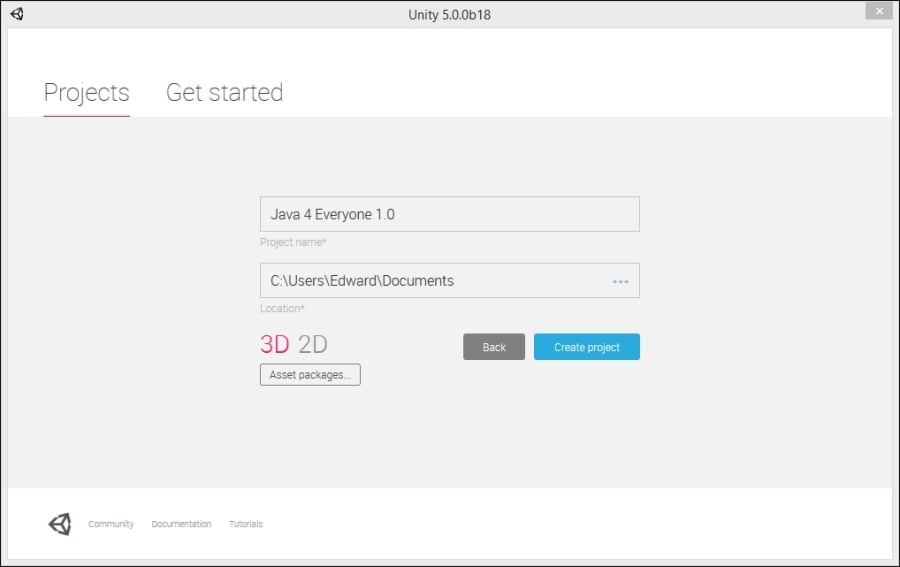
Let's walk through creating a new project. Our first step is to click on the New project button. This brings up the new project dialog window, as shown in the following screenshot:

Projects

There are four decisions you need to make on this screen before you click on the Create project button. First, you'll need to give your project a name. This is like naming a file, and I recommend including the version number. For example, if you are working on the first version of a new game called Java For Everyone, you might name your project Java4Everyone 1.0, java_for_everyone_1.0, or something similar.

The next step is to tell Unity where you want the project saved. You can accept the default or click on the eclipse icon to open a File Explorer window. Using this window, select where you want your project to be saved. I recommend selecting a folder or directory that is automatically backed up or linked to a cloud-based file system. This will help to ensure that you do not lose your work.

Next, we need to indicate whether we are creating a 2D or 3D project. If you are creating a platform or side-scrolling game, you'll select 2D. Otherwise, you'll select 3D. You can certainly have both 2D and 3D components to your game. Unity gives us a lot of flexibility in this regard. So, our initial selection simply indicates our primary focus.

Our last decision to make is what, if any, asset packages we want to import. If you already know what packages you will need, you can have them loaded when the project is created. Alternatively, you can easily import packages after you've started working on your project. This is the method I recommend because it ensures you only load what you absolutely need. We'll discuss how this is done in a later chapter.

Once you've made the four decisions, click on the Create project button, as shown in the following screenshot:

Projects

Unity will create your project and depending on how many packages you selected to be included, it could take more than a few seconds to create. If the window disappears and you do not see any indication that your project is being created, don't panic. Unity is working in the background and will open the main interface as soon as the project has been created.

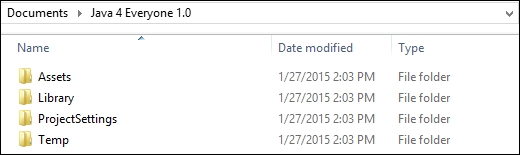
If you look at your filesystem, you'll see that Unity has created a folder with the name of your project. In that folder, you'll find four subfolders titled Assets, Library, ProjectSettings, and Temp. Unity keeps projects well organized with these primary folders. As new game objects are added to your project, they will be placed in these folders. You can also create additional folders to be even more organized.

Projects

Note

It is a good idea not to move files around or change folder names. There is a chance you'll break linkages inside your project. Instead, make any desired changes within Unity.

Visually different images
CONTINUE READING
83
Tech Concepts
36
Programming languages
73
Tech Tools
Icon Unlimited access to the largest independent learning library in tech of over 8,000 expert-authored tech books and videos.
Icon Innovative learning tools, including AI book assistants, code context explainers, and text-to-speech.
Icon 50+ new titles added per month and exclusive early access to books as they are being written.
Getting Started with Unity 5
notes
bookmark Notes and Bookmarks search Search in title playlist Add to playlist font-size Font size

Change the font size

margin-width Margin width

Change margin width

day-mode Day/Sepia/Night Modes

Change background colour

Close icon Search
Country selected

Close icon Your notes and bookmarks

Confirmation

Modal Close icon
claim successful

Buy this book with your credits?

Modal Close icon
Are you sure you want to buy this book with one of your credits?
Close
YES, BUY

Submit Your Feedback

Modal Close icon
Modal Close icon
Modal Close icon