Sign In Start Free Trial
Account

Add to playlist

Create a Playlist

Modal Close icon
You need to login to use this feature.
  • Book Overview & Buying Building a Game with Unity and Blender
  • Table Of Contents Toc
Building a Game with Unity and Blender

Building a Game with Unity and Blender

By : Lee Zhi Eng
3.3 (6)
close
close
Building a Game with Unity and Blender

Building a Game with Unity and Blender

3.3 (6)
By: Lee Zhi Eng

Overview of this book

In the wake of the indie game development scene, game development tools are no longer luxury items costing up to millions of dollars but are now affordable by smaller teams or even individual developers. Among these cutting-edge applications, Blender and Unity stand out from the crowd as a powerful combination that allows small-to-no budget indie developers or hobbyists alike to develop games that they have always dreamt of creating. Starting from the beginning, this book will cover designing the game concept, constructing the gameplay, creating the characters and environment, implementing game logic and basic artificial intelligence, and finally deploying the game for others to play. By sequentially working through the steps in each chapter, you will quickly master the skills required to develop your dream game from scratch.
Table of Contents (11 chapters)
close
close
10
Index

Creating the player character's armature


The process of creating the armature for the player character is very similar to that of the monster. The first thing we need to do is create a new armature by pressing Shift + A, followed by going to Armature | Single Bone. Next, place it somewhere around the hip, and not in the upper torso. This is where the center of mass lies in the human body, so it's most natural to place the root bone around that area.

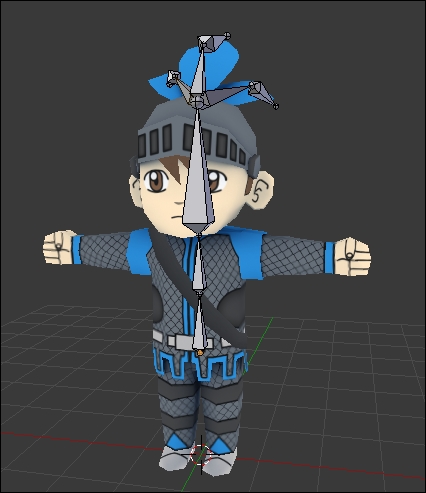
After this, select one of the small spheres at the tip of the root bone and press E to create a child bone from it. Repeat the same step on the child bones until you get something like this:

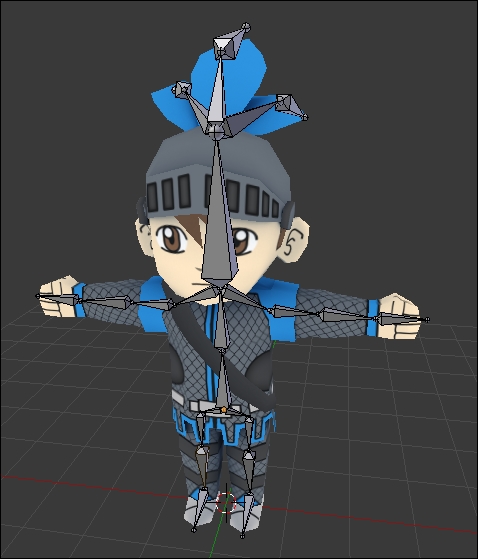
Next, enable X-Axis Mirror and create bones for the limbs by pressing Shift + E to mirror-extrude the bones. Slowly adjust the bones until it look something like this:

After you have done creating all the bones for the character, we will now try to bind the armature to the character mesh using the same method as before. Press Ctrl + P; a menu will pop out. Now...

CONTINUE READING
83
Tech Concepts
36
Programming languages
73
Tech Tools
Icon Unlimited access to the largest independent learning library in tech of over 8,000 expert-authored tech books and videos.
Icon Innovative learning tools, including AI book assistants, code context explainers, and text-to-speech.
Icon 50+ new titles added per month and exclusive early access to books as they are being written.
Building a Game with Unity and Blender
notes
bookmark Notes and Bookmarks search Search in title playlist Add to playlist font-size Font size

Change the font size

margin-width Margin width

Change margin width

day-mode Day/Sepia/Night Modes

Change background colour

Close icon Search
Country selected

Close icon Your notes and bookmarks

Confirmation

Modal Close icon
claim successful

Buy this book with your credits?

Modal Close icon
Are you sure you want to buy this book with one of your credits?
Close
YES, BUY

Submit Your Feedback

Modal Close icon
Modal Close icon
Modal Close icon