Sign In Start Free Trial
Account

Add to playlist

Create a Playlist

Modal Close icon
You need to login to use this feature.
  • Book Overview & Buying Building a Game with Unity and Blender
  • Table Of Contents Toc
Building a Game with Unity and Blender

Building a Game with Unity and Blender

3.3 (6)
close
close
Building a Game with Unity and Blender

Building a Game with Unity and Blender

3.3 (6)

Overview of this book

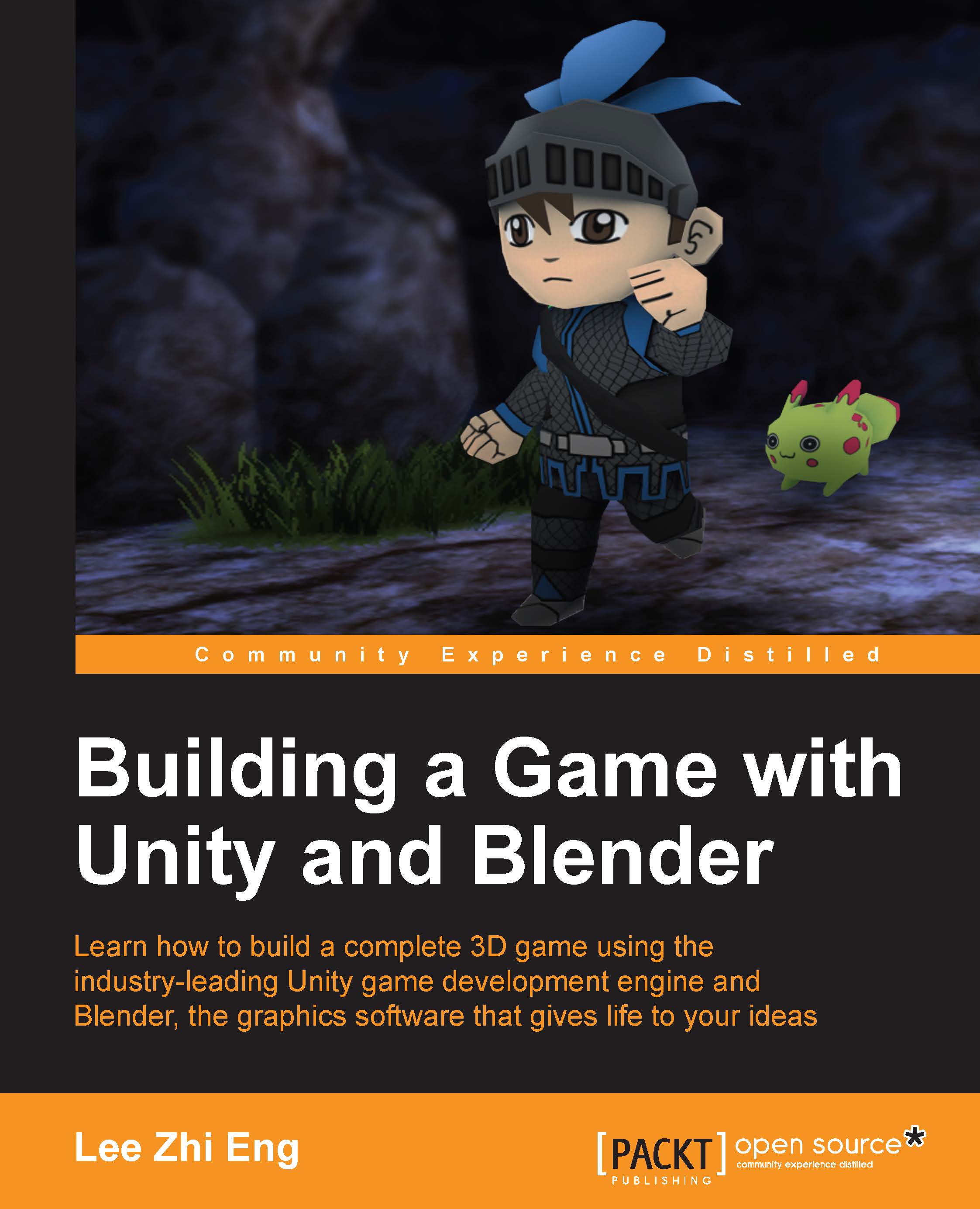
In the wake of the indie game development scene, game development tools are no longer luxury items costing up to millions of dollars but are now affordable by smaller teams or even individual developers. Among these cutting-edge applications, Blender and Unity stand out from the crowd as a powerful combination that allows small-to-no budget indie developers or hobbyists alike to develop games that they have always dreamt of creating. Starting from the beginning, this book will cover designing the game concept, constructing the gameplay, creating the characters and environment, implementing game logic and basic artificial intelligence, and finally deploying the game for others to play. By sequentially working through the steps in each chapter, you will quickly master the skills required to develop your dream game from scratch.
Table of Contents (11 chapters)
close
close
10
Index

Player Settings


Even though you game has been successfully built and is now able to be playtested on the target platform, you may have already noticed that there are several things that look kind of odd. For instance, the game title has not been set, the game icon is showing the Unity logo, and several other things are not to your liking. Don't worry! This is because the player settings have not been properly configured.

To open up the player settings window, you can either go to Edit | Project Settings | Player, or go to File | Build Settings and click on the Player Settings button.

Tip

Do note that the word player in this context does not mean the person who plays the game, but rather the system that runs the game and renders the graphics; in other words, the player application that is the build output.

You will see two different sections on the player settings window. The top section is the general settings of your game, such as your company name, product name, game icon, and so on. These...

CONTINUE READING
83
Tech Concepts
36
Programming languages
73
Tech Tools
Icon Unlimited access to the largest independent learning library in tech of over 8,000 expert-authored tech books and videos.
Icon Innovative learning tools, including AI book assistants, code context explainers, and text-to-speech.
Icon 50+ new titles added per month and exclusive early access to books as they are being written.
Building a Game with Unity and Blender
notes
bookmark Notes and Bookmarks search Search in title playlist Add to playlist font-size Font size

Change the font size

margin-width Margin width

Change margin width

day-mode Day/Sepia/Night Modes

Change background colour

Close icon Search
Country selected

Close icon Your notes and bookmarks

Confirmation

Modal Close icon
claim successful

Buy this book with your credits?

Modal Close icon
Are you sure you want to buy this book with one of your credits?
Close
YES, BUY

Submit Your Feedback

Modal Close icon
Modal Close icon
Modal Close icon