Sign In Start Free Trial
Account

Add to playlist

Create a Playlist

Modal Close icon
You need to login to use this feature.
  • Book Overview & Buying 3D Game Design with Unreal Engine 4 and Blender
  • Table Of Contents Toc
3D Game Design with Unreal Engine 4 and Blender

3D Game Design with Unreal Engine 4 and Blender

By : Jessica Plowman
4.3 (8)
close
close
3D Game Design with Unreal Engine 4 and Blender

3D Game Design with Unreal Engine 4 and Blender

4.3 (8)
By: Jessica Plowman

Overview of this book

Unreal Engine 4 now has support for Blender, which was not available in earlier versions. This has opened up new possibilities and that is where this book comes in. This is the first book in the market combining these two powerful game and graphic engines. Readers will build an amazing high-level game environment with UE4 and will show them how to use the power of Blender 3D to create stunning animations and 3D effects for their game. This book will start with creating levels, 3D assets for the game, game progression, light and environment control, animation, and so on. Then it will teach readers to add amazing visual effects to their game by applying rendering, lighting, rigging, and compositing techniques in Blender. Finally, readers will learn how to smoothly transfer blender files to UE4 and animate the game assets. Each chapter will add complexities to the game environment.
Table of Contents (11 chapters)
close
close
10
Index

Using multiple shapes within Blender


To begin building our object, we need to break our design down into its individual pieces and decide on a primitive shape to start building each part. The bottom section looks like a cylinder. The lid looks like the top portion of a sphere split in two. The gears and pistons that make up the locking mechanism definitely look like cylinders and the legs could start that way too.

Tip

Don't forget to set up your file with the appropriate settings like we did in Chapter 3, It's Time to Customize!

Now, let's start with a cylinder:

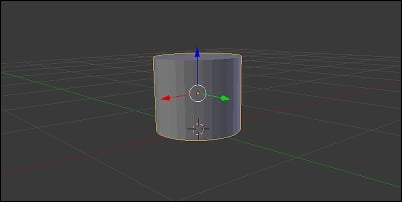
Starting with a cylinder

Let's start the build with the bottom of the object:

  1. Delete the starting objects from the scene, if you have them. Go to the Add menu located at the bottom of the 3D viewport, go to Mesh, and select Cylinder from the options. In the bottom of the Tools pane, you can see the options for our newly created Cylinder. Set the Sides to 24 (using just enough sides to stay round), set the Radius to 60, and the Depth to...

CONTINUE READING
83
Tech Concepts
36
Programming languages
73
Tech Tools
Icon Unlimited access to the largest independent learning library in tech of over 8,000 expert-authored tech books and videos.
Icon Innovative learning tools, including AI book assistants, code context explainers, and text-to-speech.
Icon 50+ new titles added per month and exclusive early access to books as they are being written.
3D Game Design with Unreal Engine 4 and Blender
notes
bookmark Notes and Bookmarks search Search in title playlist Add to playlist font-size Font size

Change the font size

margin-width Margin width

Change margin width

day-mode Day/Sepia/Night Modes

Change background colour

Close icon Search
Country selected

Close icon Your notes and bookmarks

Confirmation

Modal Close icon
claim successful

Buy this book with your credits?

Modal Close icon
Are you sure you want to buy this book with one of your credits?
Close
YES, BUY

Submit Your Feedback

Modal Close icon
Modal Close icon
Modal Close icon