-
Book Overview & Buying
-
Table Of Contents
Learning C# by Developing Games with Unity 2021 - Sixth Edition
By :
Let's start with a simple question: what is a variable? Depending on your point of view, there are a few different ways of answering that question:
You can find an in-depth explanation of variables in the Microsoft C# documentation at https://docs.microsoft.com/en-us/dotnet/csharp/language-reference/language-specification/variables.
A practical real-life example of a variable is a mailbox—remember those?

Figure 2.1: Snapshot of a row of colorful mailboxes
They can hold letters, bills, a picture from your aunt Mabel—anything. The point is that what's in a mailbox can vary: they can have names, hold information (physical mail), and their contents can even be changed if you have the right security clearance. Similarly, variables can hold different kinds of information. Variables in C# can hold strings (text), integers (numbers), and even Booleans (binary values that represent either true or false).
Referring to Figure 2.1, if I asked you to go over and open the mailbox, the first thing you'd probably ask is: which one? If I said the Smith family mailbox, or the sunflower mailbox, or even the droopy mailbox on the far right, then you'd have the necessary context to open the mailbox I was referencing. Similarly, when you are creating variables, you have to give them unique names that you can reference later. We'll get into the specifics of proper formatting and descriptive naming in Chapter 3, Diving into Variables, Types, and Methods.
When you create and name a variable, you are creating a placeholder for the value that you want to store. Let's take the following simple math equation as an example:
2 + 9 = 11
Okay, no mystery here, but what if we wanted the number 9 to be its variable? Consider the following code block:
MyVariable = 9
Now we can use the variable name, MyVariable, as a substitute for 9 anywhere we need it:
2 + MyVariable = 11
If you're wondering whether variables have other rules or regulations, they do. We'll get to those in the next chapter, so sit tight.
Even though this example isn't real C# code, it illustrates the power of variables and their use as placeholder references. In the next section you'll start creating variables of your own, so keep going!
Alright, enough theory—let's create a real variable in the LearningCurve script we created in Chapter 1, Getting to Know Your Environment:
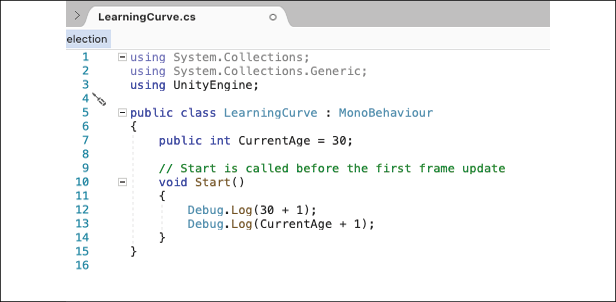
LearningCurve.cs from the Unity project window to open it in Visual Studio.public int CurrentAge = 30;
Start method, add two debug logs to print out the following calculations:
Debug.Log(30 + 1);
Debug.Log(CurrentAge + 1);
Let's break down the code we just added. First, we created a new variable called CurrentAge and assigned it a value of 30. Then, we added two debug logs to print out the result of 30 + 1 and CurrentAge + 1 to show how variables are storage for values. They can be used the exact same way as the values themselves.
It's also important to note that public variables appear in the Unity Inspector, while private ones don't. Don't worry about the syntax right now—just make sure your script is the same as the script that is shown in the following screenshot:

Figure 2.2: LearningCurve script open in Visual Studio
To finish, save the file using Editor | File | Save.
For scripts to run in Unity, they have to be attached to GameObjects in the scene. The sample scene in Hero Born has a camera and directional light by default, which provides the lighting for the scene, so let's attach LearningCurve to the camera to keep things simple:
LearningCurve.cs onto the Main Camera.LearningCurve.cs (Script) component is attached properly.
Figure 2.3: Unity Editor window with callouts for dragging and dropping scripts
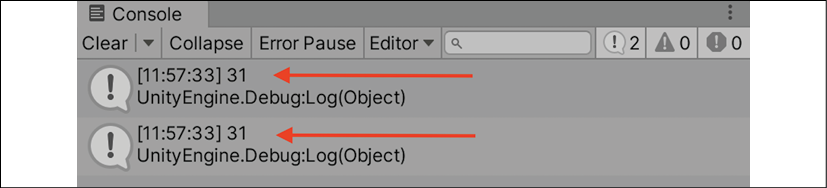
The Debug.Log() statements printed out the result of the simple math equations we put in between the parentheses. As you can see in the following Console screenshot, the equation that used our variable, CurrentAge, worked the same as if it were a real number:

Figure 2.4: Unity console with debug output from the attached script
We'll get into how Unity converts C# scripts into components at the end of this chapter, but first, let's work on changing the value of one of our variables.
Since CurrentAge was declared as a variable on line 7 as shown in Figure 2.2, the value it stores can be changed. The updated value will then trickle down to wherever the variable is used in code; let's see this in action:
18 in the Inspector panel and play the scene again, looking at the new output in the Console panel:
Figure 2.5: Unity console with debug logs and the LearningCurve script attached to Main Camera
The first output will still be 31 because we didn't change anything in the script, but the second output is now 19 because we changed the value of CurrentAge in the Inspector.
The goal here wasn't to go over variable syntax but to show how variables act as containers that can be created once and referenced elsewhere. We'll go into more detail in Chapter 3, Diving into Variables, Types, and Methods.
Now that we know how to create variables in C# and assign them values, we're ready to dive into the next important programming building block: methods!