Sign In Start Free Trial
Account

Add to playlist

Create a Playlist

Modal Close icon
You need to login to use this feature.
  • Book Overview & Buying Unity Cookbook
  • Table Of Contents Toc
Unity Cookbook

Unity Cookbook - Fifth Edition

By : Matt Smith, Shaun Ferns, Sinéad Murphy
4.8 (26)
close
close
Unity Cookbook

Unity Cookbook

4.8 (26)
By: Matt Smith, Shaun Ferns, Sinéad Murphy

Overview of this book

Unleash your game development potential with Unity Cookbook, 5th Edition, designed to equip you with the skills and knowledge needed to excel in Unity game development. With over 160 expertly crafted recipes empowering you to pioneer VR and AR experiences, excel in mobile game development, and become a master of audio techniques. In this latest edition, we've meticulously curated a collection of recipes that reflect the latest advancements in Unity 2023, ensuring you stay at the forefront of game development. You'll discover dedicated recipes for First/Third Person (Core) templates, create engaging mobile games, delve into Virtual and Augmented Reality, and go further with audio by exploring advanced techniques. Additionally, the book has been fully updated to incorporate the new input system and TextMeshPro, essential elements for modern game development. From exploring C# scripting to crafting stylish UIs, creating stunning visual effects, and understanding shader development through Shader Graph, every chapter is designed to take you closer to your goal of becoming a proficient Unity developer. So, whether you're aiming to develop the next hit game, enhance your portfolio, or simply have fun building games, this book will be your trusted companion on your journey to Unity proficiency.
Table of Contents (22 chapters)
close
close
20
Other Books You May Enjoy
21
Index

Responding to User Events for Interactive UIs

Almost all the recipes in this chapter involve different interactive UI controls. Although there are different kinds of interactive UI controls, the basic way to work with them, as well as to have scripted actions respond to user actions, is all based on the same idea: events triggering the execution of object method functions.

Then, for fun, and as an example of a very different kind of UI, the final recipe will demonstrate how to add sophisticated, real-time communication for the relative positions of objects in the scene to your game - in the form of a radar!

The UI can be used for three main purposes:

  • To display static (unchanging) values, such as the name or logo image of the game, or word labels such as Level and Score, that tell us what the numbers next to them indicate (the recipes for these can be found in Chapter 1, Displaying Data with Core UI Elements).
  • To display values that change due to our scripts, such as timers, scores, or the distance from our Player character to some other object (an example of this is the radar recipe at the end of this chapter, Displaying a radar to indicate the relative locations of objects).
  • Interactive UI controls, whose purpose is to allow the player to communicate with the game scripts via their mouse or touchscreen. These are the ones we’ll look at in detail in this chapter.

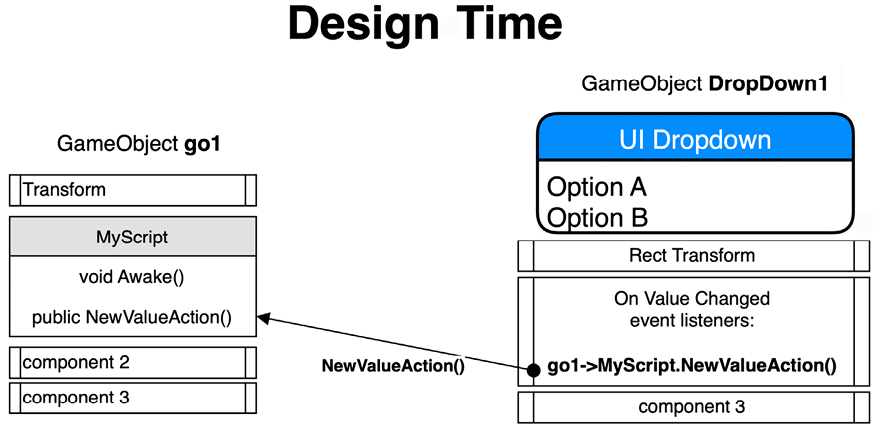
The core concept of working with Unity interactive UI controls is to register an object’s public method so that we’re informed when a particular event occurs. For example, we can add a UI dropdown to a scene named DropDown1, and then write a MyScript script class containing a NewValueAction() public method to perform an action. However, nothing will happen until we do two things:

  • We need to add an instance of the script class as a component of a GameObject in the scene (which we’ll name go1 for our example – although we can also add the script instance to the UI GameObject itself if we wish to).
  • In the UI dropdown’s properties, we need to register the GameObject’s public method of its script component so that it responds to On Value Changed event messages.

The NewValueAction() public method of the MyScript script will typically retrieve the value that’s been selected by the user in the dropdown and do something with it. For example, the NewValueAction() public method might confirm the value to the user, change the music volume, or change the game’s difficulty. The NewValueAction() method will be executed each time GameObject go1 receives the NewValueAction() message. In the properties of DropDown1, we need to register go1's scripted component – that is, MyScript's NewValueAction() public method – as an event listener for On Value Changed events. We need to do all this at design time (that is, in the Unity Editor before running the scene):

A screenshot of a design

Description automatically generated

Figure 2.1: Graphical representation of the UI at design time

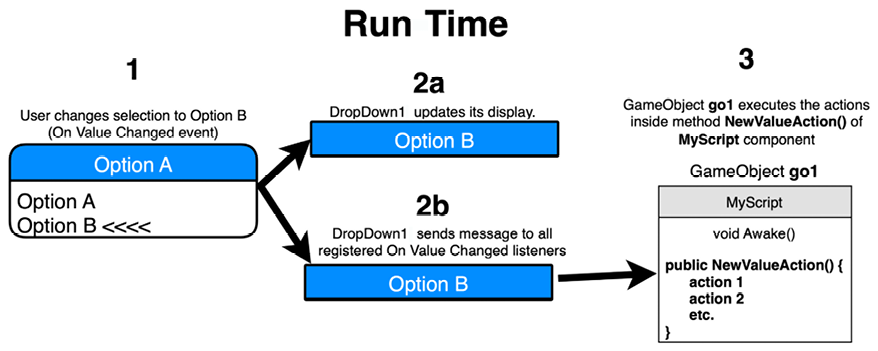
At runtime (when the scene in the application is running), the following will happen:

  1. If the user changes the value in the drop-down menu of the DropDown1 GameObject (step 1 in the following diagram), this will generate an On Value Changed event.
  2. DropDown1 will update its display on the screen to show the user the newly selected value (step 2a). It will also send messages to all the GameObject components registered as listeners to On Value Changed events (step 2b).
  3. In our example, this will lead to the NewValueAction() method in the go1 GameObject’s scripted component being executed (step 3).
A diagram of a run-time

Description automatically generated

Figure 2.2: Graphical representation of the UI at runtime

Registering public object methods is a very common way to handle events such as user interaction or web communications, which may occur in different orders, may never occur, or may happen several times in a short period. Several software design patterns describe ways to work with these event setups, such as the Observer pattern and the Publisher-Subscriber design pattern (more details can be found at https://unity.com/how-to/create-modular-and-maintainable-code-observer-pattern).

Core GameObject components related to interactive Unity UI development include the following:

  • Visual UI controls: The visible UI controls themselves include Button, Image, Text, and Toggle. These are the UI controls the user sees on the screen and uses their mouse/touchscreen to interact with. These are the GameObjects that maintain a list of object methods that have subscribed to user-interaction events.
  • Interaction UI controls: These are non-visible components that are added to GameObjects; examples include Input Field and Toggle Group.
  • Panel: UI objects can be grouped together (logically and physically) with UI Panels. Panels can play several roles, including providing a GameObject parent in the Hierarchy window for a related group of controls. They can provide a visual background image to graphically relate controls on the screen, and they can also have scripted resize and drag interactions added if desired.

In addition, the concept of sibling depth is important when multiple UI components are overlapping. The bottom-to-top display order (what appears on the top of what) for a UI element is determined initially by its place in the sequence in the Hierarchy window. At design time, this can be manually set by dragging GameObjects into the desired sequence in the Hierarchy window. At runtime, we can send messages to the Rect Transforms of GameObjects to dynamically change their Hierarchy position (and, therefore, the display order) as the game or user interaction demands. This is illustrated in the Organizing images inside panels and changing panel depths via buttons recipe in this chapter.

Often, a UI element exists with most of the components that you may need for something in your game, but you may need to adapt it somehow. An example of this can be seen in the Displaying a countdown timer graphically with a UI Slider recipe, which makes a UI Slider non-interactive so as to display a red-green progress bar for the status of a countdown timer.

In this chapter, we will cover the following recipes:

  • Creating a UI Button to reveal an image
  • Creating a UI Button to move between scenes
  • Animating UI Button properties on mouseover
  • Organizing image panels and changing panel depths via UI Buttons
  • Displaying the value of an interactive UI Slider
  • Displaying a countdown timer graphically with a UI Slider
  • Setting custom mouse cursors for 2D and 3D GameObjects
  • Setting custom mouse cursors for UI controls
  • Interactive text entry with Input Field
  • Detecting interactions with a single Toggle UI component
  • Creating related radio buttons using UI Toggles
  • Creating text UI Dropdown menus
  • Creating image icon UI Dropdown menus
  • Displaying a radar to indicate the relative locations of objects.
CONTINUE READING
83
Tech Concepts
36
Programming languages
73
Tech Tools
Icon Unlimited access to the largest independent learning library in tech of over 8,000 expert-authored tech books and videos.
Icon Innovative learning tools, including AI book assistants, code context explainers, and text-to-speech.
Icon 50+ new titles added per month and exclusive early access to books as they are being written.
Unity Cookbook
notes
bookmark Notes and Bookmarks search Search in title playlist Add to playlist download Download options font-size Font size

Change the font size

margin-width Margin width

Change margin width

day-mode Day/Sepia/Night Modes

Change background colour

Close icon Search
Country selected

Close icon Your notes and bookmarks

Confirmation

Modal Close icon
claim successful

Buy this book with your credits?

Modal Close icon
Are you sure you want to buy this book with one of your credits?
Close
YES, BUY

Submit Your Feedback

Modal Close icon
Modal Close icon
Modal Close icon