Sign In Start Free Trial
Account

Add to playlist

Create a Playlist

Modal Close icon
You need to login to use this feature.
  • Book Overview & Buying Unity Cookbook
  • Table Of Contents Toc
Unity Cookbook

Unity Cookbook - Fifth Edition

By : Matt Smith, Shaun Ferns, Sinéad Murphy
4.8 (26)
close
close
Unity Cookbook

Unity Cookbook

4.8 (26)
By: Matt Smith, Shaun Ferns, Sinéad Murphy

Overview of this book

Unleash your game development potential with Unity Cookbook, 5th Edition, designed to equip you with the skills and knowledge needed to excel in Unity game development. With over 160 expertly crafted recipes empowering you to pioneer VR and AR experiences, excel in mobile game development, and become a master of audio techniques. In this latest edition, we've meticulously curated a collection of recipes that reflect the latest advancements in Unity 2023, ensuring you stay at the forefront of game development. You'll discover dedicated recipes for First/Third Person (Core) templates, create engaging mobile games, delve into Virtual and Augmented Reality, and go further with audio by exploring advanced techniques. Additionally, the book has been fully updated to incorporate the new input system and TextMeshPro, essential elements for modern game development. From exploring C# scripting to crafting stylish UIs, creating stunning visual effects, and understanding shader development through Shader Graph, every chapter is designed to take you closer to your goal of becoming a proficient Unity developer. So, whether you're aiming to develop the next hit game, enhance your portfolio, or simply have fun building games, this book will be your trusted companion on your journey to Unity proficiency.
Table of Contents (22 chapters)
close
close
20
Other Books You May Enjoy
21
Index

Setting custom mouse cursors for UI controls

The previous recipe demonstrated how to change the mouse pointer for 2D and 3D GameObjects receiving OnMouseEnter and OnMouseExit events. Unity UI controls do not receive OnMouseEnter and OnMouseExit events. Instead, UI controls can be made to respond to PointerEnter and PointerExit events if we add a special Event Trigger component to the UI GameObject:

Figure 2.25: Mouse pointer as a magnifying glass cursor

In this recipe, we’ll change the mouse pointer to a custom magnifying glass cursor when it moves over a UI Button GameObject.

Getting ready

For this recipe, we’ll use the same asset files as we did for the previous recipe, as well as the CustomCursorPointer C# script class from that recipe, all of which can be found in the 02_08 folder.

How to do it...

To set a custom mouse pointer when the mouse moves over a UI control GameObject, do the following:

  1. Create a new Unity 2D project and install TextMeshPro by choosing: Window | TextMeshPro | Import TMP Essential Resources.
  2. Import the provided IconsCursors folder. Select all three images in the Project window and, in the Inspector window, change Texture Type to Cursor. This will allow us to use these images as mouse cursors without any errors occurring.
  3. Import the provided _Scripts folder containing the CustomCursorPointer C# script class.
  4. Add a UI Button-TextMeshPro GameObject to the scene, leaving this named Button.
  5. Add an instance of the CustomCursorPointer C# script class to the Button GameObject.
  6. With the Button GameObject selected in the Hierarchy window, drag the CursorZoom image into the public Cursor Texture 2D variable slot in the Inspector window for the Customer Cursor Pointer (Script) component.
  7. In the Inspector window, add an Event Trigger component to the Button GameObject by going to Add Component | Event | Event Trigger.
  8. Add a PointerEnter event to your Event Trigger component, click on the plus (+) button to add an event handler slot, and drag the Button GameObject into the Object slot.
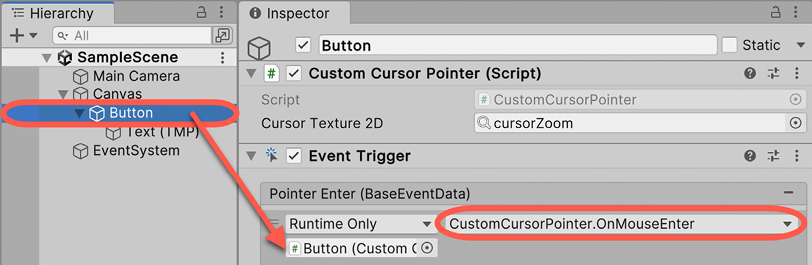
  9. From the Function drop-down menu, choose CustomCursorPointer and then choose the OnMouseEnter method:

Figure 2.26: Event Trigger settings

  1. Add a Pointer Exit event to your Event Trigger component, and make it call the OnMouseExit() method from CustomCursorPointer when this event is received.
  2. Save and run the current scene. When the mouse pointer moves over our UI Button, it will change to the custom CursorZoom image that you chose.

How it works...

In this recipe, you imported some cursor images and set their Texture Type to Cursor so that they could be used to change the image for the user’s mouse pointer. You also created a UI Button GameObject and added to it an Event Trigger component.

You then added an instance of the CustomCursorPointer C# script class to the Button GameObject and selected the magnifying-glass-style CursorZoom image.

After that, you created a PointerEnter event and linked it to invoke the OnMouseEnter method of the instance of the CustomCursorPointer script in the Button GameObject (which changes the mouse pointer image to the custom mouse cursor).

Finally, you created a PointerExit event and linked it to invoke the OnMouseExit method of the instance of the CustomCursorPointer C# script class to the Button GameObject (which resets the mouse cursor back to the system default).

Essentially, you have redirected PointerEnter/Exit events to invoke the OnMouseEnter/Exit methods of the CustomCursorPointer C# script class so that we can manage custom cursors for 2D, 3D, and UI GameObjects with the same scripting methods.

Visually different images
CONTINUE READING
83
Tech Concepts
36
Programming languages
73
Tech Tools
Icon Unlimited access to the largest independent learning library in tech of over 8,000 expert-authored tech books and videos.
Icon Innovative learning tools, including AI book assistants, code context explainers, and text-to-speech.
Icon 50+ new titles added per month and exclusive early access to books as they are being written.
Unity Cookbook
notes
bookmark Notes and Bookmarks search Search in title playlist Add to playlist download Download options font-size Font size

Change the font size

margin-width Margin width

Change margin width

day-mode Day/Sepia/Night Modes

Change background colour

Close icon Search
Country selected

Close icon Your notes and bookmarks

Confirmation

Modal Close icon
claim successful

Buy this book with your credits?

Modal Close icon
Are you sure you want to buy this book with one of your credits?
Close
YES, BUY

Submit Your Feedback

Modal Close icon
Modal Close icon
Modal Close icon