


-
Book Overview & Buying
-
Table Of Contents

-
Feedback & Rating

Unity Android Game Development by Example Beginner's Guide
By :


Unity Android Game Development by Example Beginner's Guide
By:
Overview of this book
Powerful and continuing to grow, the mobile market has never been bigger and more demanding of great games. Android continues to prove itself as a strong contender in this challenging market. With Unity 3D, great games can be made for Android quickly and easily. With its great deployment system, the Android platform is now only one click away.
Unity Android Game Development by Example Beginner's Guide dives straight into making real, fully-functional games, with hands-on examples and step-by-step instructions to give you a firm grounding in Unity 3D and Android. Everything necessary for creating a complete gaming experience is covered and detailed throughout the course of this book.
Using clear and practical examples that progressively build upon each other, this book guides you through the process of creating games in Unity for Android.
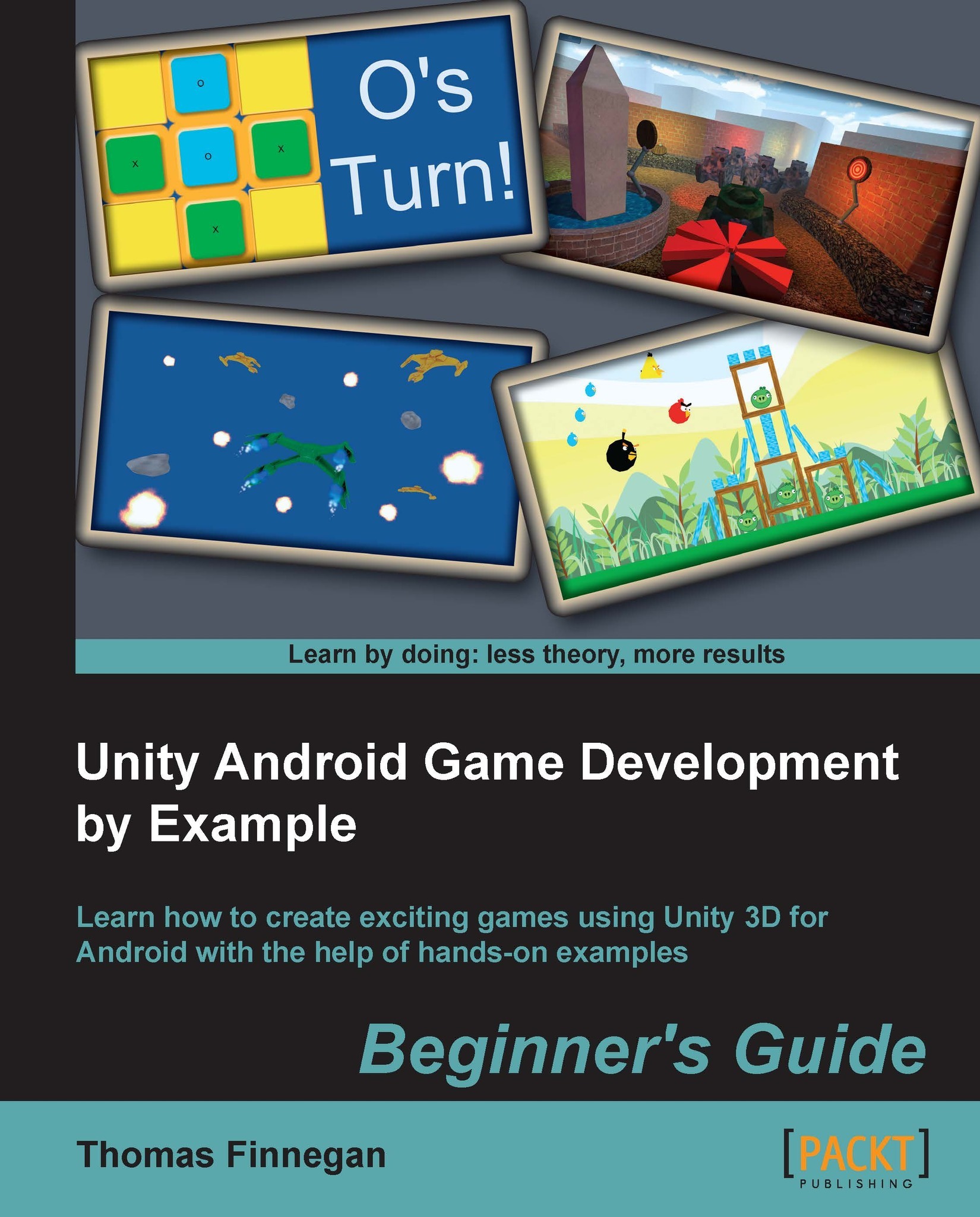
Start by learning about all the great features that Unity and Android have to offer. Next, create a Tic-Tac-Toe game while learning all about interfaces. After that, learn about meshes, materials, and animations with the creation of a tank battle game. You will then learn how to expand your game's environment with the addition of shadows and a skybox. Adding on this, you will also learn how to expand the tank battle by creating enemies and using path finding to chase the player. Next, explore touch and tilt controls with the creation of a space fighter game. Then, learn about physics while recreating the most popular mobile game on the market. You will then expand the space fighter game with the addition of all the special effects that make a game great. Finally, complete your experience by learning the optimization techniques required to keep your games running smoothly.
While Unity is available for both Mac and Windows, the book is presented working from a Windows environment. Programming in Unity is possible in C#, JavaScript, and Boo. This book will be working in C# and the final projects will be provided in C# and JavaScript.
From nothing to a fully-featured mobile game, Unity Android Game Development by Example Beginner's Guide takes you through everything it takes to create your next game for the Android platform.
Table of Contents (12 chapters)
Preface


 Free Chapter
1. Saying Hello to Unity and Android
2. Looking Good – Graphical Interface
3. The Backbone of Any Game – Meshes, Materials, and Animations
4. Setting the Stage – Camera Effects and Lighting

5. Getting Around – Pathfinding and AI
6. Specialties of the Mobile Device – Touch and Tilt
7. Throwing Your Weight Around – Physics and a 2D Camera
8. Special Effects – Sound and Particles
9. Optimization
A. Pop Quiz Answers
Index
Customer Reviews



