Sign In Start Free Trial
Account

Add to playlist

Create a Playlist

Modal Close icon
You need to login to use this feature.
  • Book Overview & Buying Scratch 2.0 Beginner's Guide: Second Edition
  • Table Of Contents Toc
Scratch 2.0 Beginner's Guide: Second Edition

Scratch 2.0 Beginner's Guide: Second Edition

By : Badger
4.3 (4)
close
close
Scratch 2.0 Beginner's Guide: Second Edition

Scratch 2.0 Beginner's Guide: Second Edition

4.3 (4)
By: Badger

Overview of this book

The book uses step-by-step instructions along with full code listings for each exercise. After each exercise, the author pauses to reflect, explain, and offer insights before building on the project. The author approaches the content with the belief that we are all teachers and that you are reading this book not only because you want to learn, but because you want to share your knowledge with others. Motivated students can pick up this book and teach themselves how to program because the book takes a simple, strategic, and structured approach to learning Scratch. Parents can grasp the fundamentals so that they can guide their children through introductory Scratch programming exercises. It’s perfect for homeschool families. Teachers of all disciplines from computer science to English can quickly get up to speed with Scratch and adapt the projects for use in the classroom.
Table of Contents (13 chapters)
close
close
12
Index

Time for action – providing user instructions


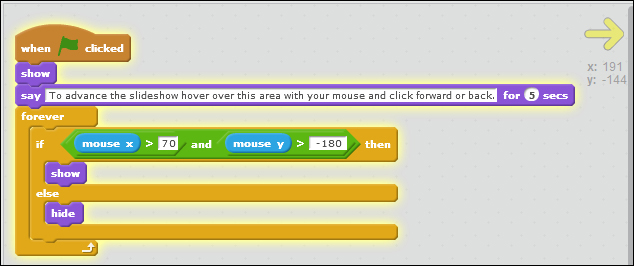
Based on our current scripts, it's possible for our slideshow to start with no Back or Next arrows on the screen because their display is determined by the location of the mouse cursor. That could be confusing to a user. Let's revise our script to provide some user instruction at the start of the project. Select one of the arrows and add a show block to the when flag clicked block.

  1. From the Looks palette, add a say for () secs block after the show block.

  2. For the text value of the say block, type an instruction to the user (for example, To advance the slideshow hover over this area.).

  3. Increase the time value in the say for (2) secs to 5.

  4. Now select the other arrow sprite and add a show block after the when flag clicked block.

  5. This time, add a wait (2) secs block after the show block. Change the value to 5.

  6. Give the script a go by clicking on the green flag.

The following screenshots shows our revised arrow script:

What just happened?

We updated the script...

CONTINUE READING
83
Tech Concepts
36
Programming languages
73
Tech Tools
Icon Unlimited access to the largest independent learning library in tech of over 8,000 expert-authored tech books and videos.
Icon Innovative learning tools, including AI book assistants, code context explainers, and text-to-speech.
Icon 50+ new titles added per month and exclusive early access to books as they are being written.
Scratch 2.0 Beginner's Guide: Second Edition
notes
bookmark Notes and Bookmarks search Search in title playlist Add to playlist font-size Font size

Change the font size

margin-width Margin width

Change margin width

day-mode Day/Sepia/Night Modes

Change background colour

Close icon Search
Country selected

Close icon Your notes and bookmarks

Confirmation

Modal Close icon
claim successful

Buy this book with your credits?

Modal Close icon
Are you sure you want to buy this book with one of your credits?
Close
YES, BUY

Submit Your Feedback

Modal Close icon
Modal Close icon
Modal Close icon