Sign In Start Free Trial
Account

Add to playlist

Create a Playlist

Modal Close icon
You need to login to use this feature.
  • Book Overview & Buying Java EE 5 Development with NetBeans 6
  • Table Of Contents Toc
Java EE 5 Development with NetBeans 6

Java EE 5 Development with NetBeans 6

4 (5)
close
close
Java EE 5 Development with NetBeans 6

Java EE 5 Development with NetBeans 6

4 (5)

Overview of this book

This book is written as a tutorial, leading you through examples to illuminate the main theory and get you working with the Entity Framework as quickly as possible. This book is for C# developers who want an easier way to create their data access layer. You will need to be comfortable with ADO.NET, but you don't need to know anything about the Entity Framework. Along the way we will create some ASP.NET applications, so being familiar with this will also help.
Table of Contents (17 chapters)
close
close
Java EE 5 Development with NetBeans 6
Credits
About the Author
About the Reviewers
Preface
1
Debugging Enterprise Applications with the NetBeans Debugger
2
Identifying Performance Issues with NetBeans Profiler
Deploying Our First Application

NetBeans comes pre-configured with a number of sample applications. To make sure everything is configured correctly, we will now deploy one of the sample applications to the integrated GlassFish application server that comes with NetBeans.

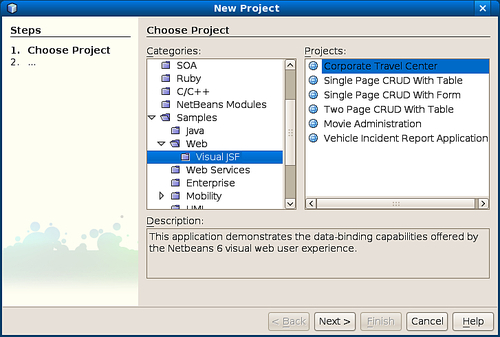
To open the sample project, we need to go to File | New Project, then select Samples | Web | Visual JSF from the categories list in the resulting pop-up window. Once we have selected Visual JSF from the categories list, a list of projects is displayed in the Projects list. For this example we need to select the Corporate Travel Center project.

Deploying Our First Applicationconfiguring, NetBeans for Java EE developmentthird party RDBMS, connecting to

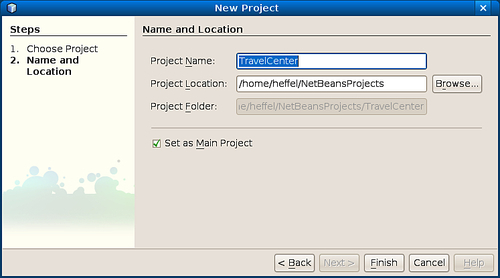
Clicking on the Next> button, we are prompted to enter a Project Name and Project Location. Typically the defaults are sensible.

Deploying Our First Applicationconfiguring, NetBeans for Java EE developmentthird party RDBMS, connecting to

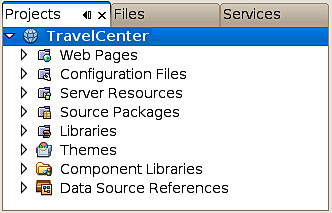
Once we click the Finish button, our new project is displayed in the Projects tab.

Deploying Our First Applicationconfiguring, NetBeans for Java EE developmentthird party RDBMS, connecting to

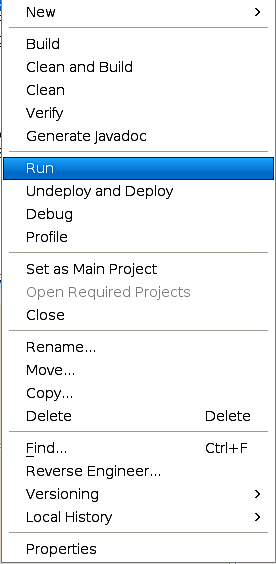
We can compile, package, and deploy our project all in one shot by right-clicking on it and selecting Run from the resulting pop-up menu.

Deploying Our First Applicationconfiguring, NetBeans for Java EE developmentthird party RDBMS, connecting to

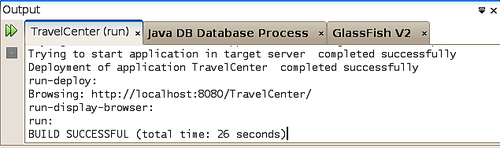
At this point we should see the output of the build script. Also, both the integrated GlassFish application server and the integrated JavaDB RDBMS system should automatically start. The application server and RDBMS will only be started the first time we deploy our project, therefore the delay due to their initialization will not occur in subsequent deployments.

Deploying Our First Applicationconfiguring, NetBeans for Java EE developmentthird party RDBMS, connecting to

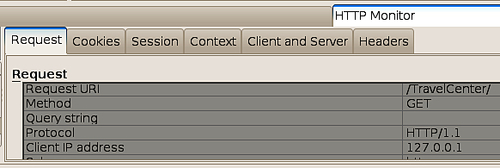
Once the project is deployed we should see NetBean's HTTP monitor. The HTTP monitor is a tool that helps us better develop web applications by providing values of request parameters, request, session and application attributes, request headers, and so on. The HTTP monitor will be discussed in detail in the next chapter.

Deploying Our First Applicationconfiguring, NetBeans for Java EE developmentthird party RDBMS, connecting to

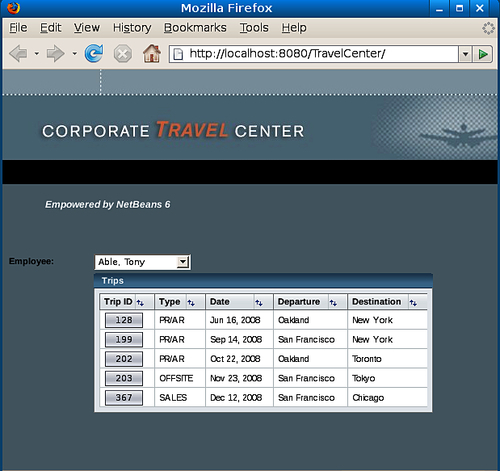
As soon as our application was deployed, a new browser should have automatically started, displaying the default page for our new application. We can select the browser that NetBeans will use by going to Tools | Options, then selecting the appropriate browser from the Web Browser drop-down in the General tab.

Deploying Our First Applicationconfiguring, NetBeans for Java EE developmentthird party RDBMS, connecting to

The sample web application we just deployed is a Visual JSF application. The application uses a JDBC connection to the sample travel database included with NetBeans. The application uses the Woodstock JSF components that are bundled with NetBeans, and interacts with data stored in the sample travel database included with NetBeans.

Note

Visual JSF Development, a NetBeans feature that allow us to build JSF applications graphically, is covered in detail in Chapter 6, Visual Web JSF Development.

If our browser is displaying a page similar to the one above, then we can be certain that NetBeans, GlassFish, and JavaDB are all working properly and we are ready to start developing our own Java EE applications.

CONTINUE READING
83
Tech Concepts
36
Programming languages
73
Tech Tools
Icon Unlimited access to the largest independent learning library in tech of over 8,000 expert-authored tech books and videos.
Icon Innovative learning tools, including AI book assistants, code context explainers, and text-to-speech.
Icon 50+ new titles added per month and exclusive early access to books as they are being written.
Java EE 5 Development with NetBeans 6
notes
bookmark Notes and Bookmarks search Search in title playlist Add to playlist download Download options font-size Font size

Change the font size

margin-width Margin width

Change margin width

day-mode Day/Sepia/Night Modes

Change background colour

Close icon Search
Country selected

Close icon Your notes and bookmarks

Confirmation

Modal Close icon
claim successful

Buy this book with your credits?

Modal Close icon
Are you sure you want to buy this book with one of your credits?
Close
YES, BUY

Submit Your Feedback

Modal Close icon
Modal Close icon
Modal Close icon