Sign In Start Free Trial
Account

Add to playlist

Create a Playlist

Modal Close icon
You need to login to use this feature.
  • Book Overview & Buying Java EE 5 Development with NetBeans 6
  • Table Of Contents Toc
Java EE 5 Development with NetBeans 6

Java EE 5 Development with NetBeans 6

4 (5)
close
close
Java EE 5 Development with NetBeans 6

Java EE 5 Development with NetBeans 6

4 (5)

Overview of this book

This book is written as a tutorial, leading you through examples to illuminate the main theory and get you working with the Entity Framework as quickly as possible. This book is for C# developers who want an easier way to create their data access layer. You will need to be comfortable with ADO.NET, but you don't need to know anything about the Entity Framework. Along the way we will create some ASP.NET applications, so being familiar with this will also help.
Table of Contents (17 chapters)
close
close
Java EE 5 Development with NetBeans 6
Credits
About the Author
About the Reviewers
Preface
1
Debugging Enterprise Applications with the NetBeans Debugger
2
Identifying Performance Issues with NetBeans Profiler
NetBeans Tips for Effective Development

Although NetBeans offers a wide array of features that make Java EE development easier and faster, it also has a lot of features that make Java development in general easier. In the following few sections we'll cover some of the most useful features.

Code Completion

The NetBeans code editor includes very good code completion. For example, if we wish to create a private variable, we don't need to type the whole "private" word, we can simply write the first three letters ("pri"), then hit Ctrl+Space, and NetBeans will complete the word private for us.

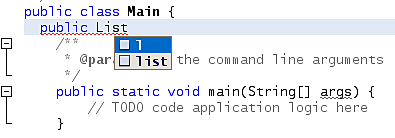
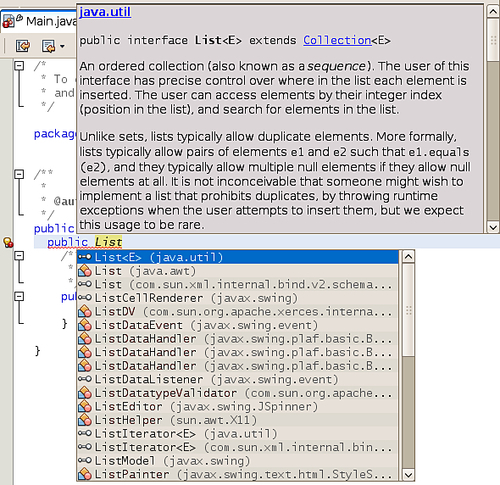
Code completion also works for variable types and method return values. For example, if we want to declare a variable of type java.util.List, we simply need to type the first few characters of the type, then hit Ctrl+Space. NetBeans will try to complete with types in any packages we have imported in our class. To make NetBeans attempt to complete with any type in the CLASSPATH, we need to hit Ctrl+Space again.

Code Completion

As we can see in the previous screenshot, NetBeans displays JavaDoc for the class we select from the code completion options. Another time saving feature is that the class we select from the options is automatically imported into our code.

Once we have the type of our variable, we can hit Ctrl+Space again, right after the variable, and NetBeans will suggest variable names.

Code Completion

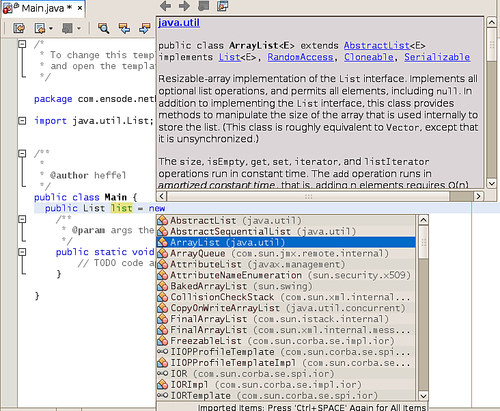
When we want to initialize our variable to a new value, we can simply hit Ctrl+Space again and a list of valid types is shown as options for code completions.

Code Completion

In our example, our type (java.util.List) is an interface, therefore all classes implementing this interface are shown as possible candidates for code completion. Had our type been a class, both our class and all of its subclasses would have been shown as code completion candidates.

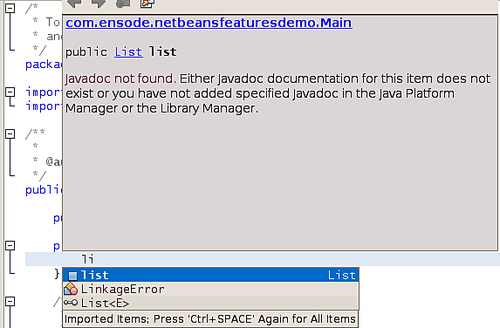
When we are ready to use our variable, we can simply type the first few characters of the variable name, then hit Ctrl+Space.

Code Completion

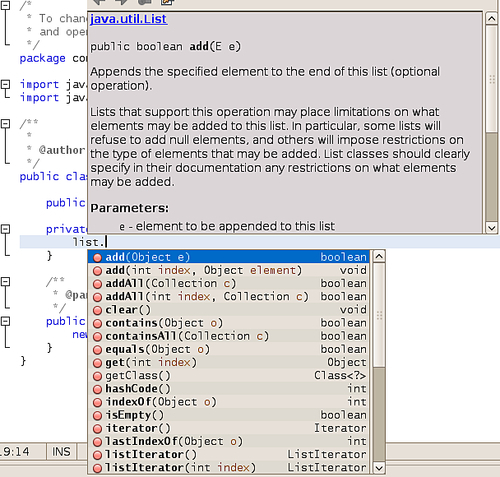
When we wish to invoke a method in our object, we simply type the dot at the end of the variable name, and all available methods are displayed as code completion options.

Code Completion

Notice how the JavaDoc for the selected method is automatically displayed.

Code completion also works for methods. We simply need to type the first few characters of our method name and NetBeans will automatically complete the method name, and it will also try to guess the values to pass as parameters.

Code Templates

Code templates are abbreviations for frequently used code snippets. To use a code template, we simply type it into the editor and hit the Tab key to expand the abbreviations into the full code snippet it represents.

For example, typing sout and pressing the Tab key will expand into System.out.println("");, with the caret placed between the two double quotes.

Some of the most useful code templates are listed in the table below, please note that code templates are case sensitive.

Abbreviation

Example Expanded Text

Description

Psf

public static final

Useful when declaring public static final variables.

forc

for (Iterator it = list.iterator([]); 
    it.hasNext();) {
    Object object = it.next();
}

Use a standard for loop to iterate through a collection.

fore

for (Object object : list) {
}

Use the enhanced for loop to iterate through a collection.

ifelse

if (boolVar) {
} else {
}

Generate an if-else conditional.

psvm

public static void main(String[] args) {
}

Generate a main method for our class.

soutv

System.out.println("boolVar = " +
boolVar);

Generate a System.out.println() statement displaying the value of a variable.

trycatch

try {
} catch (Exception exception) {
}

Generate a try/catch block.

whileit

while (iterator.hasNext()) {
Object object = iterator.next();
}

Generate a while loop to iterate through an Iterator.

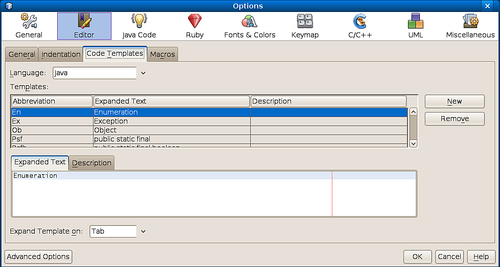
To see the complete list of code templates, click on Tools | Options. Click on the Editor icon, then on the Code Templates tab.

Code Templatesfeatures, NetBeanscode completion

We can add our own templates by clicking on the New button. We will be prompted for the template's abbreviation. Once we enter it our new template will be added to the template list and will automatically be selected. We can then enter the expanded text for our template in the Expanded Text tab.

Keyboard Shortcuts

NetBeans offers several keyboard shortcuts that allow very fast navigation between source files. Memorizing these keyboard shortcuts allow us to develop code a lot more effectively than relying on the mouse. Some of the most useful NetBeans keyboard shortcuts are listed in this section, but this list is by no means exhaustive. The complete list of NetBeans keyboard shortcuts can be found online at http://wiki.netbeans.org/wiki/view/KeymapProfileFor60.

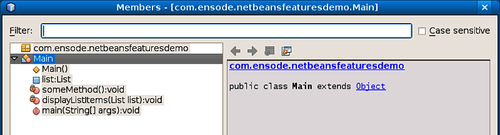
One useful keyboard shortcut that allows us to quickly navigate within a large Java file is Ctrl+F12. This keyboard shortcut will present an outline of the current Java file in the editor and show all of its methods and member variables.

Keyboard Shortcuts

Typing in the text field labeled Filter narrows the list of member variables and methods shown. This keyboard shortcut makes it very fast to navigate through large files.

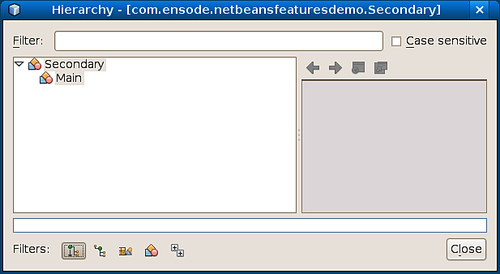
Hitting Alt+F12 will result in a pop-up window outlining the class hierarchy of the current Java class.

Keyboard Shortcuts

We can use the above shortcut to quickly navigate to a superclass or a subclass of the current class.

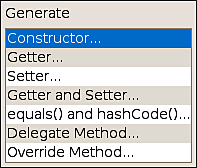
Another useful keyboard shortcut is Alt+Insert. This keyboard shortcut can be used to generate frequently used code such as constructors, getter and setter methods, and so on.

Keyboard Shortcuts

The code will be generated at the current location of the caret.

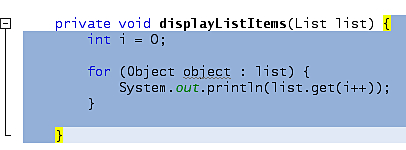
Additionally, when the caret is right next to an opening or closing brace, clicking Ctrl+[ results in the caret being placed in the matching brace. This shortcut works for curly braces, parenthesis, and square brackets. Hitting Ctrl+shift+[ has a similar effect, but this key combination not only places the caret in the matching brace, it also selects the code between the two carets.

Keyboard Shortcuts

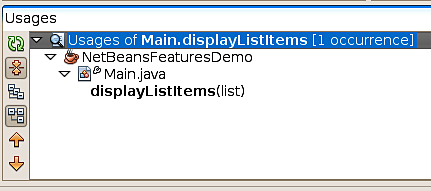
Sometimes, we would like to know all the places in our project where a specific method is invoked; hitting Alt+F7 while the method is highlighted allows us to easily find out this information.

Keyboard Shortcuts

The above keyboard shortcut works with variables as well.

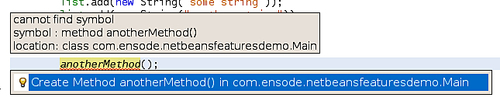
NetBeans will indicate compilation errors in our code by underlining the offending line with a squiggly red line. Placing the caret over the offending code and hitting Alt+Enter will allow us to select from a series of suggestions to fix our code.

Keyboard Shortcuts

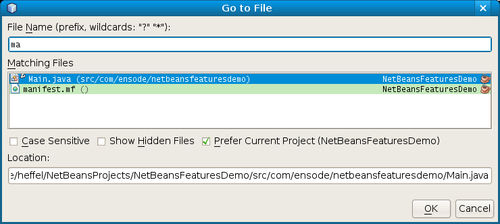
Sometimes navigating through all the files in a project can be a bit cumbersome, especially if we know the name of the file we want to open but we are not sure of its location. Luckily, NetBeans provides the Shift+Alt+O keyboard shortcut that allows us to quickly open any file in our project.

Keyboard Shortcuts

Additional useful keyboard shortcuts include Shift+Alt+F; this shortcut quickly formats our code. Ctrl+E erases the current line, much faster than highlighting the line and hitting backspace. Sometimes we import a class into our code and later decide not to use it, some of us delete the lines where the class is used but forget to delete the import line at the top of the source file. NetBeans will generate a warning about the unused import, hitting Ctrl+Shift+I will delete all unused imports in one fell swoop.

One last thing worth mentioning, even though it is not strictly a keyboard shortcut, a very useful feature of the NetBeans editor is that left-clicking on a method or variable while pressing Ctrl will turn the method or variable into a hyperlink, and NetBeans will navigate to the method or variable declaration.

Understanding NetBeans Visual Cues

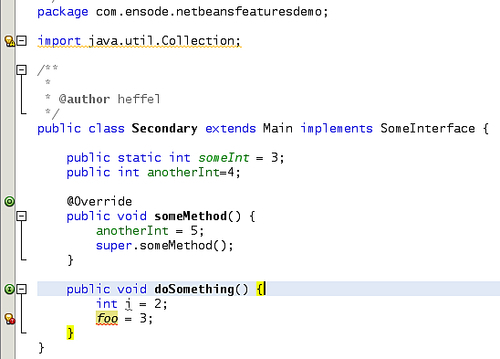
In addition to offering keyboard shortcuts, code templates, and code completion, NetBeans offers a number of visual cues that allow us to better understand our code at a glance. Some of the most useful are illustrated in the next screenshot.

Understanding NetBeans Visual Cuesfeatures, NetBeanskeyboard shortcuts

When there is a warning in our code, NetBeans will alert us in two ways: it will underline the offending line with a squiggly yellow line, and it will place the icon shown below in the left margin of the offending line.

Understanding NetBeans Visual Cuesfeatures, NetBeanskeyboard shortcuts

The light bulb in the icon indicates that NetBeans has a suggestion on how to fix the problem, moving the caret to the offending line and hitting Alt+Enter will result in NetBeans offering one or more ways of fixing the problem.

Similarly, when there is a compilation error, NetBeans will underline the offending line with a red squiggly line, and place the icon shown below on the left margin of said line.

Understanding NetBeans Visual Cuesfeatures, NetBeanskeyboard shortcuts

Again the light bulb indicates that NetBeans has suggestions on how to fix the problem. Hitting Alt+Enter in the offending line will allow us to see the suggestions that NetBeans has.

NetBeans not only provides visual cues for errors in our code, it also provides other cues, for example, placing the caret next to an opening or closing brace will highlight both the opening and closing brace, as shown in the doSomething() method in the above screenshot.

Additionally, if one of our methods overrides a method from a parent class, the icon shown below will be placed in the left margin next to the method declaration.

Understanding NetBeans Visual Cuesfeatures, NetBeanskeyboard shortcuts

The icon is an upper case O inside a circle, the O, of course, stands for "override".

Similarly, when one of our methods is an implementation of one of the interfaces that our class implements, the icon shown below will be placed in the left margin of the method declaration.

Understanding NetBeans Visual Cuesfeatures, NetBeanskeyboard shortcuts

The icon is an uppercase I inside a green circle, which stands for "implements".

NetBeans also provides visual cues in the form of fonts and font colors, for example, static methods and variables are shown in italics, member variables are shown in green, and Java reserved keywords are shown in blue. All of the above cues can be seen in the screenshot at the beginning of this section.

Another nice feature of the NetBeans editor is that highlighting a method or variable highlights it everywhere it is used in the currently open file.

CONTINUE READING
83
Tech Concepts
36
Programming languages
73
Tech Tools
Icon Unlimited access to the largest independent learning library in tech of over 8,000 expert-authored tech books and videos.
Icon Innovative learning tools, including AI book assistants, code context explainers, and text-to-speech.
Icon 50+ new titles added per month and exclusive early access to books as they are being written.
Java EE 5 Development with NetBeans 6
notes
bookmark Notes and Bookmarks search Search in title playlist Add to playlist download Download options font-size Font size

Change the font size

margin-width Margin width

Change margin width

day-mode Day/Sepia/Night Modes

Change background colour

Close icon Search
Country selected

Close icon Your notes and bookmarks

Confirmation

Modal Close icon
claim successful

Buy this book with your credits?

Modal Close icon
Are you sure you want to buy this book with one of your credits?
Close
YES, BUY

Submit Your Feedback

Modal Close icon
Modal Close icon
Modal Close icon