-
Book Overview & Buying
-
Table Of Contents
Oracle E-Business Suite R12 Core Development and Extension Cookbook
By :
In this recipe, we are going to write to the log file to show the values of parameters that are passed into the executable. This is useful as we need a way of debugging and logging activity when a program is being executed. We can also write other messages to the log file of the concurrent program to report activity when the executable runs.
The tasks we are going to perform in this recipe are as follows:
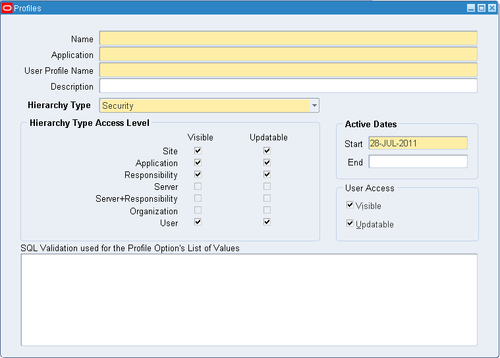
Firstly we are going to create a profile option. This profile option is a simple profile that can be set to 'Y' or 'N'. If it is set to 'Y' then we can use it to write to the log file and if it is set to 'N' then we can choose not to write to the log file.
To create a new profile, perform the following:

|
Item name |
Item value |
|---|---|
|
Name |
|
|
Application |
XXHR Custom Application |
|
User Profile Name |
XXHR Write to Concurrent Program Logfile |
|
Description |
XXHR Write to Concurrent Program Logfile |
|
SQL Validation |
|
We have created a profile which will allow users to turn logging information on or off. Profile options can be a really useful way of setting values in our code without having to hard code.
There are often a number of ways to implement extensions or ways of doing things. As an example we could have created an additional parameter that uses a Yes/No value set that allows the user to write to the log file at runtime by setting a parameter value. It really depends upon how you want the program to run.
We will now set the profile to 'Yes' so that we can add code to our program that writes information to a log file.
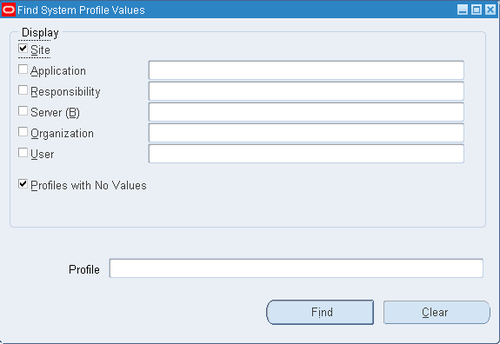
To set the profile option value, perform the following:

You could have also just typed XXHR% and clicked the Find button. Then you would retrieve all of the profile options beginning with XXHR. You can use the wildcard (%) to search for specific text such as %HR%Write%Log%, which will also be just as acceptable and will help if you cannot remember the full name of the profile you are looking for. Just remember it is also case sensitive.

We have now created a profile option that we can use to turn logging on or off after we have added code to our program to use the profile option value.
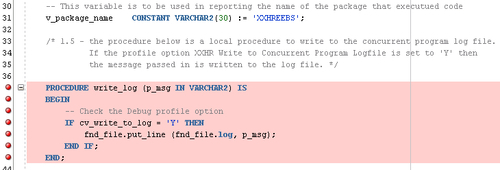
We are now going to add the code to the executable, which is our package called XXHREEBS. If you wish to view the code then it can be found in the files XXHREEBS_1_5.pks and XXHREEBS_1_5.pkb. You can compile the package provided or use the following instructions to add the code manually.
To add a new procedure, perform the following steps:
XXHREEBS package. cv_write_to_log and assign to it the value of the profile option XXHR_WRITE_LOGFILE, shown as follows:
Note that it is the Profile Option Name that we use and not the User Profile Option Name which is what we see when we set the profile option value.
write_log, shown as follows:
We have added a procedure to our program that will allow us to write messages to the concurrent program log file. This can be switched on or off by changing a profile option value.
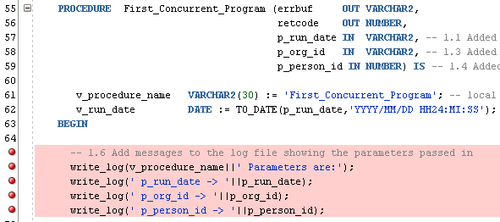
Now we can add some messages to the First_Concurrent_Program procedure to write to the log file. We have already set the profile option to 'Yes' so every time we call the write_log procedure, the executable will write a message to the log file. So now we will add some messages to the log file. A good place to start would be to display the values that are being passed in as parameters.
To add messages to the log file perform the following steps:
XXHREEBS package. write_log in our First_Concurrent Program procedure as follows:
We have added code to write messages to the log file. We have also written the values of the parameters that are passed in to the program to the log file, so that a developer will find it easy to debug the program if there are errors.
Now we want to run the concurrent program testing that the code we have just added writes messages to the log file.
To run the concurrent program, do the following:
Run Date parameter to the default date (which is the current date). Organization parameter and then click OK. Person parameter and then click OK.We have run the concurrent program again to test that the log messages are written to the log file.
Once the concurrent program has completed successfully we can view the log file. Let's now have a look at the log file and see the messages that have been written to it.
To view the messages written to the log file perform the following:
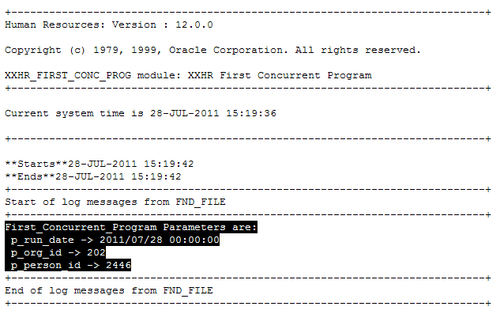
First_Concurrent_Program package have been written to the log file as highlighted in the following image:
The messages have been written to the log file, providing valuable information about events that have occurred at runtime.
Change the font size
Change margin width
Change background colour