Sign In Start Free Trial
Account

Add to playlist

Create a Playlist

Modal Close icon
You need to login to use this feature.
  • Book Overview & Buying Zed Attack Proxy Cookbook
  • Table Of Contents Toc
Zed Attack Proxy Cookbook

Zed Attack Proxy Cookbook

By : Ryan Soper, Nestor Torres, Ahmed Almoailu
4.7 (7)
close
close
Zed Attack Proxy Cookbook

Zed Attack Proxy Cookbook

4.7 (7)
By: Ryan Soper, Nestor Torres, Ahmed Almoailu

Overview of this book

Maintaining your cybersecurity posture in the ever-changing, fast-paced security landscape requires constant attention and advancements. This book will help you safeguard your organization using the free and open source OWASP Zed Attack Proxy (ZAP) tool, which allows you to test for vulnerabilities and exploits with the same functionality as a licensed tool. Zed Attack Proxy Cookbook contains a vast array of practical recipes to help you set up, configure, and use ZAP to protect your vital systems from various adversaries. If you're interested in cybersecurity or working as a cybersecurity professional, this book will help you master ZAP. You’ll start with an overview of ZAP and understand how to set up a basic lab environment for hands-on activities over the course of the book. As you progress, you'll go through a myriad of step-by-step recipes detailing various types of exploits and vulnerabilities in web applications, along with advanced techniques such as Java deserialization. By the end of this ZAP book, you’ll be able to install and deploy ZAP, conduct basic to advanced web application penetration attacks, use the tool for API testing, deploy an integrated BOAST server, and build ZAP into a continuous integration and continuous delivery (CI/CD) pipeline.
Table of Contents (14 chapters)
close
close

Toolbar

In this recipe, we are going to go over the ZAP Proxy toolbar and what each section of the toolbar does.

Getting ready

To review this recipe, you will need to have ZAP installed on your computer, and it should be started and running.

How to do it…

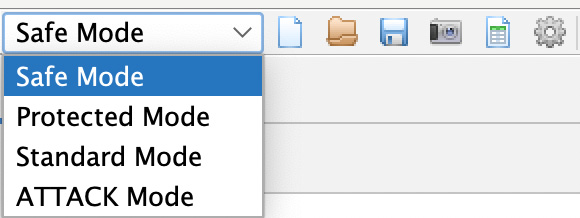
Looking at the toolbar from left to right, you will see the mode pulldown, as shown in Figure 2.3, which allows you to change modes in ZAP:

  • Safe Mode will prevent you from performing any dangerous actions against a target.
  • In Protected Mode, you will be able to perform dangerous actions against the application scope.
  • Standard Mode is the mode in which you can do anything you want with no restriction from the tool.
  • The last mode we have is ATTACK Mode. In this mode, you will start scanning for vulnerabilities with any new target added to the scope.
Figure 2.3 – The mode options on the top-level toolbar

Figure 2.3 – The mode options on the top-level toolbar

The next four icons in Figure 2.3 are options that allow you to save, modify, and edit session information from a target.

The last icon in Figure 2.3, the cogwheel, allows you, the user, to change the settings of all the sections of ZAP proxy. This can also be accessed by going to Tools then Options. We will go into more detail later in the next chapters when we start changing and optimizing each section as we perform attacks.

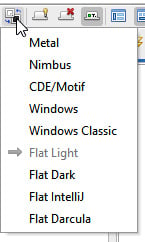
The next set of icons you find in Figure 2.4, from the top-level toolbar going left to right, allows you to change the ZAP proxy theme to eight different built-in templates:

Figure 2.4 – The middle of the top-level toolbar

Figure 2.4 – The middle of the top-level toolbar

The default setting is Flat Light, but you can switch to dark mode with Flat Dark, or use any other visual setting from the drop-down list, as shown in Figure 2.5. Keep in mind, any changes to the way that ZAP proxy looks may alter the locations of other settings within the tool. For this book, we are going to use the default settings throughout:

Figure 2.5 – Choosing a theme

Figure 2.5 – Choosing a theme

As we continue, the next set of icons in the toolbar allows you to view all tabs (tab and lightbulb icon), hide unpinned tabs (tab with red X icon), and show tab icons and hide tab names (tab with a green square and the letter T).

Moving on to the right, the last seven icons allow you to change the ZAP proxy window layout, and they also allow you to expand either the Sites tree window, the Information window, or the Workspace window. For this book, we will be using the default configuration that expands the Information window along the bottom half of ZAP and keeps the Workspace window:

Figure 2.6 – The window layout

Figure 2.6 – The window layout

In the last section of the top-level toolbar (Figure 2.7), you will see the following:

  • Settings (from left to right) that allow you to manage add-on plugins (red/blue/green blocks)
  • Check for plugin updates (lightning bolt with blue arrow)
  • Show/enable fields (lightbulb)
  • Set and customize breakpoints (green/red circle, line/arrow, right arrow, stop sign and red X)
  • Scan Policy Manager (control board)
  • Apply forced user mode (padlock)
  • Enable zest scripting (cassette tape)
  • Open the user guide (blue question mark)
  • Disable/enable the HUD (green radar)
  • Use a preconfigured browser to proxy sites (Firefox logo)
  • Report building (spiral notebook)

Each of these will be discussed in further detail in later chapters.

Figure 2.7 – The last section of the top-level toolbar

Figure 2.7 – The last section of the top-level toolbar

How it works…

The toolbar features the most common tools used in OWASP ZAP and is intended to help users with setting up and getting comfortable, accommodating different user preferences for testing with the tool. Spend time here getting to know and understand the options available to you.

See also

Open the Help menu and navigate to the OWASP ZAP user guide for more information.

Shortcut

Use F1 to quickly open the information guide.

CONTINUE READING
83
Tech Concepts
36
Programming languages
73
Tech Tools
Icon Unlimited access to the largest independent learning library in tech of over 8,000 expert-authored tech books and videos.
Icon Innovative learning tools, including AI book assistants, code context explainers, and text-to-speech.
Icon 50+ new titles added per month and exclusive early access to books as they are being written.
Zed Attack Proxy Cookbook
notes
bookmark Notes and Bookmarks search Search in title playlist Add to playlist download Download options font-size Font size

Change the font size

margin-width Margin width

Change margin width

day-mode Day/Sepia/Night Modes

Change background colour

Close icon Search
Country selected

Close icon Your notes and bookmarks

Confirmation

Modal Close icon
claim successful

Buy this book with your credits?

Modal Close icon
Are you sure you want to buy this book with one of your credits?
Close
YES, BUY

Submit Your Feedback

Modal Close icon
Modal Close icon
Modal Close icon