Sign In Start Free Trial
Account

Add to playlist

Create a Playlist

Modal Close icon
You need to login to use this feature.
  • Book Overview & Buying Instant jQuery Masonry How-to
  • Table Of Contents Toc
Instant jQuery Masonry How-to

Instant jQuery Masonry How-to

By : Kyle David Taylor
4.3 (3)
close
close
Instant jQuery Masonry How-to

Instant jQuery Masonry How-to

4.3 (3)
By: Kyle David Taylor

Overview of this book

jQuery Masonry is a revolutionary new plugin that enables dynamic layouts on any website. This powerful tool shuffles and rearranges elements to fit any screen size which will ensure your website keeps up with one of the biggest trends of the year, Responsive Web Design.Instant jQuery Masonry How-to will allow you to start building fully responsive layouts for portfolios, galleries, blog pages, and more. Gain a complete understanding of the workings of Masonry, which will allow you to integrate this unique tool into your existing and future projects.The hands-on guide will take you from the basics of jQuery Masonry to utilizing its power within Wordpress and Drupal. You will learn the basics such as implementing single and multi-column layouts, before developing more complex solutions for various media types, fluid layouts, and animating transitions. With the widespread adoption of responsive web design, this book will bring your blog, portfolio, or any project you are working on up to speed.
Table of Contents (7 chapters)
close
close

Using Masonry with images (Intermediate)


We often use images when building websites, so it's no surprise that we would like to use them in conjunction with Masonry. To avoid the common issue of the Masonry elements not aligning correctly when the dimensions of the images are not available when Masonry initially runs, we need to wait until the images have finished loading before applying Masonry. Luckily, Masonry comes shipped with a plugin called imagesLoaded for image support. We use imagesLoaded to wait for the images to finish loading, after which we need to let Masonry measure the images properly.

Getting ready

In the code bundle for this book, open the 3-images-loaded.html file in your preferred text editor to follow along.

How to do it...

  1. In this example, we are only working with images, so we only need to set our gutters in CSS.

    <style>
      .masonry-item {
        margin: 5px;
        float: left;
      }
    </style>

    Tip

    Downloading the example code

    You can download the example code files for all Packt books you have purchased from your account at http://www.packtpub.com. If you purchased this book elsewhere, you can visit http://www.packtpub.com/support and register to have the files e-mailed directly to you.

  2. We need to set up some images, so I'm going to use an image placeholder service called LoremPixel. This allows us to dynamically insert dummy images of whatever size and proportion we need. The images I will be using have three arguments after the base URL. The first argument is the width of the image, the second is the height of the image, and the third is the category of the image. The category is optional.

    <div id="masonry-container">
      <div class="masonry-item">
        <img src="http://lorempixel.com/250/250/technics" alt="random" />
      </div>
      <div class="masonry-item">
        <img src="http://lorempixel.com/250/350/technics" alt="random" />
      </div>
      <div class="masonry-item">
        <img src="http://lorempixel.com/250/450/technics" alt="random" />
      </div>
    </div>

    Note

    The images used above are loaded in by an image placeholder service called LoremPixel (http://www.lorempixel.com). This allows us to insert test data without needing any actual files in our directory. All images used are licensed under the Creative Commons license (CC BY-SA).

  3. To use imagesLoaded, we need to first wrap the Masonry container in a jQuery object, after which we can apply imagesLoaded and Masonry actions to the container object.

    <script>
      $container = $('#masonry-container');
      $container.imagesLoaded(function() {
        $container.masonry({
          itemSelector : '.masonry-item'
        });
      });
    </script>

How it works...

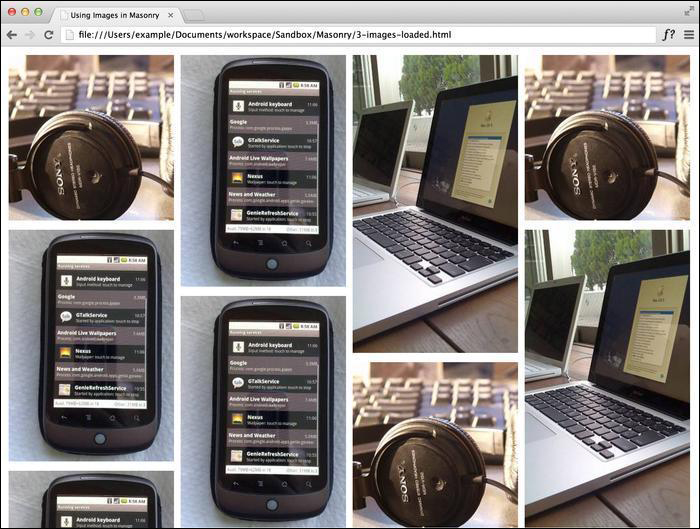
The imagesLoaded plugin works by waiting until all the images have been loaded by the browser and then triggering Masonry. The result should look like the following screenshot:

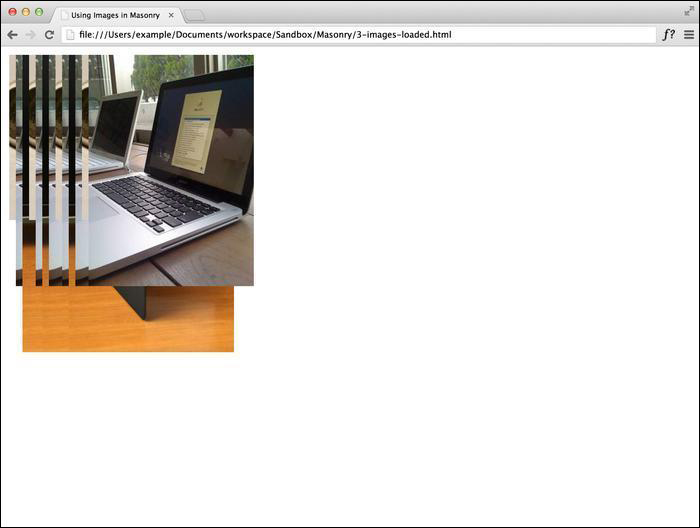
If you do not use the imagesLoaded plugin, you will notice that the images load on top of each other in the same corner in the browser, as shown in the next screenshot. This is because Masonry was running before the images loaded completely, so it tries to organize a set of empty elements it doesn't know the size of. When imagesLoaded is used with Masonry, the script waits until all of the images have been loaded before triggering Masonry.

There's more…

There are some other alternatives to using the imagesLoaded plugin. For instance, we can assign each image a width and height property using the inline dimensions. Once these values are assigned to the elements, Masonry determines their spacing. Depending on how the site is being built, it might be tedious to ensure that all those image elements have height and width properties assigned.

The last alternative is to use $(window).load(). While this method isn't particularly efficient, as it can result in a potentially longer wait time, it does work; it waits until all the assets (such as images and media) are loaded into the window before triggering Masonry.

<script>
  $(window).load(function() {
    $('#masonry-container').masonry({
      itemSelector : '.masonry-item',
    });
  });
</script>
CONTINUE READING
83
Tech Concepts
36
Programming languages
73
Tech Tools
Icon Unlimited access to the largest independent learning library in tech of over 8,000 expert-authored tech books and videos.
Icon Innovative learning tools, including AI book assistants, code context explainers, and text-to-speech.
Icon 50+ new titles added per month and exclusive early access to books as they are being written.
Instant jQuery Masonry How-to
notes
bookmark Notes and Bookmarks search Search in title playlist Add to playlist font-size Font size

Change the font size

margin-width Margin width

Change margin width

day-mode Day/Sepia/Night Modes

Change background colour

Close icon Search
Country selected

Close icon Your notes and bookmarks

Confirmation

Modal Close icon
claim successful

Buy this book with your credits?

Modal Close icon
Are you sure you want to buy this book with one of your credits?
Close
YES, BUY

Submit Your Feedback

Modal Close icon
Modal Close icon
Modal Close icon