Sign In Start Free Trial
Account

Add to playlist

Create a Playlist

Modal Close icon
You need to login to use this feature.
  • Book Overview & Buying Instant jQuery Masonry How-to
  • Table Of Contents Toc
  • Feedback & Rating feedback
Instant jQuery Masonry How-to

Instant jQuery Masonry How-to

By : Kyle David Taylor
4.3 (3)
close
close
Instant jQuery Masonry How-to

Instant jQuery Masonry How-to

4.3 (3)
By: Kyle David Taylor

Overview of this book

jQuery Masonry is a revolutionary new plugin that enables dynamic layouts on any website. This powerful tool shuffles and rearranges elements to fit any screen size which will ensure your website keeps up with one of the biggest trends of the year, Responsive Web Design.Instant jQuery Masonry How-to will allow you to start building fully responsive layouts for portfolios, galleries, blog pages, and more. Gain a complete understanding of the workings of Masonry, which will allow you to integrate this unique tool into your existing and future projects.The hands-on guide will take you from the basics of jQuery Masonry to utilizing its power within Wordpress and Drupal. You will learn the basics such as implementing single and multi-column layouts, before developing more complex solutions for various media types, fluid layouts, and animating transitions. With the widespread adoption of responsive web design, this book will bring your blog, portfolio, or any project you are working on up to speed.
Table of Contents (7 chapters)
close
close

Adding and reloading (Advanced)


When working on specialized projects, sometimes you need to build a feature that may involve adding additional content to a page, either through AJAX or through manual processes like comments and submissions. Fortunately for us, not only can we add new content to the Masonry container, we can also trigger Masonry to reload all the items to realign all Masonry elements back into a proper grid.

Getting ready

In the code bundle for this book, open the 5-add-reload.html file in your preferred text editor to follow along. For this exercise, we will be using a small jQuery plugin called Placeholder.js to generate random text when adding new elements. Placeholder.js can be found at the following URL:

https://github.com/decabear/placeholderjs/blob/master/placeholder.min.js

Note

Placeholder.js is a lightweight, free jQuery plugin used to generate placeholder text (for example, "lorem ipsum") and placeholder images. Placeholder.js is freely available under the terms of the MIT License.

How to do it...

  1. We will start off with the existing CSS properties that we have already defined for the Masonry elements. In this recipe, we will stick to single columns of width 150 px. Also, just for fun, let's make the dynamically generated items a different color for visual effect.

    <style>
       .masonry-item {
          background: #FFA500;
          float: left;
          margin: 5px;
          padding: 5px;
          width: 130px;
       }
       .placeholder {
          background: #0BB5FF;
       }
    </style>
  2. Build the standard Masonry HTML structure; add as many Masonry items as necessary. We will also add a button above and outside the Masonry container because later in the recipe we will be dynamically generating additional Masonry items by clicking on it.

    <div>
       <button id="add-html">Add HTML</button>
    </div>
    <div id='masonry-container'>
       <div class='masonry-item '>
          Maecenas faucibus mollis interdum.
       </div>
       <div class='masonry-item '>
          Maecenas faucibus mollis interdum. Donec sed odio dui. Nullam quis risus eget urna mollis ornare vel eu leo. Vestibulum id ligula porta felis euismod semper.
       </div>
       <div class='masonry-item '>
          Nullam quis risus eget urna mollis ornare vel eu leo. Cras justo odio, dapibus ac facilisis in, egestas eget quam. Aenean eu leo quam. Pellentesque ornare sem lacinia quam venenatis vestibulum.
       </div>
    </div>
  3. Include Placeholder.js after Masonry, making sure to put in the correct relative path, and insert the following script:

    <script src="js/placeholder.min.js"></script>
    <script>
       $(function(){
    
          $container = $('#masonry-container');
          $container.masonry({
             itemSelector : '.masonry-item',
             isAnimated: true
          });
    
          //dynamically add Masonry items to the page
          $('#add-html').click(function(){
             $add = $("<div/>", {"class": "masonry-item placeholder"}).placeholder({"min": 15, "max": 50});
             $container.append($add).masonry('reload');
          });
       });
    </script>

How it works...

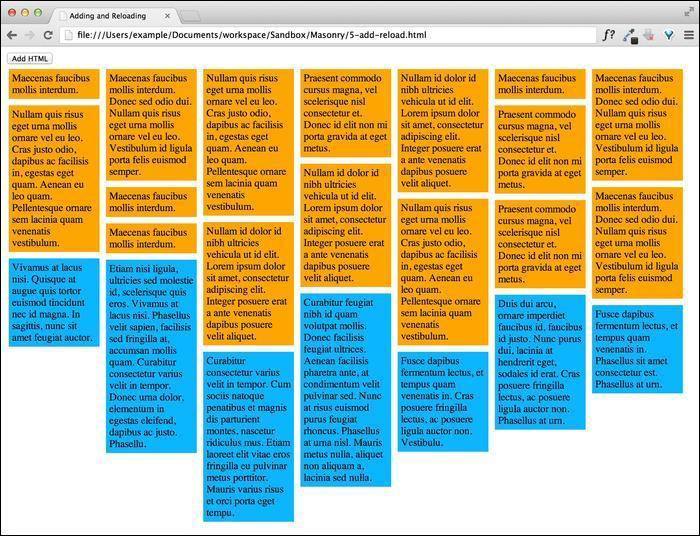
For the first section, you can see that we're just running the ordinary Masonry script to set the Masonry items into the grid. We then assign a click event to the button we created and next bind an event handler that creates a new <div> class with the masonry-item placeholder class that get loaded with a random amount of text using Placeholder.js. Once the Masonry item is created, we use the jQuery append event to add the element to the end of the Masonry container; we then use the Masonry append method to apply the proper position to the appended item, which can be seen in the following screenshot:

There's more…

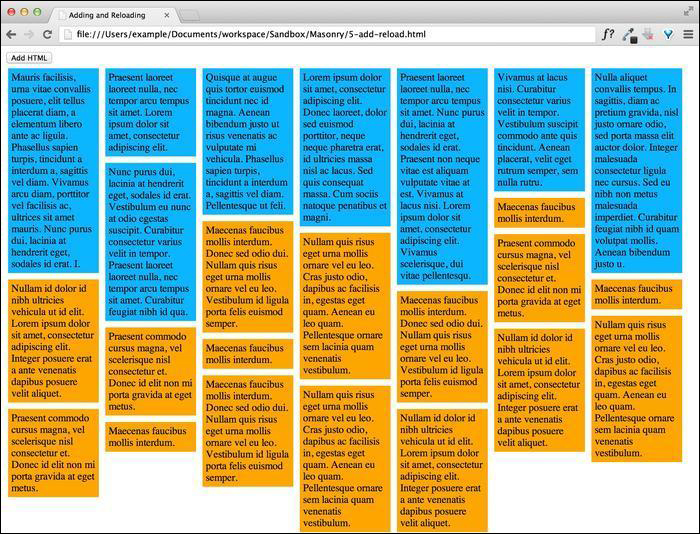
Appending is great for adding content such as comments to the bottom of a page, but sometimes we need to add content to the top of the page. It is more than likely that this is a blog post or some other kind of time-sensitive material. We can easily switch the jQuery append method with the prepend method, which will insert our created content before all the other Masonry items. Note that we used the Masonry append method when appending an item (adding it to the end). If we use the jQuery prepend method instead of the Masonry append method, we need to use reload. This is because we don't know beforehand the size of the element that is being loaded in; so we reload all the elements to recalculate the alignment of the elements in the Masonry grid correctly. The result will look like the following screenshot:

Visually different images
CONTINUE READING
83
Tech Concepts
36
Programming languages
73
Tech Tools
Icon Unlimited access to the largest independent learning library in tech of over 8,000 expert-authored tech books and videos.
Icon Innovative learning tools, including AI book assistants, code context explainers, and text-to-speech.
Icon 50+ new titles added per month and exclusive early access to books as they are being written.
Instant jQuery Masonry How-to
notes
bookmark Notes and Bookmarks search Search in title playlist Add to playlist font-size Font size

Change the font size

margin-width Margin width

Change margin width

day-mode Day/Sepia/Night Modes

Change background colour

Close icon Search
Country selected

Close icon Your notes and bookmarks

Confirmation

Modal Close icon
claim successful

Buy this book with your credits?

Modal Close icon
Are you sure you want to buy this book with one of your credits?
Close
YES, BUY

Submit Your Feedback

Modal Close icon
Modal Close icon
Modal Close icon