Sign In Start Free Trial
Account

Add to playlist

Create a Playlist

Modal Close icon
You need to login to use this feature.
  • Book Overview & Buying Mastering Sublime Text
  • Table Of Contents Toc
  • Feedback & Rating feedback
Mastering Sublime Text

Mastering Sublime Text

By : Dan Peleg
3.5 (12)
close
close
Mastering Sublime Text

Mastering Sublime Text

3.5 (12)
By: Dan Peleg

Overview of this book

Sublime is the leading platform for developing websites, applications, and software. Sublime Text is a sophisticated, cross-platform text and source code editor. It supports a number of different programming languages and is extremely efficient and feature rich. With Sublime Text, programmers can develop their web applications faster and with more efficiency. This book will put you at the frontier of modern software development. It will teach you how to leverage Sublime for anything from mobile games to missile protection. Above all, this book will help you harness the power of other Sublime users and always stay on top. This book will show you how to get started, from basic installation through lightning fast code navigation and up to the development of your own plugins. It takes you from the early stages of navigating through the platform and moves on by teaching you how to fully customize your platform, test, debug, and eventually create and share your own plugins to help and lead this community forward. The book will then teach you how to efficiently edit text, primarily by using the keyboard. You will learn how to interact with the Sublime Text community using the mailing lists and IRC.
Table of Contents (15 chapters)
close
close
Mastering Sublime Text
Credits
About the Author
About the Reviewers
www.PacktPub.com
Preface
1
Index

Installing Sublime Text on Linux


This section will explain how to install Sublime Text on different Linux distributions.

Installing Sublime Text on Ubuntu 32/64 bit

This section will explain how to install Sublime Text on Ubuntu 32/64 bit.

There are a few different options for installing Sublime Text on your Ubuntu; we will use the Personal Package Archive (PPA) one. For this, we need to add the PPA that contains the Sublime Package. PPA is a software repository that contains packages that can be installed by Ubuntu's Launchpad.

To add the repository, run the following from the terminal:

sudo add-apt-repository ppa:webupd8team/sublime-text-3
sudo apt-get update
sudo apt-get install sublime-text-installer

To install Sublime Text 3 on our Ubuntu, we can now use the following commands:

subl filename ("filename" is the filename to edit)
subl foldername ("foldername" is the folder to open)
subl . (to open the current directory)

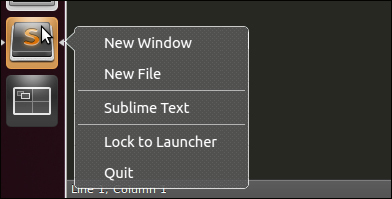
We can also see the Sublime icon on Ubuntu's action bar, which is typically on the left-hand side, as shown in the following screenshot:

Setting Sublime Text as the default editor

After we have installed Sublime, we want to set it as the default editor for everything! To do that, simply open the defaults.list file of Ubuntu by using the following command:

sudo subl /usr/share/applications/defaults.list

And replace all occurrences of gedit.desktop with sublime-text.desktop.

Installing Sublime Text on other Linux distributions

Installing Sublime on a Linux other than Ubuntu takes a little longer, but we will do it as fast as possible! We start by going to http://www.sublimetext.com/3 and downloading the desired tarball for 32-bit or 64-bit.

Tip

Notice that we do not download the Ubuntu one but the tarball.

After downloading, let's open our terminal and navigate to the Downloads folder:

cd ~/Downloads

The downloaded file is compressed using TAR. We will have to NTAR it first by running the following command:

tar xf sublime_text_3_build_3047_x64.tar.bz2

Note

Your filename might be different depending on your build and architecture.

Move the extracted folder to /op:

sudo mv sublime_text_3 /opt/

We want to make a symbolic link so that we can run Sublime straight from the terminal:

sudo ln -s /opt/sublime_text_3/sublime_text /usr/bin/subl

Now, we have Sublime installed and can use the following commands to open the directory:

subl filename ("filename" is the filename to edit)
subl foldername ("foldername" is the folder to open)
subl . (to open the current directory)

Adding a desktop file

Some distributions such as OpenSUSE, Ubuntu, or GNOME, use .desktop files. These files are for the desktop/action bar launch icons.

Let's add Sublime's .desktop file to the environment. It's good for us that Sublime comes with the file already and we don't need to write it. Just copy the file to the right location using the following command:

sudo cp /opt/sublime_text/sublime_text.desktop /usr/share/applications/

Your distribution may not provide /usr/share/applications, in which case you'll have to copy the file to ~/.local/share/applications.

Visually different images
CONTINUE READING
83
Tech Concepts
36
Programming languages
73
Tech Tools
Icon Unlimited access to the largest independent learning library in tech of over 8,000 expert-authored tech books and videos.
Icon Innovative learning tools, including AI book assistants, code context explainers, and text-to-speech.
Icon 50+ new titles added per month and exclusive early access to books as they are being written.
Mastering Sublime Text
notes
bookmark Notes and Bookmarks search Search in title playlist Add to playlist font-size Font size

Change the font size

margin-width Margin width

Change margin width

day-mode Day/Sepia/Night Modes

Change background colour

Close icon Search
Country selected

Close icon Your notes and bookmarks

Confirmation

Modal Close icon
claim successful

Buy this book with your credits?

Modal Close icon
Are you sure you want to buy this book with one of your credits?
Close
YES, BUY

Submit Your Feedback

Modal Close icon
Modal Close icon
Modal Close icon