Sign In Start Free Trial
Account

Add to playlist

Create a Playlist

Modal Close icon
You need to login to use this feature.
  • Book Overview & Buying Active Directory Administration Cookbook
  • Table Of Contents Toc
  • Feedback & Rating feedback
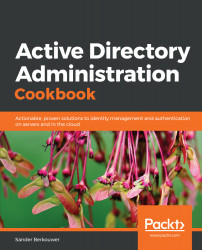
Active Directory Administration Cookbook

Active Directory Administration Cookbook

By : Sander Berkouwer
5 (2)
close
close
Active Directory Administration Cookbook

Active Directory Administration Cookbook

5 (2)
By: Sander Berkouwer

Overview of this book

Active Directory is an administration system for Windows administrators to automate network, security and access management tasks in the Windows infrastructure. This book starts off with a detailed focus on forests, domains, trusts, schemas and partitions. Next, you'll learn how to manage domain controllers, organizational units and the default containers. Going forward, you'll explore managing Active Directory sites as well as identifying and solving replication problems. The next set of chapters covers the different components of Active Directory and discusses the management of users, groups and computers. You'll also work through recipes that help you manage your Active Directory domains, manage user and group objects and computer accounts, expiring group memberships and group Managed Service Accounts (gMSAs) with PowerShell. You'll understand how to work with Group Policy and how to get the most out of it. The last set of chapters covers federation, security and monitoring. You will also learn about Azure Active Directory and how to integrate on-premises Active Directory with Azure AD. You'll discover how Azure AD Connect synchronization works, which will help you manage Azure AD. By the end of the book, you have learned about Active Directory and Azure AD in detail.
Table of Contents (16 chapters)
close
close

Enabling the Active Directory Recycle Bin

The Active Directory Recycle Bin was introduced as a new Active Directory feature with Windows Server 2008 R2. It enables administrators to restore (accidentally) deleted objects.

There were features available to administrators before the advent of the Active Directory Recycle Bin – such as the Directory Services Restore Mode (DSRM) mode and object reanimation. In contrast to booting into the DSRM, the Active Directory Recycle Bin saves admins time. In contrast to reanimating objects, the Active Directory Recycle Bin prevents the typical loss of attributes and group memberships.

There are also numerous third-party solutions that are available to restore objects and their attributes. They typically expand on the functionality that is offered by the Active Directory Recycle Bin, by offering granular attribute restore and group policy versioning. These are two areas where the Active Directory Recycle Bin doesn't offer a solution.

Getting ready

The Active Directory forest needs to run the Windows Server 2008 R2 FFL (or a later version).

Microsoft recommends enabling the Active Directory Recycle Bin on the Active Directory domain controller that holds the Domain Naming Master FSMO role.

To find this domain controller, run the following command on any domain-joined device, member server, or domain controller:

netdom.exe query fsmo

Alternatively, use the following PowerShell commands on a domain-joined system that has the Active Directory module for Windows PowerShell installed:

Import-Module ActiveDirectory

Get-ADForest | Format-List DomainNamingMaster

Required permissions

Sign in to the preceding domain controller using an account that is a member of the Enterprise Admins group in Active Directory.

How to do it...

You can enable the Active Directory Recycle Bin from within the Active Directory Administrative Center, when you're signed in with an account that is a member of the Enterprise Admins group on a domain controller that runs Windows Server with Desktop Experience. To do this, perform the following steps:

  1. Open the Active Directory Administrative Center (dsac.exe).
  2. Select the forest name in the left navigation pane.
  1. In the action pane on the right, click the Enable Recycle Bin link.
    Alternatively, you can right-click the domain name in the left navigation pane, and select the Enable Recycle Bin… option from the context menu.
    The Enable Recycle Bin Confirmation popup appears:
  1. In the Enable Recycle Bin Confirmation pop up, click OK.
  2. The popup message labeled Active Directory Administrative Center appears:
  1. Click OK:
  1. After you refresh, a new container underneath the domain root named Deleted Objects appears.

On Server Core installations of Windows Server, use the following PowerShell commands:

Import-Module ActiveDirectory

Enable-ADOptionalFeature -Identity "CN=Recycle Bin Feature,CN=Optional Features,CN=Directory Service,CN=Windows NT,CN=Services,CN=Configuration,DC=lucernpub,DC=com" -Scope ForestOrConfigurationSet –Target "lucernpub.com"

Replace lucernpub, lucernpub, and com with values for your Active Directory environment.

How it works...

Since the inception of Active Directory, when an object such as a computer or a user is deleted, the isDeleted attribute is set to true. This allows the domain controller to replicate the change for the object. Each domain controller has the time configured as the tombstone lifetime period to replicate this change. Only after the tombstone lifetime period is the object removed from the database by each domain controller.

The Active Directory Recycle Bin introduces a new recycle lifetime and a new attribute: isRecycled. With the Active Directory Recycle Bin enabled, when an object is deleted it's isDeleted attribute is still set to true, but it's isRecycled attribute is untouched. This is the period where the object is visible in the deleted objects container, where it can be restored by simply right-clicking on it. After the recycle lifetime has expired, the isRecycled attribute is also set to true. This is when the tombstone lifetime kicks in. Only after the tombstone lifetime period has expired the object is removed from the database by each domain controller.

Visually different images
CONTINUE READING
83
Tech Concepts
36
Programming languages
73
Tech Tools
Icon Unlimited access to the largest independent learning library in tech of over 8,000 expert-authored tech books and videos.
Icon Innovative learning tools, including AI book assistants, code context explainers, and text-to-speech.
Icon 50+ new titles added per month and exclusive early access to books as they are being written.
Active Directory Administration Cookbook
notes
bookmark Notes and Bookmarks search Search in title playlist Add to playlist download Download options font-size Font size

Change the font size

margin-width Margin width

Change margin width

day-mode Day/Sepia/Night Modes

Change background colour

Close icon Search
Country selected

Close icon Your notes and bookmarks

Confirmation

Modal Close icon
claim successful

Buy this book with your credits?

Modal Close icon
Are you sure you want to buy this book with one of your credits?
Close
YES, BUY

Submit Your Feedback

Modal Close icon
Modal Close icon
Modal Close icon