Sign In Start Free Trial
Account

Add to playlist

Create a Playlist

Modal Close icon
You need to login to use this feature.
  • Book Overview & Buying Mastering Unity Scripting
  • Table Of Contents Toc
  • Feedback & Rating feedback
Mastering Unity Scripting

Mastering Unity Scripting

By : Alan Thorn
4.5 (14)
close
close
Mastering Unity Scripting

Mastering Unity Scripting

4.5 (14)
By: Alan Thorn

Overview of this book

Mastering Unity Scripting is an advanced book intended for students, educators, and professionals familiar with the Unity basics as well as the basics of scripting. Whether you've been using Unity for a short time or are an experienced user, this book has something important and valuable to offer to help you improve your game development workflow.
Table of Contents (12 chapters)
close
close
11
Index

Creating script files

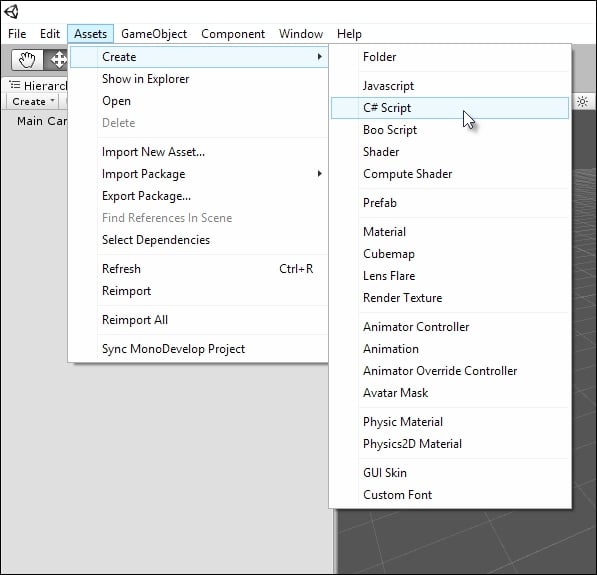
If you need to define a logic or behavior for your game, then you'll need to write a script. Scripting in Unity begins by creating a new script file, which is a standard text file added to the project. This file defines a program that lists all the instructions for Unity to follow. As mentioned, the instructions can be written in either C#, JavaScript, or Boo; for this book, the language will be C#. There are multiple ways to create a script file in Unity.

One way is to go to Assets | Create | C# Script from the application menu, as shown in the following screenshot:

Creating script files

Creating a script file via the application menu

Another way is to right-click on the empty space anywhere within the Project panel and choose the C# Script option in the Create menu from the context menu, as shown in the following screenshot. This creates the asset in the currently open folder.

Creating script files

Creating a script file via the Project panel context menu

Once created, a new script file will be generated inside the Project folder with a .cs file extension (representing C Sharp). The filename is especially important and has serious implications on the validity of your script files because Unity uses the filename to determine the name of a C# class to be created inside the file. Classes are considered in more depth later in this chapter. In short, be sure to give your file a unique and meaningful name.

By unique, we mean that no other script file anywhere in your project should have the same name, whether it is located in a different folder or not. All the script files should have a unique name across the project. The name should also be meaningful by expressing clearly what your script intends to do. Further, there are rules of validity governing filenames as well as class names in C#. The formal definition of these rules can be found online at http://msdn.microsoft.com/en-us/library/aa664670%28VS.71%29.aspx. In short, the filename should start with a letter or underscore character only (numbers are not permitted for the first character), and the name should include no spaces, although underscores (_) are allowed:

Creating script files

Name your script files in a unique way and according to the C# class naming conventions

Unity script files can be opened and examined in any text editor or IDE, including Visual Studio and Notepad++, but Unity provides the free and open source editor, MonoDevelop. This software is part of the main Unity package included in the installation and doesn't need to be downloaded separately. By double-clicking on the script file from the Project panel, Unity will automatically open the file inside MonoDevelop. If you later decide to, or need to, rename the script file, you also need to rename the C# class inside the file to match the filename exactly, as shown in the following screenshot. Failure to do so will result in invalid code and compilation errors or problems when attaching the script file to your objects.

Creating script files

Renaming classes to match the renamed script files

Note

Compiling code

To compile code in Unity, you just need to save your script file in MonoDevelop by choosing the Save option in the File menu from the application menu (or by pressing Ctrl + S on the keyboard) and then return to the main Unity Editor. On refocusing on the Unity window, Unity automatically detects code changes in the files and then compiles your code in response. If there are errors, the game cannot be run, and the errors are printed to the Console window. If the compile was successful, you don't need to do anything else, except press Play on the Editor toolbar and test run your game. Take care here; if you forget to save your file in MonoDevelop after making code changes, then Unity will still use the older, compiled version of your code. For this reason as well as for the purpose of backup, it's really important to save your work regularly, so be sure to press Ctrl + S to save in MonoDevelop.

Visually different images
CONTINUE READING
83
Tech Concepts
36
Programming languages
73
Tech Tools
Icon Unlimited access to the largest independent learning library in tech of over 8,000 expert-authored tech books and videos.
Icon Innovative learning tools, including AI book assistants, code context explainers, and text-to-speech.
Icon 50+ new titles added per month and exclusive early access to books as they are being written.
Mastering Unity Scripting
notes
bookmark Notes and Bookmarks search Search in title playlist Add to playlist font-size Font size

Change the font size

margin-width Margin width

Change margin width

day-mode Day/Sepia/Night Modes

Change background colour

Close icon Search
Country selected

Close icon Your notes and bookmarks

Confirmation

Modal Close icon
claim successful

Buy this book with your credits?

Modal Close icon
Are you sure you want to buy this book with one of your credits?
Close
YES, BUY

Submit Your Feedback

Modal Close icon
Modal Close icon
Modal Close icon