-
Book Overview & Buying
-
Table Of Contents

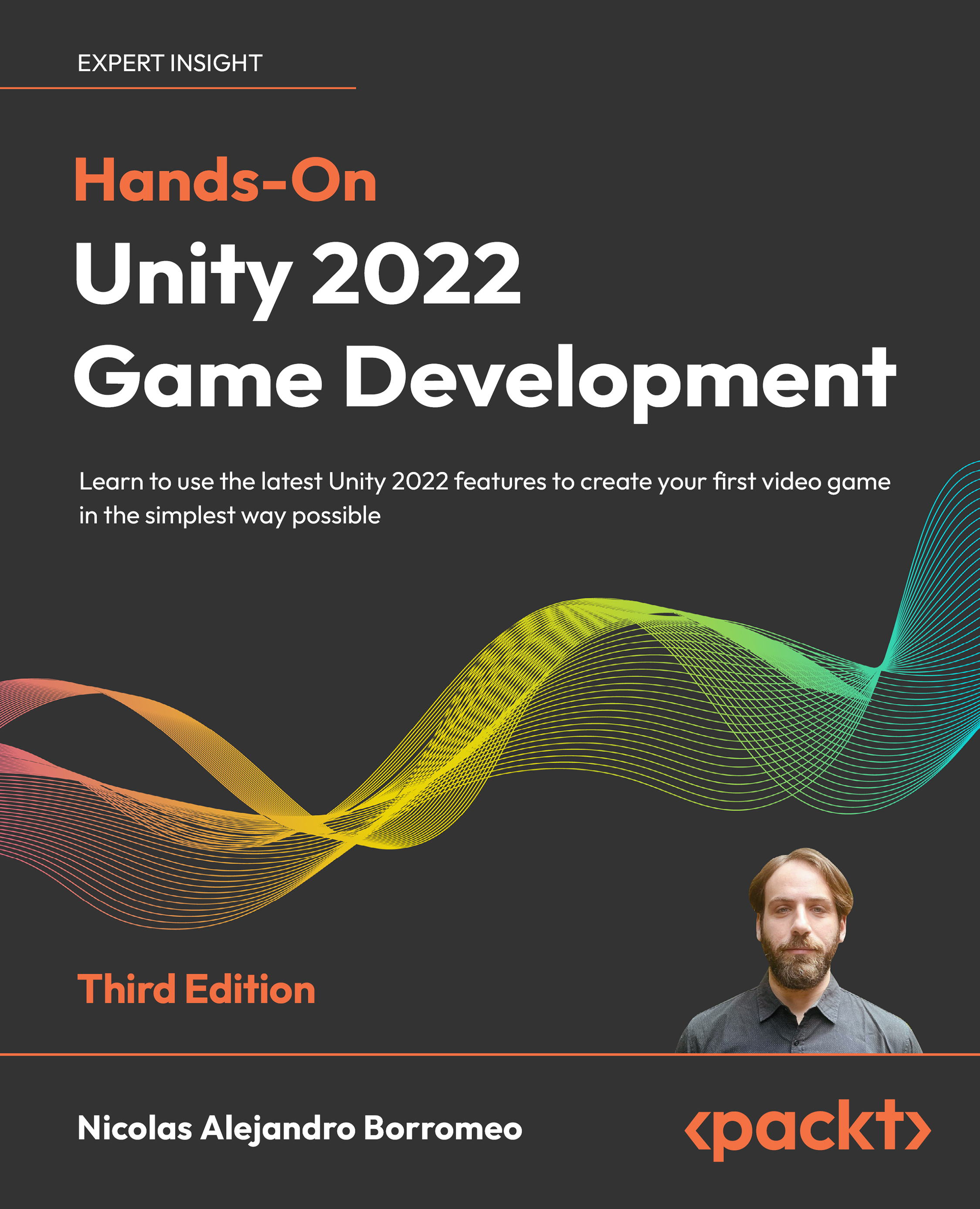
Hands-On Unity 2022 Game Development - Third Edition
By :


Hands-On Unity 2022 Game Development
By:
Overview of this book
Unity is a cross-platform game engine that provides you with powerful but simple-to-use features to solve the most common problems in Game Development, such as rendering, animation, physics, sound, and effects. You’ll learn to use these features to create simple but complete games (and all the nuances needed to handle Unity).
Complete with hands-on tutorials and projects, this book will teach you to use the Unity game engine, create C# and visual scripts, integrate graphics, sound, and animations, and manipulate physics to create interesting mechanics for your game. You’ll then code a simple AI agent to challenge the user and work with profiling tools to ensure code efficiency.
Finally, you'll work with Unity's AR tools to create AR experiences for 3D apps and games before publishing them to the world.
If you are interested in creating impressive, commercial-quality games that are playable on a variety of platforms, then you’ve come to the right place.
Table of Contents (23 chapters)
Preface


 Free Chapter
Creating a Unity Project
Editing Scenes and Game Objects
Grayboxing with Terrain and ProBuilder
Importing and Integrating Assets
Introduction to C# and Visual Scripting
Implementing Movement and Spawning
Physics Collisions and Health System
Win and Lose Conditions
Implementing Game AI for Building Enemies
Materials and Effects with URP and Shader Graph

Visual Effects with Particle Systems and Visual Effect Graph
Lighting Using the Universal Render Pipeline
Full-Screen Effects with Post-Processing
Sound and Music Integration
User Interface Design
Creating a UI with the UI Toolkit
Creating Animations with Animator, Cinemachine, and Timeline
Optimization with Profiler, Frame Debugger, and Memory Profiler
Generating and Debugging an Executable
Augmented Reality in Unity
Other Books You May Enjoy
Index