-
Book Overview & Buying
-
Table Of Contents
-
Feedback & Rating
Mastering Geoserver
By :
At the time of writing this book, the most recent version of Apache Tomcat is 8. At the moment, there is limited testing of GeoServer running inside Apache Tomcat 8, which means that we should avoid using it, at least for now. Instead, we will use the latest version of Apache Tomcat 7, which is currently 7.0.50. The download page for this version is http://tomcat.apache.org/download-70.cgi#7.0.50.
As with all the Linux variants, CentOS has a package management system that can be used to install software, including Apache Tomcat. However, quite often, the packaged software is several versions behind the current version. Unlike other software running on Linux, Tomcat does not actually require compiling, and so installing it directly from Apache is not much of a challenge. Perform the following steps to install Apache Tomcat on CentOS:
tar.gz package under the Core entry. With the location of the link, we can download the file with the following command:$ wget http://www.mirrorservice.org/sites/ftp.apache.org/tomcat/tomcat-7/v7.0.50/bin/apache-tomcat-7.0.50.tar.gz/opt, which seems as good a place as any. Extract the Tomcat files using the following command:$ sudo tar –xvzf apache-tomcat-7.0.50.tar.gz –C /opt/opt/apache-tomcat-7.0.50/, which will now become our Tomcat home directory. These are the bare minimum steps required to get Tomcat installed, so you can now issue the following command and Tomcat will happily start:$ sudo ./opt/apache-tomcat-7.0.50/bin/startup.shstartup.sh with shutdown.sh on the last command to shut Tomcat down if you just started it.This is interesting, but actually not particularly useful in the context of a production environment. In a production environment, we need to be able to set memory parameters for JVM, have Tomcat run as a service on startup, and run the Tomcat service using a user with limited privileges.
Security is a key consideration for any production environment, and wherever possible, the applications and services should run using user accounts with just the right level of privileges for them to perform their functions. To adopt this best practice, we will now create a user account under which we can run the Tomcat service:
$ sudo groupadd tomcat $ sudo useradd –s /bin/bash –g tomcat tomcat
The first command creates a new user group called tomcat. The second command creates a new user called tomcat, adds this user to the tomcat group, and sets its shell to bash.
tomcat user, we need to set the ownership of the Tomcat installation folder to this user:$ sudo chown –Rf tomcat:tomcat /opt/apache-tomcat-7.0.50/$ cd /etc/init.d $ sudo vi tomcat-1
The preceding commands will enter the services directory on CentOS and create a blank script called tomcat-1. The name of the script is not important. However, as we will see later when scaling Tomcat in production, we might want to instantiate multiple services, and so should come up with a suitable naming convention to keep track of them. In this case, we use the convention, tomcat-n, where n will be an incremented number. The vi command will start the vim text editor with an empty file; replace this with whatever your favorite Linux text editor is.
#!/bin/bash # description: Tomcat 1 Start Stop Restart # processname: tomcat-1 # chkconfig: 234 20 80 JAVA_HOME=/usr/java/latest export JAVA_HOME PATH=$JAVA_HOME/bin:$PATH export PATH CATALINA_HOME=/opt/apache-tomcat-7.0.50 JAVA_OPTS="-server –Xmx1024m –Xms512m –XX:MaxPermSize=128m" export JAVA_OPTS case $1 in start) /bin/su tomcat $CATALINA_HOME/bin/startup.sh ;; stop) /bin/su tomcat $CATALINA_HOME/bin/shutdown.sh ;; restart) /bin/su tomcat $CATALINA_HOME/bin/shutdown.sh /bin/su tomcat $CATALINA_HOME/bin/startup.sh ;; esac exit 0
There is quite a lot going on in this script, so let's break it down a little. The first four lines beginning with a hash (#) are settings for how the script is run. The last line in this group indicates the run levels that this service will operate under (234) and the stop and start priorities (20 and 80). This information tells the chkconfig command how to run the service.
Next, the script will set environment variables to tell the system where to find Java (JAVA_HOME), making the java command accessible on the command line (PATH) and setting the Tomcat directory (CATALINA_HOME). Next, we set an environment variable called
JAVA_OPTS, which provides parameters to run JVM. This is where we can specify the memory configuration for our GeoServer instance. There is a discussion on how to determine the most appropriate memory settings for your server later in this book; for now, we will use settings that are good for an all-rounder instance of GeoServer.
The following table describes what each of these parameters are and why they are set:
Parameter | Description |
|---|---|
| This parameter tells JVM to run in the server mode, which enables it to compile the optimized byte code early. Initial calls will be slow because of longer Just-In-Time (JIT) compiling, but subsequent calls will be faster. |
| This parameter tells JVM the maximum amount of heap memory it can allocate. In this case, JVM will allocate a maximum of 1 GB of memory. |
| This parameter tells JVM how much heap memory to allocate on startup. This will ensure that memory management is more stable. In this case, we tell JVM to allocate 512 MB heap on startup. |
| This parameter sets the maximum size of the permanent generation (also known as permgen) allocated for GeoServer. Permgen is where the class byte code is stored. In applications that use a lot of classes, such as GeoServer, it will exhaust the default JVM allocation quickly, leading to permgen memory errors. |
The final section of the script is a case statement that will perform different actions according to the first parameter (case $1) passed to the script. This can be one of start, stop, or restart. In each case, the Tomcat startup.sh and/or shutdown.sh scripts are executed.
Now we have our service script created, we need to set appropriate permissions on it, using the following command:
$ sudo chmod 755 tomcat-1Once the script is executed, we can register it in CentOS as a service. The chkconfig utility is used to register the script as a service:
$ sudo chkconfig --add tomcat-1 $ sudo chkconfig --level 234 tomcat-1 on
The first line adds our script, and the second line sets the runtime levels for it. We can check the configuration to make sure it is registered correctly:
$ sudo chkconfig --list tomcat-1 tomcat-1 0:off 1:off 2:on 3:on 4:on 5:off 6:off
If all goes well, levels 2, 3, and 4 will be marked as on, with all other levels marked off. From this point onward, every time our server restarts, it will automatically run the tomcat-1 service, thereby giving us Tomcat on each boot.
We should now check that the script works as expected, trying each of the following commands in turn:
$ sudo service tomcat-1 start Using CATALINA_BASE: /opt/apache-tomcat-7.0.50 Using CATALINA_HOME: /opt/apache-tomcat-7.0.50 Using CATALINA_TMPDIR: /opt/apache-tomcat-7.0.50/temp Using JRE_HOME: /usr/java/latest Using CLASSPATH: /opt/apache-tomcat-7.0.50/bin/bootstrap.jar:/opt/apache-tomcat-7.0.50/bin/tomcat-juli.jar $ sudo service tomcat-1 restart Using CATALINA_BASE: /opt/apache-tomcat-7.0.50 Using CATALINA_HOME: /opt/apache-tomcat-7.0.50 Using CATALINA_TMPDIR: /opt/apache-tomcat-7.0.50/temp Using JRE_HOME: /usr/java/latest Using CLASSPATH: /opt/apache-tomcat-7.0.50/bin/bootstrap.jar:/opt/apache-tomcat-7.0.50/bin/tomcat-juli.jar Using CATALINA_BASE: /opt/apache-tomcat-7.0.50 Using CATALINA_HOME: /opt/apache-tomcat-7.0.50 Using CATALINA_TMPDIR: /opt/apache-tomcat-7.0.50/temp Using JRE_HOME: /usr/java/latest Using CLASSPATH: /opt/apache-tomcat-7.0.50/bin/bootstrap.jar:/opt/apache-tomcat-7.0.50/bin/tomcat-juli.jar $ sudo service tomcat-1 stop Using CATALINA_BASE: /opt/apache-tomcat-7.0.50 Using CATALINA_HOME: /opt/apache-tomcat-7.0.50 Using CATALINA_TMPDIR: /opt/apache-tomcat-7.0.50/temp Using JRE_HOME: /usr/java/latest Using CLASSPATH: /opt/apache-tomcat-7.0.50/bin/bootstrap.jar:/opt/apache-tomcat-7.0.50/bin/tomcat-juli.jar
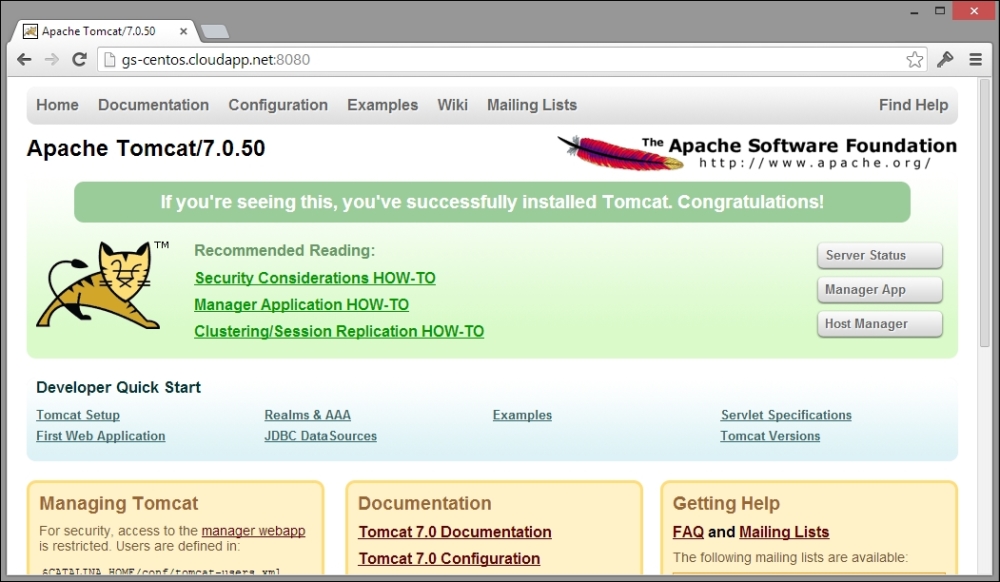
If everything works as expected, we will see a similar output. Start the Tomcat service again if it is not already running, and then navigate to the server's IP address or the URL. We should get the Tomcat web page like the one shown in the following screenshot:

Congratulations! We now have CentOS 6.3 running Java and Apache Tomcat with the Tomcat service automatically, starting each time the server boots. Go ahead and restart the server to check that the Tomcat service starts automatically.
The default configuration of Apache Tomcat does not have any user configured for access to the web management portal. If you want to have the ability to manage your instance of Tomcat using the web management application, then you will need to configure access.
Tomcat maintains a simple user access database in the form of an XML configuration file in the conf directory. To enable access to the manager web application, you must edit the user database or create one if it does not already exist. The file is called tomcat-users.xml and has a very simple structure. Here is a very basic example of a tomcat-users.xml file:
<?xml version="1.0" encoding="utf-8"> <tomcat-users> <role rolename="manager-gui" /> <user username="r2d2" password="5t4rW4r5" roles="manager-gui" /> </tomcat-users>
The structure of this file is very simple. First, you define the name of a role; in this case, the role name is specific to the web manager application as it expects one called manager-gui. Next, you create a <user> element and specify a username, password, and comma-separated list of roles that the user belongs to. Once you create the necessary entries for all the users, you want to grant access to the web manager application, and then you will need to restart the Tomcat service:
$ sudo service tomcat-1 restartOnce the Tomcat service has restarted, you should be able to access the manager web application at the http://[your server address]/manager/html URL. Enter your username and password when prompted.
Bear in mind that we run GeoServer in a production environment, and as such, security must be upmost in our considerations. Think carefully about the username and password you use. Make sure the password is strong and try to avoid using common usernames such as tomcat, admin, or manager.
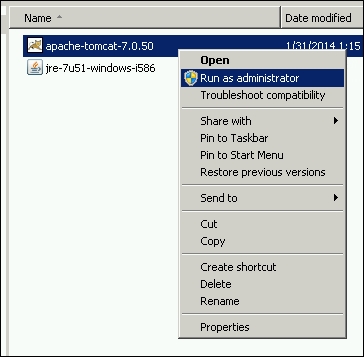
Once again, Windows users get the convenience of an installation wizard to take care of installing Tomcat. For the Windows installation package, choose the 32bit/64bit Windows Service Installer option. Download the installation file to a directory on your local hard drive.
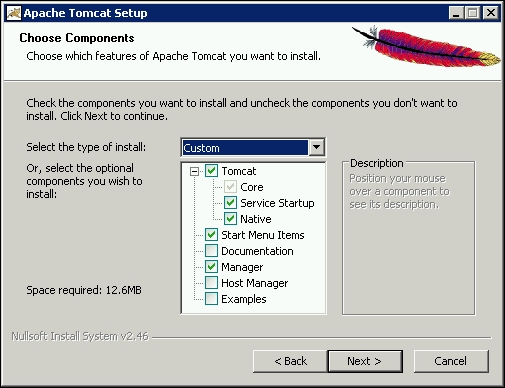
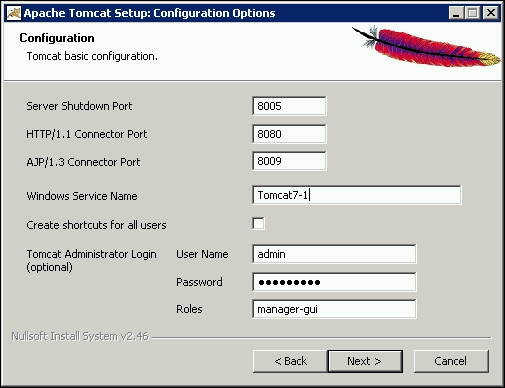
To install Tomcat, perform the following steps:
apache-tomcat-7.0.50.exe.
The APR is the Apache Portable Runtime, which is a library that provides Tomcat with better scalability, performance, and integration with other native web technologies.


Tomcat7-n, where n is an incremented number to identify the instance.C:\Tomcat7-1.Tomcat is now installed as Windows Service, which we can control like any other service.
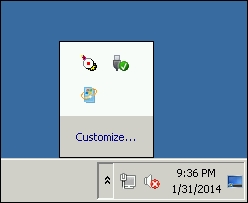
The Windows version of Tomcat comes with an application called Monitor Tomcat, which starts automatically each time you log on to Windows. It is a System Tray application that allows quick access to monitor and manage the running Tomcat service.

Notice the icon in the top-left corner of System Tray; this is the Monitor Tomcat application and its icon tells us that Tomcat is not currently running (indicated by the red square in the middle).
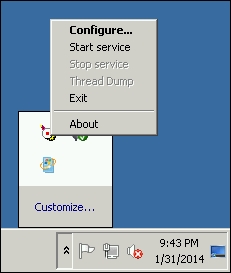
If the Tomcat service runs, it displays a green triangle on its side, like a "play" symbol. If we right-click on the Monitor Tomcat application icon, we get a context menu as shown in the following screenshot:

The context menu provides us with the ability to access the Tomcat service configuration and allows us to stop and start the service without the need to go through the normal Windows service applet. Of course, Tomcat still runs as a normal Windows service, so there is nothing stopping us to manage it in the normal way; the Monitor Tomcat application is just a convenience tool.
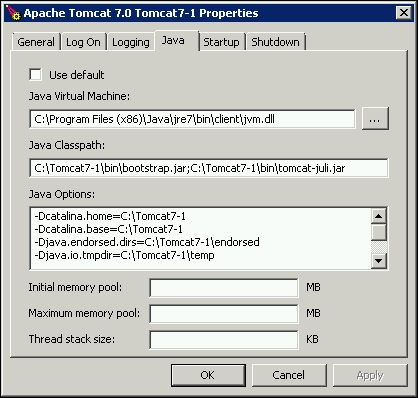
Before we start the Tomcat service to check our installation is alright, we must configure the memory settings that Tomcat will use for Java VM. Right-click on the Monitor Tomcat application icon and select the Configure… menu item to open the Tomcat service configuration dialog. Once it is open, click on the Java tab at the top:

The Java tab allows us to set options that control the way Tomcat starts Java VM; the most important of these, from our perspective, is the memory configuration. Memory settings can be specified in one of the following two ways:
The choice is merely one of the preferences as both will achieve the same effect. My personal preference is to put everything into the Java Options textbox as it is good to remind oneself of the correct Java option parameter names, especially if you have a mixed Linux/Windows server environment.
The actual values to use for memory settings are subjects that we will cover later in this book, and we will very much depend on how you intend to use your GeoServer in production. For example, if you only intend serving vector data (through WFS), then GeoServer requires very little by way of memory allocation. For now, we will set the memory to some good defaults for an all-rounder GeoServer. Click on the Java Options textbox and scroll to the last parameter, press Enter to start a new line, and then enter the following parameters:
-Dserver -Xmx1024m -Xms512m -XX:MaxPermSize=128m
These parameters and what their values mean are described in the table given in the Running Apache Tomcat as a service section of this chapter.
With the Java options set, we are now ready to fire up the Tomcat service and check everything as is expected. Click on the General tab, then on the big Start button, and cross your fingers as the service starts up. If everything works, then the Start button will be disabled and the Stop button will be enabled. If the Start button is enabled again, and the Stop button remains disabled, then unfortunately something is wrong. Check that all the option parameters are correct and then try again. If you still don't get the service starting, check the Tomcat logs to try and figure out why.
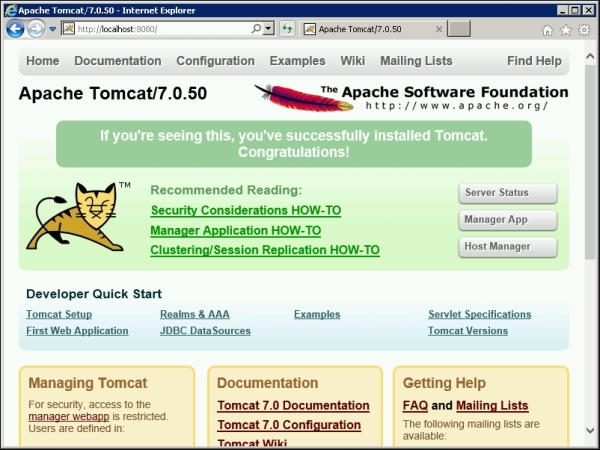
If all goes well, we should be able to open a browser window, navigate to http://localhost:8080/, and get the Tomcat 7 web page, as shown in the following screenshot:

Tomcat 7 web page
That's it! Java and Tomcat are now both configured on your Windows Server, and it is now ready to take the GeoServer application.
Change the font size
Change margin width
Change background colour