Sign In Start Free Trial
Account

Add to playlist

Create a Playlist

Modal Close icon
You need to login to use this feature.
  • Book Overview & Buying Mastering Geoserver
  • Table Of Contents Toc
Mastering Geoserver

Mastering Geoserver

By : Henderson
4.6 (7)
close
close
Mastering Geoserver

Mastering Geoserver

4.6 (7)
By: Henderson

Overview of this book

If you are a GIS professional who intends to explore advanced techniques and get more out of GeoServer deployment rather than simply delivering good looking maps, then this book is for you.
Table of Contents (14 chapters)
close
close
13
Index

Configuring multiple GeoServer instances on a single server

You might have spotted a common thread running through each of the scenarios outlined. In all cases, multiple instances of GeoServer are implemented, and in the case of scaling up, these instances are running on the same node.

Setting up multiple GeoServer instances on a single node is actually quite straightforward and will involve you creating several instances of the Tomcat installation. In the following examples, we will configure an additional instance of GeoServer for CentOS and Windows Server 2008. However, you can apply the same principle to create as many instances as you want, but bear in mind the memory configuration of your server, making sure that you do not add more instances than your resources will allow. Also, bear in mind the number of processing cores available; too many instances will overburden the processor, and any gain in adding the instance will be lost through decreased performance. Typically, you should not consider adding more than four instances per server.

Configuring on CentOS 6.3

First, we need to create a copy of our Tomcat installation directory:

$ sudo cp –R /opt/apache-tomcat-7.0.50/ /opt/apache-tomcat-7.0.50-2

This command will copy our installation directory to the same location and append 2 to the end. The name and location of the directory does not matter; just ensure that it has a different name so that you can distinguish it from others. Next, we need to make the tomcat user the owner of the new directory:

$ sudo chown –Rf tomcat:tomcat /opt/apache-tomcat-7.0.50-2/

Then we need to configure the Tomcat instance so that it can co-exist with other instances. This involves altering the server.xml file stored in the conf folder of the copied installation. Edit the file with your favorite text editor, and look for the line containing the following:

<Server port="8005" shutdown="SHUTDOWN">

Change the value of the port attribute to 8006 by incrementing it by 1. Further down the file, look for the line containing:

<Connector port="8080" protocol="HTTP/1.1" connectionTimeout="20000" redirectPort="8443" />

Change the value of the port attribute to 8081 by incrementing it by 1, save the file, and exit the text editor. We also need to change the value of redirectPort, again incrementing it by 1 to make it 8444. What we just did has changed the ports on which the Tomcat service will listen for connections. Failing to do this will generate an error when we try to start the Tomcat service. If we want to add more Tomcat instances, we just need to follow the same process; increment each value by 1 again.

Next, we need to copy our data directory out to a location where each instance can share it. For this, we will make a new directory:

$ sudo mkdir /mnt/share
$ sudo cp –R /opt/apache-tomcat-7.0.50/webapps/geoserver/data/ /mnt/share/geoserver-data
$ sudo chown –Rf tomcat:tomcat /mnt/share/geoserver-data/

Now, we created a directory to share amongst our instances, copied our original GeoServer data directory into it, and then made the tomcat user the owner of the directory.

You might be wondering why we just copied the data directory out to a different location. This is an important step for two reasons:

  • It is necessary to ensure that both instances of GeoServer deliver the same data and services
  • It makes upgrading GeoServer much simpler

The last point is an important one. Even if we only run a single instance of GeoServer, it is a good practice to place the data directory outside of the GeoServer installation. When we decide to upgrade, we can do so by simply deploying a new WAR file without having to back up and restore the original data directory.

Now we can make a new service for our newly configured instance:

$ sudo cp /etc/init.d/tomcat-1 /etc/init.d/tomcat-2

Next, we need to make some changes to the service script to tell each GeoServer instance where the data directory is located, and we will also control the name and location of the default logfile for GeoServer. Edit the tomcat-1 and tomcat-2 script files in your favorite text editor, and add the following lines near the start:

GEOSERVER_DATA_DIR=/mnt/share/geoserver-data
export GEOSERVER_DATA_DIR

This line sets an environment variable for our external data directory. Next, add the following lines:

GEOSERVER_LOG_LOCATION=$GEOSERVER_DATA_DIR/logs/geoserver-1.log
export GEOSERVER_LOG_LOCATION

This sets another environment variable, but this time it tells GeoServer what to call the logfile that will be generated. This is another important aspect of running multiple instances of GeoServer, and it is essential to avoid clashes on the logging.

Do the same for both the service scripts, but change the name of the logfile to suit each instance. Now we just need to register the second service script so that it can be controlled:

$ sudo chkconfig --add tomcat-2
$ sudo chkconfig --level 234 tomcat-2 on
$ sudo service tomcat-1 restart
$ sudo service tomcat-2 start

That's it! Now, we have two instances of GeoServer running on our server and sharing a common data directory. You can test it by opening a web browser and visiting the following:

  • GeoServer instance 1: http://[your server address]:8080/geoserver
  • GeoServer instance 2: http://[your server address]:8081/geoserver

Configuring on Windows Server 2008 R2 SP1

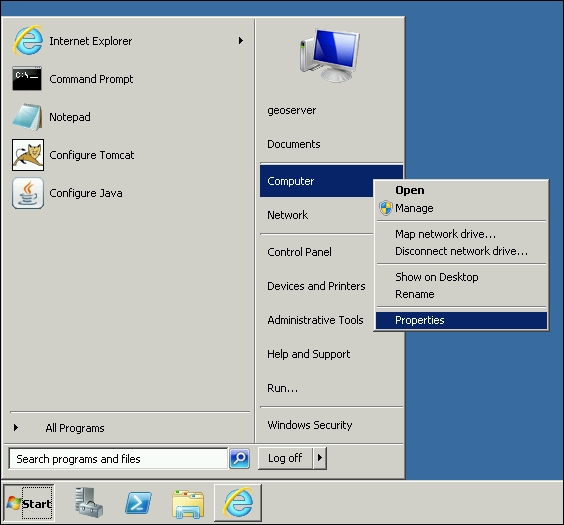
Once again, life is a little simpler in the world of Windows. All we need to do is configure some environment variables to set the location of the shared data directory and the name and location of the logfile, and then create a new service instance. First, copy the current GeoServer data directory (C:\Tomcat7-1\webapps\geoserver\data) to a location outside of the container, for example, D:\Data\geoserver-data. Then, click on the Windows Start button, right-click on Computer, and choose the Properties menu option:

Configuring on Windows Server 2008 R2 SP1

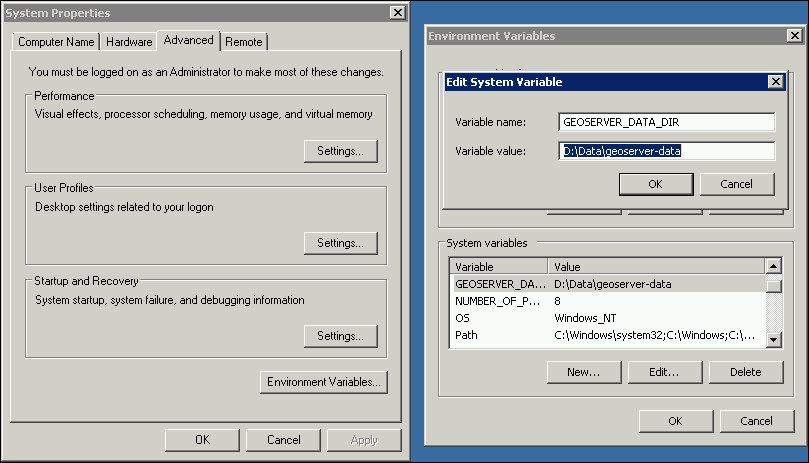
In the System Properties dialog that opens, click on the link at the left-hand side labelled Advanced system settings, and in the dialog box that opens, click on the Advanced tab. Click on the button labelled Environment Variables… to open a new properties dialog:

Configuring on Windows Server 2008 R2 SP1

Click on the New button in the System variables group, and then enter the details shown in the preceding screenshot. Click on Ok to dismiss all of the dialogs. We now have an environment variable to tell GeoServer where to find its data directory.

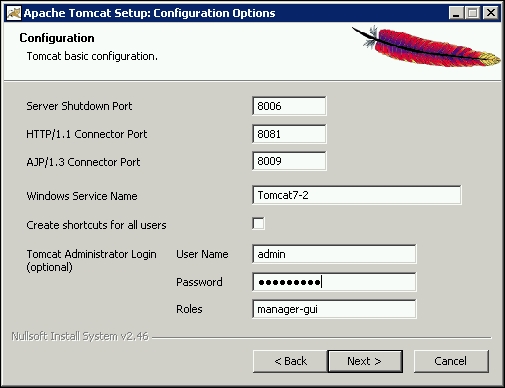
Next, we need to create a new instance of the Tomcat service. To do this, we just need to rerun the installation file that we downloaded originally. Work through all of the pages until you reach the Configuration Options page:

Configuring on Windows Server 2008 R2 SP1

On this page, we need to change the settings for the ports by incrementing the default values by 1, for example, HTTP/1.1 Connector Port will be 8081 instead of 8080. We also need to change the default value of Windows Service Name, in this case, we continue with our naming convention of incrementing each instance by 1. Click on Next to check whether the Java installation directory is correct, and then click on Next again to specify where we want to install the files. Change the installation location so that it points to C:\Tomcat7-2.

Now we need to use the Tomcat Monitor application to control the new service. Copy the same values for the Java options, but also include an additional parameter to tell GeoServer where to create its logfile this time:

-DGEOSERVER_LOG_LOCATION=D:\Data\geoserver-data\logs\geoserver-2.log

We created a second instance of Tomcat, so we just need to deploy the geoserver.war file to it by copying it into the C:\Tomcat7-2\webapps folder and letting Tomcat perform autodeploy when it starts up.

Remember to include –DGEOSERVER_LOG_LOCATION in the original Tomcat instance Java options, and specify the name of a logfile so that it can be distinguished. Then, restart both the new services. If everything works as expected, you can open a browser and navigate to:

  • GeoServer instance 1: http://localhost:8080/geoserver
  • GeoServer instance 2: http://localhost:8081/geoserver
Visually different images
CONTINUE READING
83
Tech Concepts
36
Programming languages
73
Tech Tools
Icon Unlimited access to the largest independent learning library in tech of over 8,000 expert-authored tech books and videos.
Icon Innovative learning tools, including AI book assistants, code context explainers, and text-to-speech.
Icon 50+ new titles added per month and exclusive early access to books as they are being written.
Mastering Geoserver
notes
bookmark Notes and Bookmarks search Search in title playlist Add to playlist font-size Font size

Change the font size

margin-width Margin width

Change margin width

day-mode Day/Sepia/Night Modes

Change background colour

Close icon Search
Country selected

Close icon Your notes and bookmarks

Confirmation

Modal Close icon
claim successful

Buy this book with your credits?

Modal Close icon
Are you sure you want to buy this book with one of your credits?
Close
YES, BUY

Submit Your Feedback

Modal Close icon
Modal Close icon
Modal Close icon